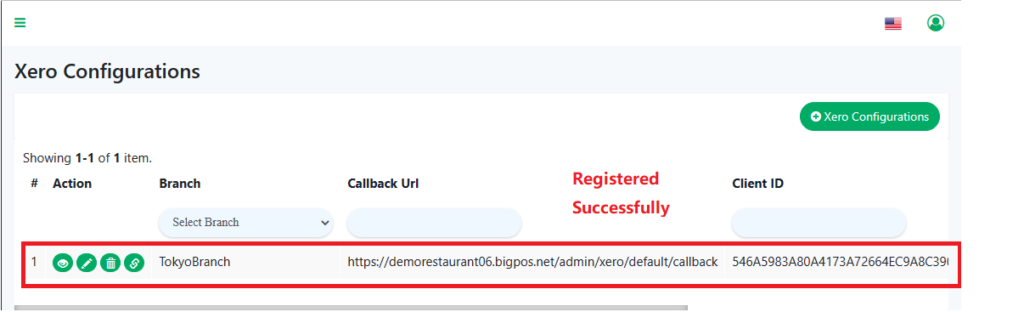
Xero Configuration – Set up Xero Configuration in BIG POS.
Introduction
This feature enables BIG POS users to direct sync sales data with Xero. It will automatically sync your sales data in BIG POS System into Xero in every 10 minutes.
How to create a Xero configuration in BIG POS?
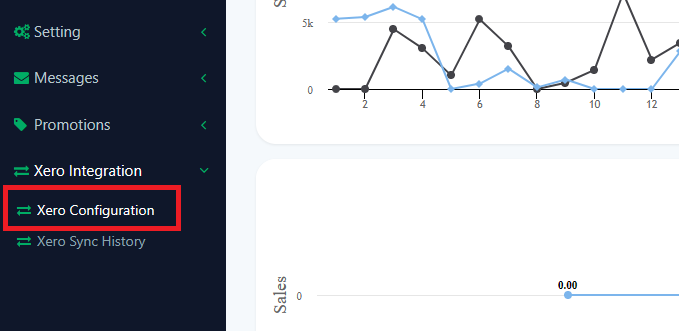
- First, go to Xero Integration and select Xero Configuration.
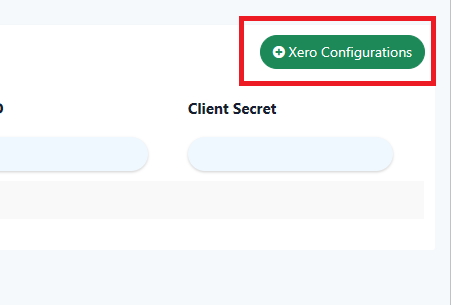
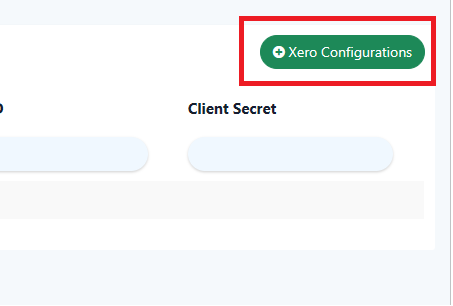
2. Then, you will saw “+ Xero Configurations” on right above and Select it.
3. Afterwards, you need to fill in or select some information such as Client ID, Client Secret, Sync Order, and Branch. Client ID and Client Secret can be found on the Xero developer website, Sync orders have 2 options which are ASC and DESC. ASC means ascending order and DESC means descending order. The Branch is to choose which branch you plan to use.
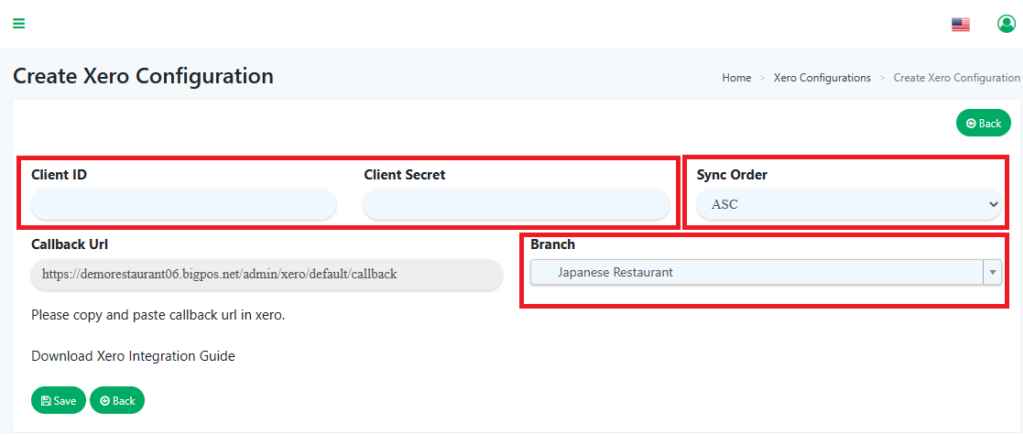
4. Client ID and Client Secret data need to get it from the Xero Developer website App management – Xero.
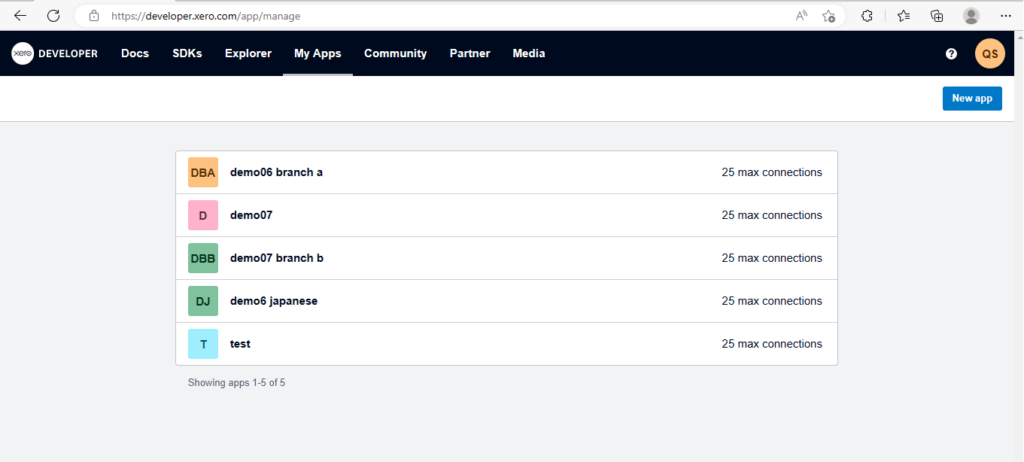
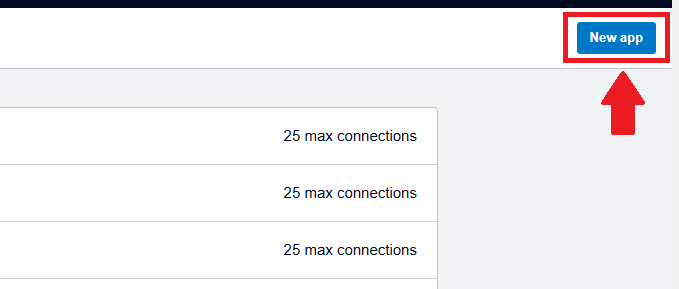
5. You need to create a “New app“.
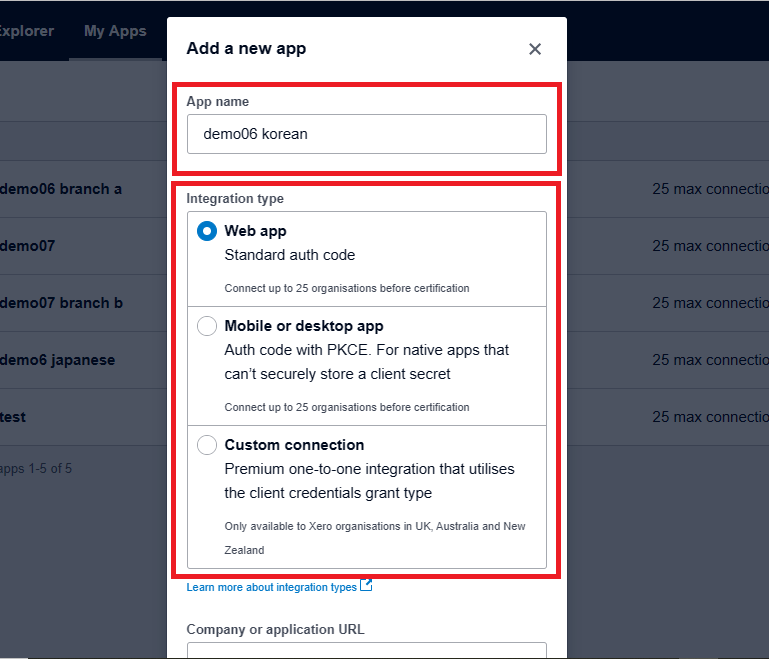
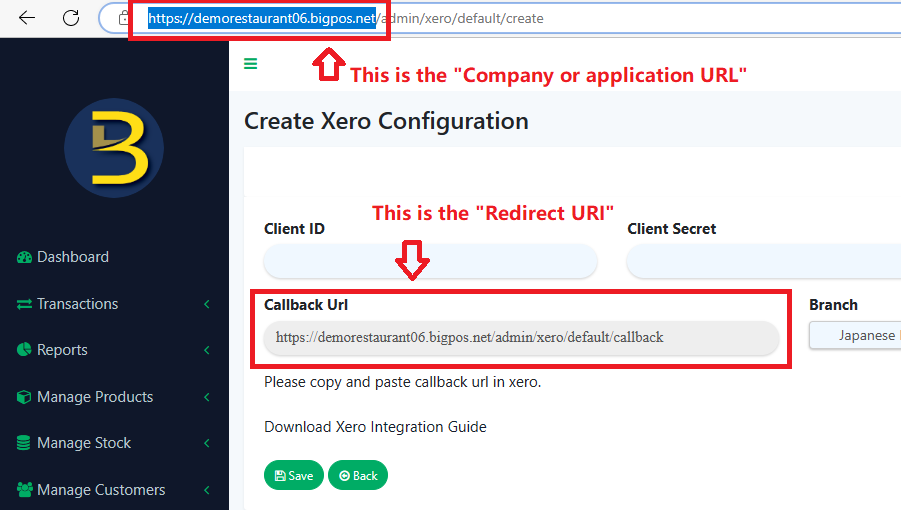
6. Fill in your “App name“, “Company or application URL“, and “Redirect URI“, and choose your “Integration type“. Then, you must accept the terms and conditions to continue.
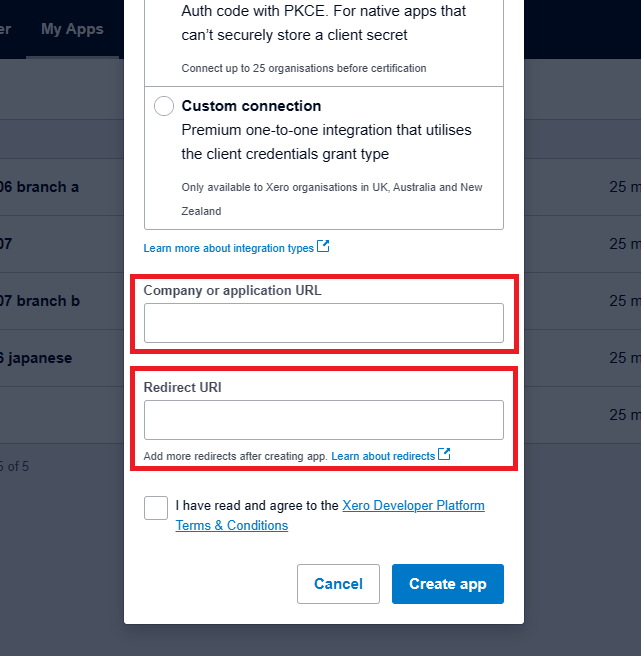
7. “Company or application URL” and “Redirect URI” can be found on BIG POS website “+ Xero Configuration“.
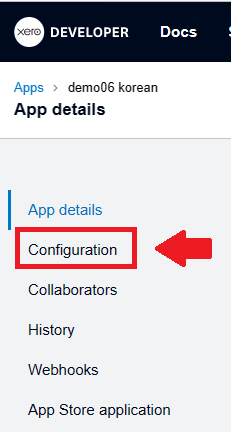
8. After Creating the app, you will proceed to this page and choose “Configuration“.
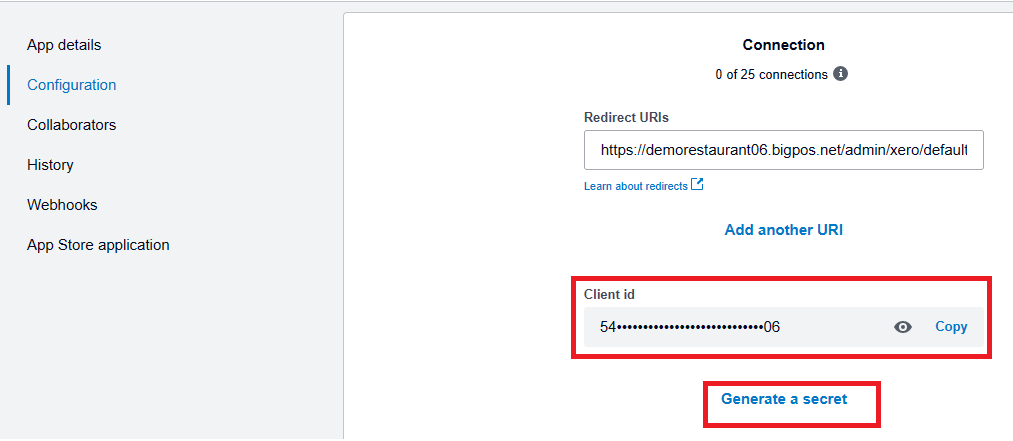
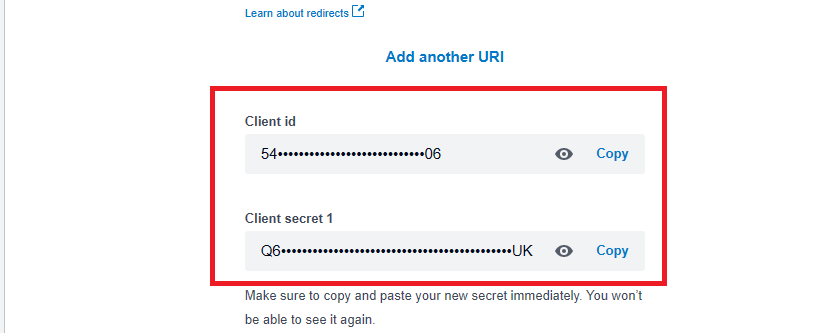
9. Here are the Client id and Client secret data, copy and paste into BIG POS Site and click “Save“.
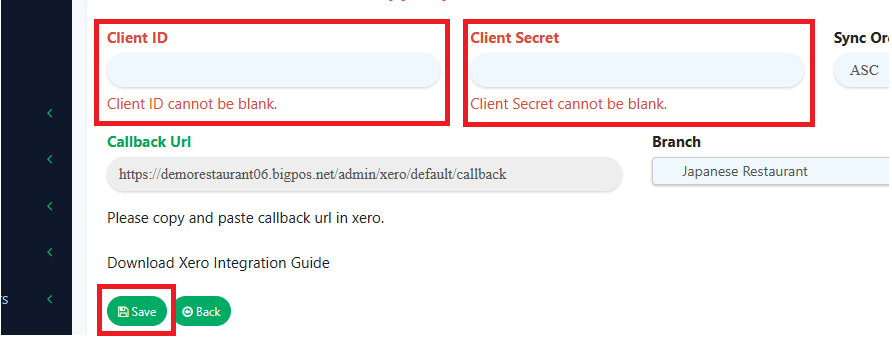
10. After choosing the “Save” button, you will be redirected to the Xero authorize website.
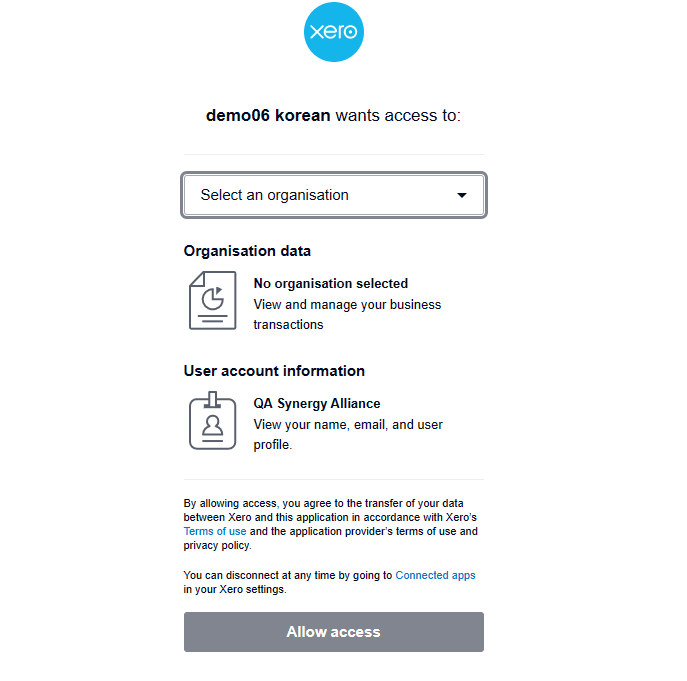
11. At this point, we need to create an account from Xero website https://login.xero.com/identity/user/login to proceed above No.10 situation.
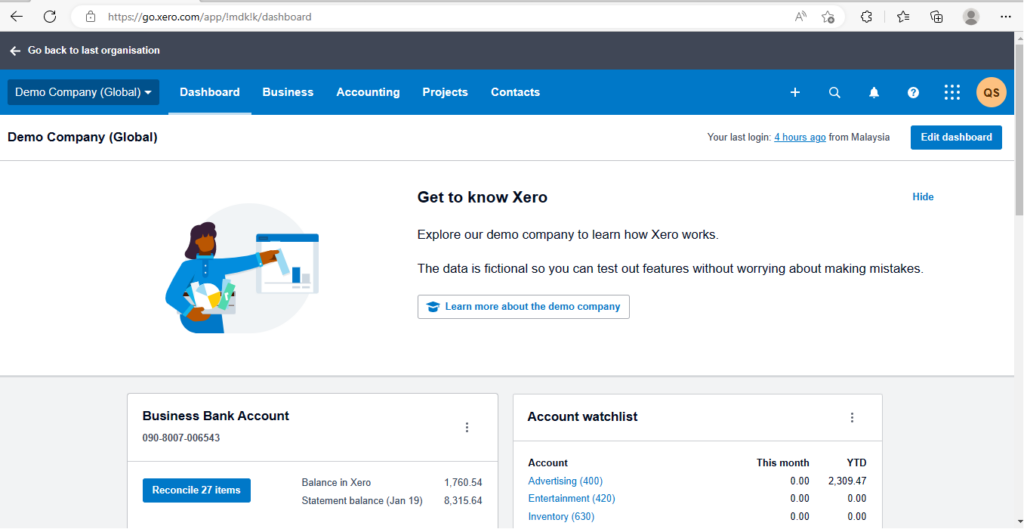
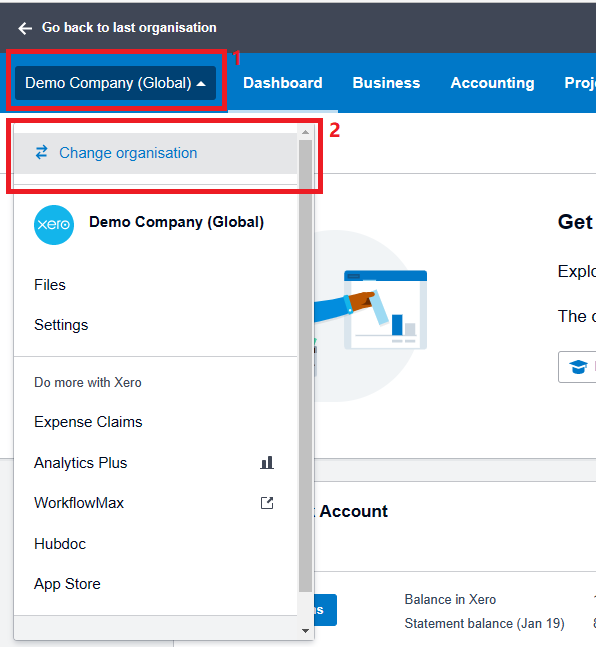
12. Select on “Demo Company (Global)” scroll down list and choose “Change organisation“.
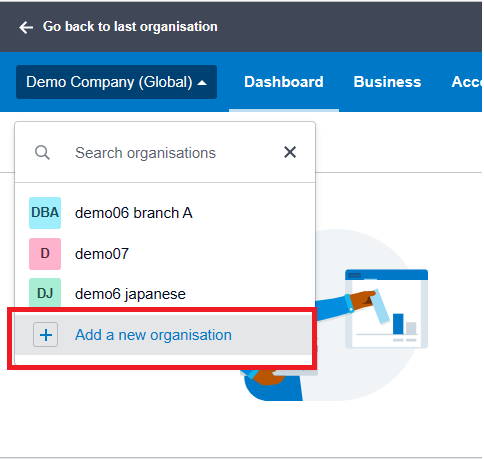
13. Select on “Add a new organisation”.
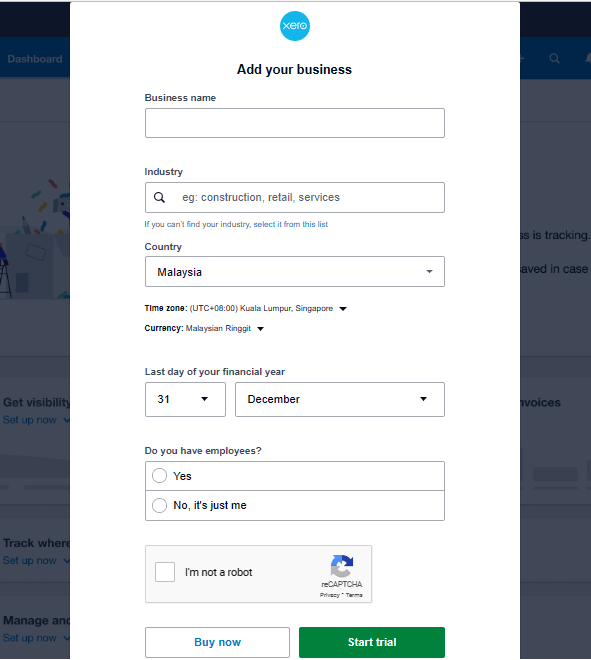
14. Fill in all your data and click on Buy Now or Start Trial.
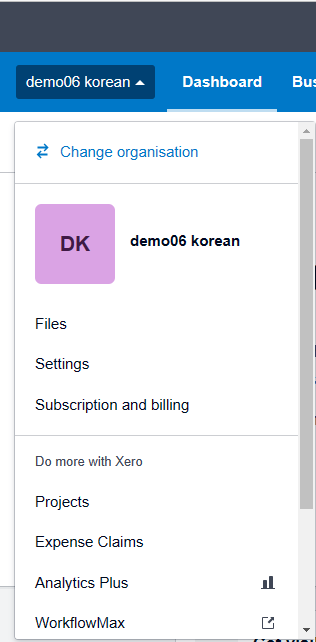
15. After completing the form, you will auto-log out by Xero, and you must log in again. Then you need to back to the developer page as No.10 above scenario and choose which organization you need to use. (No.10 above situation solved)
16. After that, you will redirect back to BIG POS Website, and your account is set up successfully and ready to use.