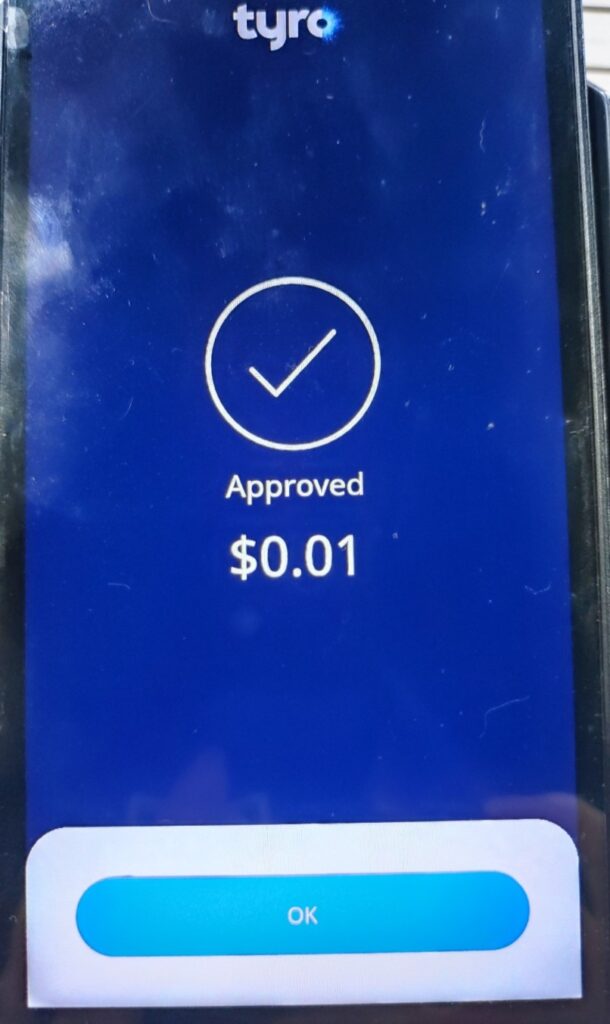
Tyro Integration
Introduction
We’re excited to announce that our POS system is now integrated with Tyro, enabling seamless payment experiences for businesses across hospitality, retail, services, and healthcare.
How to configure Tyro?
Setup Web Admin Setting (Offline Payment)
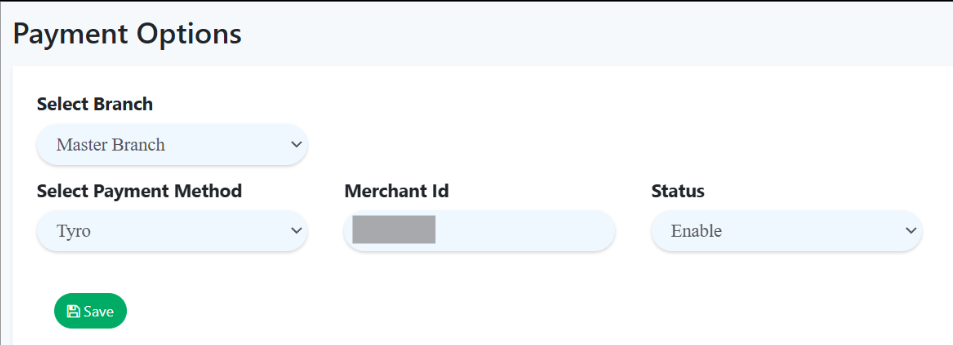
- Go to Web Admin and click on “Settings”.
- Navigate to the subcategories and select “Payment Options“.
- Ensure that you choose “Tyro” as the Select Payment Method and enter valid Merchant ID. Make sure status is enabled and click the “Save” button.
Setup Tyro terminal with Pro App
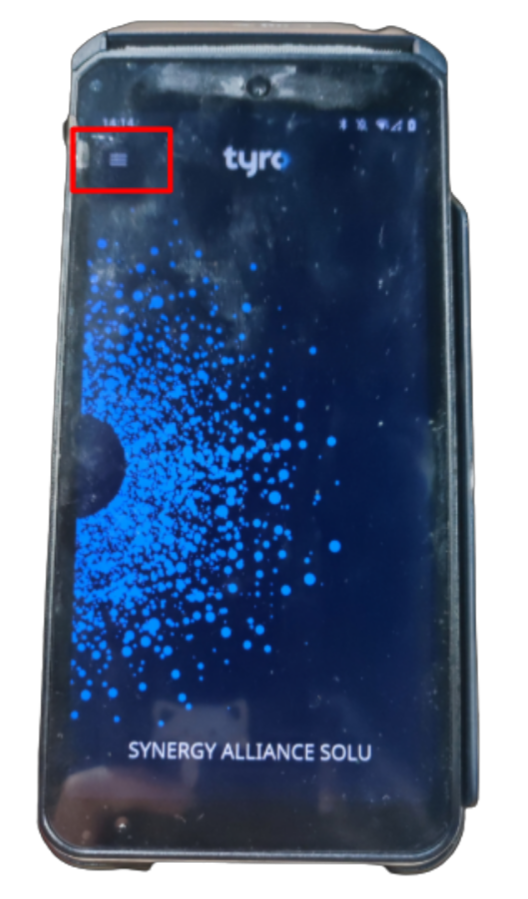
1. In Tyro terminal, click the top left menu icon.
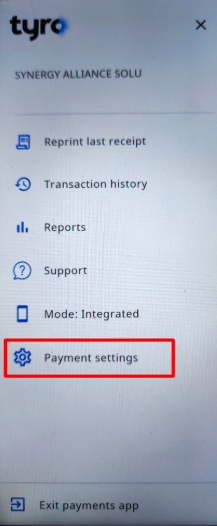
2. Click Payment settings.
3. Then, enter the admin password.
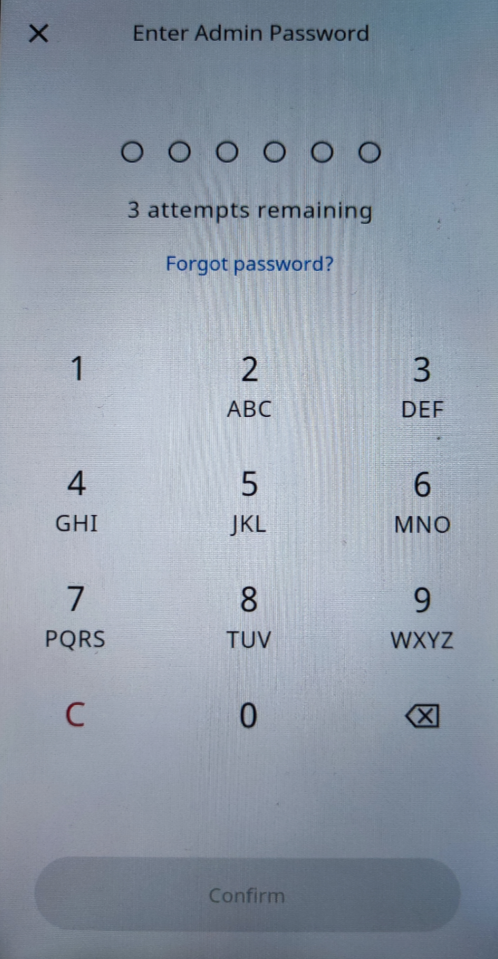
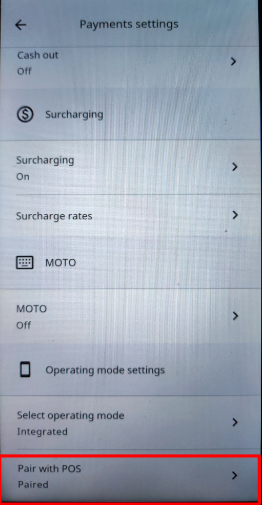
4. Scroll to bottom and click Pair with POS.
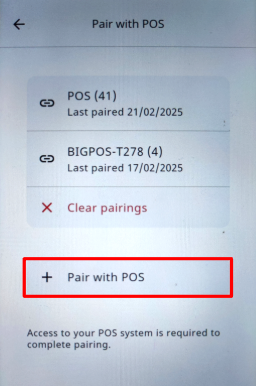
5. Click + Pair with POS.
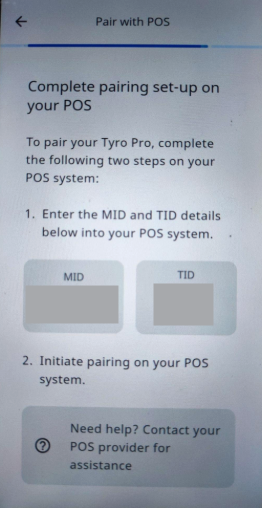
6. After that, to ensure the pairing, please follow the steps set-up screen that is displayed.
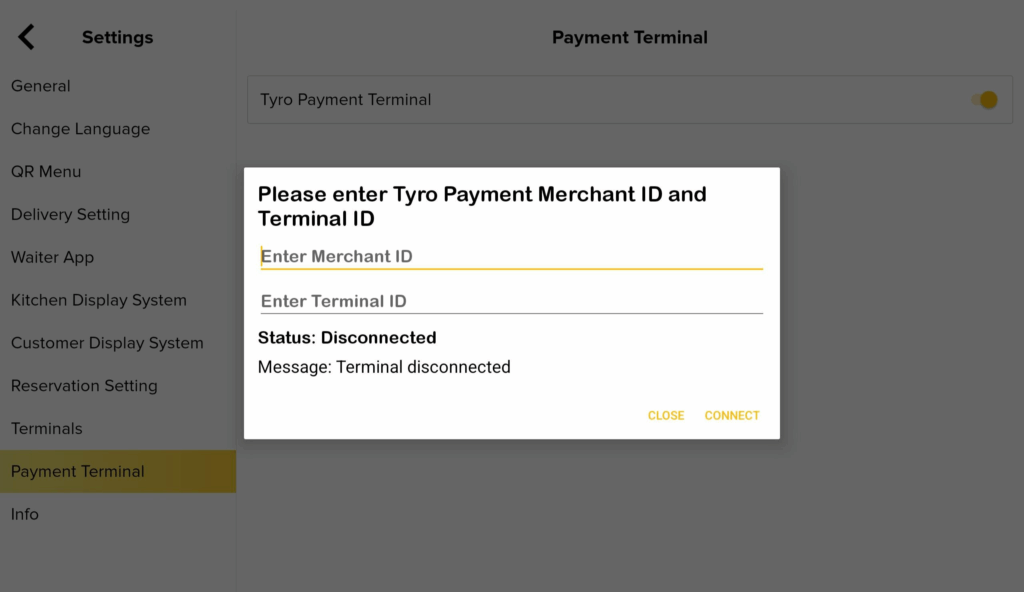
7. In BIGPOS Pro, go to Settings and click Payment Terminal.
8. Then, enable Tyro Payment Terminal and enter the Tyro payment terminal ID (TID).
Pay using Tyro terminal in Pro app
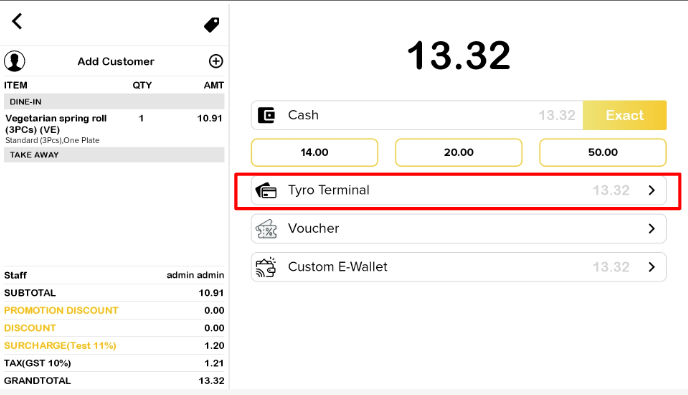
1. Add item to cart > select Tyro terminal.
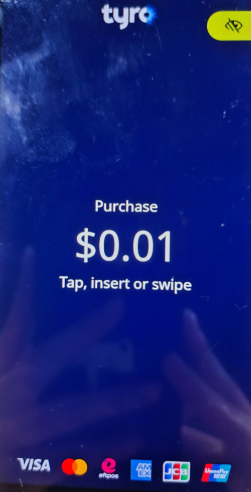
2. Then wait for the Tyro terminal device to pop up the payment amount and pay.
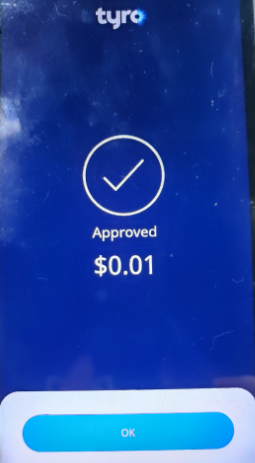
3. Payment successful.
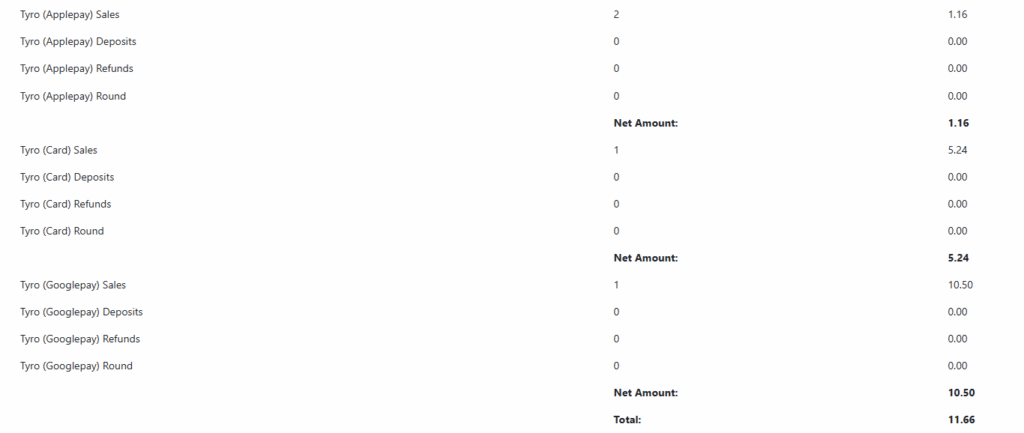
Terminal payment in Shift Report
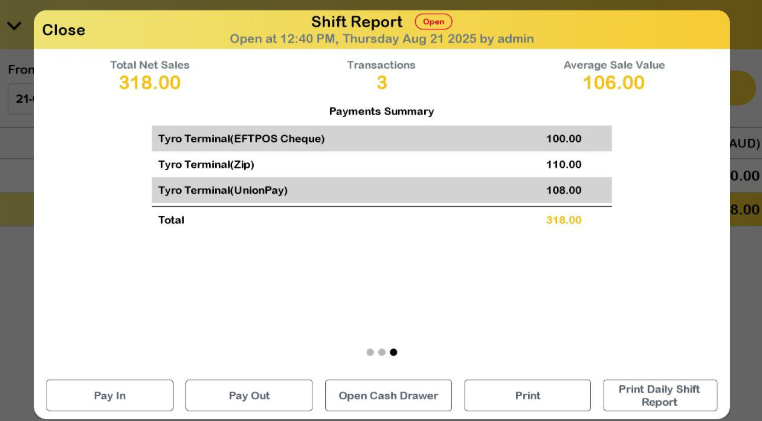
Web Admin Shift Report (Terminal)
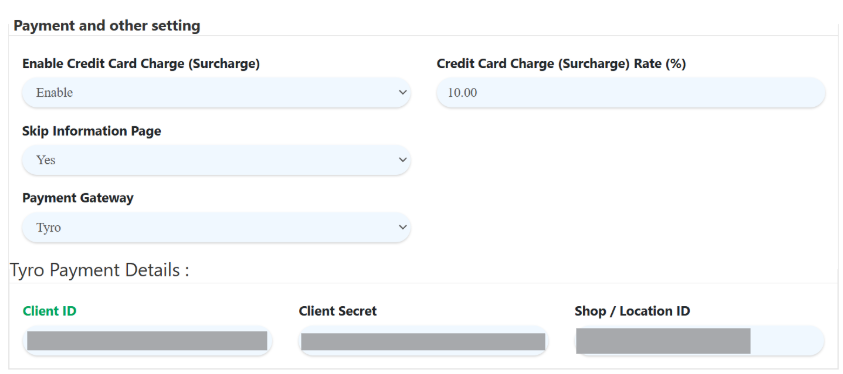
Setup Web Admin Setting (QR)
- Go to Web Admin and click on “Settings”.
- Navigate to the subcategories, select “Branch” and click “QR Menu”
- Then, select “Tyro” payment gateway and enter the Client ID, Client Secret and Shop/Location ID.
- Click the “Save” button.
Pay using Tyro in QR (card)
1. Generate QR Menu code and scan with your phone.
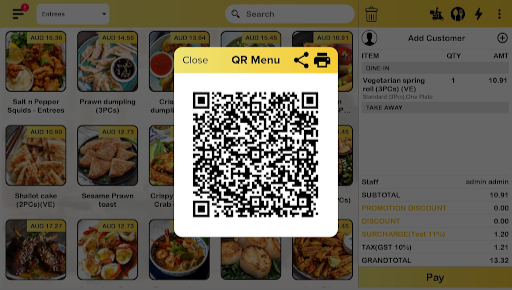
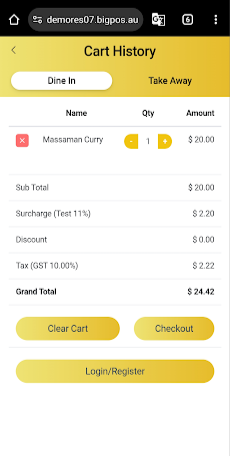
2. Add item to cart and click checkout button.
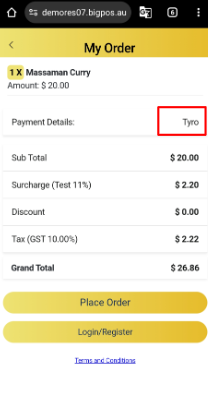
3. Select Tyro payment details and click place order.
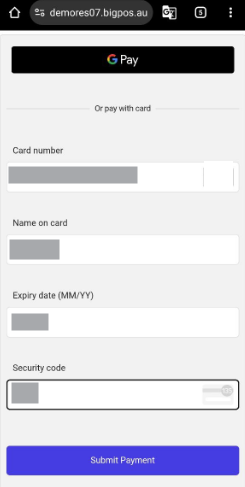
4. Enter card details and click Submit Payment.
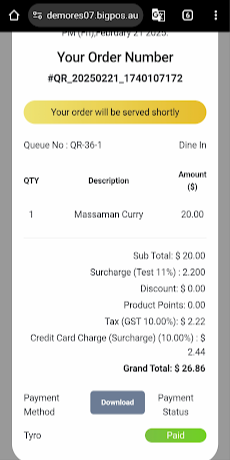
5. Successful payment.
Pay using Tyro in QR (Google Pay)
1. Generate QR Menu code and scan with your phone.
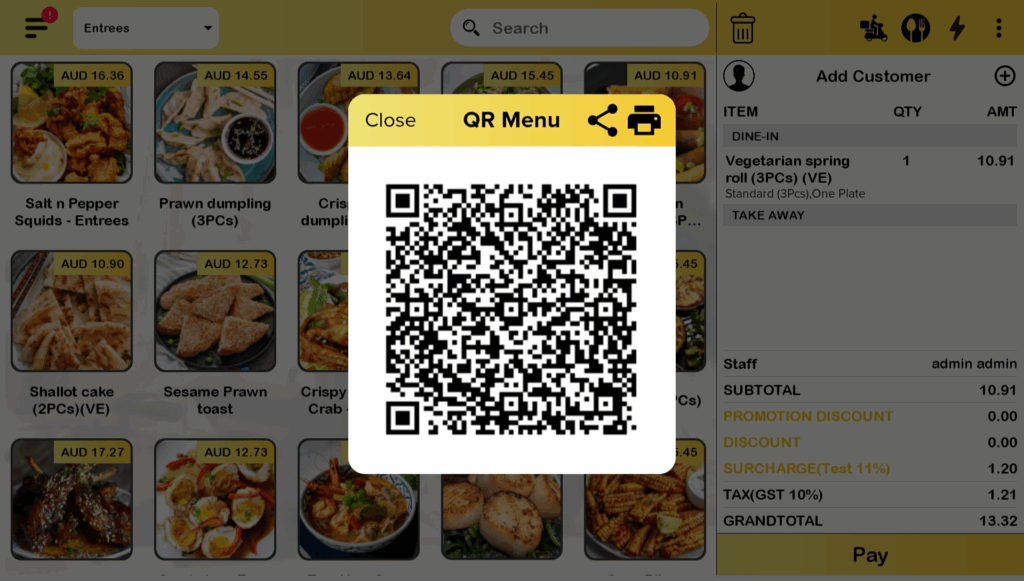
2. Generate QR Menu code and scan with your phone.
3. Select Tyro payment details and click place order.
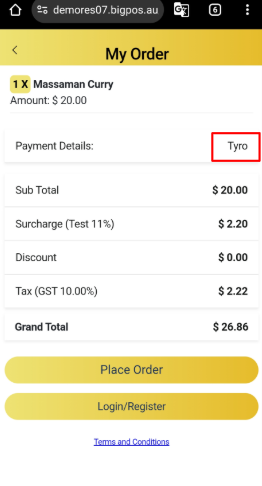
4. Click on Google Pay.
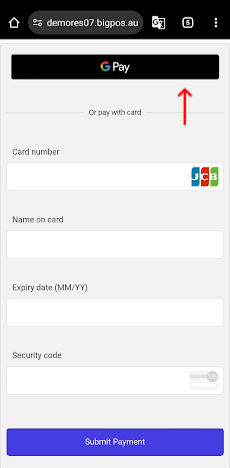
5. Successful payment
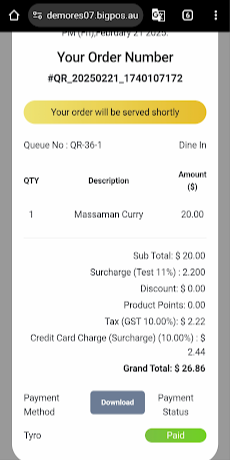
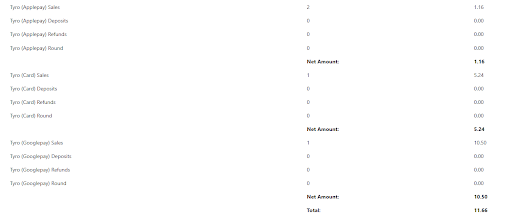
Online payment in Shift Report
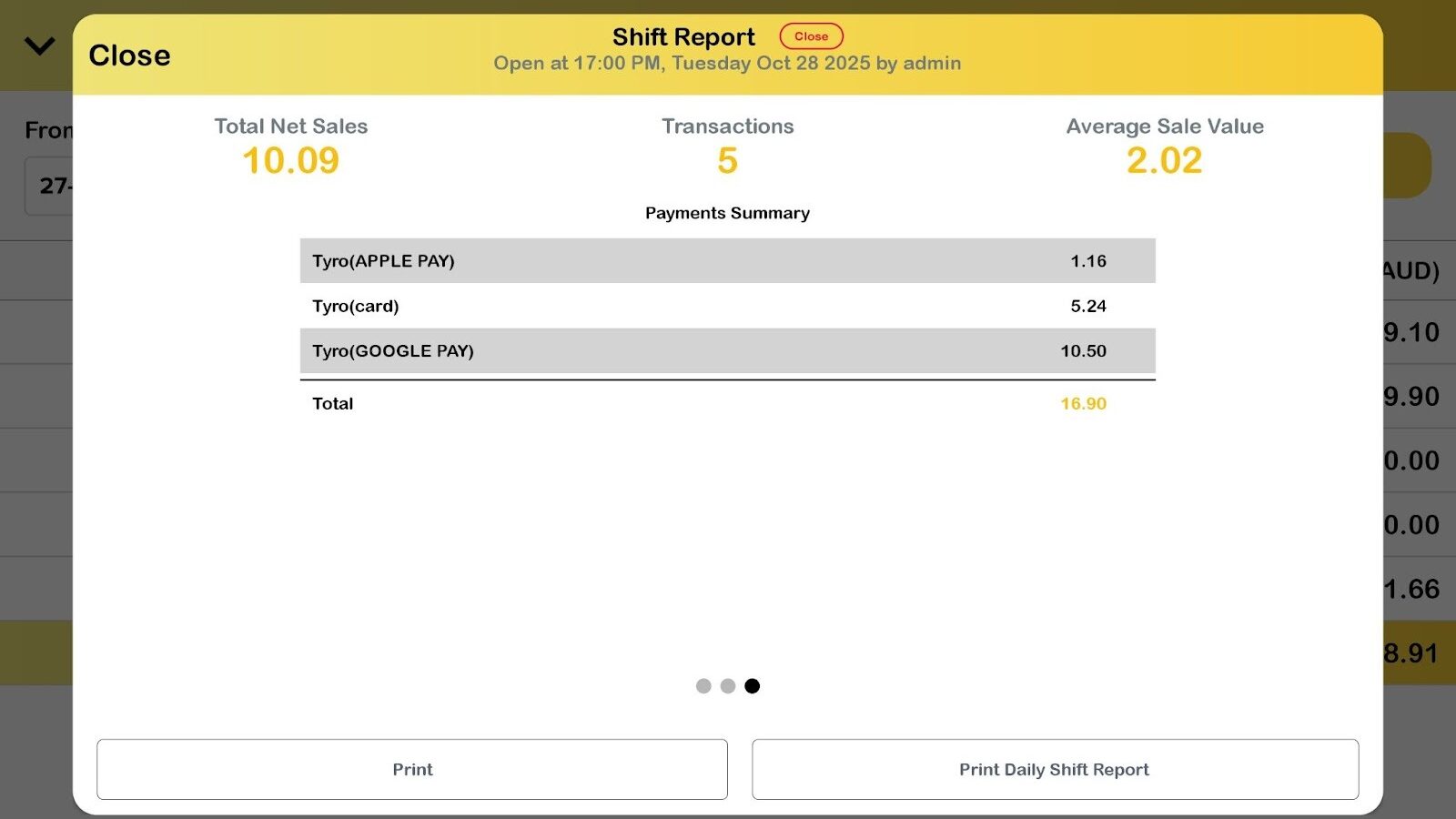
Web Shift Report Admin (Online)
Setup Tyro terminal with SOK
1. In Tyro terminal, go to side menu and click Payment settings.
2. Enter admin password.
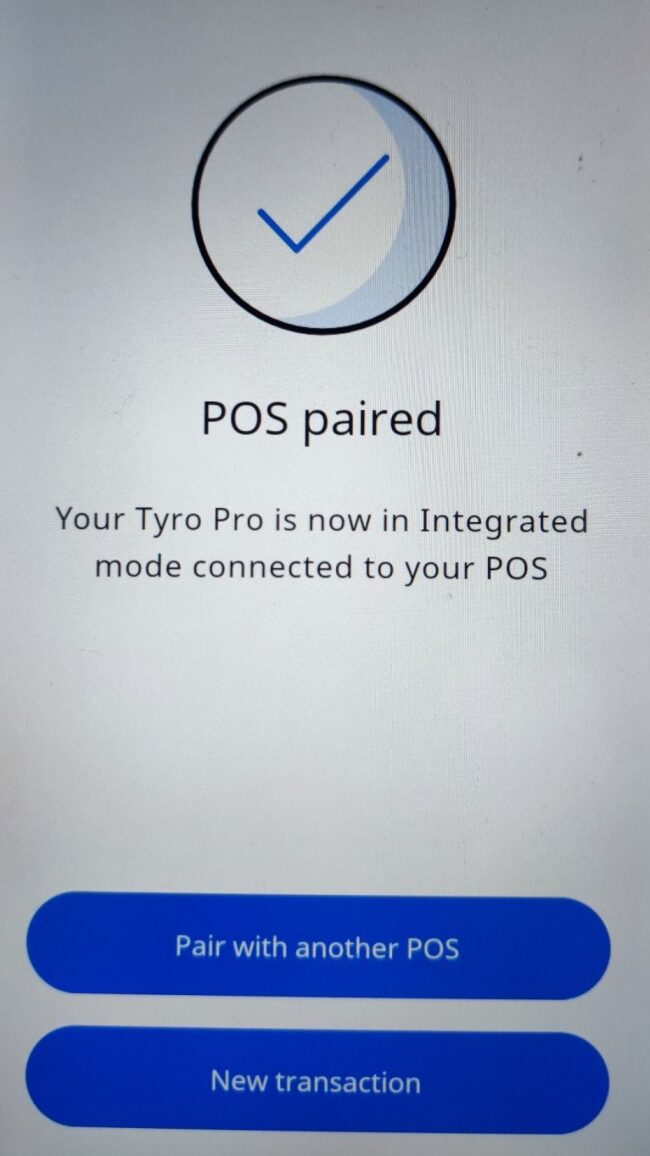
3. Then, scroll to the bottom and click Pair with POS.
4. Click + Pair with POS and to ensure the pairing, please follow the steps set-up screen that is displayed
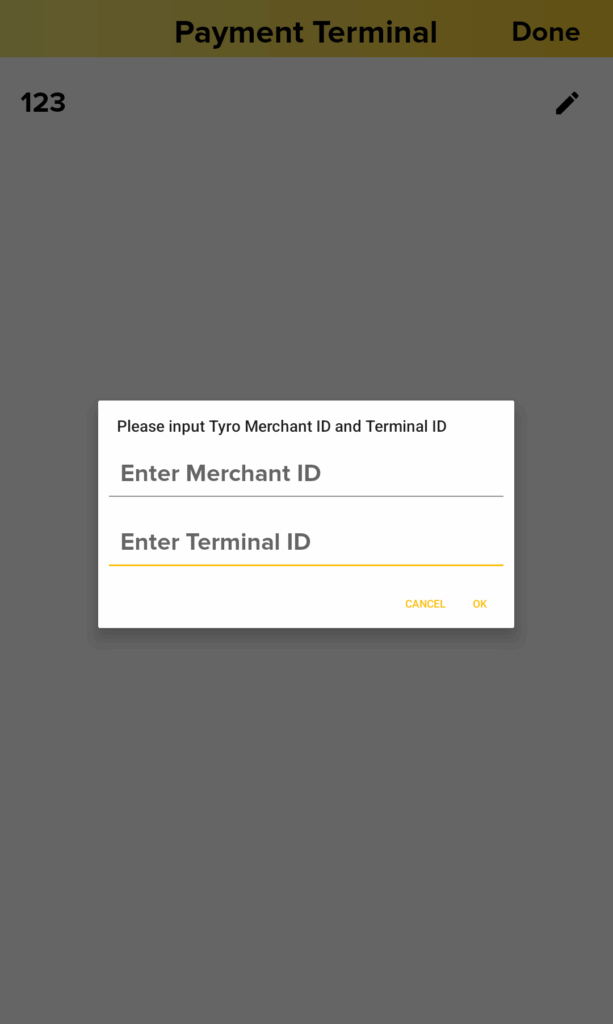
5. In SOK, click Add Payment Terminal and select Tyro terminal.
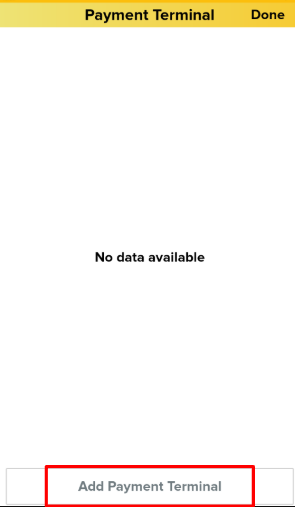
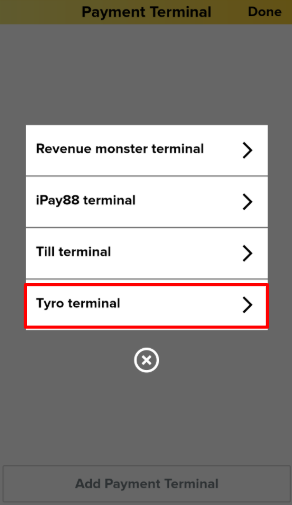
6. Enter Tyro merchant ID and terminal ID. Then, successfully paired.
Pay using Tyro terminal in SOK
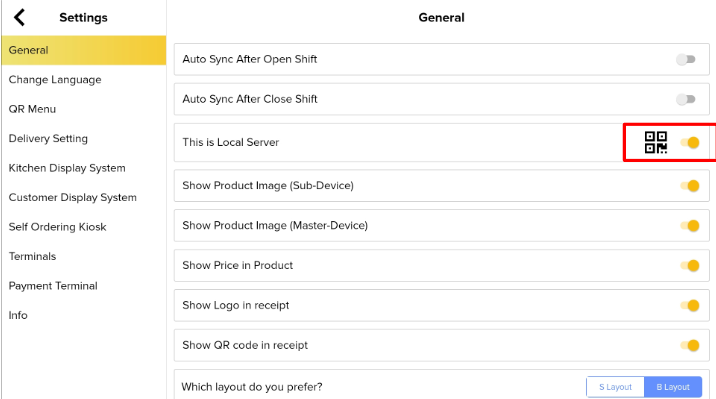
1. In BIGPOS PRO go to Settings, enable “This is Local Server”.
2. Select Self Ordering Kiosk and click on add self ordering kiosk.
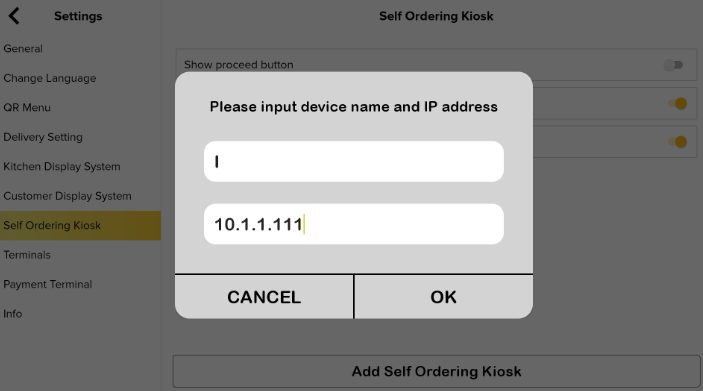
3. Once the Pro app and SOK device are connected, customer can add order to cart and click Pay.
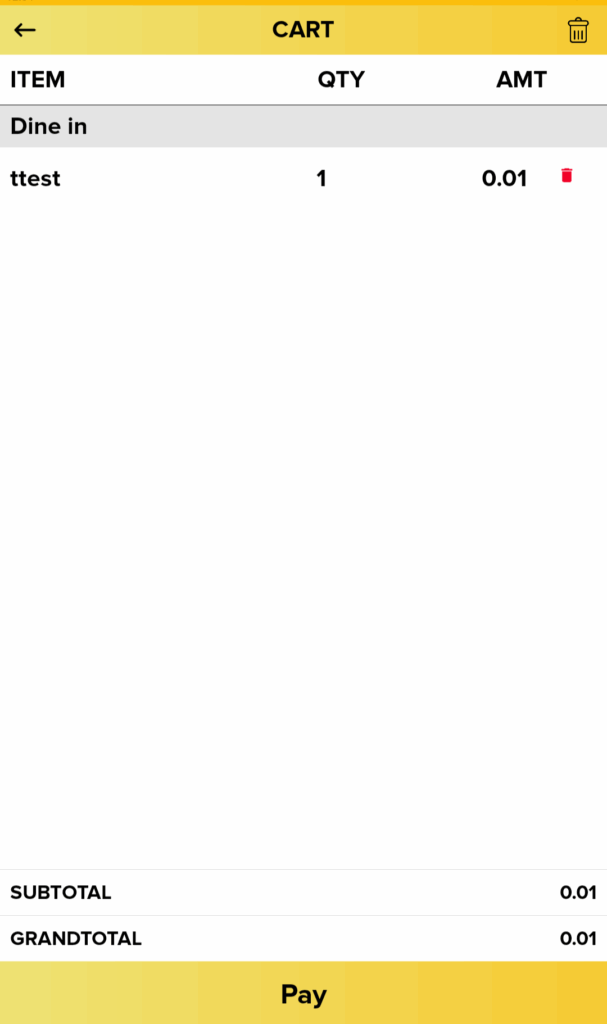
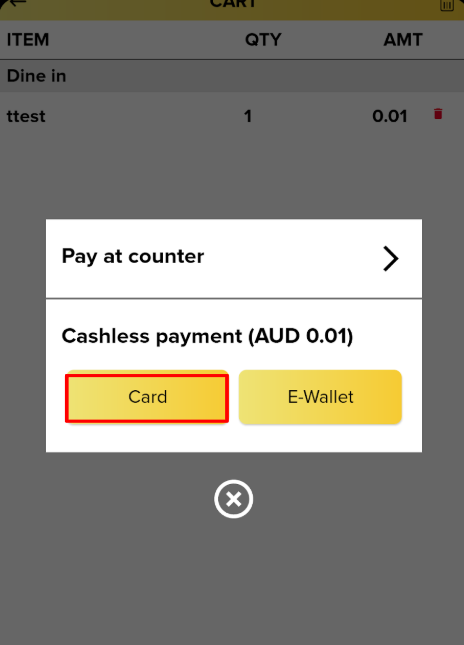
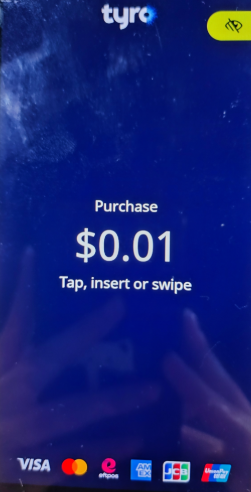
4. Then select Card, wait for Tyro terminal to pop up the payment amount and tap the card on Tyro terminal.
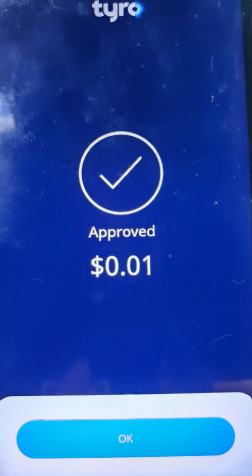
5. Payment successful.
Refund Tyro payment in terminal
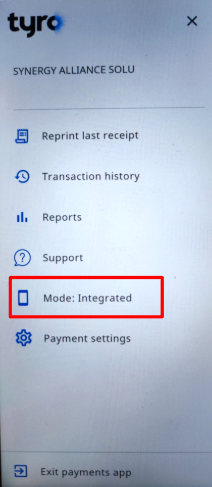
1. In the Tyro terminal device, click the side menu.
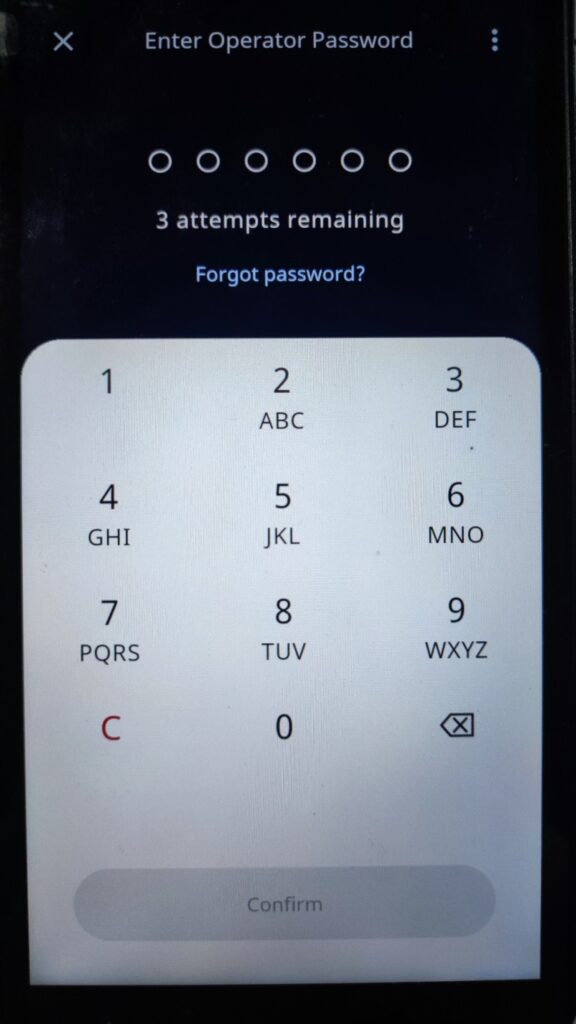
2. Click Mode: Integrated and enter Operator Password.
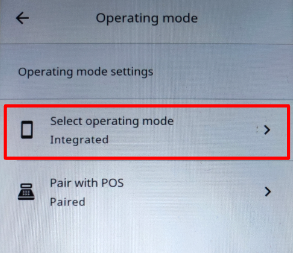
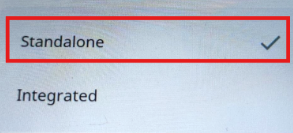
3. Then, click Select Operating Mode and change to Standalone mode.
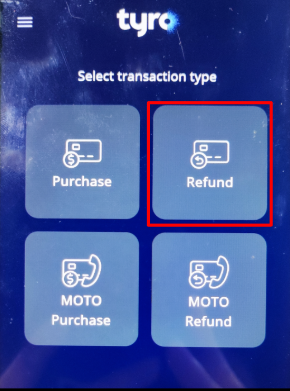
4. After that, return to the main page and click Refund to select the transaction type.
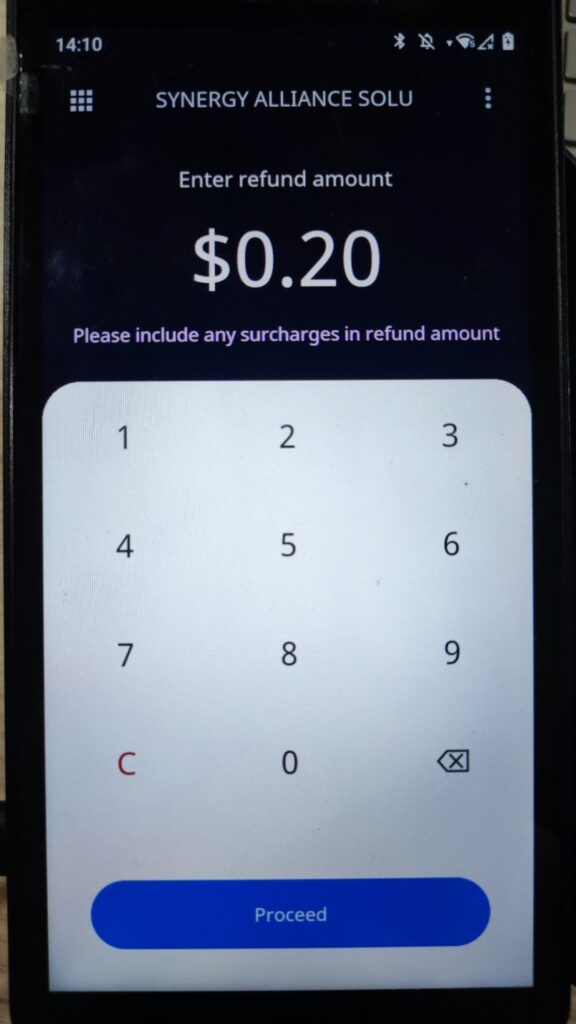
5. Enter refund amount and click Proceed.
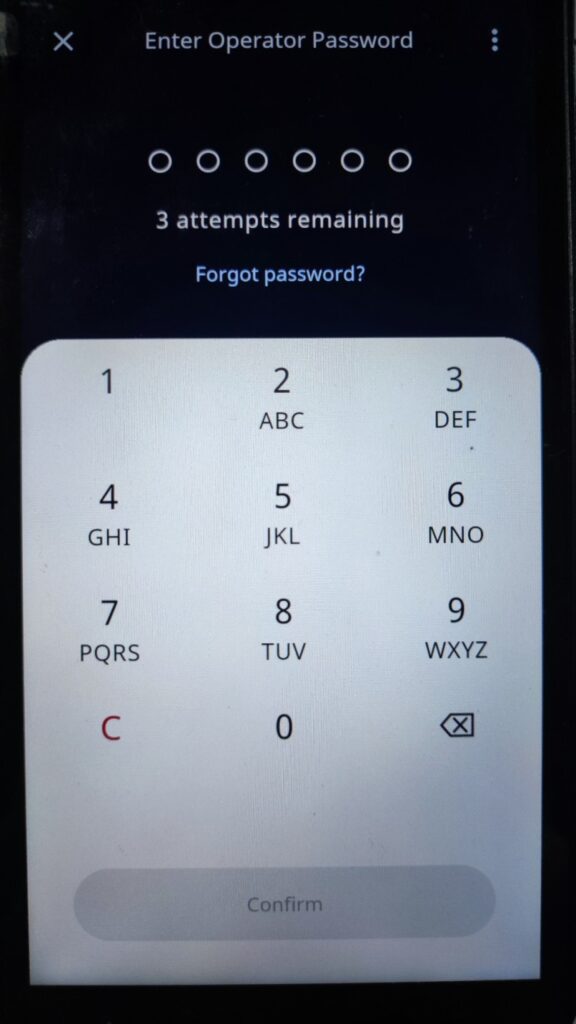
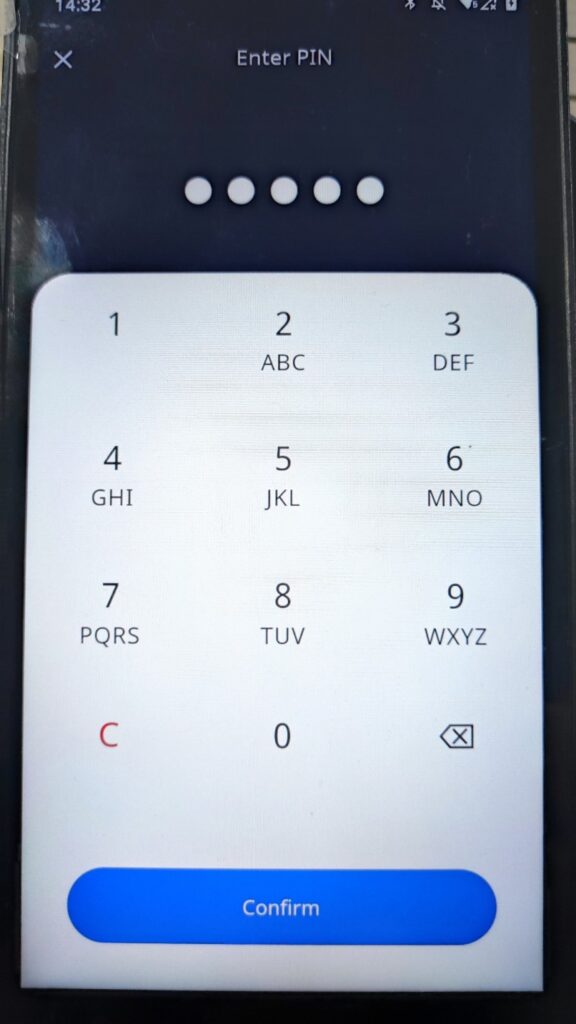
6. Enter Operator password.
7. Tap the card on the device and enter the card.
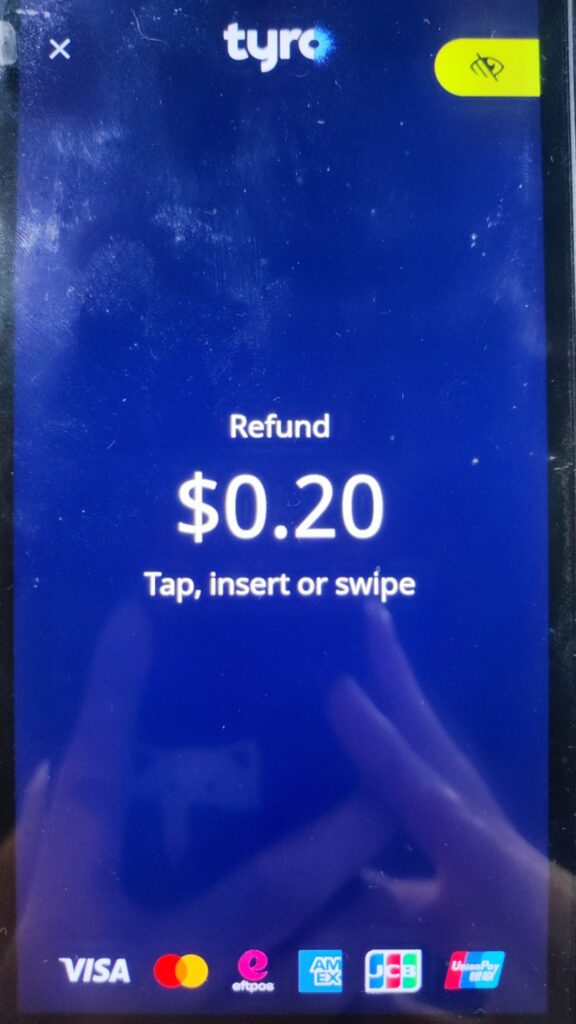
8. Refund successful.