How Can We Help?
Transaction – How to View Trash Transaction
Introduction
This page will shows after you click on ‘View Trash’ on the transaction main page. It allows you to apply filters and search for deleted transactions.
How to view trash records?
First, you need to go to transactions main page.
- Click on ‘Transactions’ On the left panel menu.
- Click on ‘Transactions’.
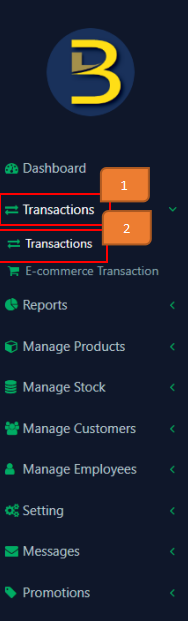
3.Then, click on ‘View Trash’ icon on transaction main page(top right corner). You will be directed to view trash records page.
How to view trash records?

To search a particular trash record, apply the filters.
- Created At
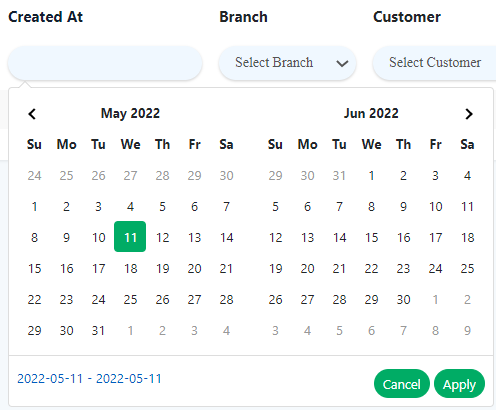
- Branch
Select the branch you wanted to view from.
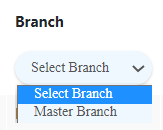
- Customers
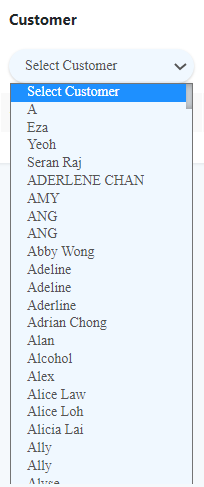
- Employee
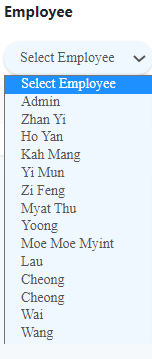
- Created from
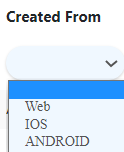
- Sub total
- Discount

- Tax
- Grand Total
How to view particular trash record?

Click on the icon  under ‘Action’ of the record you wanted to view.
How to restore a deleted transaction?
You can restore deleted transaction back to transaction list. To do this,

- Click on the icon
 under ‘Action’ of the record you wanted to restore.
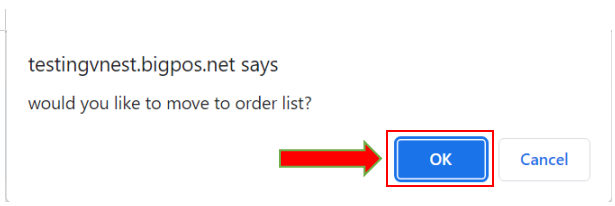
- Click on ‘Ok‘ on the dialog box shown above
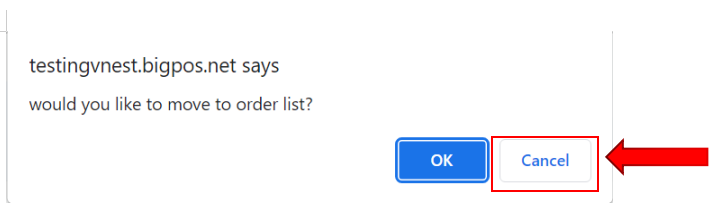
- If you wish to cancel restoring, Click on ‘Cancel’
How to return back to transaction main page?
Click on the icon  on the top right of the page.