How Can We Help?
Till E-Wallet Payment
Introduction
Previously, Till online payments in Australian accounts only supported card transactions. With our latest update, we’ve now added support for E-wallet online payments in Till.
Setup Till Payment Online Payment (E-Wallet) in Web Admin
- Go to Web Admin and click on “Settings”.
- Select “Branch” and click the “Update” button.
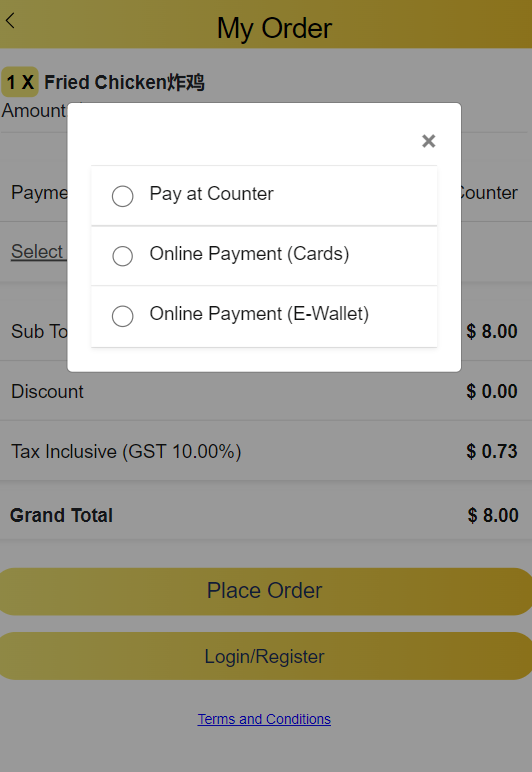
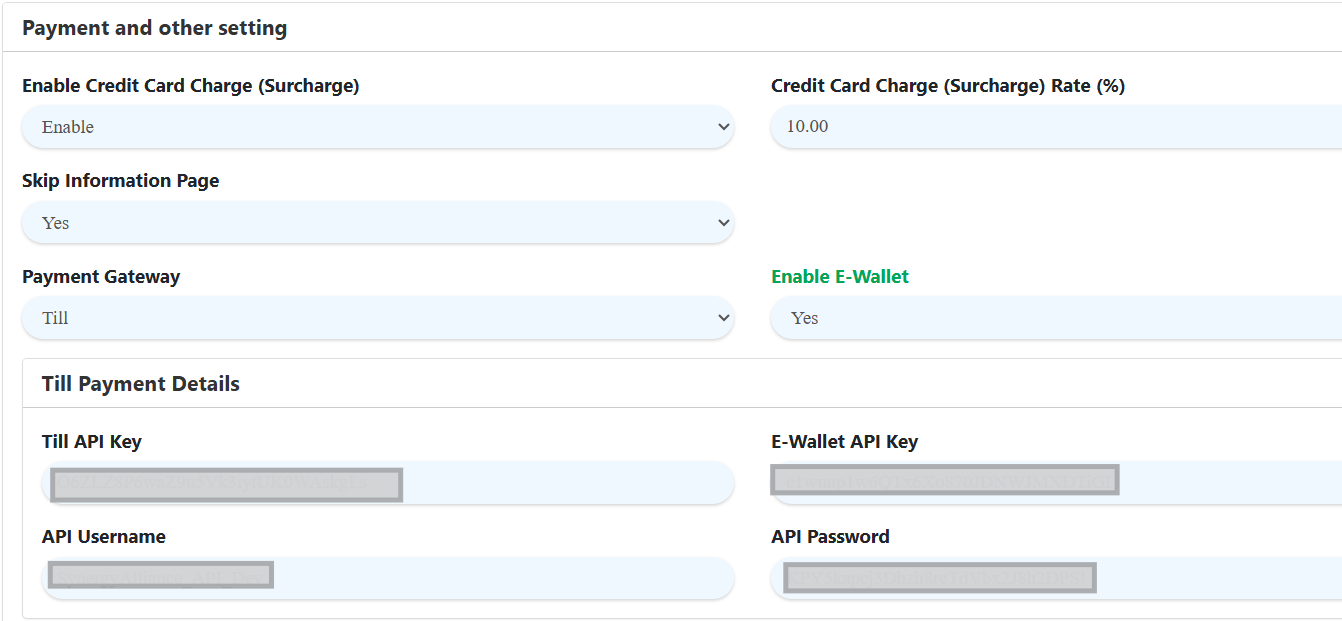
- In the QR Menu tab, fill in all the required fields. Ensure that you choose “Till” as the payment method and make sure “Enable E-Wallet” = YES.
- Then, in “E-Wallet Payment Details” will show all the info on API Key, API Username and API Password.
Payment Flow From QR Menu
Dine In/Take Away
Delivery/Self-Pickup
Refund
Refund (Include Surcharge)
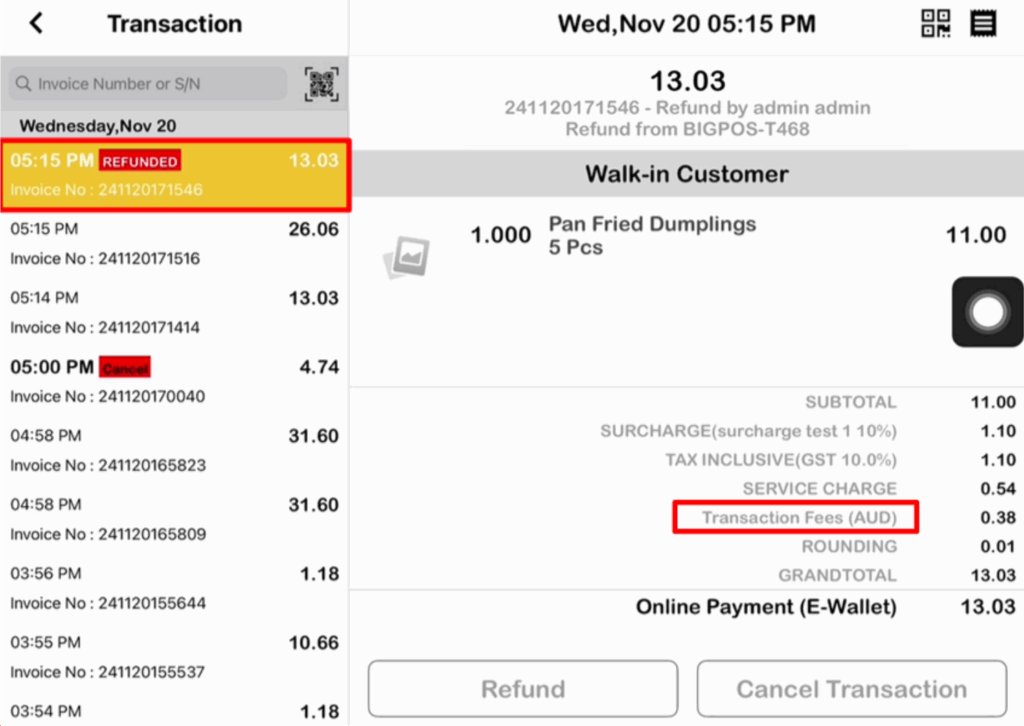
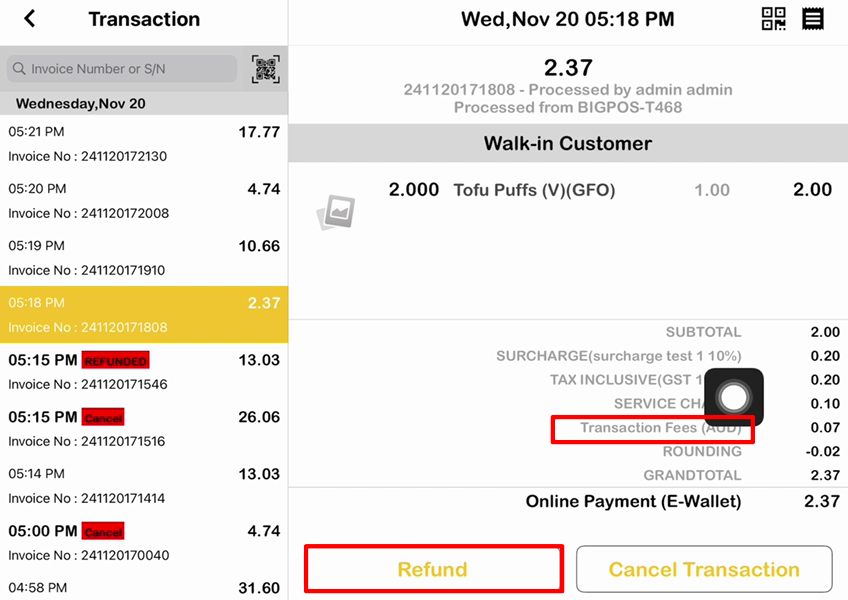
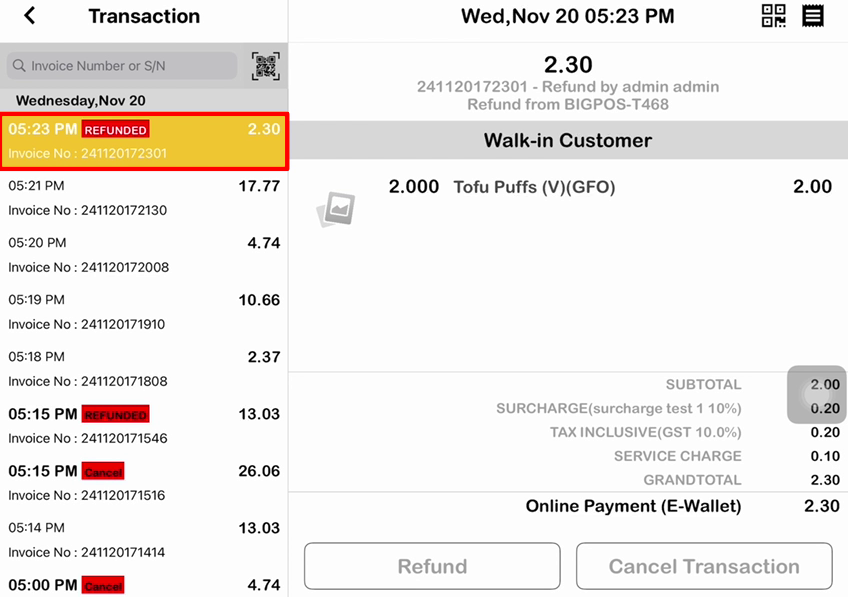
Refund (Exclude Card Surcharge)
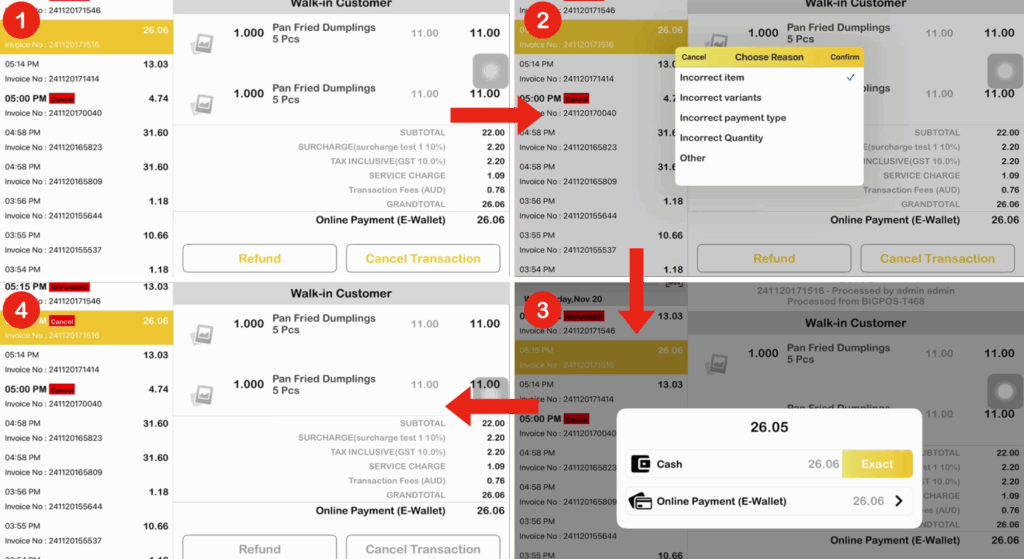
Cancel
Receipt Display
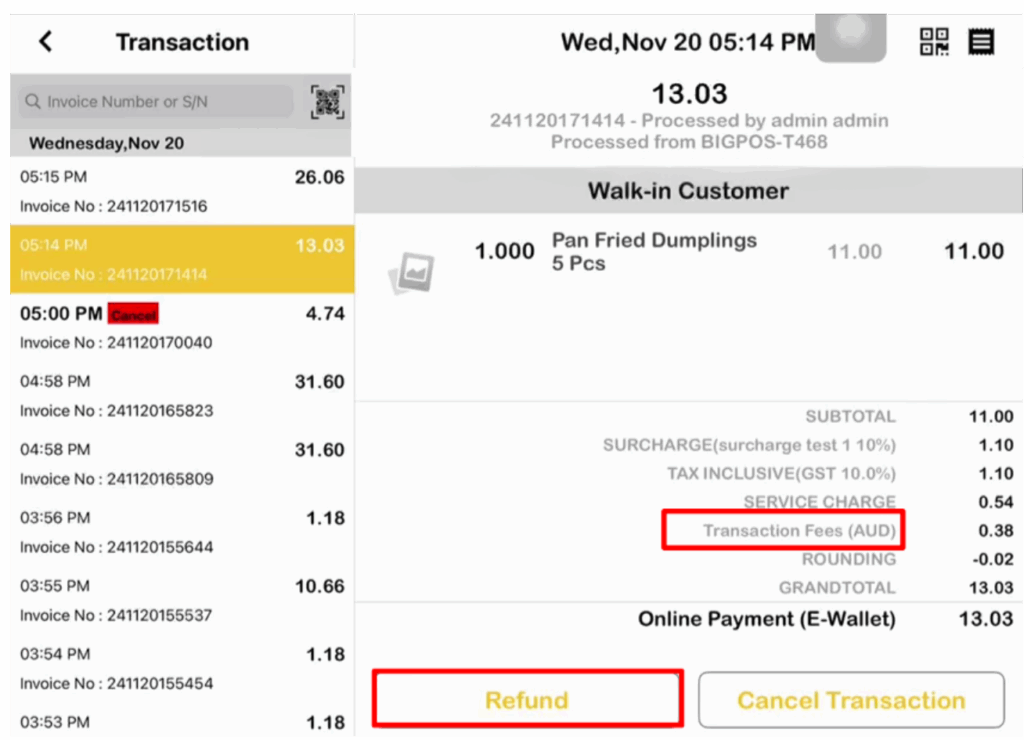
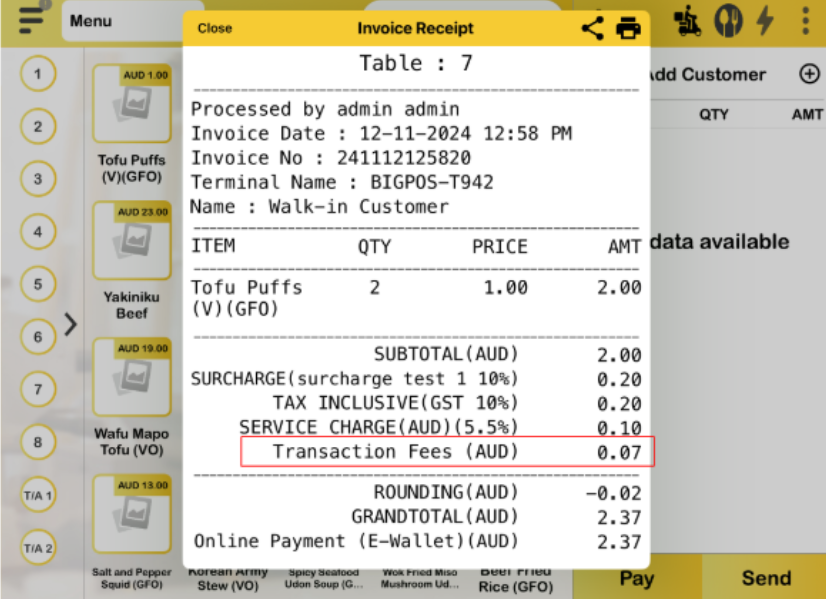
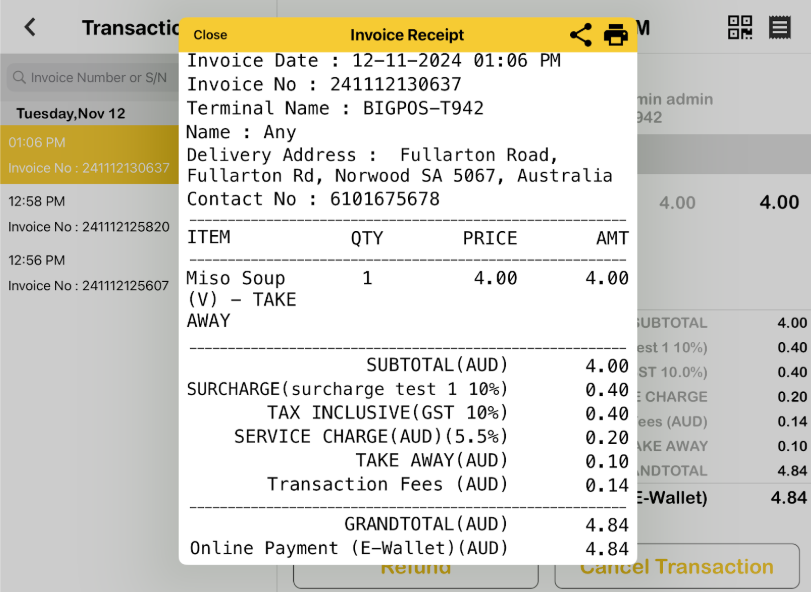
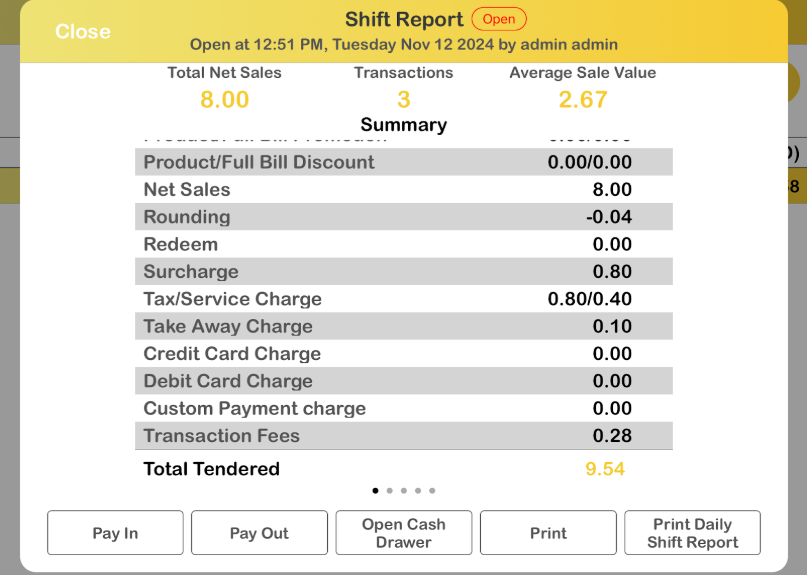
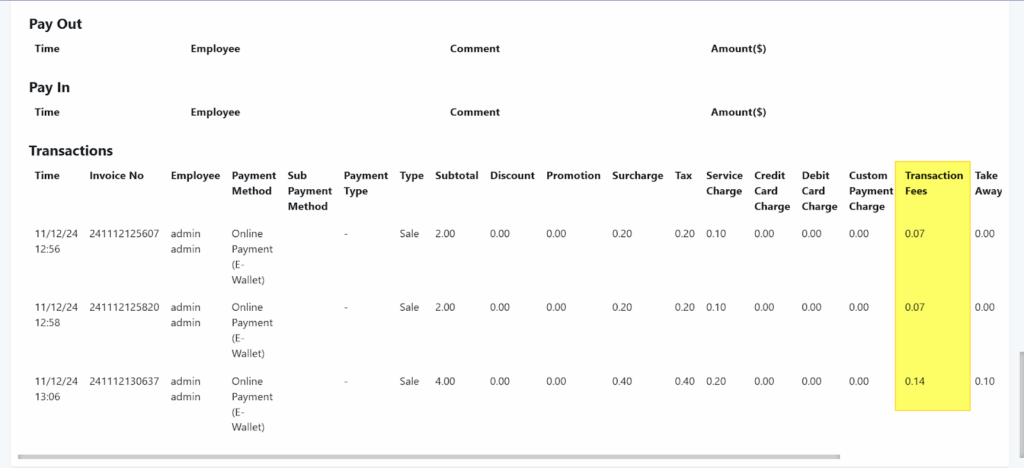
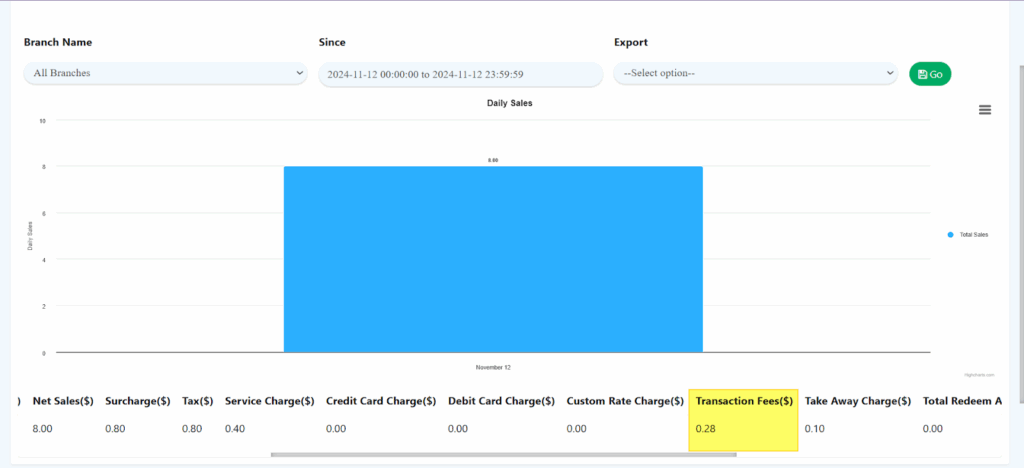
For this method payment there is an additional charge known as “Transaction Fees” on the receipt.
QR Order Receipt
QR Delivery Receipt
Shift Report Details
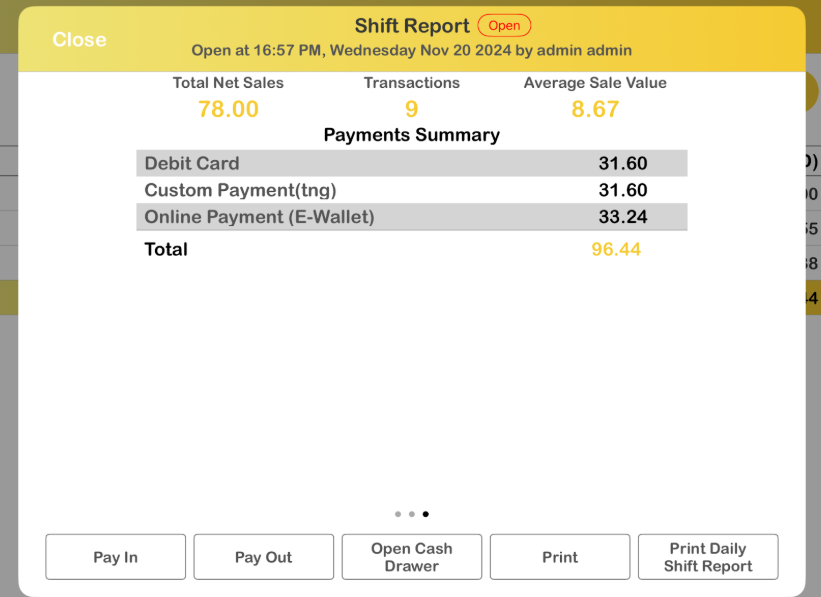
Web Report Details
Shift Details on Web Admin
Sales Report
Extra Info
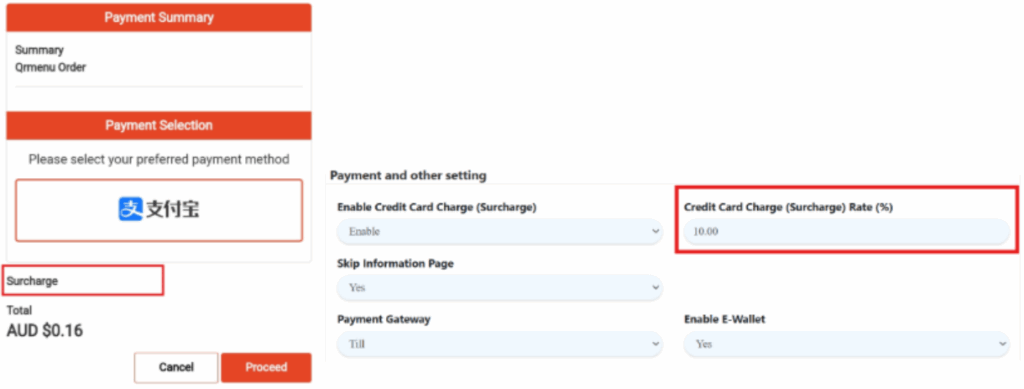
If the surcharge in Till wallet is disabled then the credit card charge in the “Setting” will be applied instead of surcharge in Till wallet and vice-versa.