Tax management- How to Create, Update, and Delete the existing tax in web admin?
Introduction
This post will guide you on how to update and delete the existing tax in web admin.
How to create, update, and delete the existing tax?
Create Tax
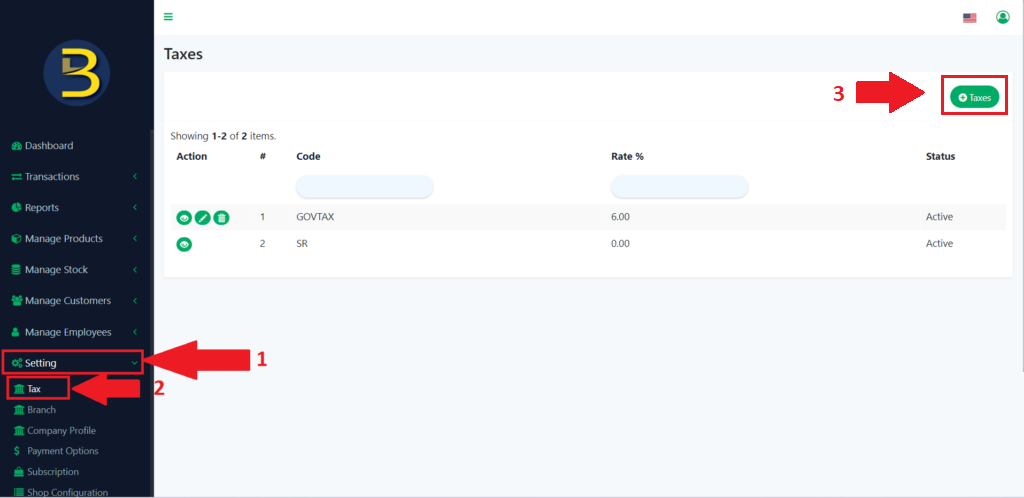
- Look for the “Settings” on the left panel to extend the subcategory.
- Look for the “Tax” and then click on it to redirect to the page.
- Then, click on “+ Taxes” to create new taxes.
Notes: Each branch can be active in 2 tax settings.
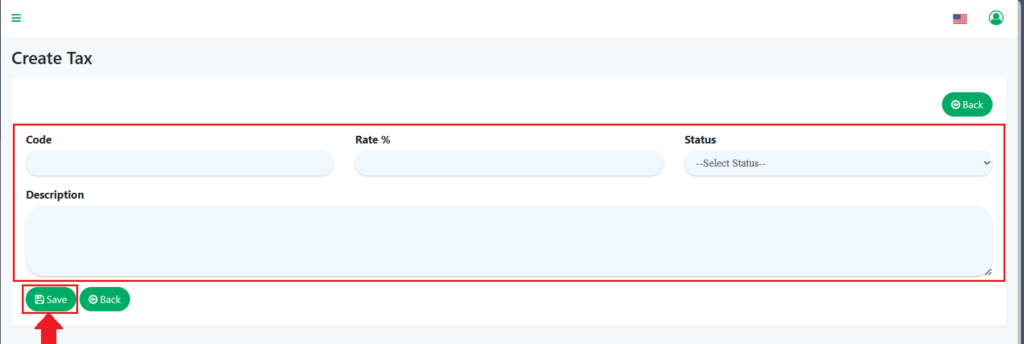
4. Then, you need to fill in all the information and click the “Save” button to complete creating a new tax.
Edit/update Tax
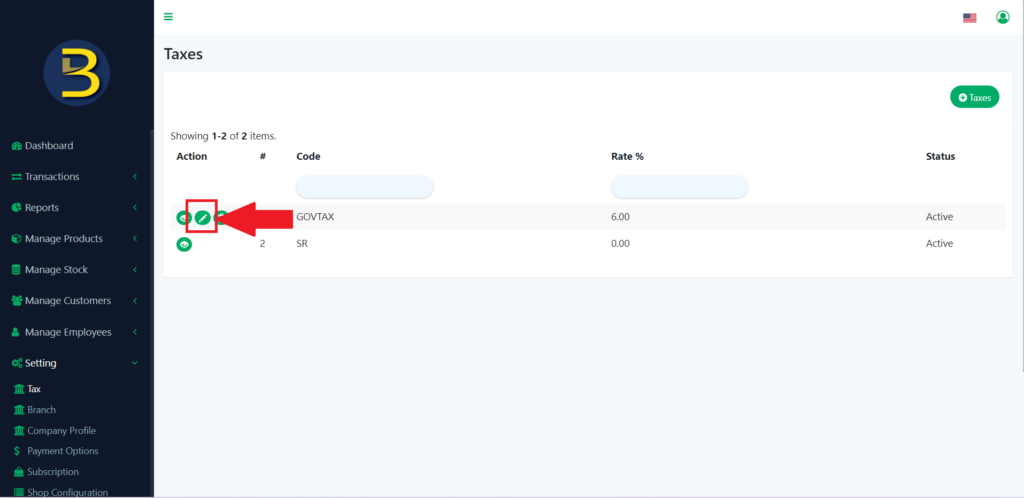
5. If you want to perform edit/update tax, click on the pencil button to edit or update the tax detail.
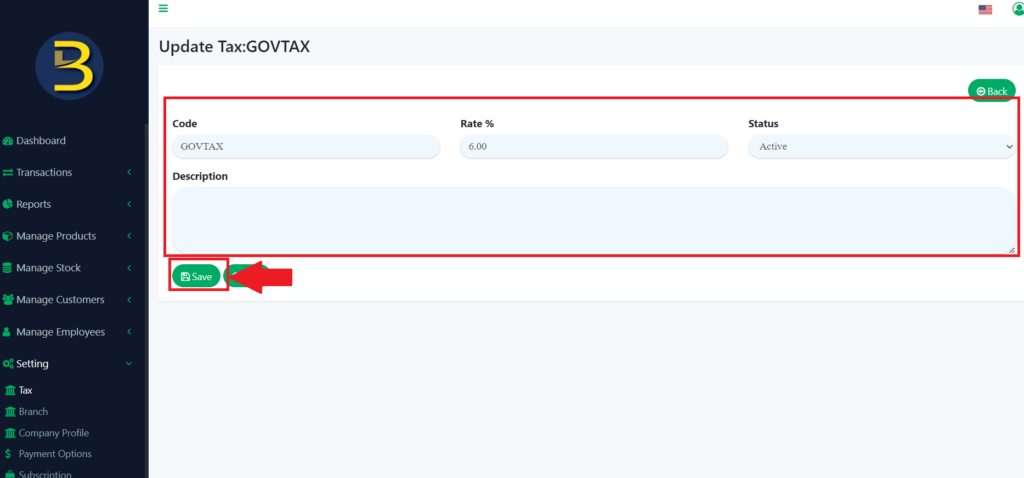
4. Then edit or update the detail of the tax and click on the “Save” icon to save the edited version of the tax.
Delete Tax
5. To delete the tax you need to click on the dustbin icon.
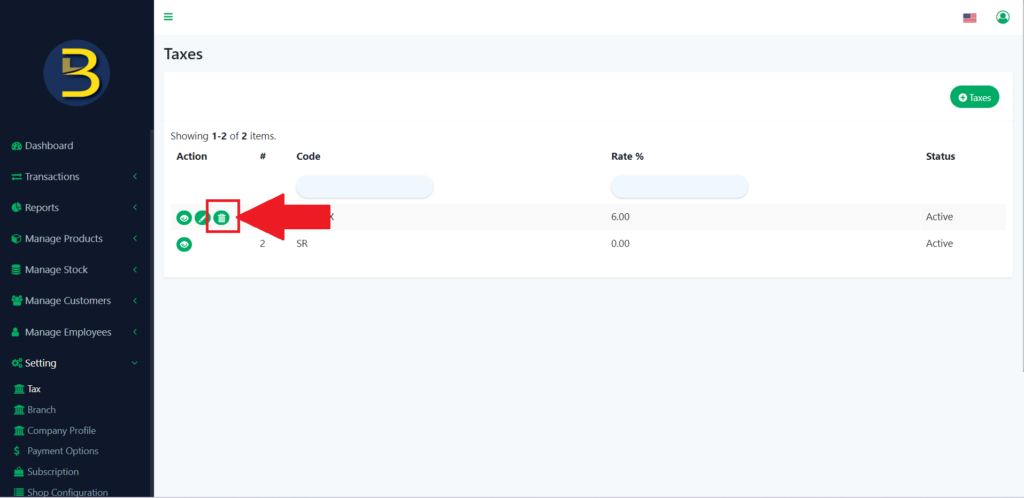
6. Then, it will pop up an alert message for confirmation of the deletion of the tax.
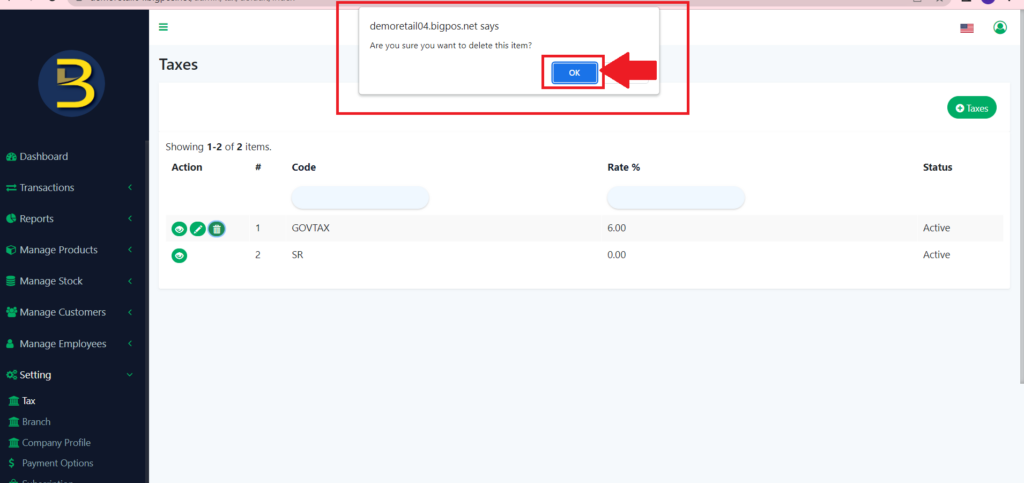
7. The tax is deleted.
Notes: If the tax is used, and you perform delete it, the system will not allow you to delete it. You need to add a new tax set the previous tax into inactive status and set the active status for the new tax and then you can proceed to delete that previous tax.