Take Away Stand Alone
What’s New
We’re excited to announce the Take Away Stand Alone feature, designed to make order-taking faster and more flexible. This feature allows to create Take Away orders without selecting a table, reducing time spent on table selection.
With this update, a new Take Away Order ID (TA####) is introduced to differentiate between Table orders and Take Away orders. The feature applies only to Table Mode and is not supported in S Layout.
These features apply to:
- BIG Pro
- BIG Waiter (Android & iOS)
- BIG KDS
- BIG CDS
Table Mode (Dine In & Take Away)
- Dine In and Take Away options are available under Table Mode.
Table Enhancement
- The table selected display has been remove from the header
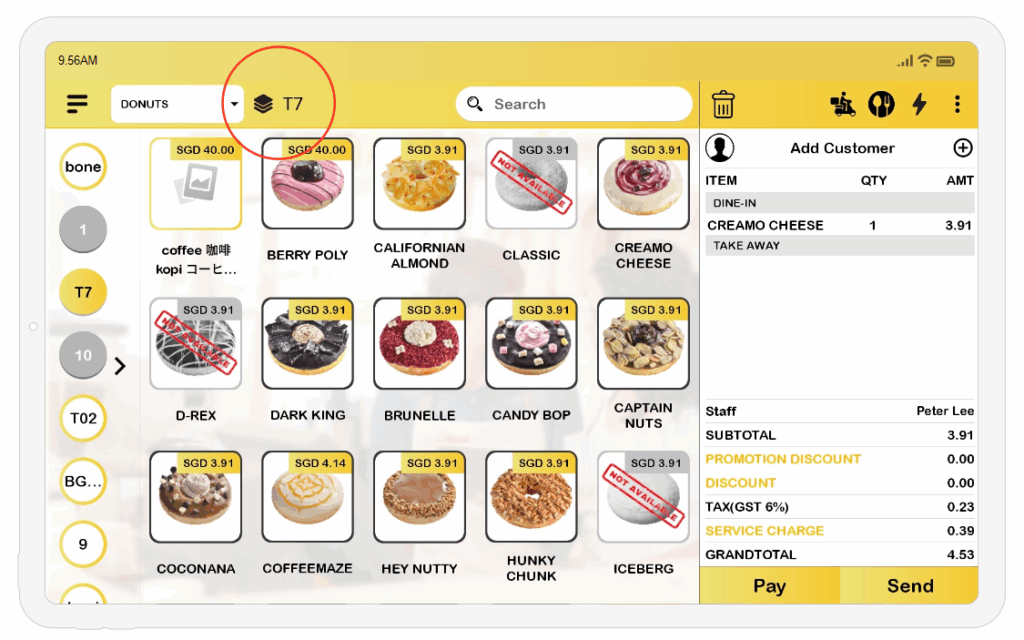
- Table layout showing if you click any product.
- To open table layout, can select Table from the cart.
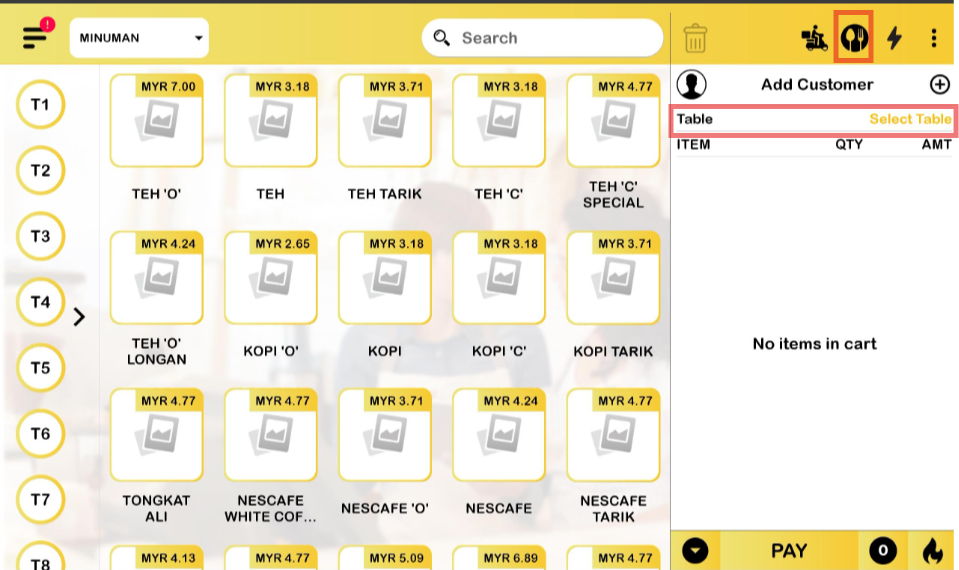
- Open order function.
- Add product into cart and Save Order.
- Click open order to see the order and can proceed with payment.
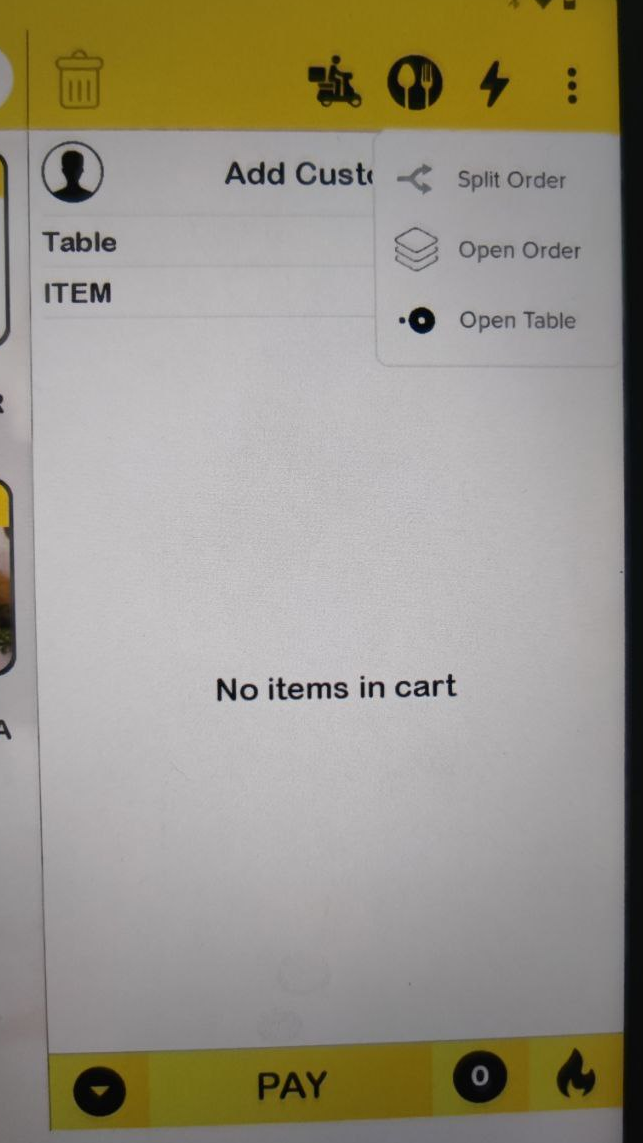
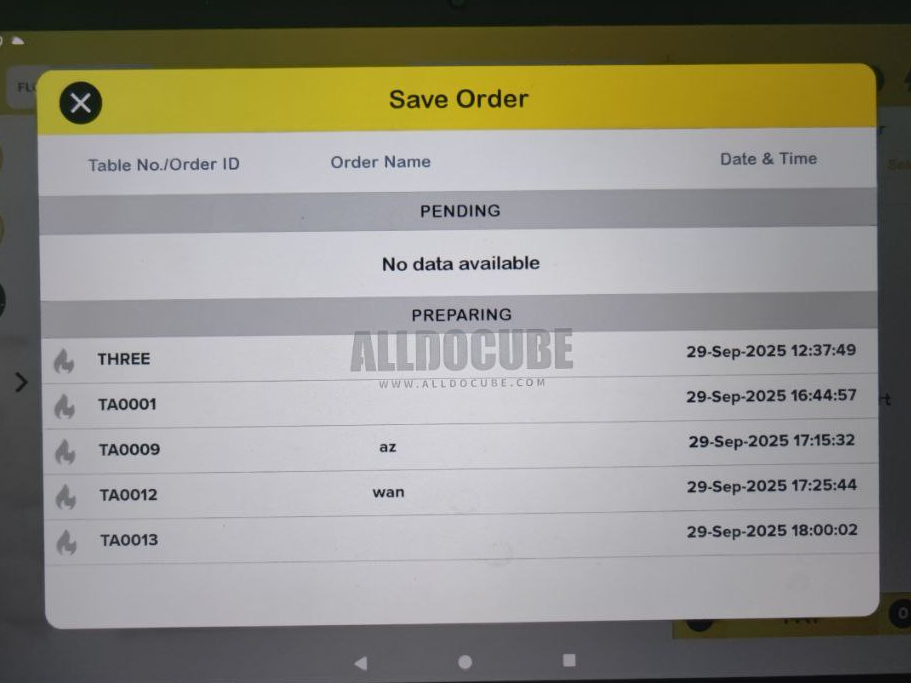
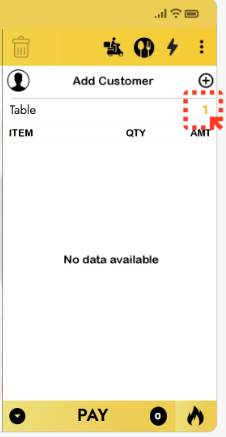
Table Display in Cart
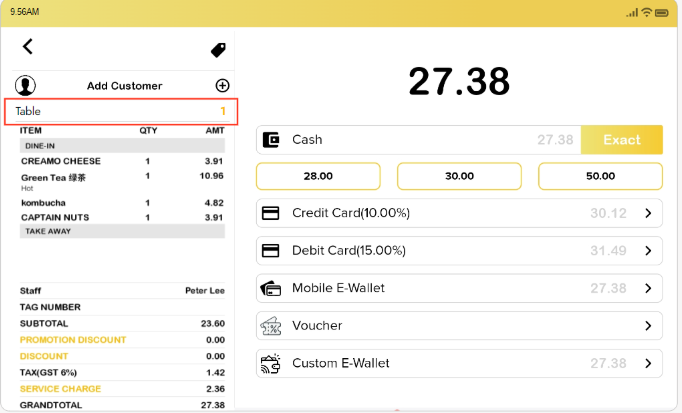
- The selected table is displayed in the cart section.
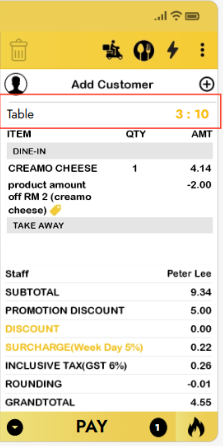
- The merge/combine table will be displayed in the cart section like this Table 3:10.
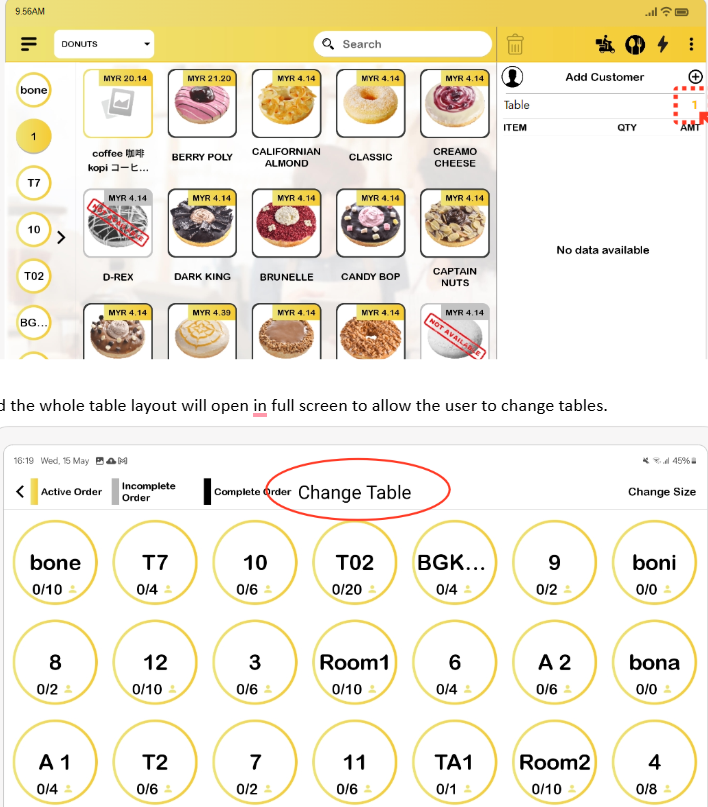
- To change the table, customers need to click the selected table in the cart section and the table layout will open in full screen.
Take Away Icon
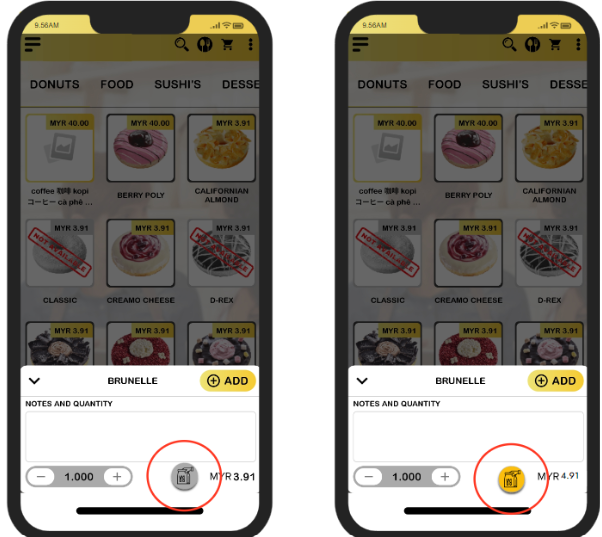
In this feature, the Take Away icon has been introduced. Once a customer clicks product, the product details will be displayed and at the bottom-right corner of this prompt there is the Take Away icon.
- Yellow Take Away – Enable
- Grey Take Away – Disable
- By default, take away mode is disabled.
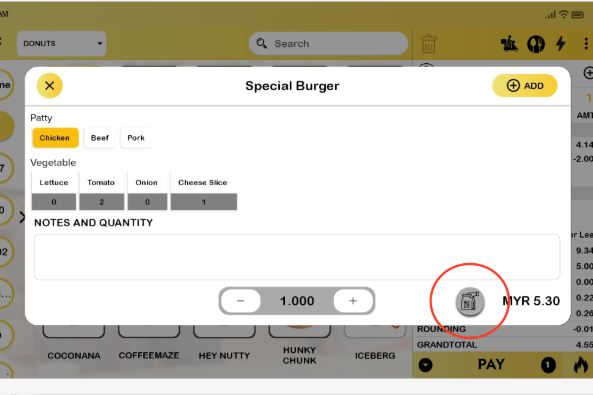
- When a product is clicked, its details will be displayed along with the Take Away icon. Once the TA icon is clicked, the price will update to include the applicable Take Away charge.
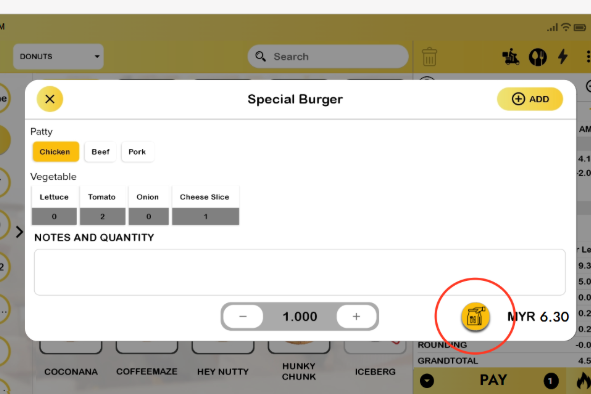
- After clicking the TA icon and add the product, it will be placed directly under the Take Away section in the cart.
- Products can be switched between Dine-in and Take Away by:
- Slide left → Edit → Click the TA icon.
- Long press and drag to the Take Away/Dine in section (existing behavior).
Notes: If the ‘Direct Add to Cart’ setting is enabled and user clicks on product without variants, the product details prompt will not appear, including the Take Away icon will not be visible.
Payment & Transaction Display
- In the payment page, the table name is added in the cart section (view only).
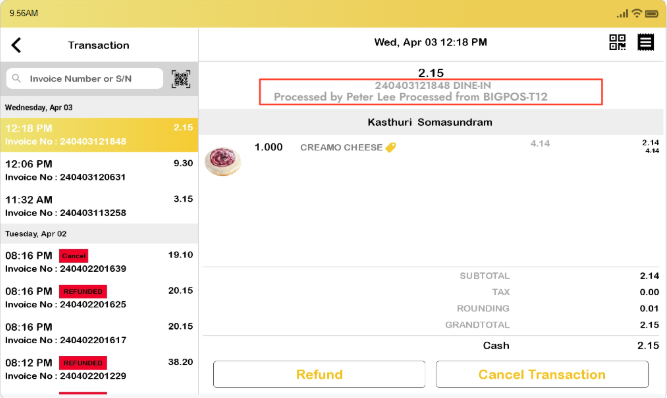
- Transaction page now includes DINE-IN / TAKE AWAY remarks next to the invoice number.
- DINE-IN MODE
- Dine in order -> DINE – IN
- Take away order -> DINE – IN
- Mixed orders (dine-in + take away) are labeled as DINE-IN.
- TAKE AWAY MODE
- Take away order -> TAKE AWAY
Printing Changes
There are two ways to change an item from Dine-In → Take Away or Take Away → Dine-In:
- Long press and drag to the Take Away section (existing behavior).
- Slide left → Edit → Click the TA icon.
The system will automatically print an updated Order Sheet and Order Summary Receipt:
- Take Away → Dine-In: “TAKE AWAY” remark is removed from the product line.
- Dine-In → Take Away: “TAKE AWAY” remark is added at the end of the product line.
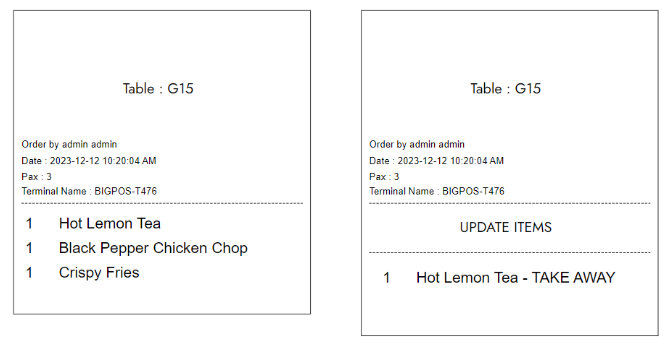
Receipt Changes
When Take Away charges are applied in Dine-In mode, receipts will display the remarks and charges differently depending on the setup.
- Guest Check
A new line is added under the item with the remark:
- “– TAKE AWAY +1.00” (example shows a +1.00 charge per item for Take Away).
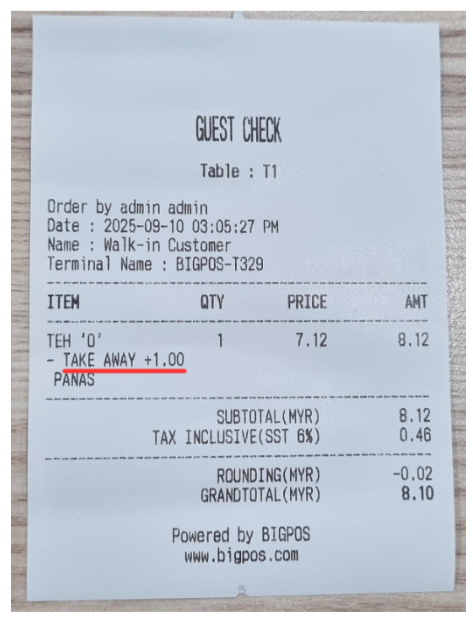
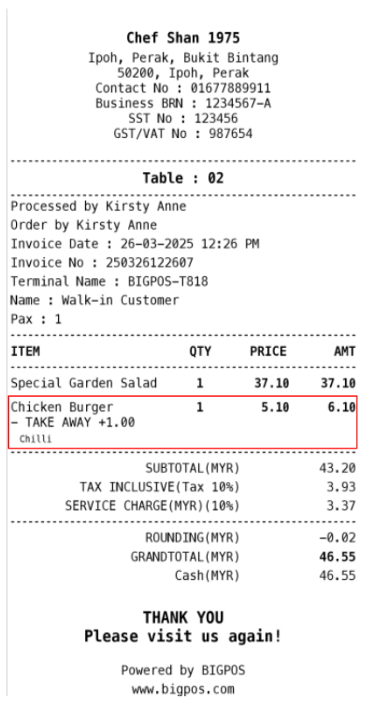
- Enable TA charge per item
- Each item marked as Take Away included take away charge under the product line.
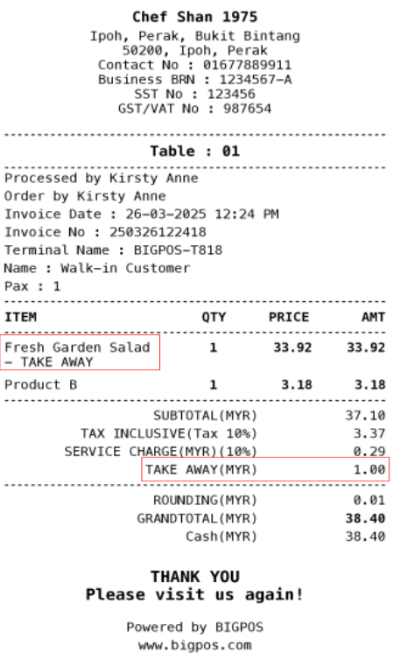
- Enable TA charge full bill
- A single remark “– TAKE AWAY” appears under the product line.
- The charge is calculated once for the whole bill, not per item.
Take Away Mode
The Take Away Mode is designed to streamline order-taking for takeout customers by allowing them to process orders without assigning a table. The Take Away mode is available when the TA icon is clicked next to the Delivery icon in the cart section. There is no need to select a table or pax count before sending the order.
Take Away Enhancement
Hidden Functionality in Take Away Mode
- Hide the table name in the cart section.
- Hide quick access to table selection on the left side.
- Hide the number of pax.
- Hide Dine-In mode in the cart section.
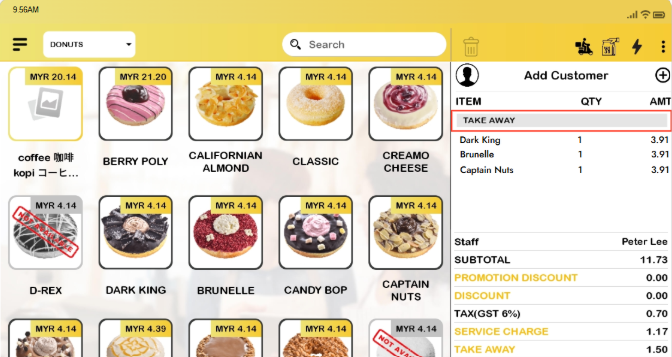
New Functionality in Take Away Mode
- Send Order Without Table
- Can create and send Take Away orders without selecting a table, reducing extra steps.
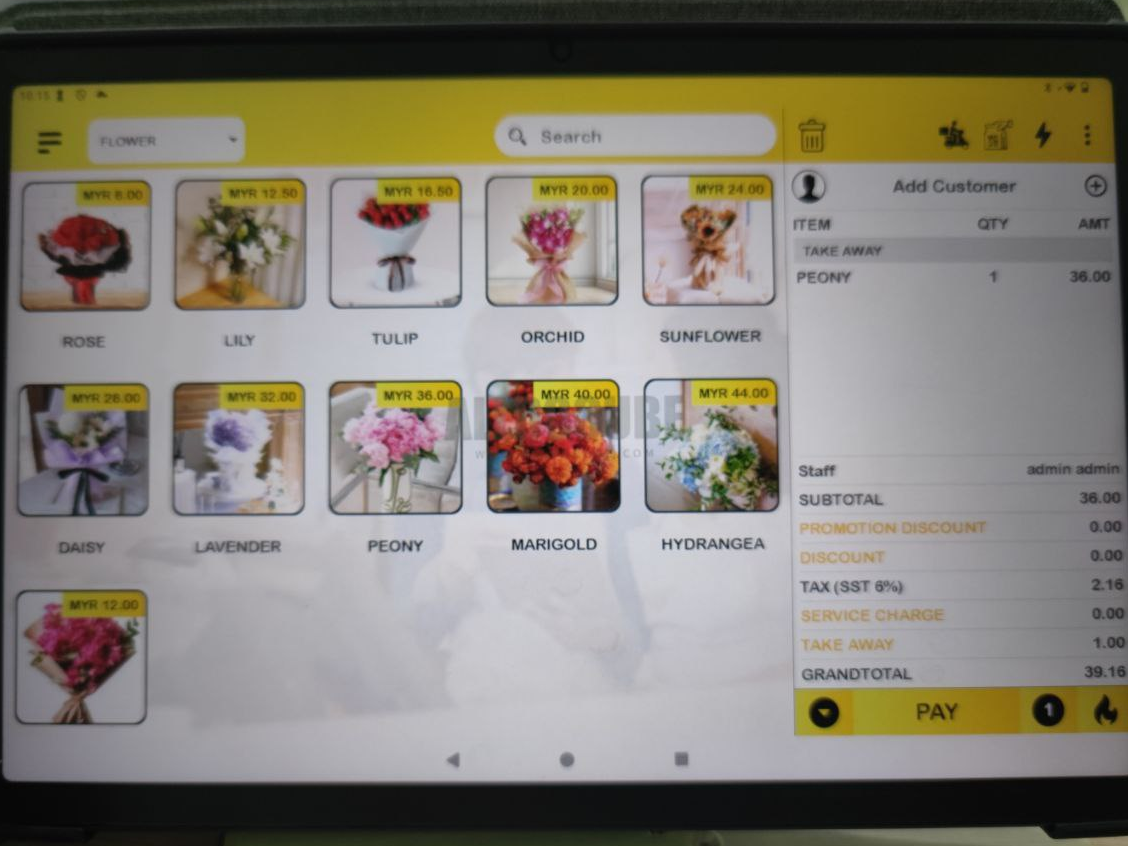
- Send Order Without Save Order
- Orders can be fired directly to the kitchen without Save Order.
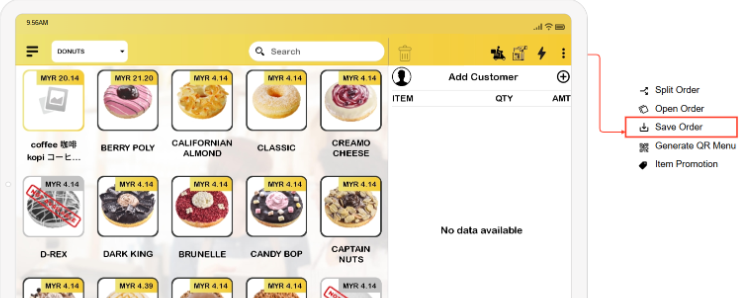
- Take Away Order ID (TA####).
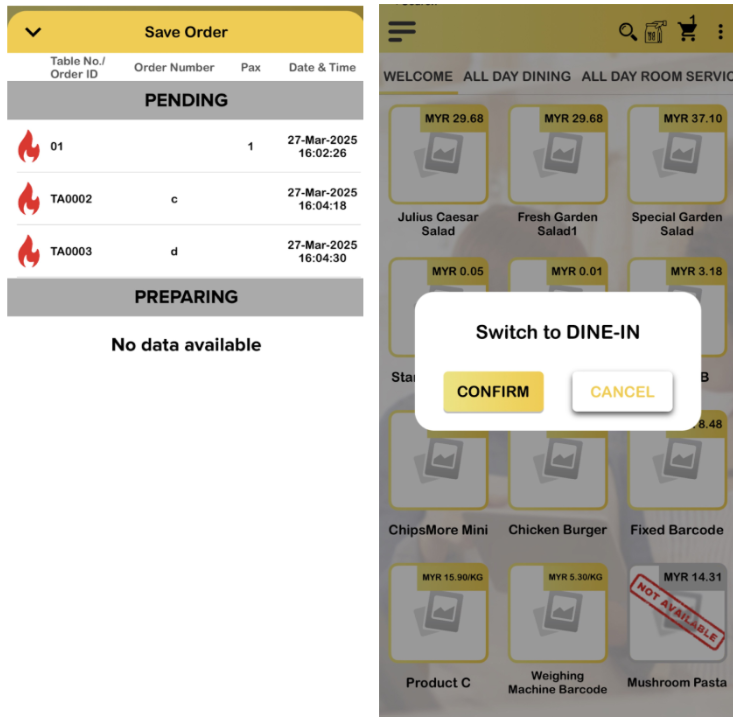
- Every Take Away order will be assigned a unique TA order ID in the format TA0001, TA0002…
- TA Order IDs reset daily at 00:00 midnight.
Take Away (TA) Order ID Behavior
- TA Order ID is created when Save Order, Fire to Kitchen, or switch from Dine-in → Take Away.
- If order is deleted, TA Order ID will be skipped, and the next order gets a new ID.
- Saved orders can continue into the next shift, so sometimes the same order ID may appear again.
- If you switch from Dine-in → Take Away after firing, you’ll need to Save Order or Fire to Kitchen again.
Take Away Receipt
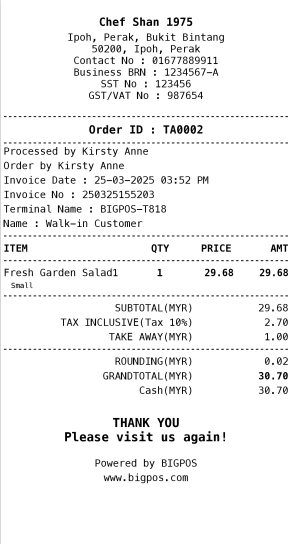
The Take Away feature introduces an update for printing receipt with Take Away Order ID (TA####). This ID helps clearly differentiate Take Away orders from Dine-In orders.
- Take away charge per item
- Display TA Order ID.
- A Take Away remark is added under each product line that is marked as Take Away.
- Additional charge is applied per item.
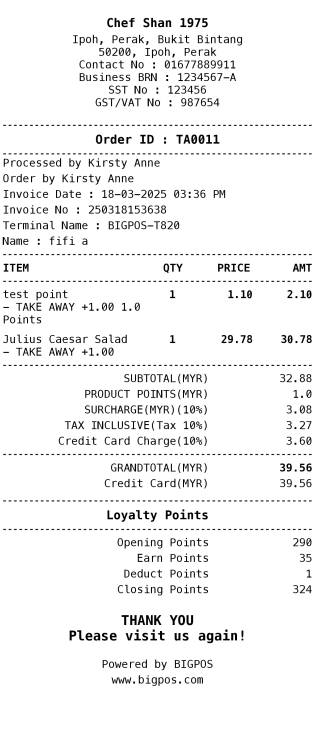
- Take away full bill
- ADisplay TA Order ID.
- A single Take Away remark is added for the full bill and take away charge is applied only once to the full bill.
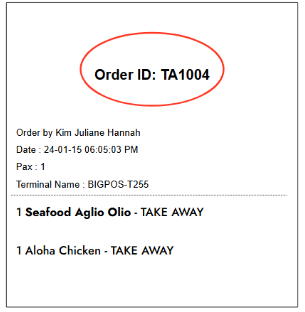
- Order sheet
- Clearly show TA Order ID and Take Away remarks.
Switch Mode
Change Mode
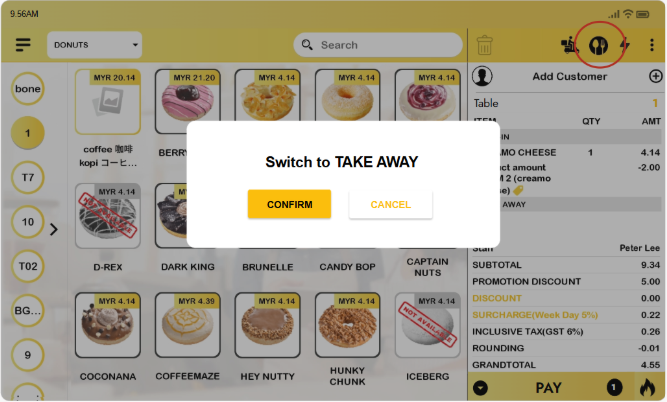
- Switching from Table Mode → Take Away Mode
- Add item(s) to cart under a Dine-In table.
- Click the Dine-In icon in the cart.
- Switch to Take Away prompt.
- Confirm:
- The order is switched to Take Away Mode.
- The table will be hidden automatically.
- Cancel:
- The order remains in the original Dine-In table.
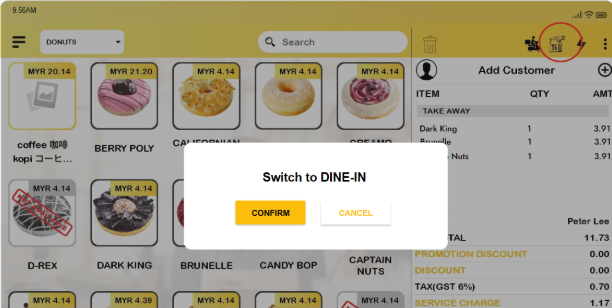
- Switching from Take away -> Table mode
- Add item(s) to cart under a Take Away order.
- Click the Take Away icon in the cart.
- Switch to Dine In prompt.
- Confirm:
- The system will prompt to select a table.
- The previous TA order is deleted once the switch is made.
- Cancel:
- The order remains in Take Away order.
Receipt Changes
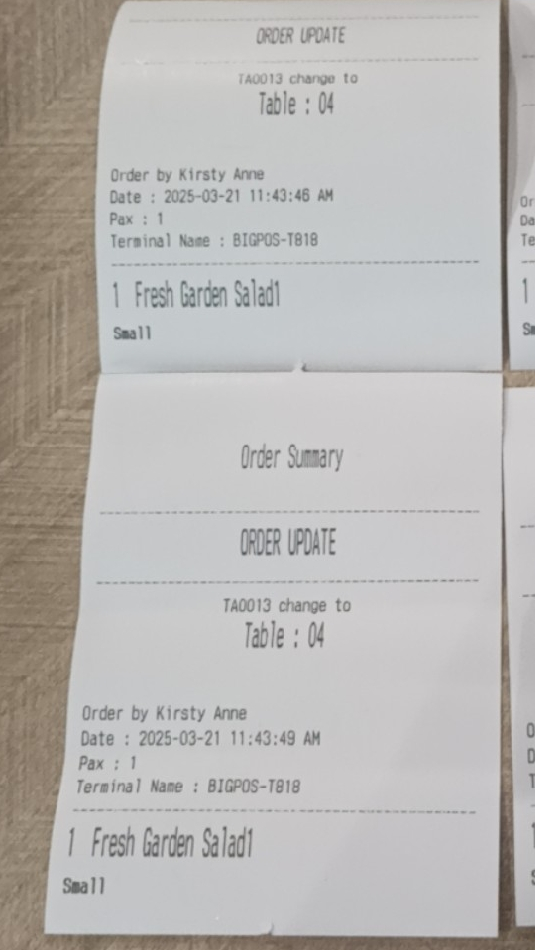
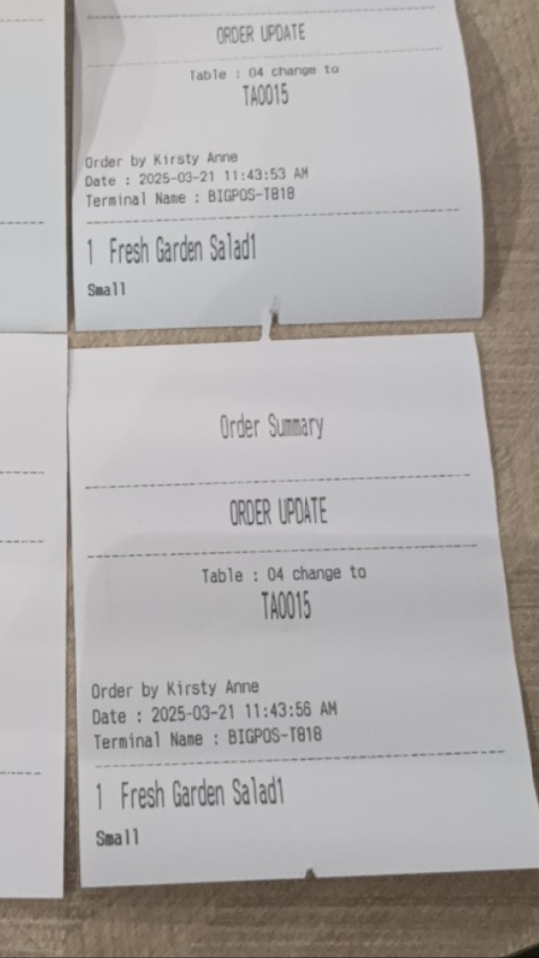
When an order is fired to the kitchen and then the mode is changed, the system will print an “Order Update” in the order sheet and order summary receipt.
For Example:
- Take Away Mode → Table Mode
TA#### changes to Table : #
- Table Mode → Take Away Mode
Table : # changes to TA####
Layout Changes
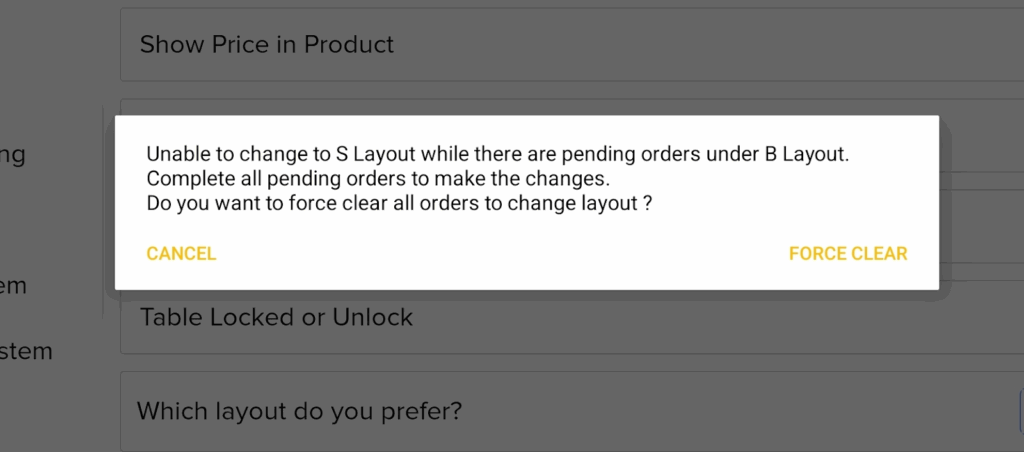
While ordering in cart/Save order, not allow to change layout unless clear all order. This is caused by this feature not supported in the S layout.
- B layout -> S layout
- S layout -> B layout
Close Shift
If there are orders remaining in the cart (Dine-In or Take Away) or in the Save Order list, the system will prompt that the shift cannot be closed. You must choose either Keep or Force Clear.
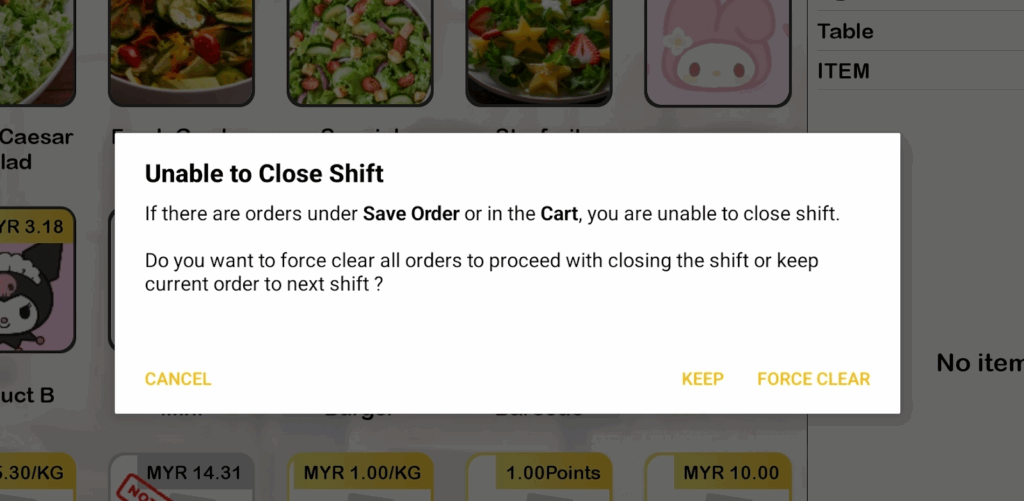
- Keep
- All Dine-In and Take Away orders are carried forward to the next shift.
- TA Order IDs will:
- Continue from the previous shift if it is still the same day.
- Reset and generate new IDs if it is a new day.
- Force Clear
- All Dine-In and Take Away orders are deleted.
- TA Order IDs will:
- Continue from the previous shift if it is still the same day.
- Reset and generate new IDs if it is a new day.
BIG Waiter (Android & IOS)
Most of the features in BIG Waiter follow the same behavior as the BIGPOS Pro apps, with a few specific adjustments:
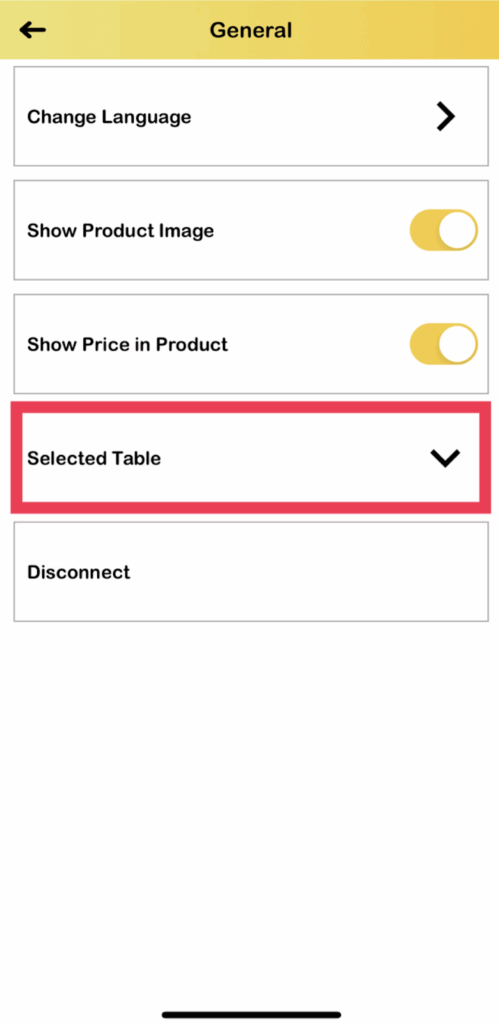
Selected Table Behaviour:
- Dine-In
- Selected Table option is available.
- When a table is selected:
- “Open Order” is hidden (can’t view other tables).
- Dine-In icon is locked (can’t switch to Take Away).
- In Take Away mode, the Selected Table option is not available.
Kitchen Display System (KDS) Changes
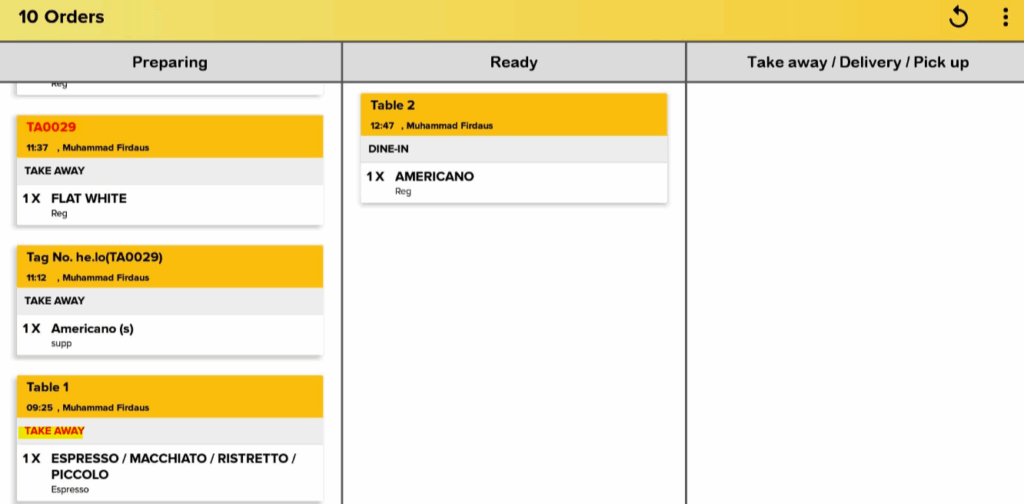
- Changing an order from Dine-In to Take Away (or from Take Away to Dine-In) on the same table will now also update in the Kitchen Display System (KDS).
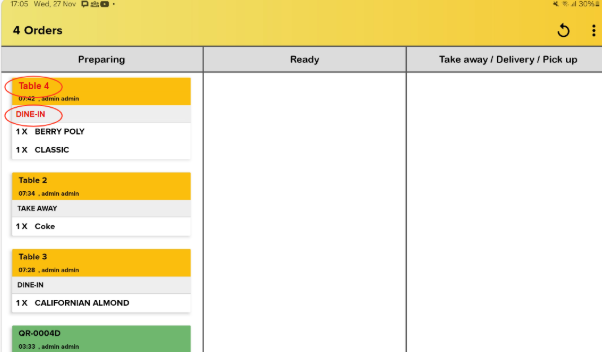
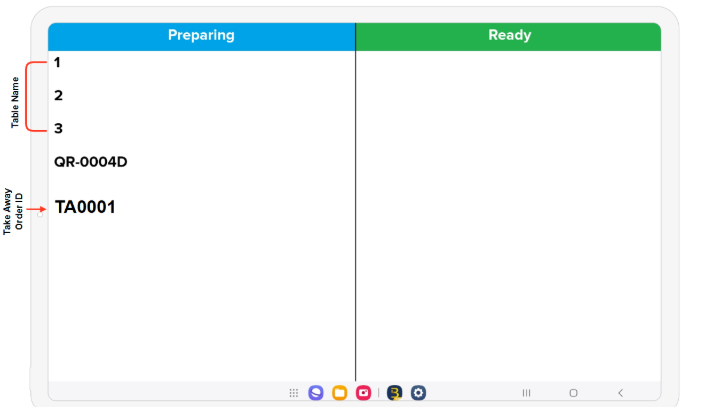
- Switching between Table Mode and Take Away Mode (or vice versa) will update the KDS accordingly, with the Table or Take Away Order ID refreshed simultaneously.
Customer Display System (CDS) Changes
- When the serve type mode is changed, the previous Table/TA Order ID is removed from CDS.
- The new Table/TA Order ID will appear in the CDS list.