How Can We Help?
Table & Floor Management
Introduction
This post introduces the new feature of table management. The changes applied to the listed applications below:
- Web Admin
- BIGPOS Pro
- BIGPOS Waiter
- Previously, table management was only limited to table layout.
- In the latest version, the floor option is added to the table management.
Web Admin (Branch)
- On the branch page in Web Admin, a new tab for floor management has been added. This feature is only applicable for the ‘Assigned table number’ business mode. Floor setting can be implemented if there is a table set in the table column setting, then you can create your own floor according to the table set.

How to set the floor?
- Click the ‘Add Floor’ button.

- A pop-up box that asks the user to key in the Floor name and status will prompt out.

- After clicking ‘Save’, click on the Floor layout.

- The page will redirect to the Floor Layout page.

- Drag the table on the table list to the floor area.

- To choose the icon, you can click on the table and a pop-up box that displays various icons according to the pax will prompt out. Click the icon and save.

- The selected icon will reflect on the floor.

- If you want to rotate the table, you can click the table again and the same pop-up box will prompt out. Click ‘Rotation’.

- The icon will automatically rotate 90°.

BIGPOS Pro
- In the general setting, there will be an additional setting of Table layout selection. If you want to switch to the floor, you can toggle the Table layout option from Table to Floor.

- In order to use Floor layout, the user needs to set the Floor layout setting on the Web Admin first. Otherwise, the pop-up message that alerts the user to set the Floor layout will prompt out to notify the user to do the setting.


Floor Layout display on the Menu Page

Floor Layout display on Table Page
- If the table is set out of the default area, the user can scroll the page horizontally and vertically to check the table.
Merge Table Behaviour
- After merge 2 table, both table locations remain in their original position
- Both table rename as ‘Table A : Table B’
- The second merged table will freeze (no option button appears)

Pax Behaviour
- Pax allows only the maximum capacity or less, based on the designated pax limit. For example, the designated pax capacity of Table A is 4. So users are only allowed to enter pax of 4 or below.
- If one wants to merge the table, the pax amount will fairly segregate on each of the tables.

Change Table Behaviour
- The table which has more pax than the current pax of the table is only allowed to change.
- The original table and the table which has fewer pax than the current pax will not appear when changing the table.


Reservation (Table Availability)
- From the table, the user is able to enter the table availability page where the user can check the reserved and available tables.
- Red table: Indicates that table already reserved (Unavailable)
- Green table: Indicates that table is available table


Enhancement (Android Only)
This post introduces the latest improvement. The changes apply to the applications listed below:
- BIG KDS
- Android Pro and Android Waiter
Print Section
- Order Sheet/ Order Summary
- Guest Check
- Invoice Receipt
- Label Printer
- QR Receipt
This feature set will be available only under the following conditions:
- Only applicable for F&B business
- Only applicable in “assign table number” business mode
- Only apply when Table Layout is selected ‘Floor’
BIG KDS
New Features in BIG KDS ,
- For Dine In orders, floor name will be displayed before table name

- For Take Away orders, floor name will not be displayed

Print Section
New Features in print section part that floor name will be displayed,
- LAN/STAR Printer,
Floor name is displayed before table name
- Disable Pax, disable tag number
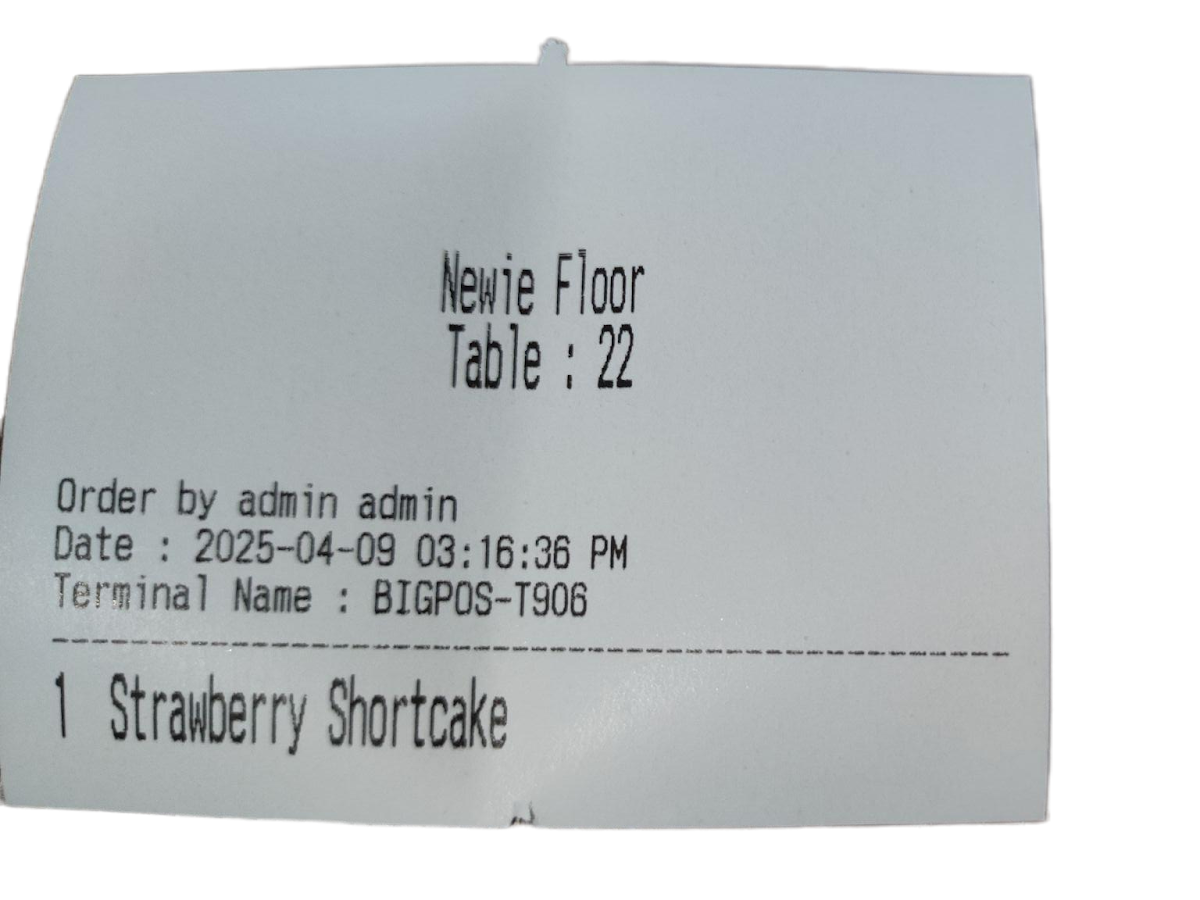 Order Sheet |  Order Summary |
 Guest Check |  Invoice Receipt |
- Disable pax, enable tag number
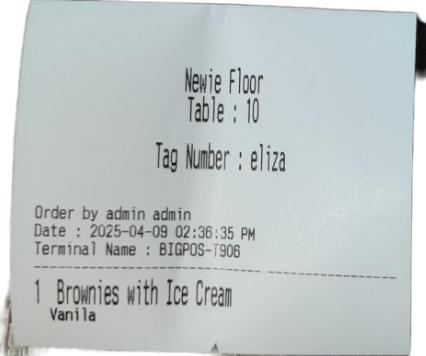 Order Sheet |  Order Summary |
 Guest Check | 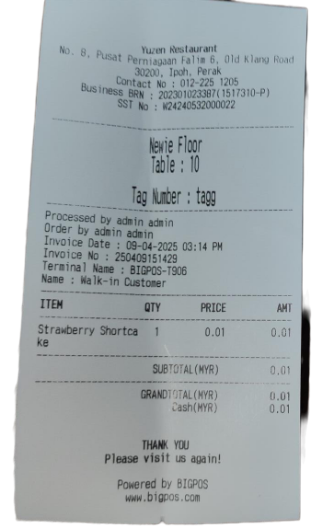 Invoice Receipt |
- Enable pax, disable tag number
 Order Sheet |  Order Summary |
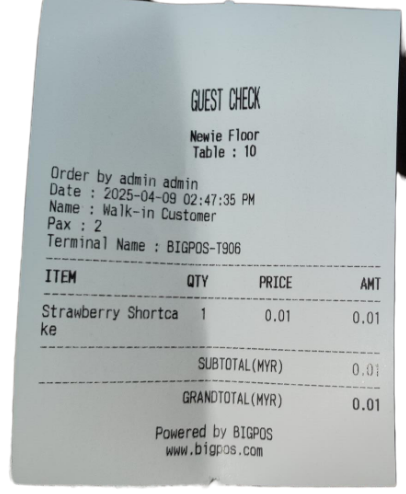 Guest Check |  Invoice Receipt |
- Enable pax, enable tag number
 Order Sheet |  Order Summary |
 Guest Check |  Invoice Receipt |
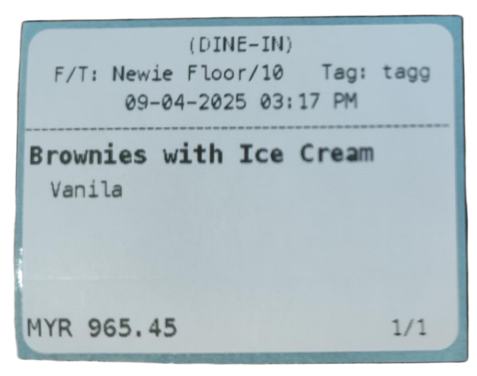
- Label Printer
- In table mode: Display as Table

- In floor mode: Display as F/T (Floor/Table)
| Disable Tag Number | Enable Tag Number |
 |  |
- QR Receipt
Display as F/T (Floor/Table), it will display floor and table name as long as table is assigned to a floor
