Surcharge
Introduction
This post will guide you to understand the surcharge and calculation.
Understanding Surcharge
What is a surcharge?
Additional charge or payment.
Surcharge Fee
- The surcharge rate will be calculated in Percentage.
- Able to customize different surcharge rates for specific days/dates/times.
- Able to enable and disable the surcharge function in BigPos.
Surcharge Page
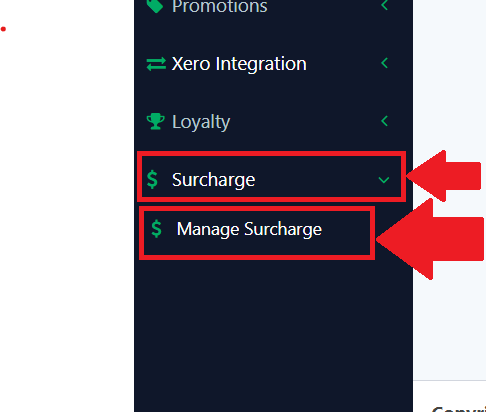
You need to go to the left to look for the “Surcharge” to expand and then click on the “Manage Surcharge” to redirect you to the surcharge page.
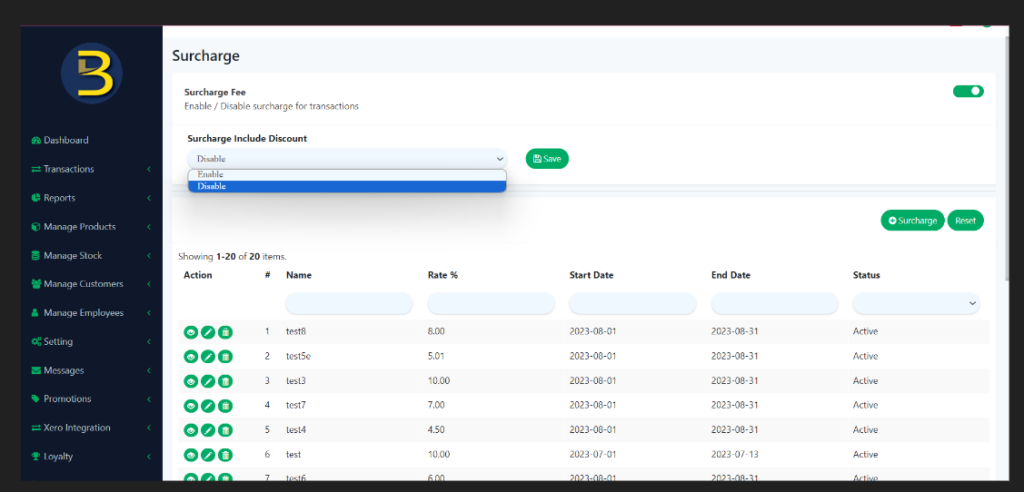
The detail of the Surcharge page.
- Enable and disable the button for a surcharge as the user can decide whether they want to have a surcharge fee for their business or not.
- Enable – If they would like to have a surcharge fee.
- Disable – If they would like not to have a surcharge fee.
- For Sri Lanka, the Surcharge includes/exclude discount.
(Default = Disable). - For other countries, the Surcharge includes/exclude discount.
(Default = Enable).
- All created surcharges will be shown under this Surcharge list page.
- Action buttons to view/edit/delete existing surcharge.
Users are allowed to add a new surcharge by pressing the ADD/CREATE NEW SURCHARGE button.

- Order by priority – able to drag the row up and down so that any highest priority items are set to the top.
(same as our current drag up & down function on the promotion page)
- Example: I create surcharge A starting on 13th – 15th June and surcharge B starts on 14th – 15th June.
- If I drag surcharge B to a higher priority than surcharge A, then on:
- 13th 00:00 will auto-set surcharge A in the app’s cart.
- 14th 00:00 will auto-set surcharge B in the app’s cart.
- 15th 00:00 will auto-set surcharge B in the app’s cart.
- If I drag surcharge A to higher priority than surcharge B, then on:
- 13th 00:00 will auto-set surcharge A in the app’s cart.
- 14th 00:00 will auto-set surcharge A in the app’s cart.
- 15th 00:00 will auto-set surcharge A in the app’s cart.
- If I drag surcharge B to a higher priority than surcharge A, then on:
Creating Surcharge
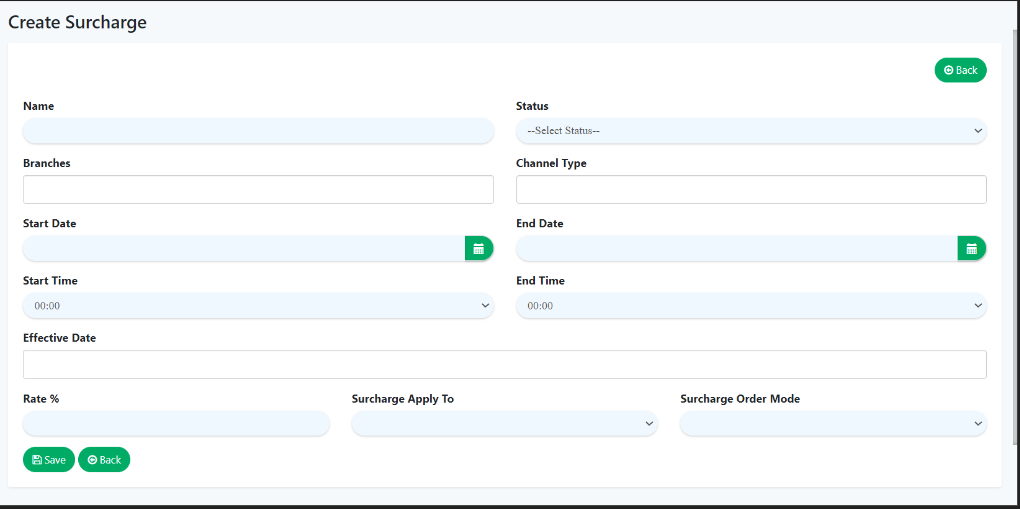
Surcharge Name
- Any name they want to name the surcharge for their internal references.
Status
- To Active / Deactivate the surcharge fee.
- For an example:
If they want to apply a surcharge for a Public Holiday on the 1st of January, they can set ACTIVE and meanwhile DEACTIVATE other ongoing surcharges temporarily.
Branch
- Select the branch to which they want to apply this surcharge.
Surcharge Channel
- Specify channel which they want to apply surcharge fee:
- POS / eCommerce / QR Menu.
- Surcharge Period.
- Start and End Date / Start and End Time.
- Configured the date/time to reflect the surcharge fee on
- Specific date (Public Holiday).
- Specific period of time.
- Effective on every.
Restrict the promotion on specific days (the weekdays / the weekend)
Surcharge Rate
- Percentage
The rate of surcharge that they want to apply.
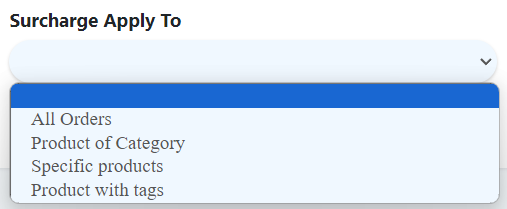
Surcharge Apply to
There are 4 option for user to select which are:
- All orders
- Products of Category
- Specific Products
- Products with tags
Surcharge Order Mode
There are 3 optional for user set the surcharge order mode which are
- All orders
- Dine in
- Take away
Surcharge Report
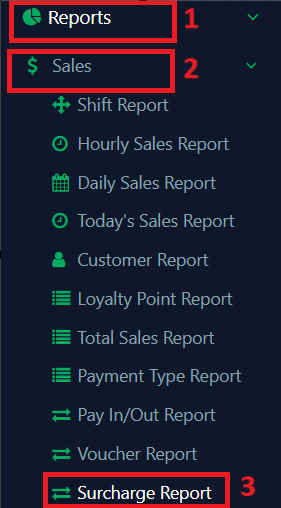
- The location of surcharge report can be access from ‘Reports‘, click ‘Sales‘ and select ‘Surcharge Report‘.
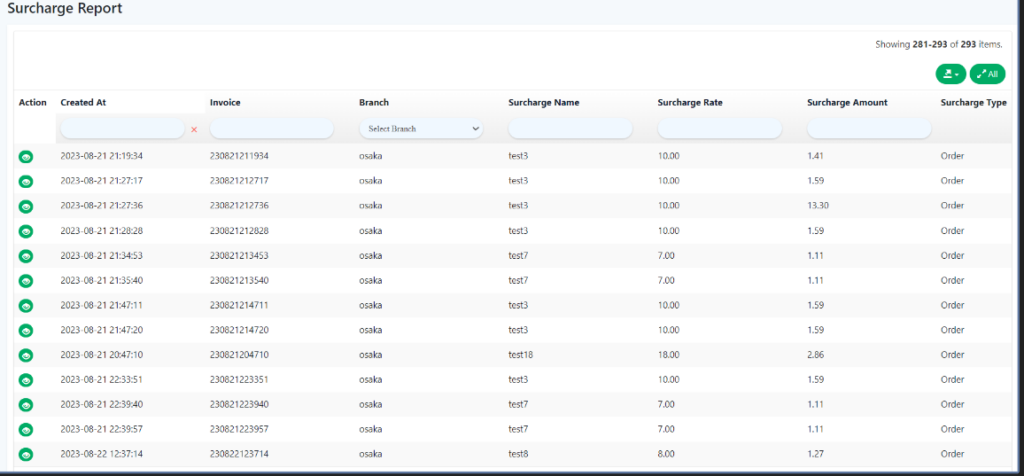
2. As illustrated in the figure below, this is the surcharge report. The lists provided are the records of surcharge implementations during the payment process.
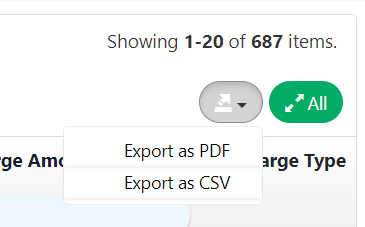
3. Users have the option to export data from the surcharge report in either PDF or CSV format as figure displayed below.
Surcharge Calculation
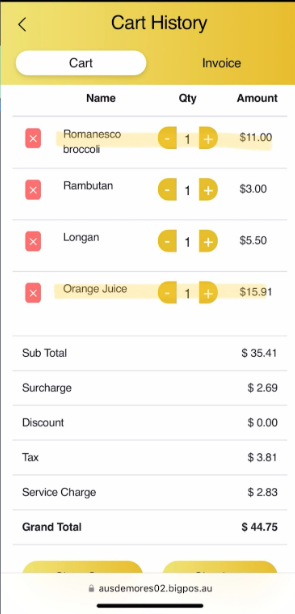
The best understanding about the application of surcharge by learning from scenarios. Each of surcharge will be has various of storyline which are
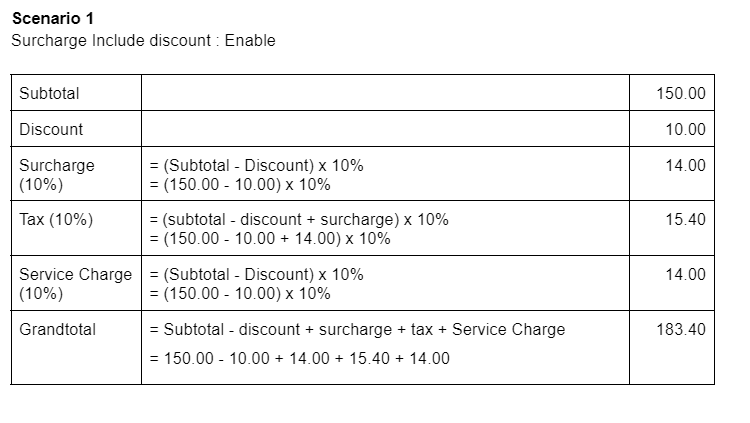
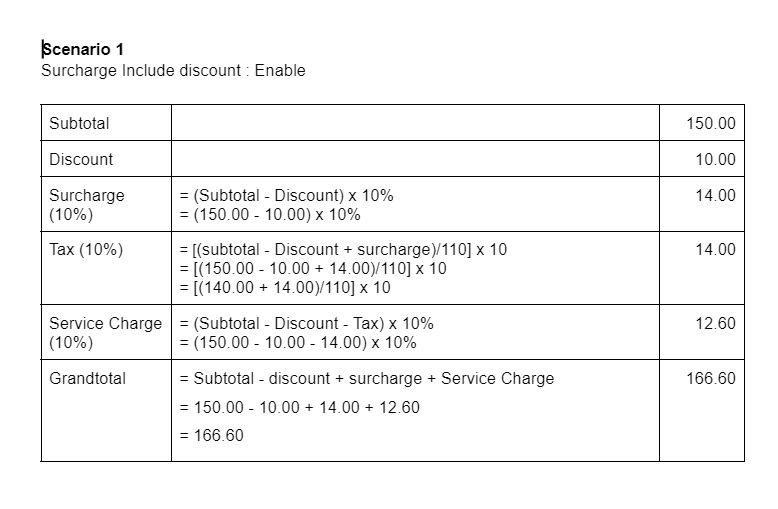
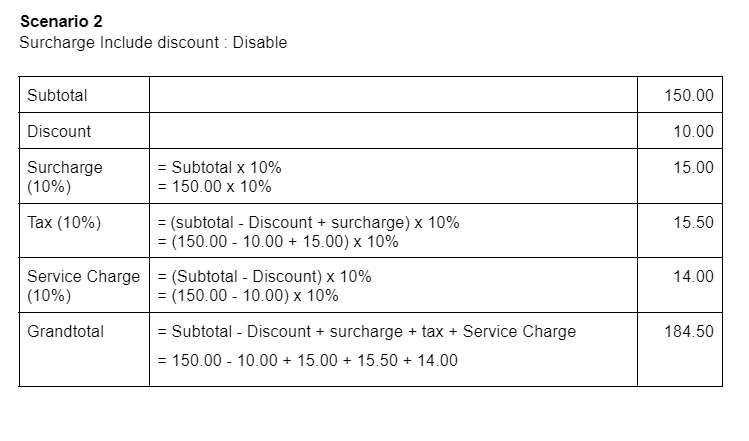
a) Surcharge include discount
- Enable
For Exclusive Tax the calculation:
For Inclusive Tax the calculation:
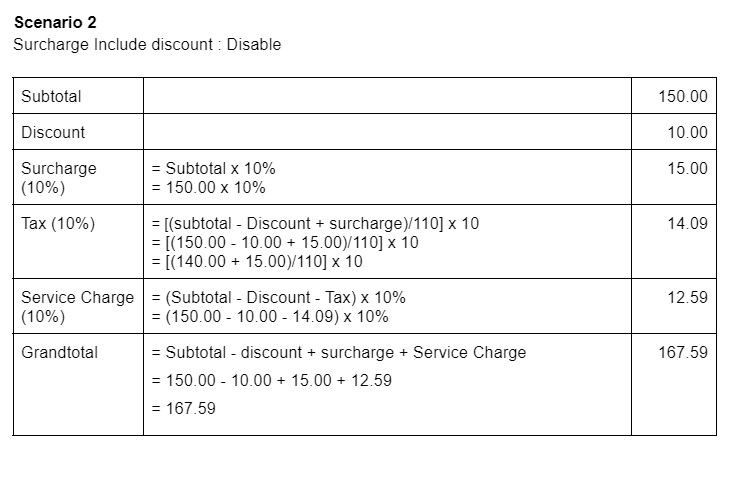
2. Disable
For Exclusive Tax the calculation:
For Inclusive Tax the calculation:
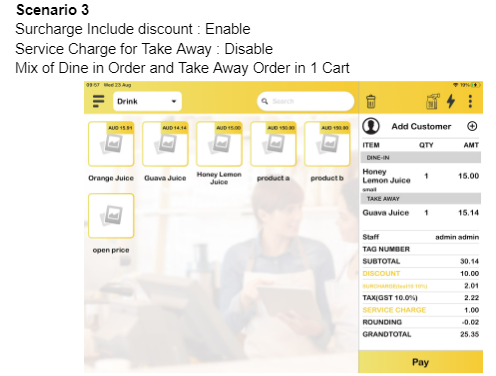
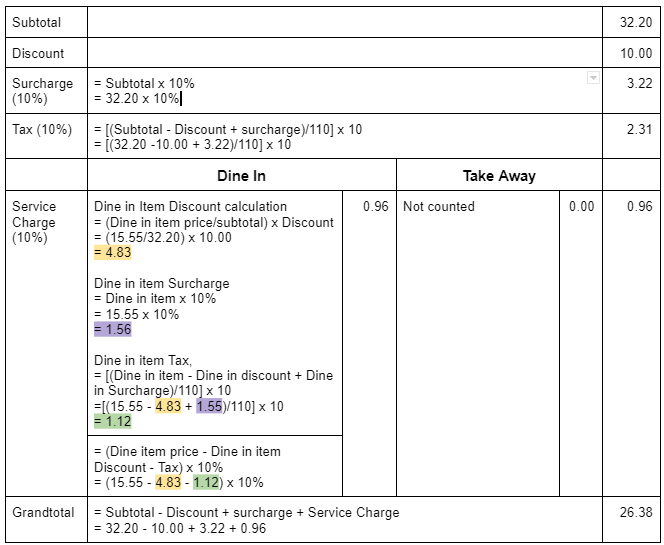
b) Surcharge include discount: Enable, Service Charge for Take Away: Disable, Mix of Dine In order and Take Away Order in 1 Cart
For Exclusive Tax the calculation:
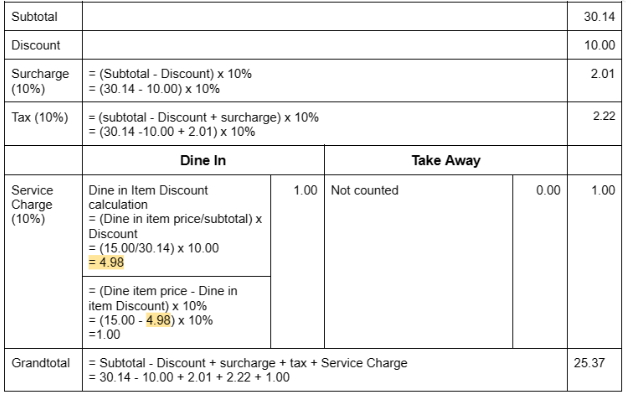
For Inclusive Tax the calculation:
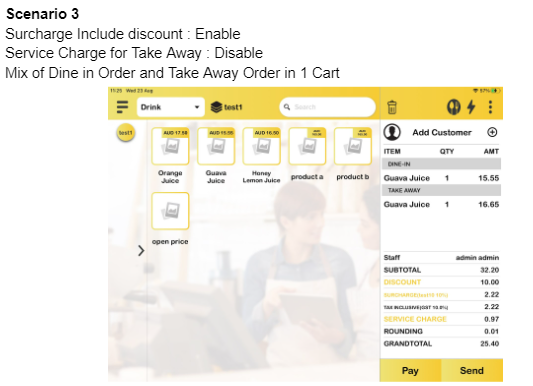
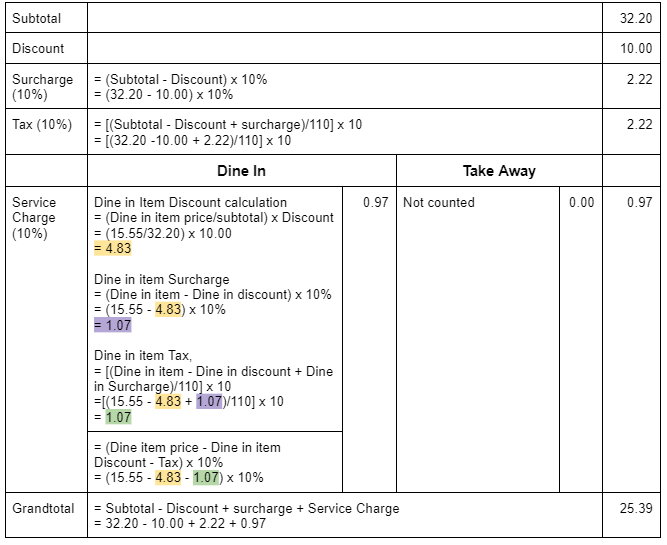
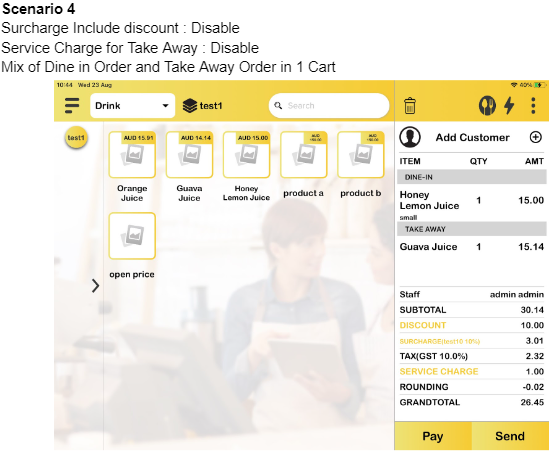
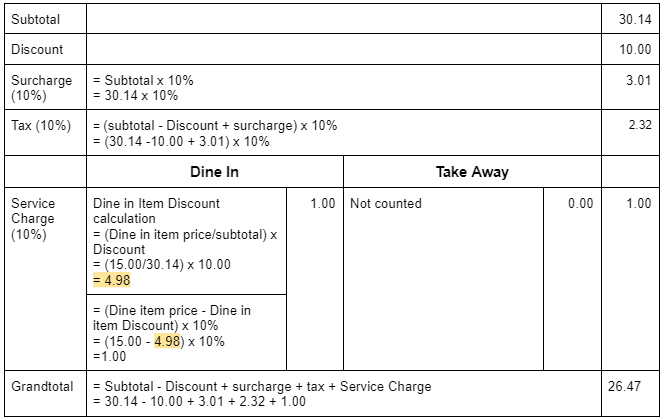
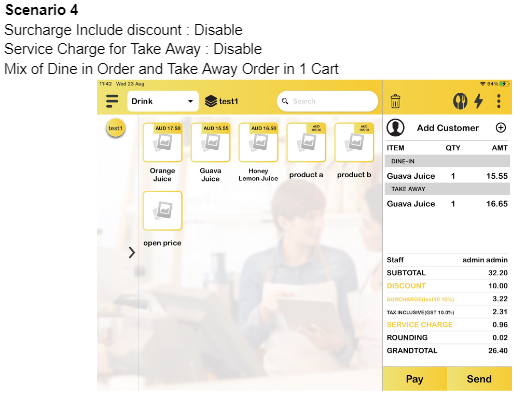
c) Surcharge include discount: Disable, Service Charge for Take Away: Disable, Mix of Dine In Order and Take Away Order in 1 Cart
For Exclusive Tax the calculation:
For Inclusive Tax the calculation:
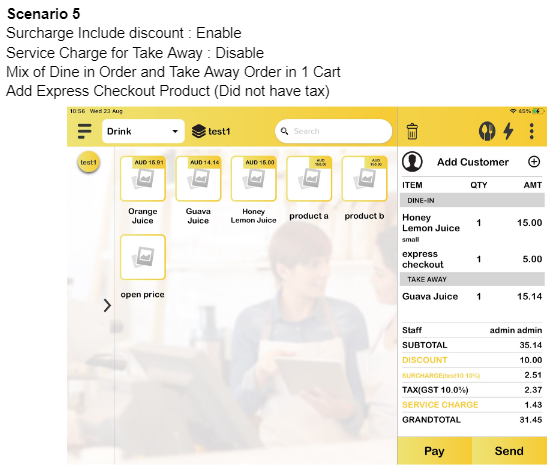
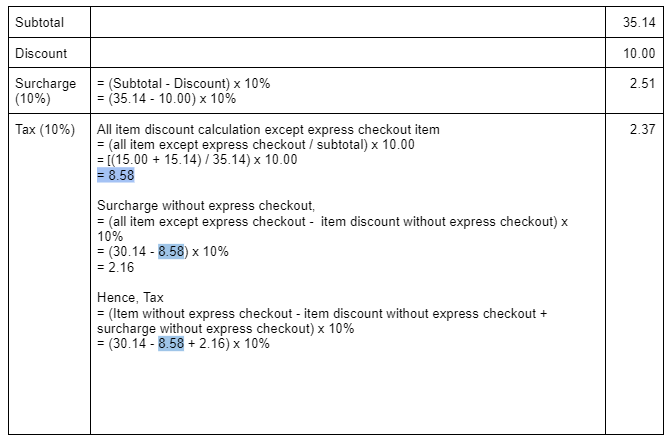
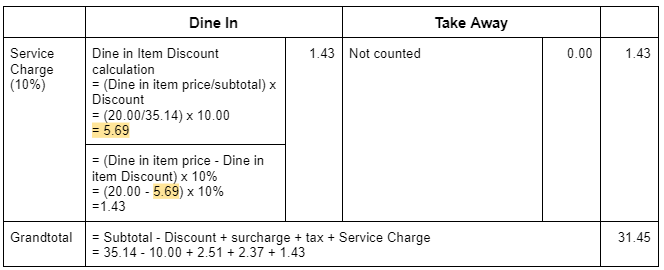
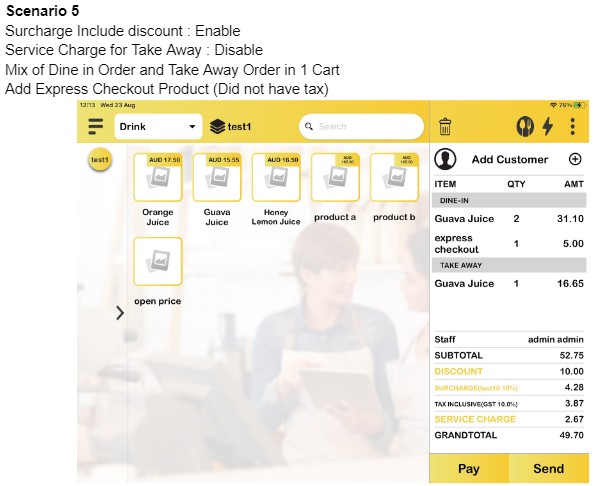
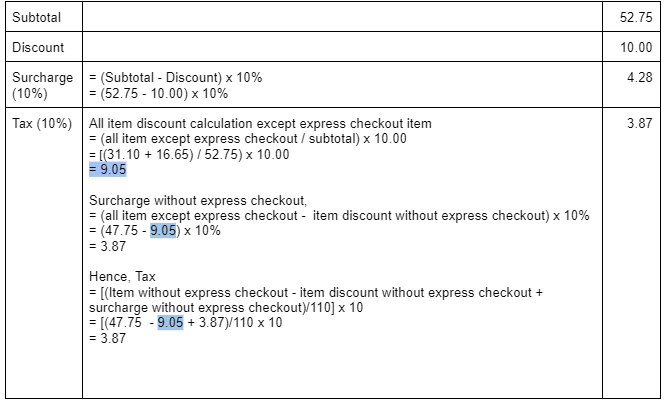
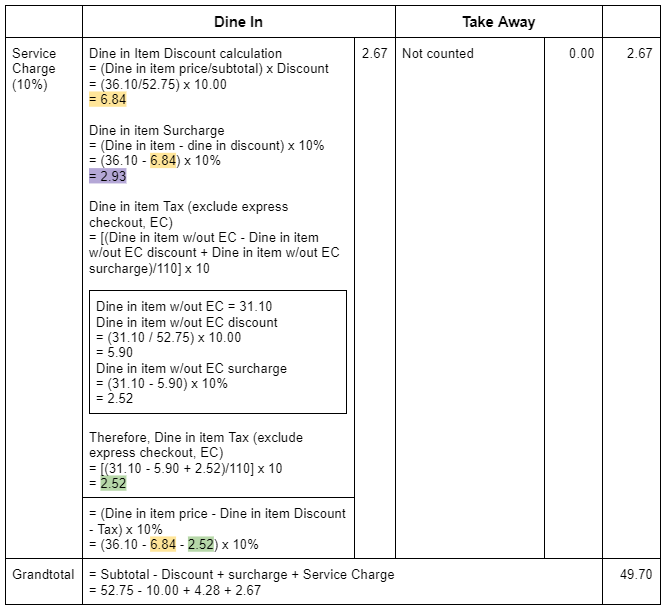
d) Surcharge include discount: Enable, Service Charge for Take Away: Disable, Add Express Checkout Product (Did not have tax)
For Exclusive Tax the calculation:
For Inclusive Tax the calculation:
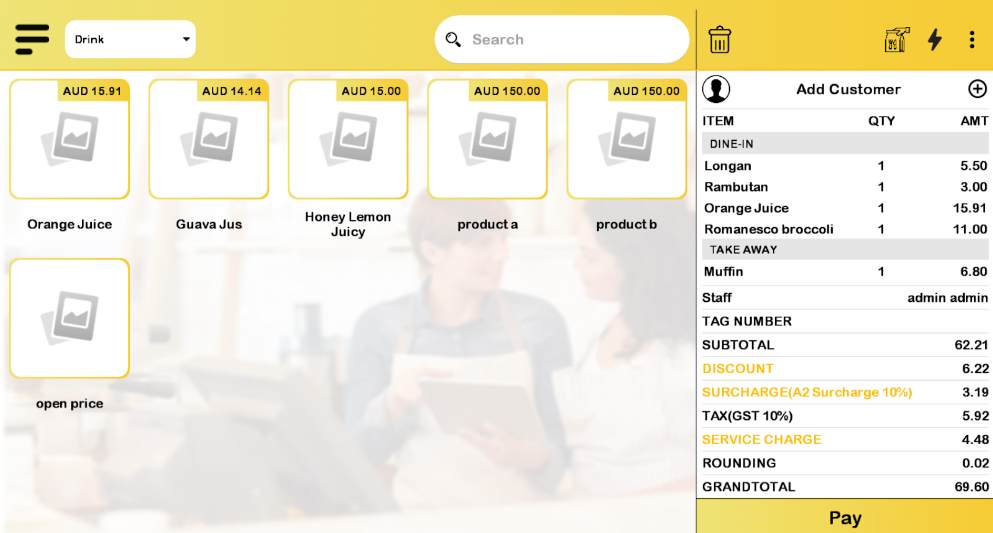
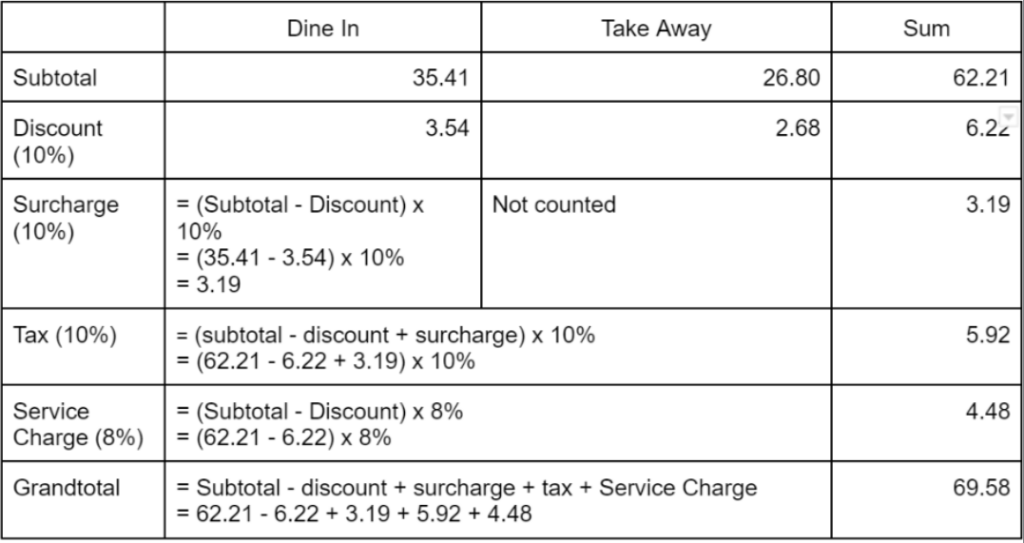
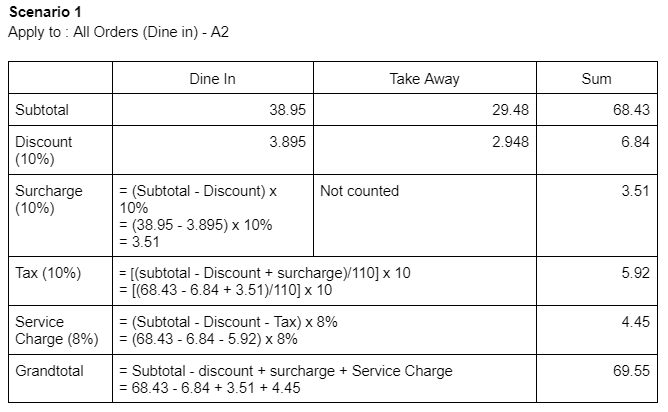
e) Surcharge applies to ‘All Orders’ with the order mode applied for ‘Dine-in’ only
Note: The list of items for Exclusive Tax and Inclusive Tax includes similar products.
Surcharge Classification
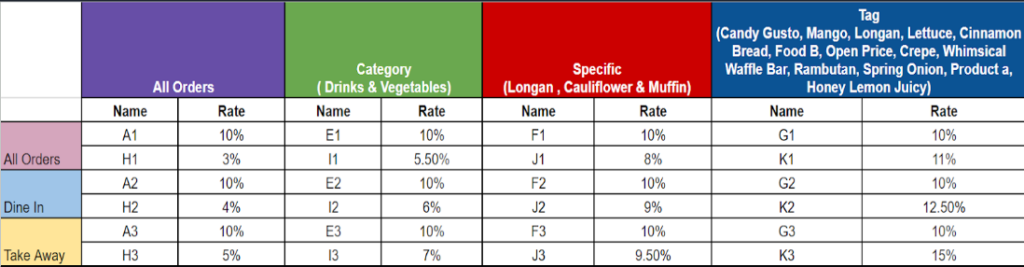
Surcharge Classification: In this section, surcharge implementation will be specific based on ‘Surcharge Apply To‘ and ‘Surcharge Order Mode.’ The figure below illustrates the Surcharge Classification to help users better understand how surcharges work.
For Exclusive Tax the calculation:
For Inclusive Tax the calculation:
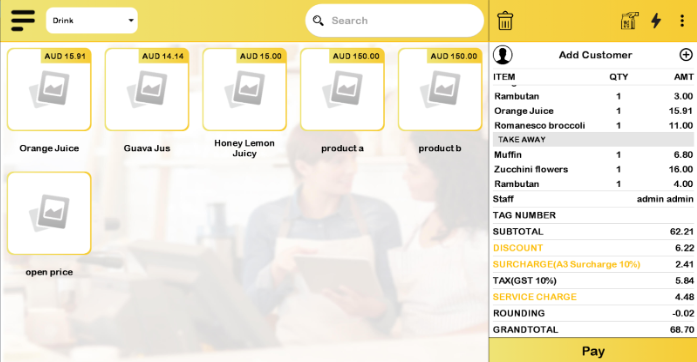
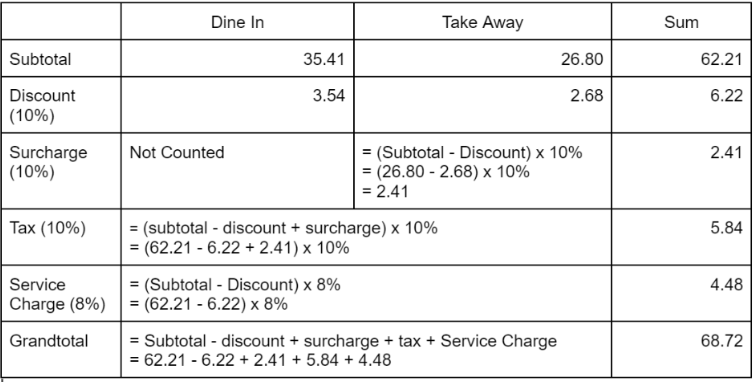
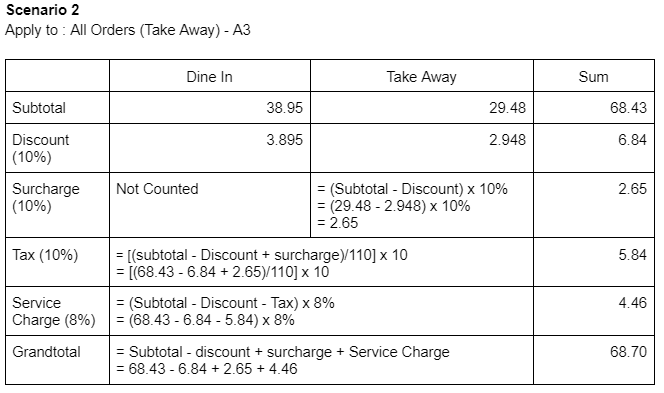
f) Surcharge applies to ‘All Orders’ with the order mode applied for ‘Take Away’ only
For Exclusive Tax the calculation:
For Inclusive Tax the calculation:
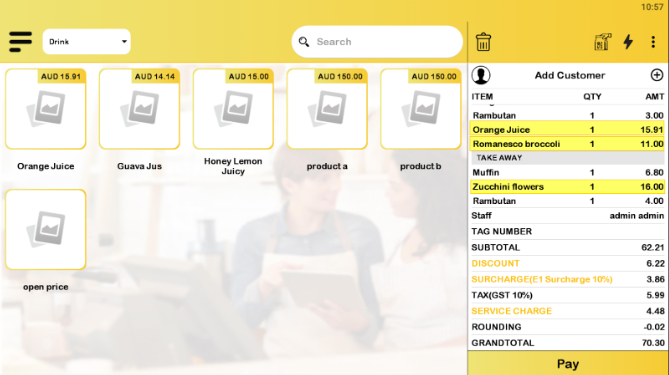
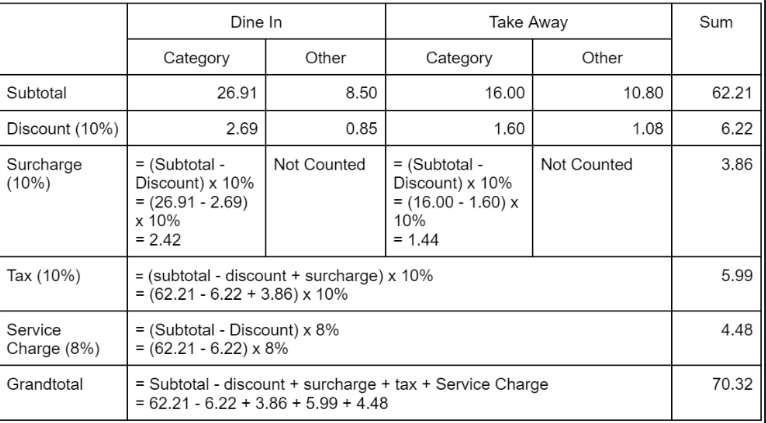
g) Surcharge applies to ‘Category’ with the order mode applied for ‘All Order’
For Exclusive Tax the calculation:
For Inclusive Tax the calculation:
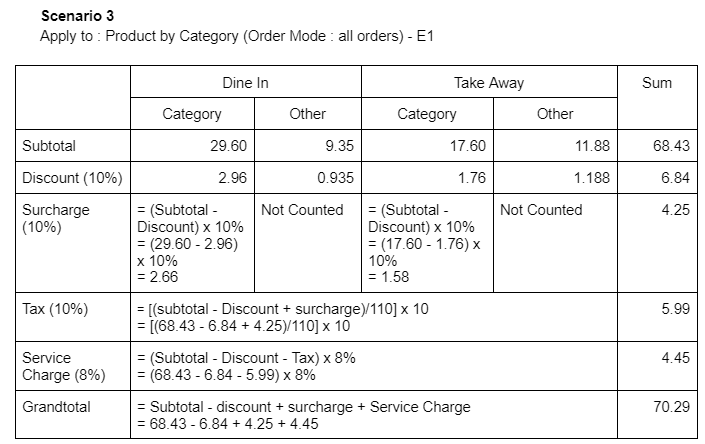
h) Surcharge applies to ‘Category’ with the order mode applied for ‘Dine In’
For Exclusive Tax the calculation:
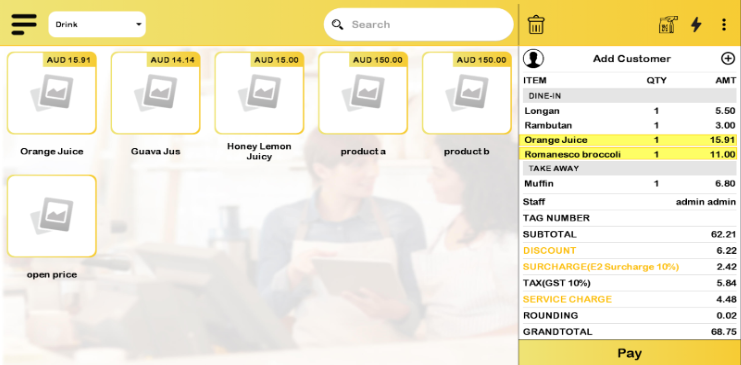
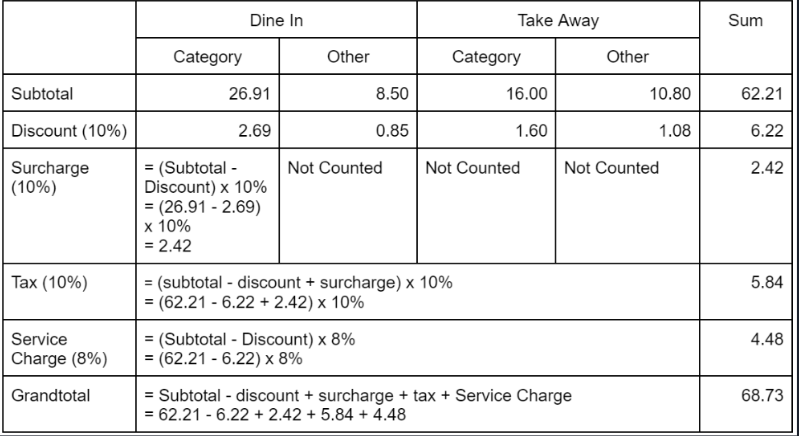
For Inclusive Tax the calculation:
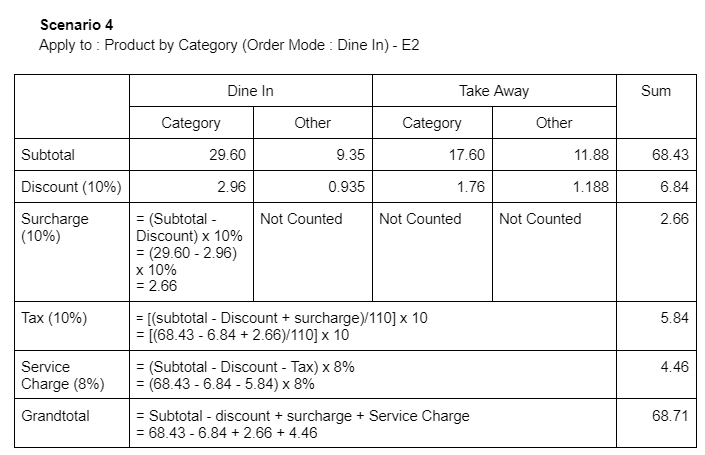
i) Surcharge applies to ‘Specific Product’ with the order mode applied for ‘Take Away’
For Exclusive Tax the calculation:
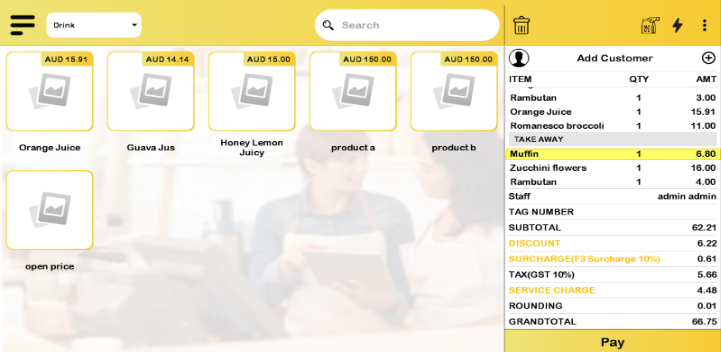
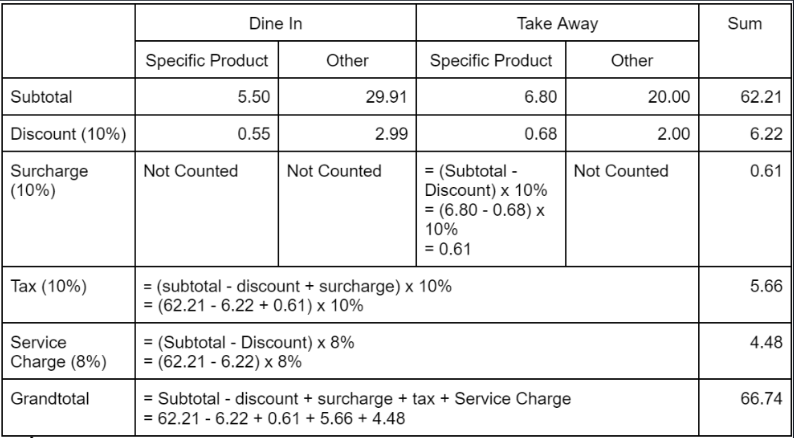
For Inclusive Tax the calculation:
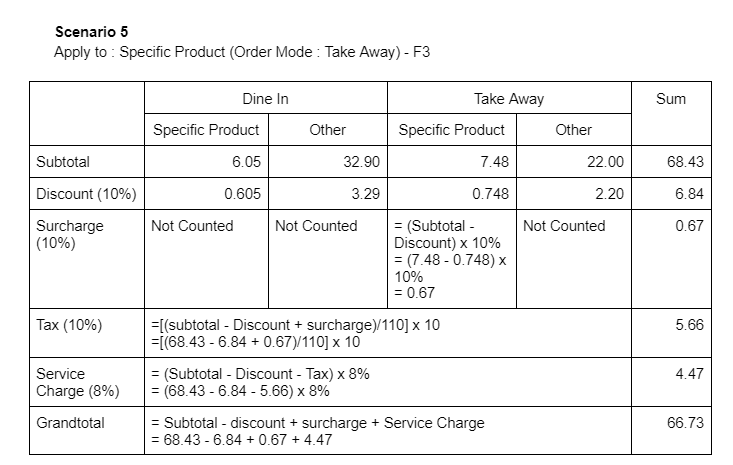
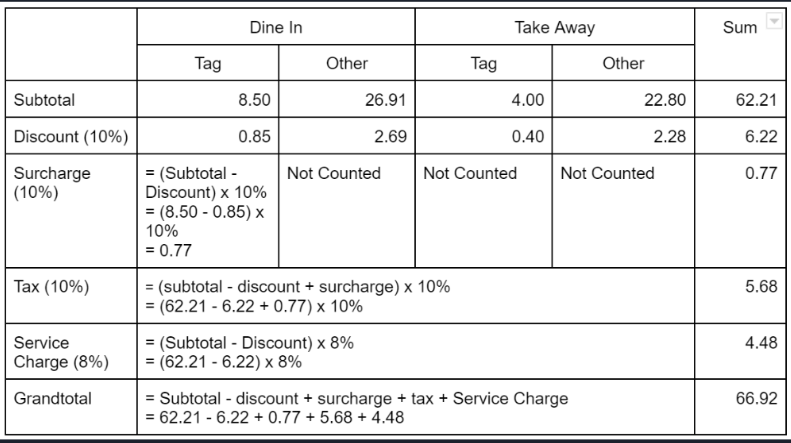
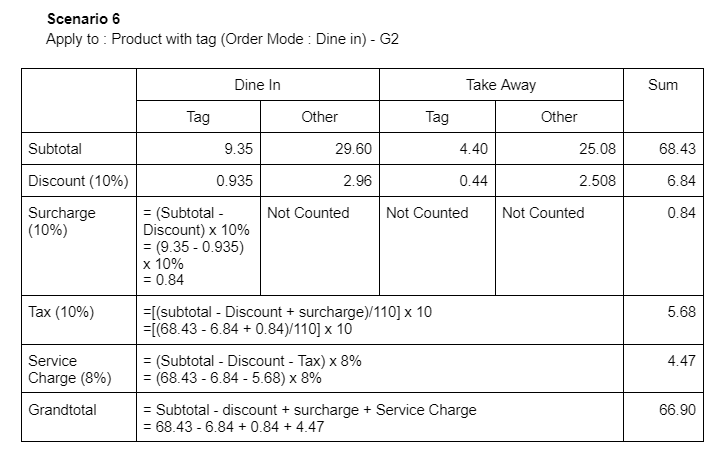
j) Surcharge applies to ‘Product with Tag’ with the order mode applied for ‘Dine in’
For Exclusive Tax the calculation:
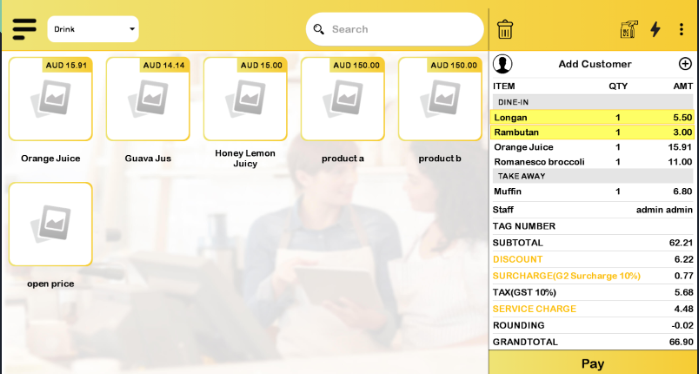
For Inclusive Tax the calculation:
k) Scenario from QR Menu. Surcharge applies to ‘Category’ with the order mode applied for ‘Dine in’
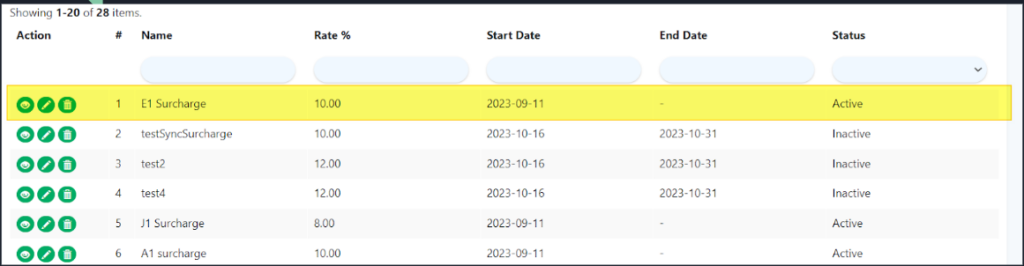
- In QR Menu, Surcharge will follow the rate by priority. Figure below displayed surcharge settings, at the top, QR Menu will follow surcharge setting of E1.
- Surcharge apply to: Product of category
- Surcharge Order Mode: Dine in
- Rate: 10%
2. In the “Channel Type” section, make sure to choose ‘QR Menu‘, this way, the surcharge will be applied when ordering via QR Menu.
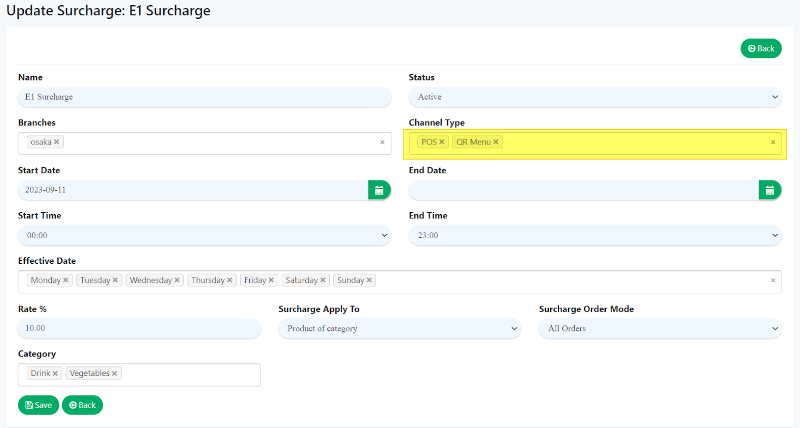
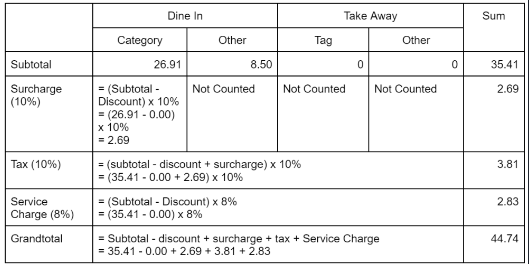
3. The accompanying figure below shows the application of the surcharge to category products with a detailed calculation.