How Can We Help?
Suppliers Management – How to create, update, and delete in the web admin?
Introduction
This post will guide you to create, update, and delete suppliers in the web admin.
How to create a new supplier?
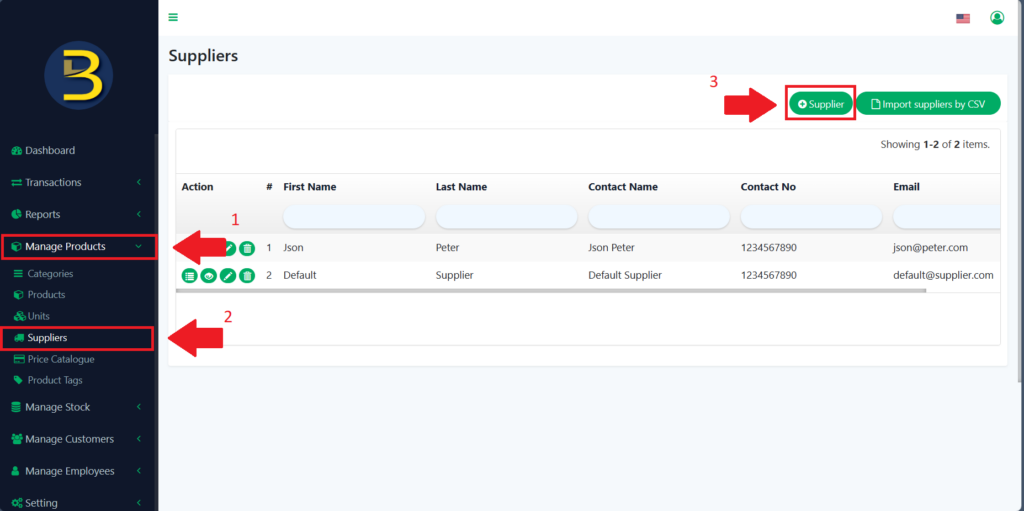
- To create a new supplier, you need to go to the left panel and then look for “Manage Products” to expand the subcategory.
- Then click the “Suppliers” to redirect to the suppliers’ page.
- Then, you click on the “+ Supplier” button to create a new supplier.
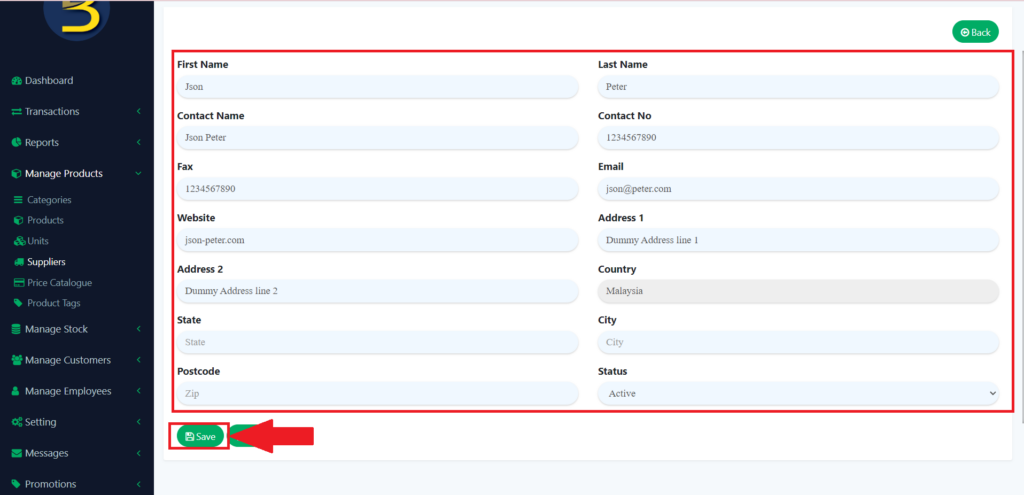
4. After you reach the supplier detail page, you fill in the information and click on the “Save” icon to create a new supplier.
How to update the supplier?
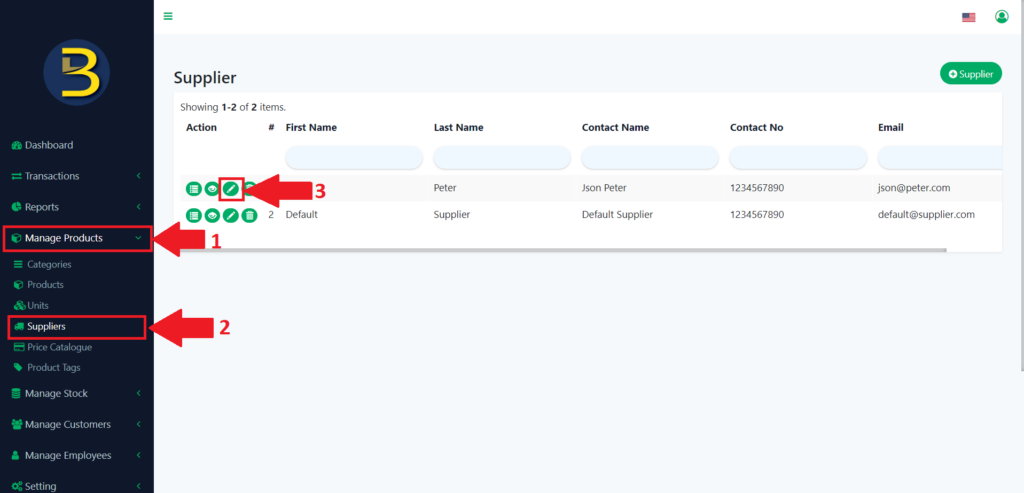
- To update the suppliers, you need to go to the left panel and then look for “Manage Products” to expand the subcategory.
- Then click the “Suppliers” to redirect to the suppliers’ page.
- Then, you click on the pencil icon to edit or update the detail of the suppliers.
4. After you reach the supplier detail page, you edit or update the information and click on the “Save” icon to save the updated version.
How to delete the supplier?
1. To delete the supplier, you just need to click on the dustbin icon.
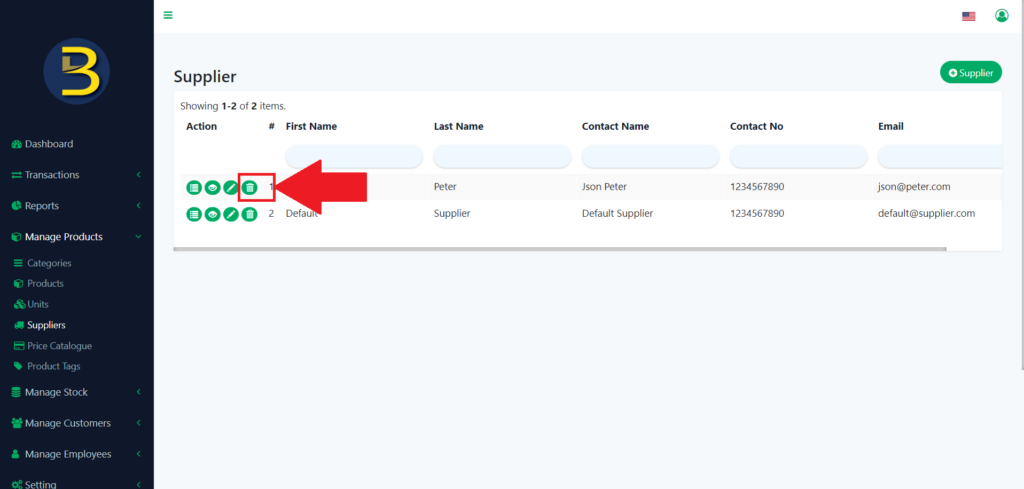
2. Then, it will pop up an alert message for confirmation of the deletion of the supplier.
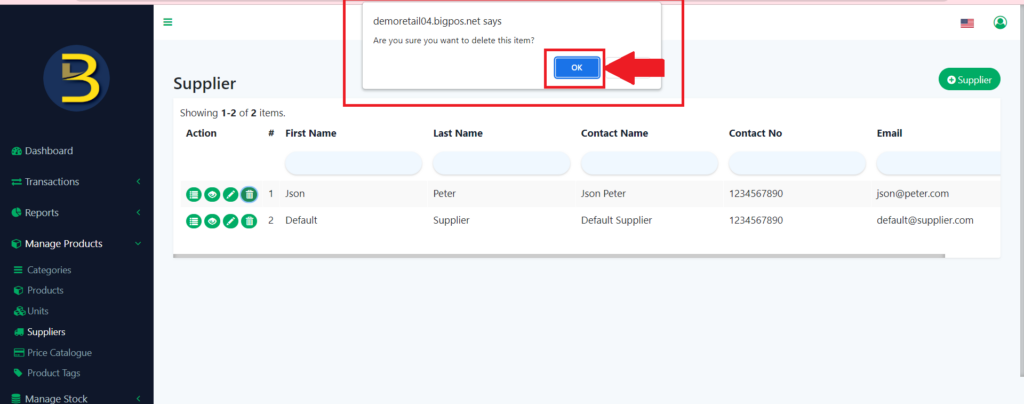
3. The supplier will be deleted.