How Can We Help?
Supplier – Create Supplier Page
Introduction
Create supplier allows products to be assigned to relevant suppliers for tracking and dashboard purposes.
How to ‘Add Supplier’?
To begin adding a supplier, follow the following steps:
- First, navigate to the Supplier main page as shown in 1.1.12 Supplier Main Page section
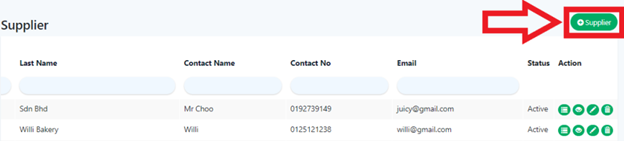
- Within the Supplier main page, click on the green ‘Supplier’ on the right which will redirect into the ‘Create Supplier Page’.
- After filling all the required inputs, the user shall continue by clicking on
 or cancel.
How to ‘Link Supplier’?
To begin linking a supplier to a product, follow the following steps:
- Head over to ‘Manage Products’ on the left side panel.
- Using the dropdown menu, proceed by clicking on ‘Products’.
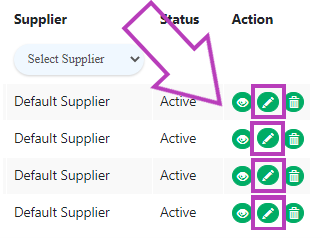
- After step 3, scroll to the right in the list of products until the action column, click on the pencil icon
 in the column where the supplier will be added to that product which will redirect the user to the ‘Update Product Page’.
- After entering the ‘Update Product Page’, look for ‘Suppliers’.
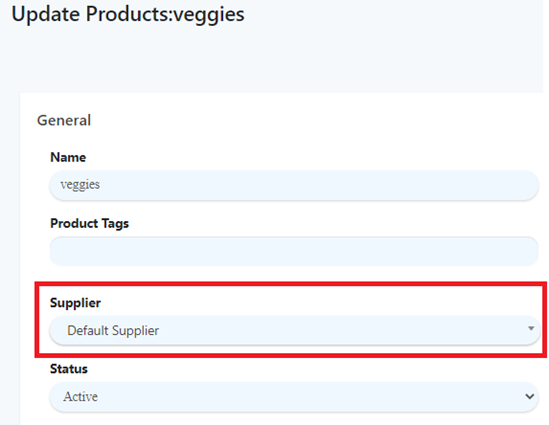
- Using the dropdown menu, search for the newly added or existing supplier to be linked to that product.
- Proceed to the bottom of the page and click save or cancel.
- (Note) The dropdown menu can also be used to change from a supplier to another supplier.