Stock Transfer – Create Stock Transfer
Introduction
Create stock transfer allows the stock to be transferred from one branch to another in case o f stock deficiency. This process can be tracked and monitored accurately via the BIG POS Web Admin.
How to ‘Create Stock Transfer’?
A. New Stock Transfer
To begin adding a stock transfer, follow the following steps:
- First, navigate to the Stock transfer main page as shown in Stock Transfer Main Page section.
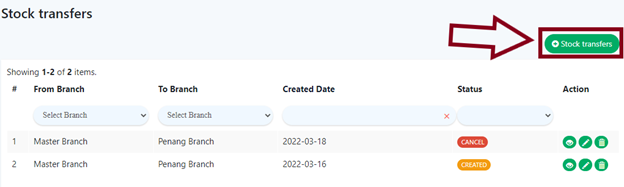
- Within the Stock Transfer main page, click on the green ‘Stock transfer’ on the right which will redirect into the ‘Create Stock Transfer Page’.
- After filling all the required inputs, the user shall continue by clicking on
 or cancel.
B. Existing Stock Transfer
To edit an existing stock transfer, follow the following steps:
- First, navigate to the Stock transfer main page as shown in Stock Transfer Main Page section.
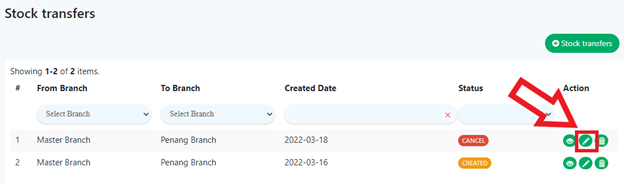
- After step 1, click on the pencil icon
 in the ‘Action’ column where the stock transfer to be inspected which will redirect the user to the ‘Update Stock Transfer Page’.
C. Stock Transfer Details
- From Branch
Selects which branch of the stock transfer will be requesting products from.
- To Branch
Selects which branch of the stock transfer will be receiving products.
- Created Date
Specifies the date when the stock transfer is created.
- Status
Indicates the current situation or status of the stock transfer.
- Order Quantity
The amount of a product to be requested for stock transfer
D. Continuation
Below is an example of stock transfer.
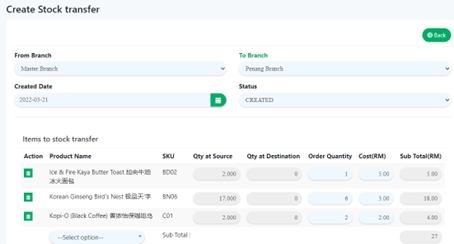
After filling all the required information, users can proceed to or cancel the created stock transfer.