Stock Take – Create Stock Take
Introduction
Create stock takes allows the counting process to be tracked accurately via the BIG POS Web Admin.
How to ‘Create Stock Take’?
To begin adding a stock take, follow the following steps:
- First, navigate to the Stock take main page as shown in Stock Take Main Page section.
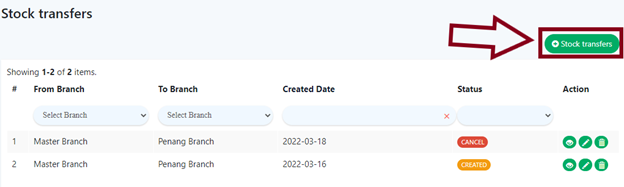
- Within the Stock Take main page, click on the green ‘Stock takes’ on the right which will redirect into the ‘Create Stock Take Page’.
- After filling all the required inputs, the user shall continue by clicking on
 or cancel.
Stock Take Details
- Start Date
Indicates the beginning date of the stock-take operation.
- End Date
Dictates the completion date of the stock-take operation.
- Branch
Selects which branch will the stock-take be operating at.
- Supplier
Denotes which supplier will be the checking of stock-take be related to.
- Status
Indicates the current status or behavior of the stock-take.
- Description (Optional)
Any relevant information that would be necessary to be added to ease audit purposes.
How to ‘Carry out Stock Take’?
A. New Stock Take
To carry out a new stock take, follow the following steps:
- Follow the steps as mentioned above to create a new stock take.
- After creating a stock take and clicking save
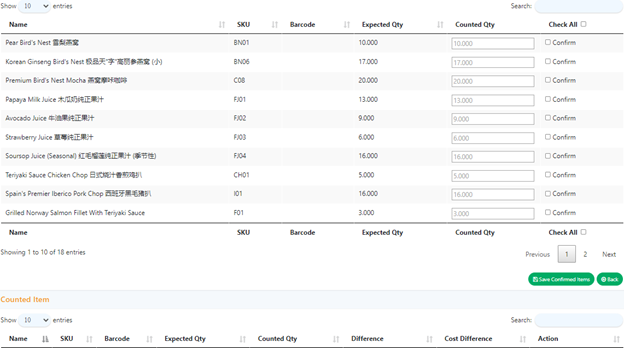
 icon, the rest of the input and options will be visible after the page refreshes as shown below.
B. Existing Uncompleted Stock Take
To continue carrying out an uncompleted stock take, follow the following steps:
- Enter the ‘Stock Take Main Page’ as shown in Stock Take Main Page section.
- Click on the ‘Stock Take icon’
 on the right in the column where the uncompleted stock take is which will then redirect the user to the ‘Stock Take Page’ which is the same page as with a new stock take created as in Section A of this part.
C. Counted Item and Uncounted Item Details
Below is an example of the ‘Counted Item section’.
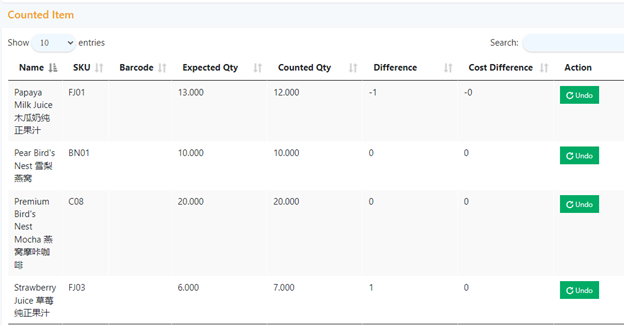
- Expected Quantity
Specifies the amount of a product as recorded in the system.
- Counted Quantity
Specifies the amount of a product that is counted and inserted by the user.
- Difference
The difference in amount of the expected quantity and counted quantity.
D. Stock Take Process
After creating or entering an uncompleted stock take, the user can start counting his or her stock. After acquiring the quantity amount, follow the following steps:
- In the Uncounted Item section, for each respective product, add the counted amount into the ‘Counted Qty’ column.
- Click to tick the ‘Confirm’ at the column right beside the ‘Counted Qty’ column which is used to indicate the stock take for the item has been completed.
- Repeat step 1 and 2 until all the products have been counted and their quantity noted down.
- After finishing counting a product(s), users can proceed to click on
 to save the currently completed stock-take items into the Completed Item section to help users focus on whichever products.
 - In case of human error, within the Completed Item section, click on
 to reverse the completed item back to the Uncounted Item section to allow editing again.
 - Once the stock take process is overall completed, proceed to save the stock-take result by clicking on
 or cancel the stock take by clicking on
  , otherwise pause the stock take process by clicking on
  .
.