How Can We Help?
Stock Return – Create Stock Return
Introduction
In this section, users are to create a stock return record to manage the process to deliver items back to suppliers.
How to create ‘Stock Return’?
A. For new ‘Stock Return’
To create a ‘Stock Return’, follow the following steps:
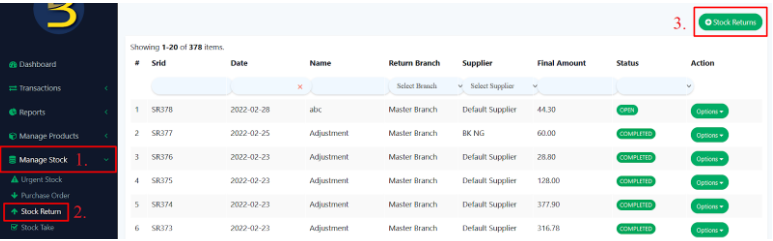
- Head over to ‘Manage Stock’
- Follow steps in ‘Stock Return’ Main Page
- Click on ‘+ Stock Returns’ on the right side of the page, users will be redirect to ‘Create Stock Return’ page
- Once users have done selecting return items, click ‘
 ’ , ‘
’ , ‘ ’ or ‘
 ’
’
- Save : Return details are saved but inventory is not deleted from the store performing return operation. Status showed ‘Open’
- Save and Marked Shipped : Stock return is saved, inventory will be deducted from the store performing return operation. Status showed ‘Completed’
- Back : Go back to ‘Stock Return’ page
- Click on the ‘Delete’ button on the left to remove items.

B. For existing ‘Stock Return’
To edit an existing return process, follow the following steps:
- Look for this
 button on the right side of every return record on ‘Stock Return’ page
 - Choose between ‘edit’ or ‘cancel’ to update a stock return details or status
- If users choose to ‘edit’ the record, users will be redirected to ‘Create Stock Return’ page
- If users choose to ‘cancel’ a stock return process, a message will prompt users to confirm cancellation process, status changed to ‘Cancel’
Stock Return Details
- Name
Name given to this return process
- Date
Indicates start date of this stock return operation
- Return Branch
Indicates which branch is returning items
- Supplier
Indicates which supplier will be related to
- Product Name
Indicates which items to be returned
- Tax
Extra value added to state revenue
- Discount
Deduction from usual cost
- Note
Description to the stock return operation
- Quantity to Return
Indicates how many defeated items wanted to be returned
- Supplier Price
Cost of items offer by supplier