How Can We Help?
Sign In & Sign Up
Sign In – Introduction
Sign In allows users to enter into BIG POS Web Admin and BIG POS Pro/lite. This section introduces how to Sign In in the BIG POS Web Admin and App.
How to Sign In? (on BIG POS Web Admin)
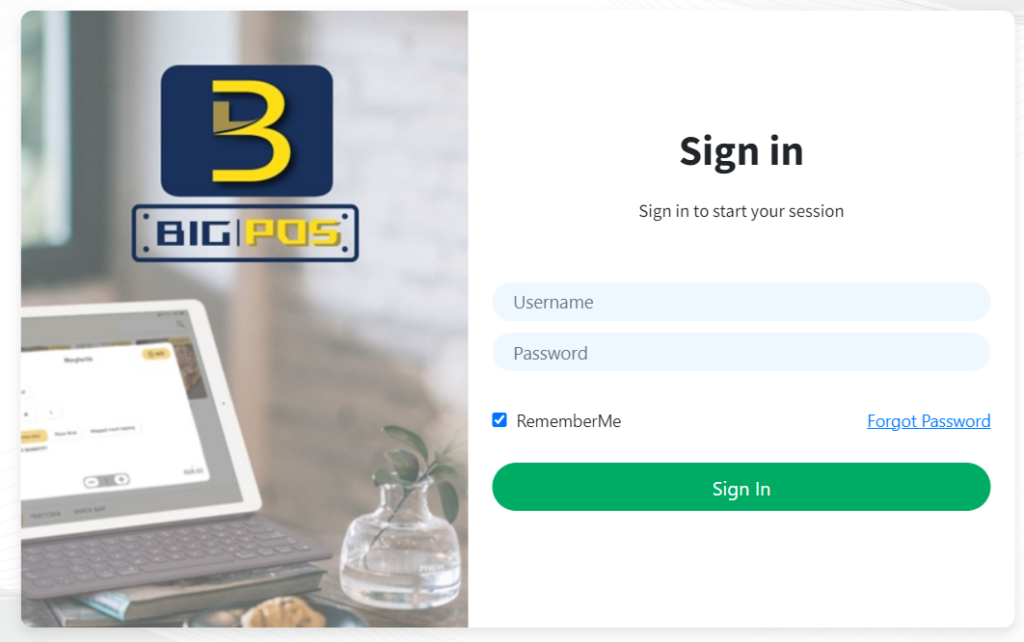
- First, open your browser and type (your Account URL).bigpos.net to enter BIG POS Web Admin.
- Then, key in the correct username and password.
- Once you have finished keying in the sign-in information, click on the “
 ” button to sign in.
How to Sign In? (on BIG POS Pro or BIG POS lite)
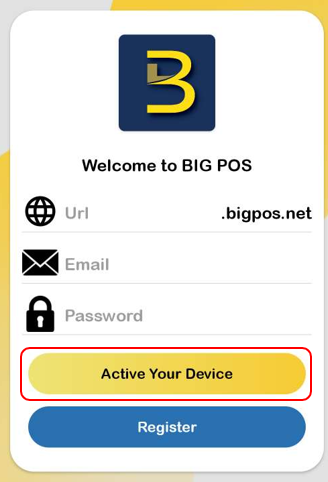
- First, key in your Account URL.
- Then, key in the correct username and password.
- Once you have finish key in the Sign In information, Click on “
 ” button to Sign In.
- Select your Branch and click “Done” to proceed.
- The system will automatically sync all the required data.
Sign Up – Introduction
Sign up allows users to register an account in BIG POS System. This section introduces how to Sign up in the BIG POS Web Admin and App.
How to Sign up? (on BIG POS Web Admin)
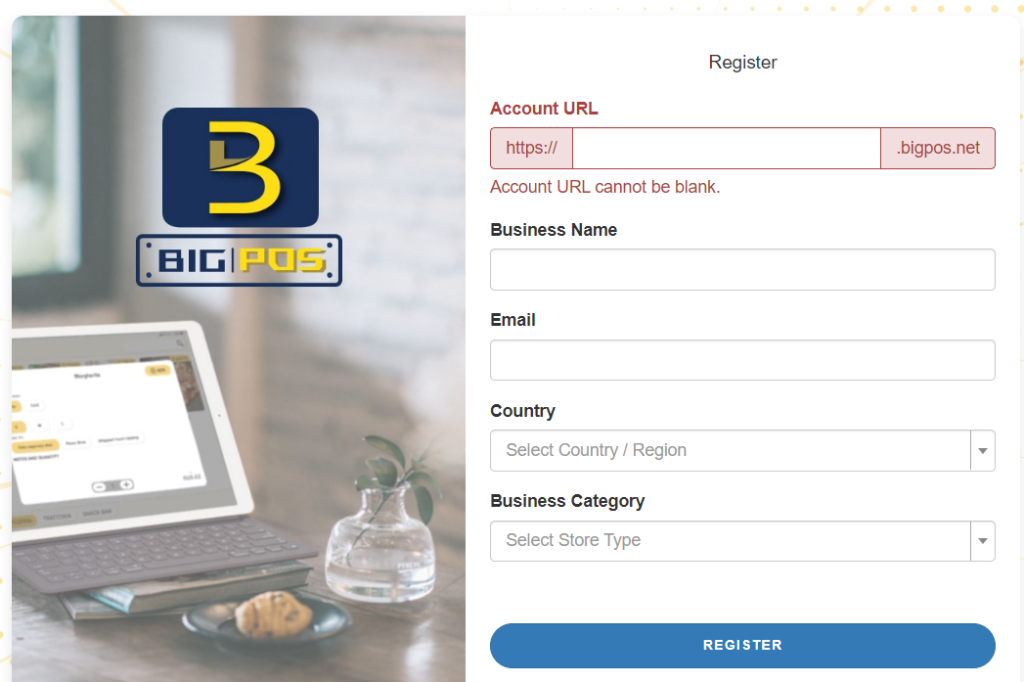
- First, open your browser and type https://secure.bigpos.net/site/signup to enter the BIG POS Register page.
- Then, fill in all the required information.
- Once you’ve filled in all of the required information, click on “
 ” button to sign up.
How to Sign up? (on BIG POS Pro or BIG POS lite)
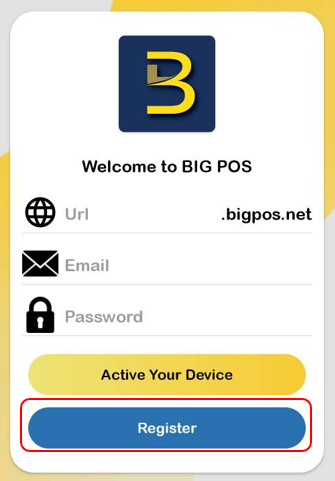
- First, click on the “Register” button to enter the Register page.
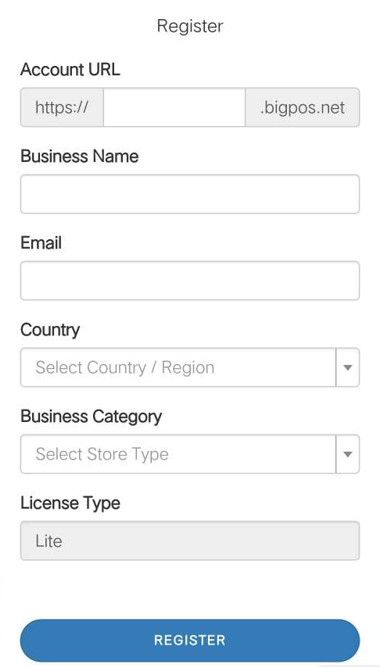
- Then, fill in all the required information.
- Once you’ve filled in all of the required information, click on “” button to sign up.