Settings – Tag Number Feature in Table Number Mode
Introduction
This section will explain how to enable tag number when the business mode is assigned to table number.
How to enable tag number feature in table number mode ?
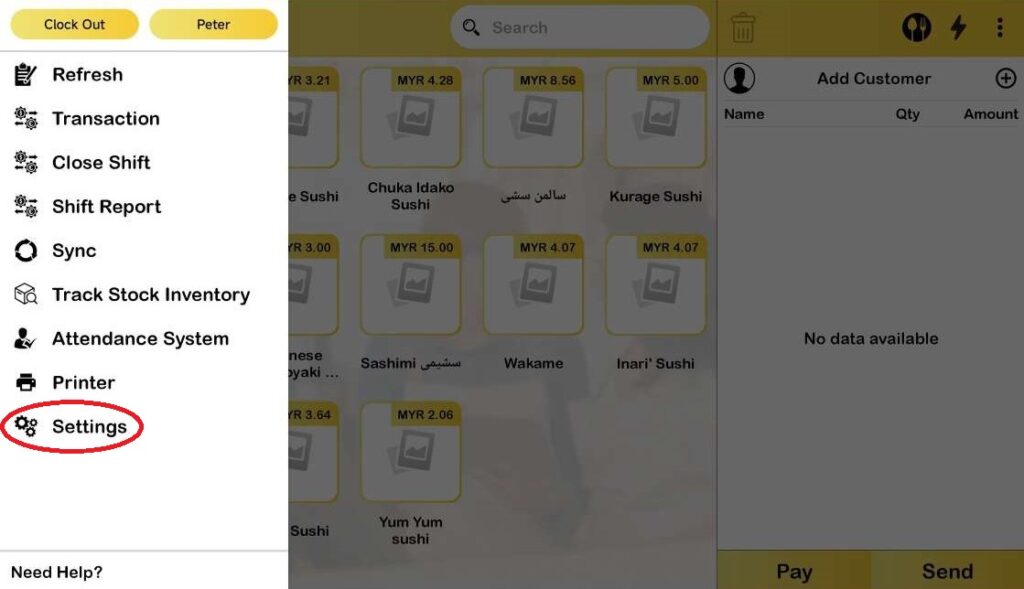
- First, go to Settings.
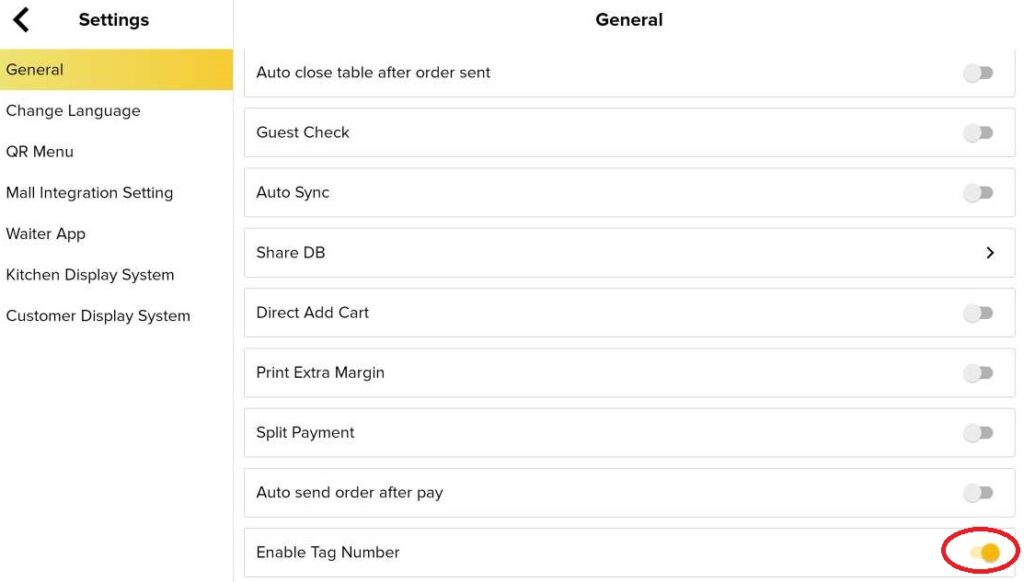
2. Then, go to General and scroll down until you found “Enable Tag Number”. Toggle on for it.
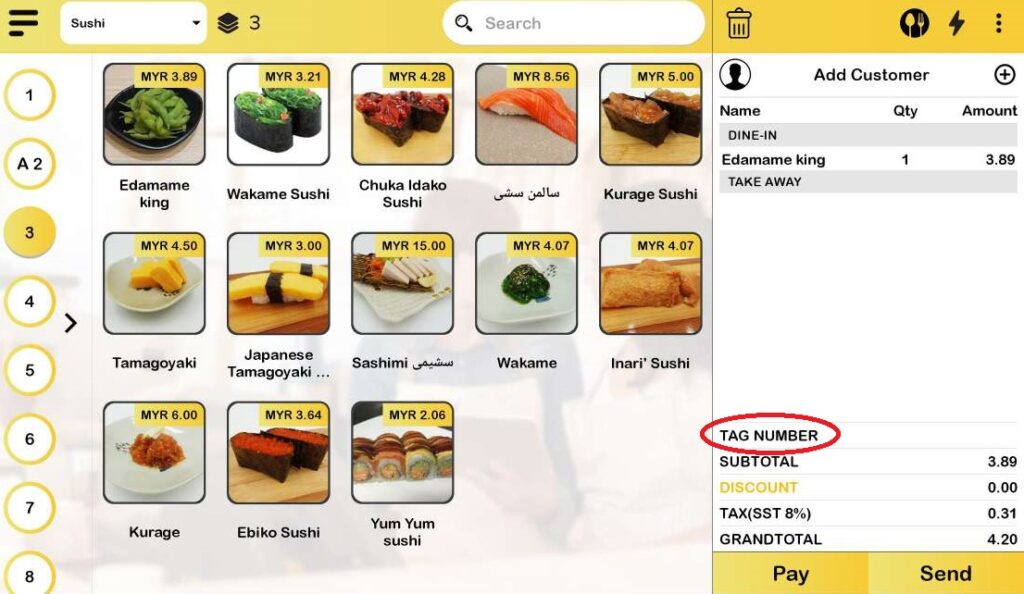
3. Afterwards, add an item to cart and tag number will be displayed at cart.
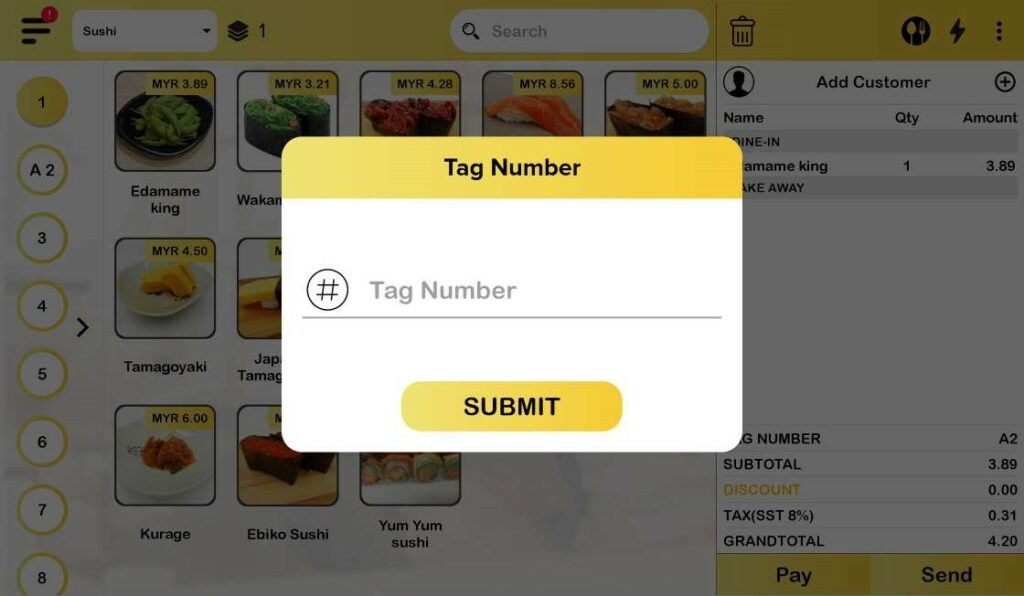
4. Enter tag number for the item.
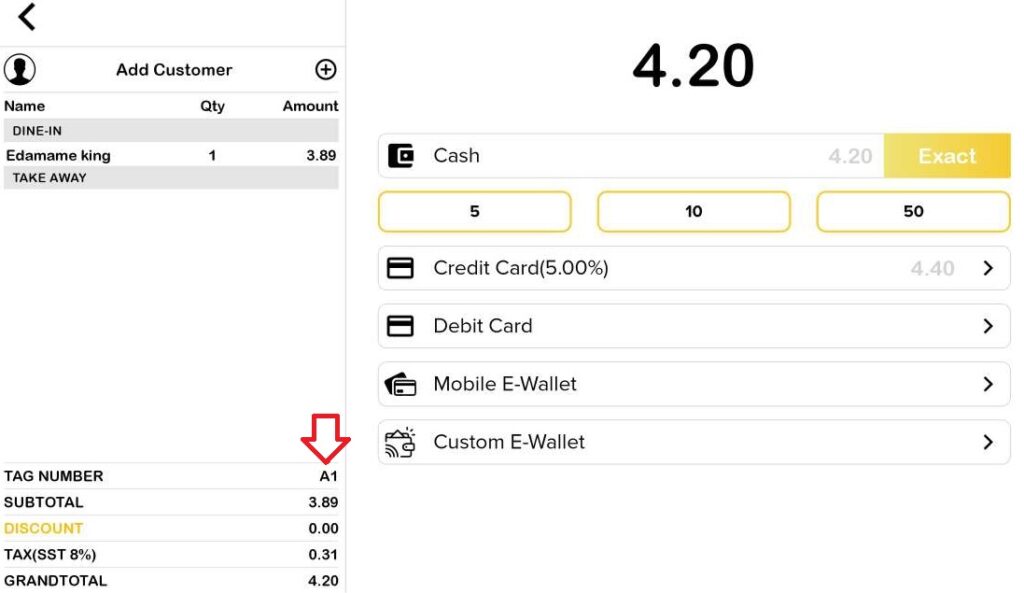
5. After click “Pay” in dashboard page, page will be directed to as shown below. User are still able to edit the tag number in this page.
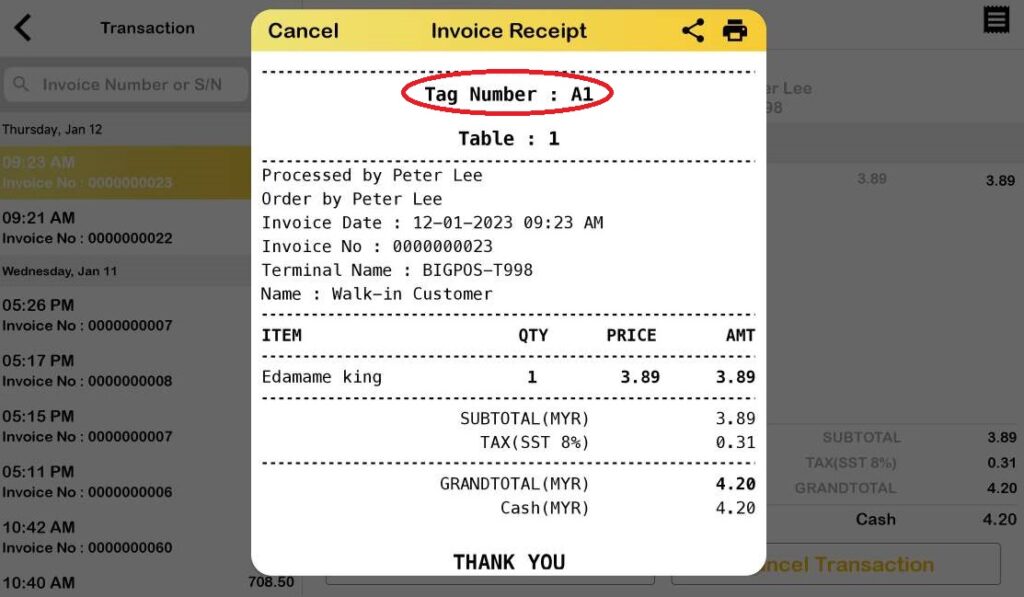
6. After payment has been made, check on the transaction receipt. The tag number will be printed out as shown in receipt below.
Please take note:
Even though the tag number feature is enabled in settings, it is not required to enter. The payment process is still operational.
*If the tag number for an item is not inserted, the receipt will not print the tag number.