Settings – Local Server Connection
Introduction
Using a master device and a sub device, this local server connection is made. The device becomes a master device by turning on the local server feature; otherwise, if the device joins the local server, it becomes a sub device. This section introduces the Local Server Connection feature in BIG POS App (BIG POS Pro only).
How to enable ‘Local Server’? (on BIG POS Pro)
To begin enabling local server, follow the following steps:
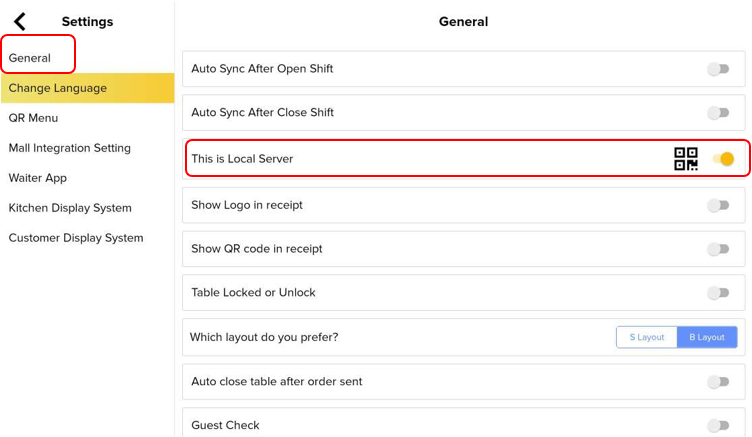
1. Open the Settings within the Pro app.

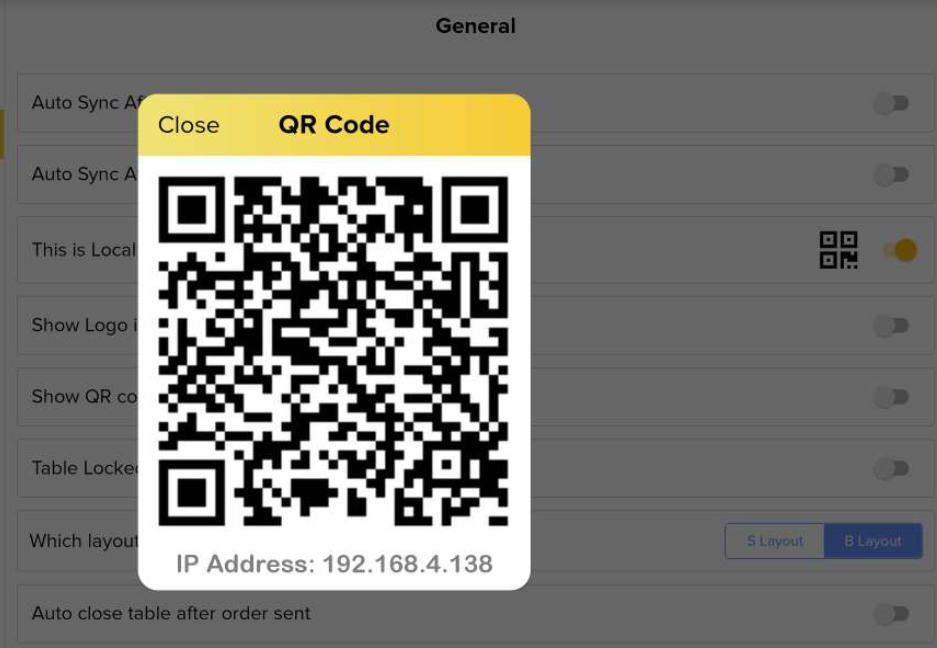
2. Turn on the This is Local Server feature under the General section of Settings.
How to connect with master device?
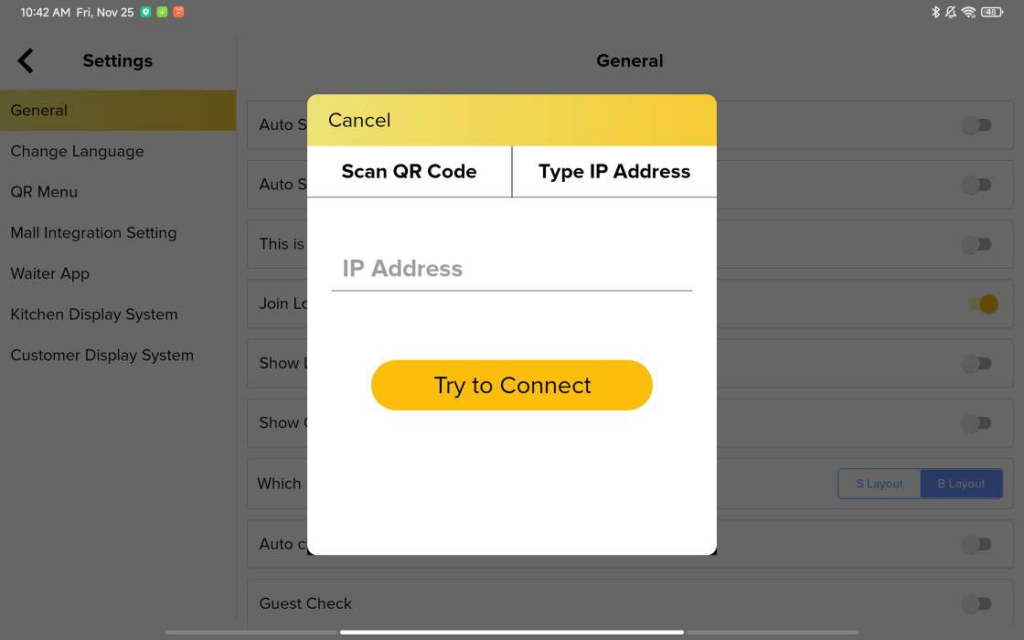
The master device can be contacted in two different ways: by scanning its QR code or by entering its IP address.
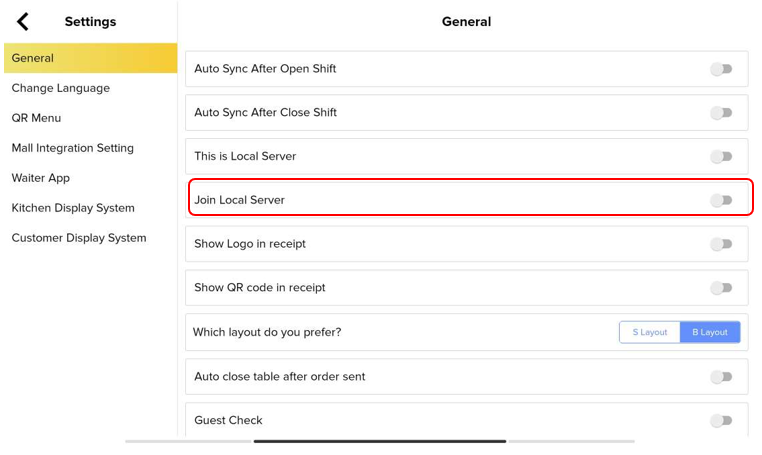
1. Open the Settings within the Pro app.
2. Turn on the Join Local Server feature under the General section of Settings.
3. By scanning the QR code on the master device or typing its IP address, the user can proceed with connecting to the master device.
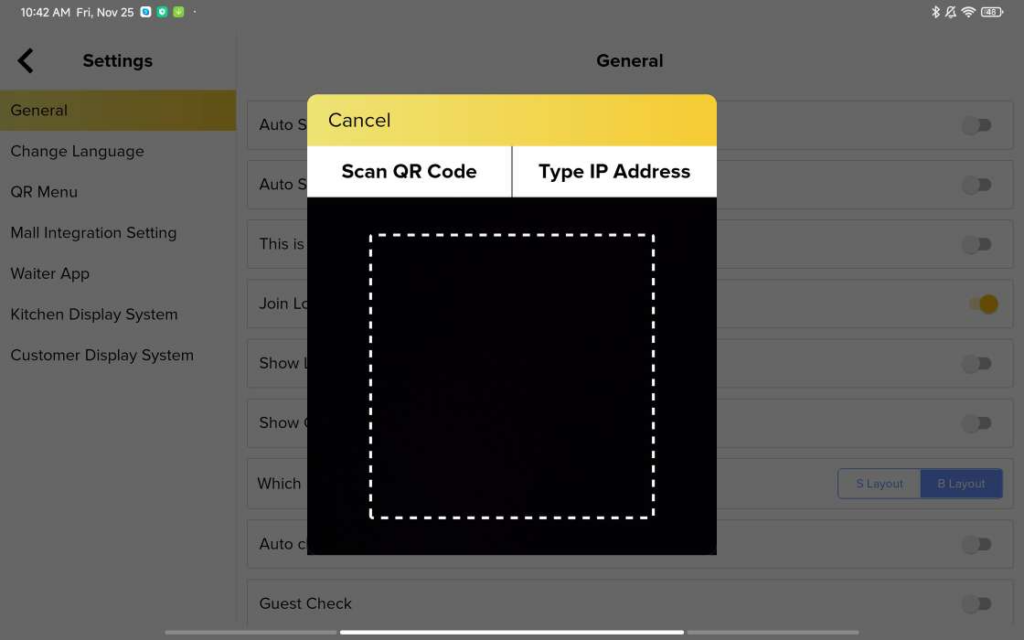
Please take note that in order to connect to the master device, the sub device must be in close shift mode.