Settings – Local Network Device Retrieve Image
Introduction
This feature retrieves product images from the database based on the user’s preferences. The user can choose whether or not to display the image on the dashboard.
This feature is developed especially for
- Sub-Device and Master-Device
- Big Waiter apps.
Retrieve Image for Sub-Device and Master-Device.
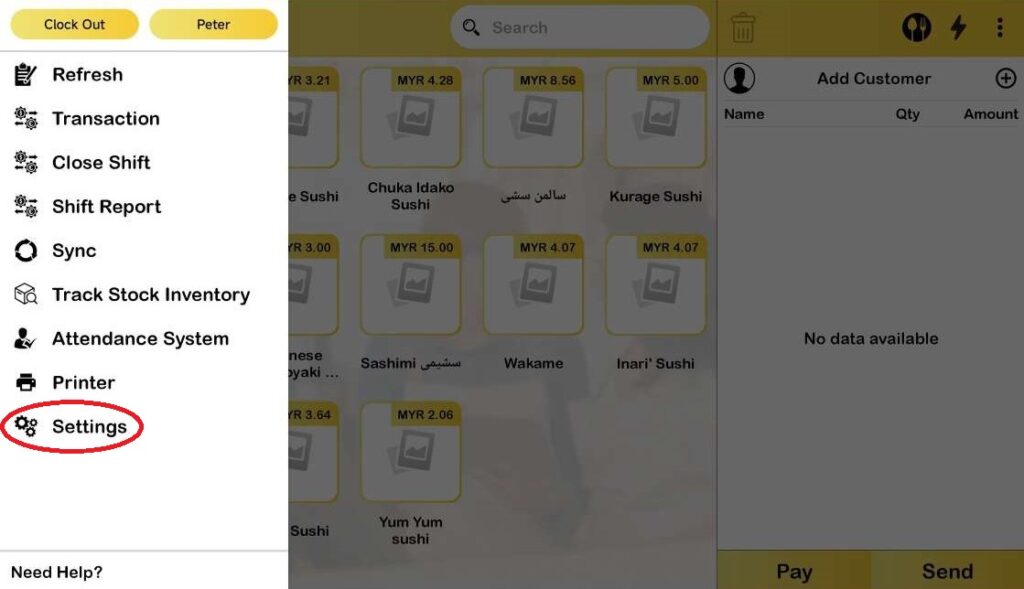
- First and foremost, go to Settings.
2. Go to General and toggle on the three options if the user wants to display the product’s image in both Sub-Device and Master-Device.

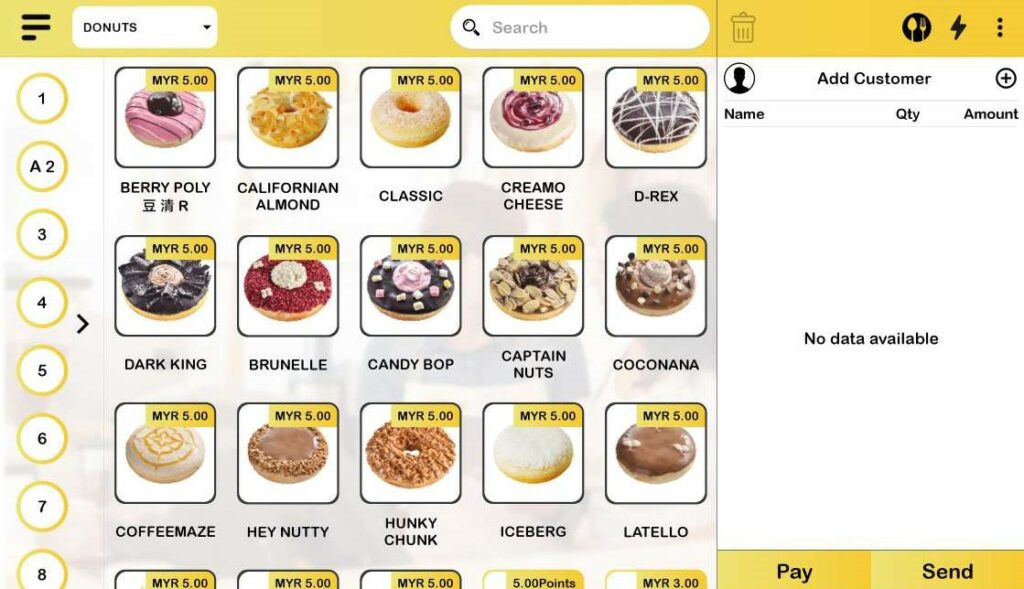
3. After toggle on, the image of the products will be displayed in Sub-Device and Master-Device as shown below.
4. If user prefers to not display the images in Sub-Device and Master-Device, go to Setting and toggle off the options.
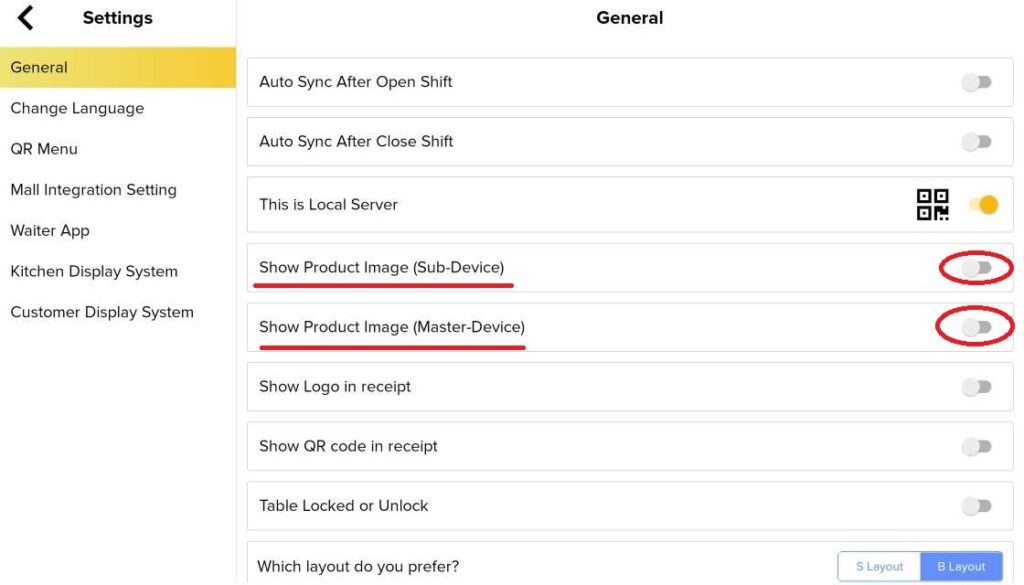
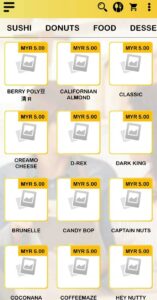
5. If user prefers to not display the images in Sub-Device, go to Setting and toggle off the options.
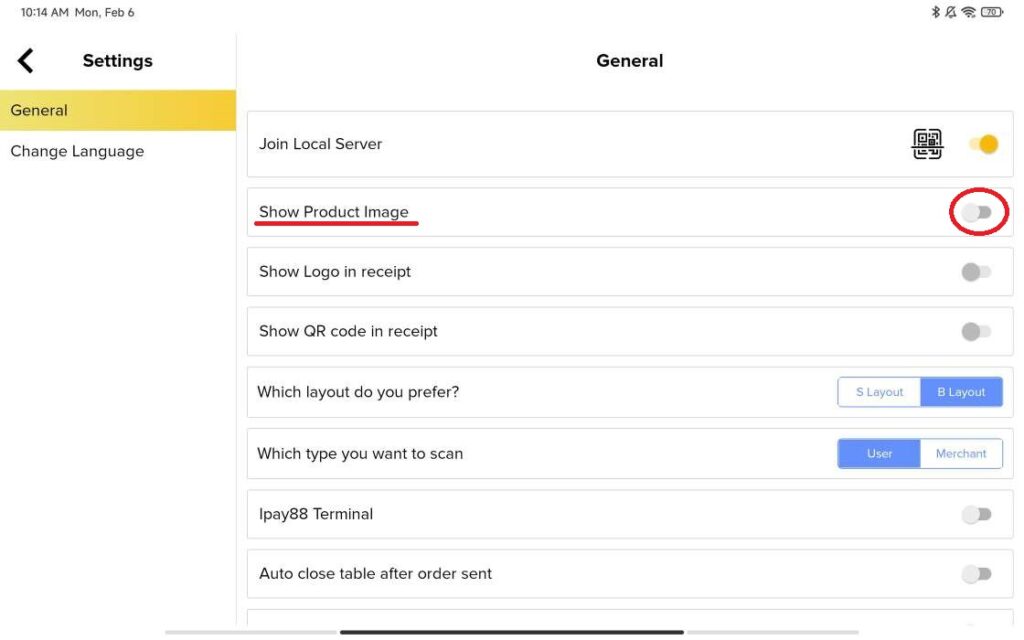
6. The dashboard will no longer display the product images after user turn it off.

Retrieve Image for Waiter Apps
- In Settings, go to Waiter App.
- Toggle on “Show Product Image”
- Scan the QR code using your phone.
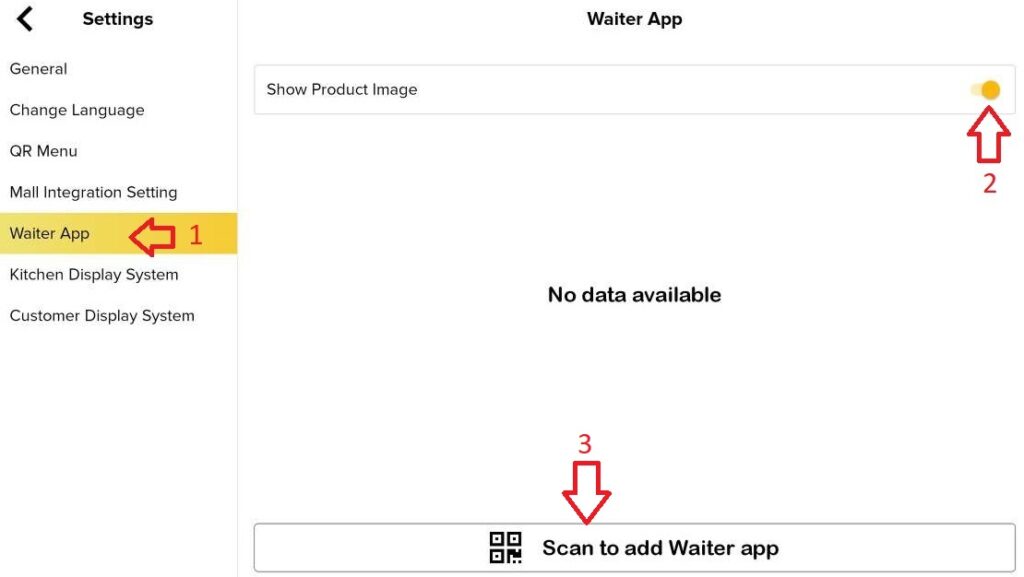
4. The image of the product will be displayed in Waiter Apps.

5. If user prefer to not display the images in Waiter Apps. Go to Setting, user can toggle off with the options.
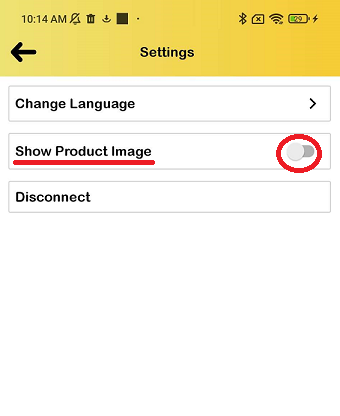
6. When user toggles off “Show Product Image” at BigPos Pro, the image of the product will not be displayed in Waiter Apps.