Settings – How to enable sub device printer setting function?
Introduction
Follow Master Printer Setting enables the receipt to be printed using the printer configured on the master device, and it enables any changes to the printer setting to be shown on the sub device. This section introduces how to enable the sub device printer setting feature in BIG POS App.
Prerequisite for Enabling Sub Device Printer Setting Function
The sub device must enable the join local server function in order to establish a connection with the master device and use this feature.
How to enable sub device printer setting function?
After connecting to the master device, follow the following steps:
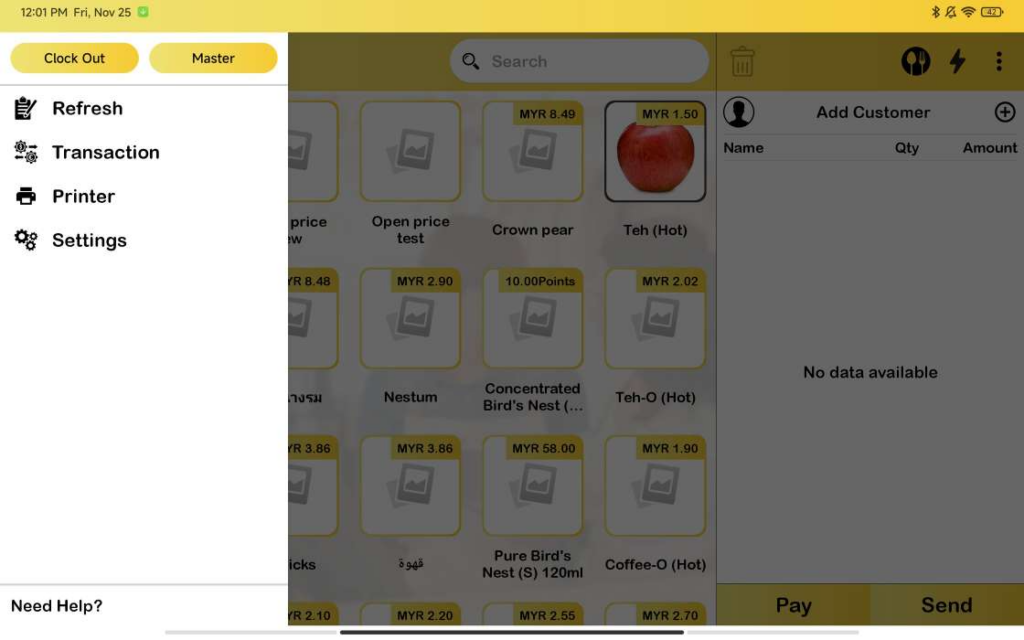
1. The left side panel of the sub device will alter as shown below as soon as the connection with the master device is successful.
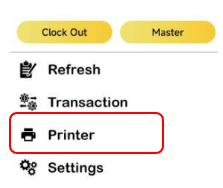
2. Proceed by clicking the ‘Printer’ shown as below.
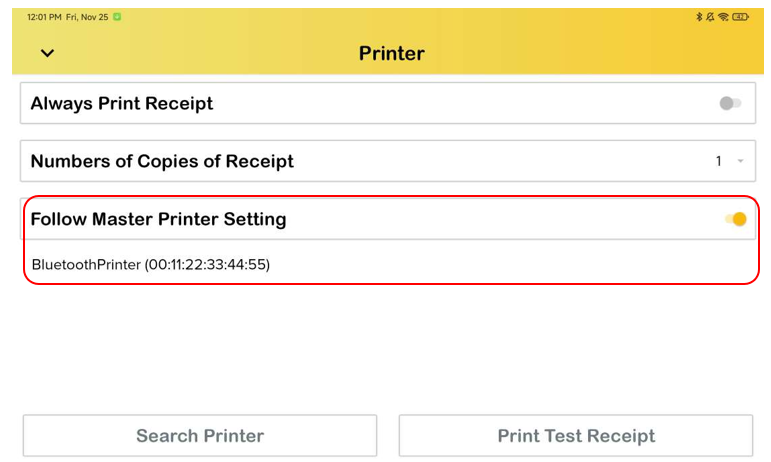
3. The printer set on the master printer can be displayed here on the sub device if the user toggles on the Follow Master Printer Setting function. Please take note that the print test receipt and search printer features will now be greyed out and unresponsive.
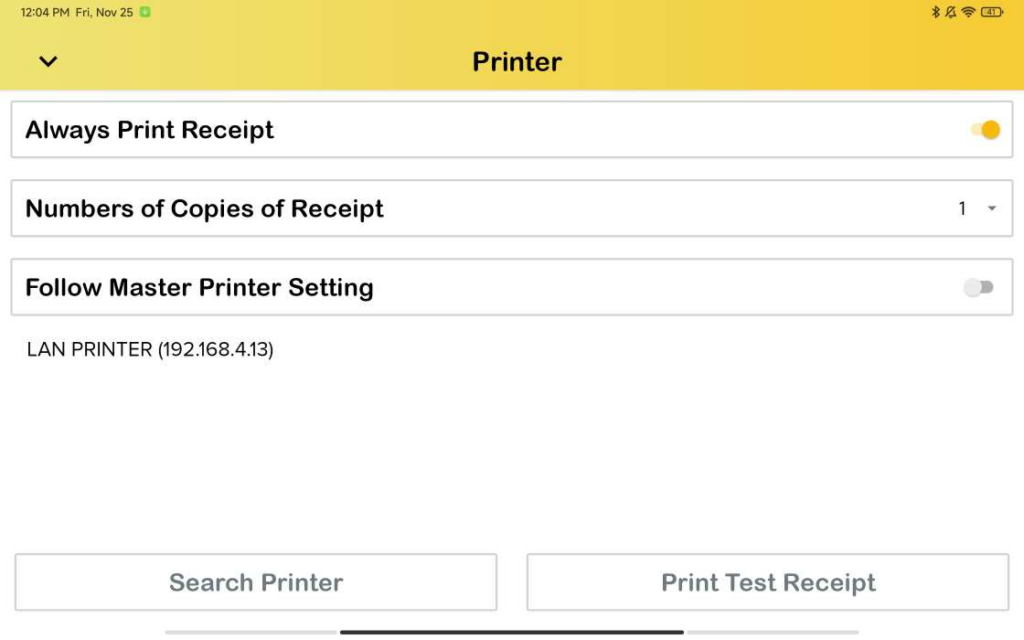
4. The sub device can set its own printer as usual by toggling off this Follow Master Printer Setting.
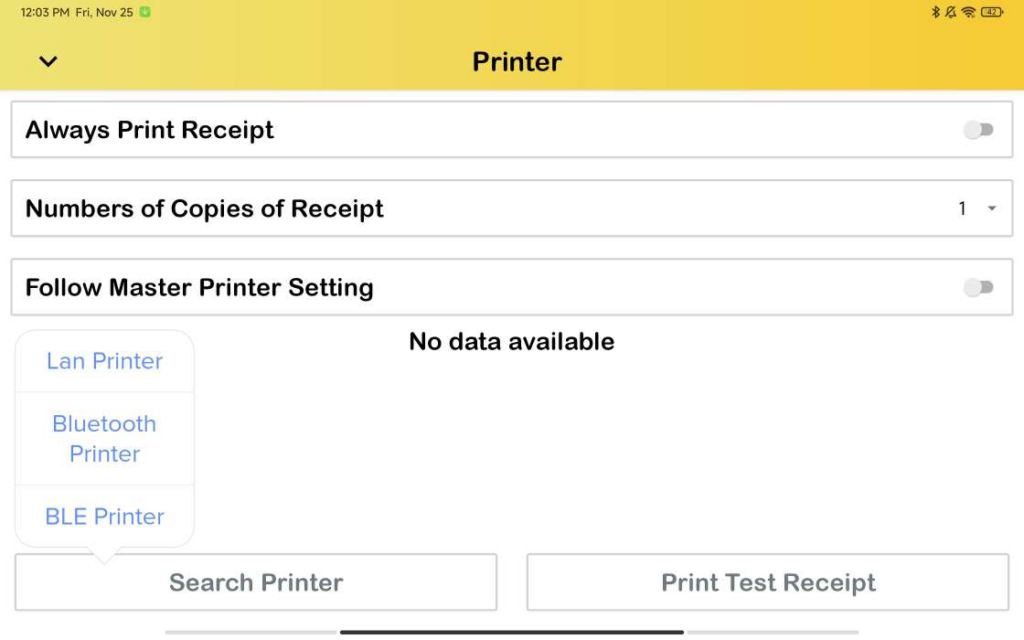
Also, user now can use these two capabilities (Search Printer & Print Test Receipt) as usual by toggling off this Follow Master Printer Setting.