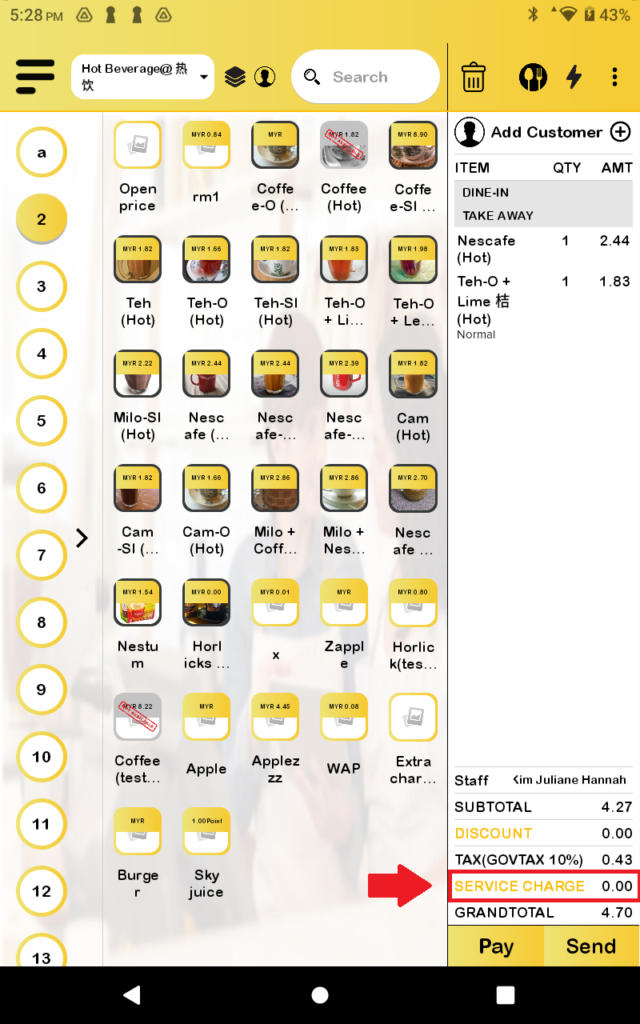
Service Charge – How to enable or disable service charge in web admin?
Introduction
This post will guide you to enable or disable service charges in web admin.
How to enable or disable service charges?
- First, you need to look for the “Setting” in the left panel and to expand the subcategory.
- Then look for the “Company Profile” to redirect to the company profile details.
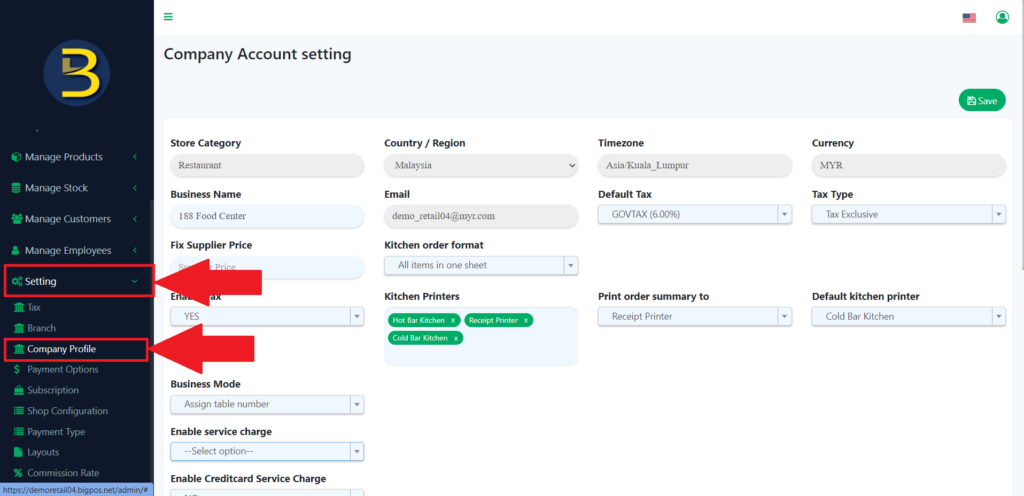
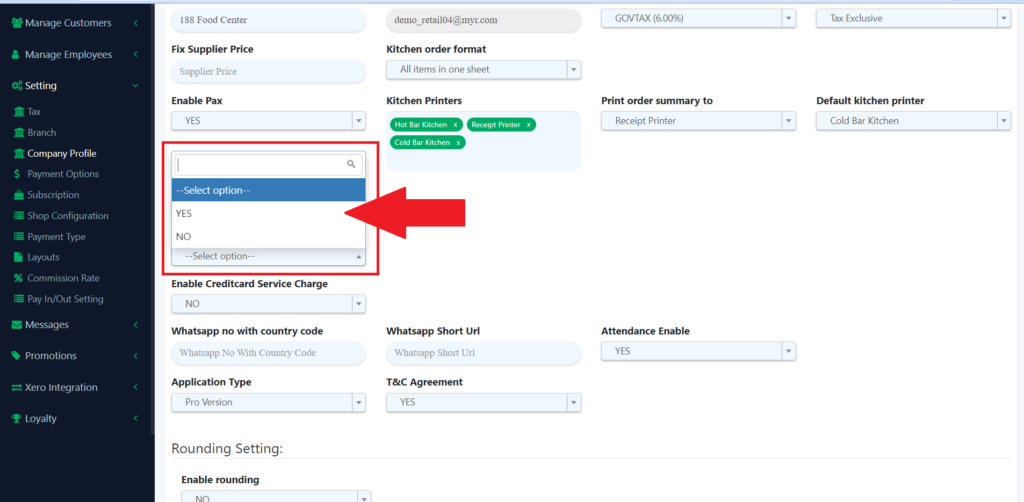
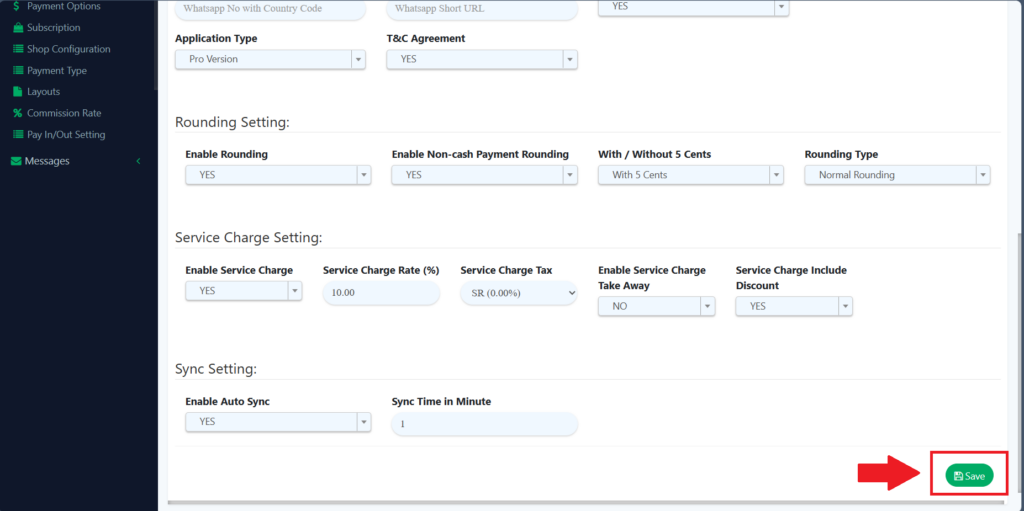
3. Then, you look for the “Enable service charge” to turn on the service charge.
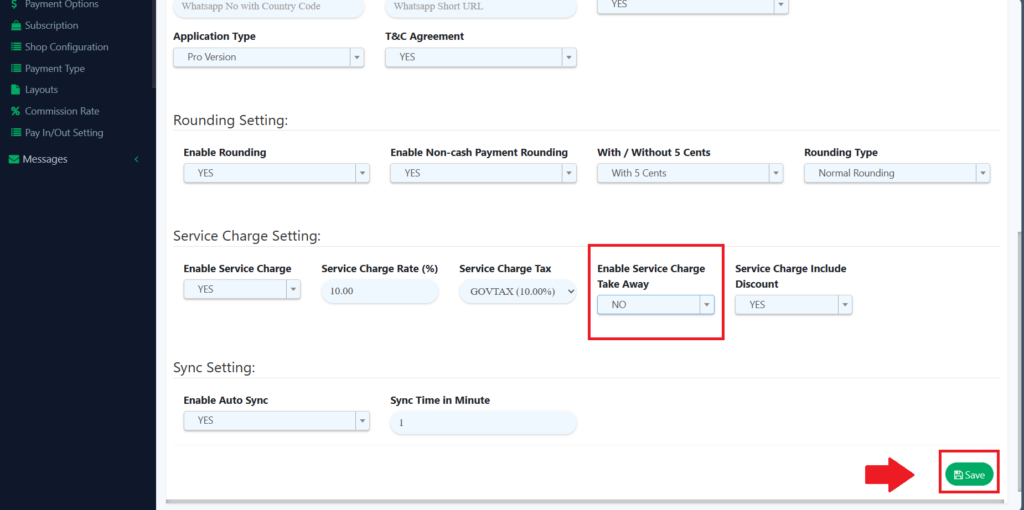
4. When the service charge is on, you need to insert the details of the service charge. Enable Service Charge Take Away setting is used to enable or disable service charges in take away orders. Service Charge Include Discount default setting is NO for Sri Lanka, for other countries can be set to YES.
If you want to know more about Sri Lanka setting can visit to: https://support.bigpos.com/?epkb_post_type_1=sri-lanka-tax-and-service-charge-calculation
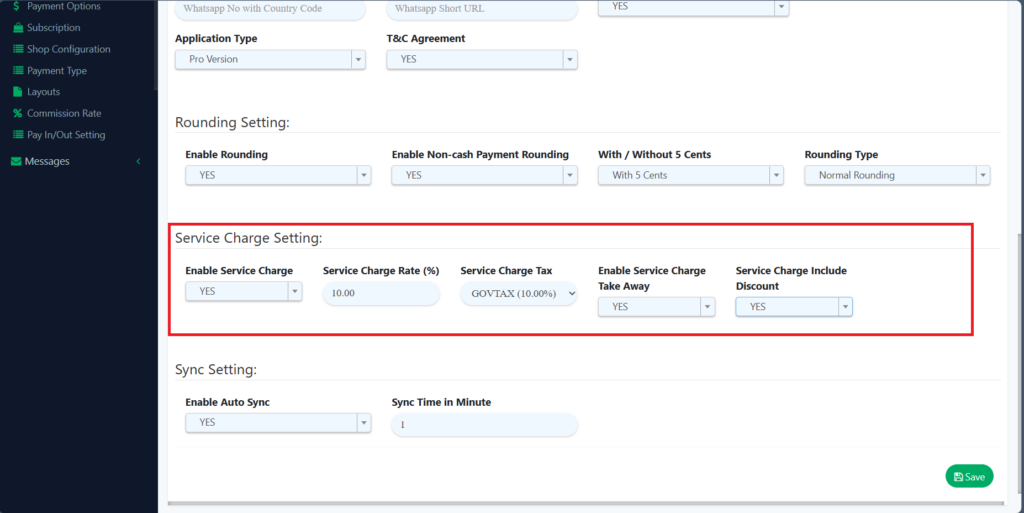
5. And then click on the save icon to save the changes.
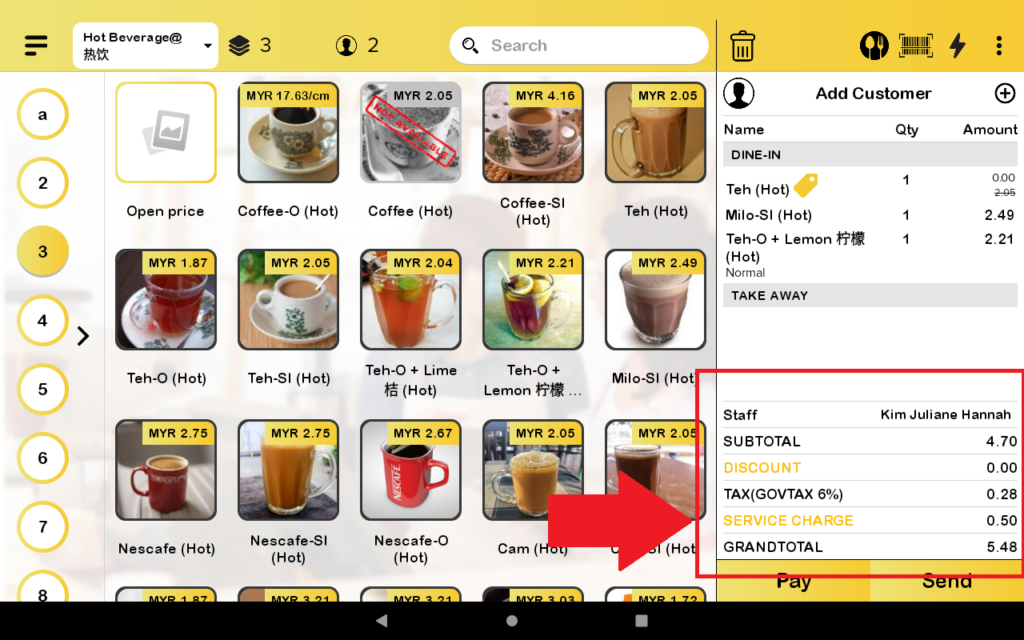
6. When the service charge is turned on/enabled the interface of the app is like this.
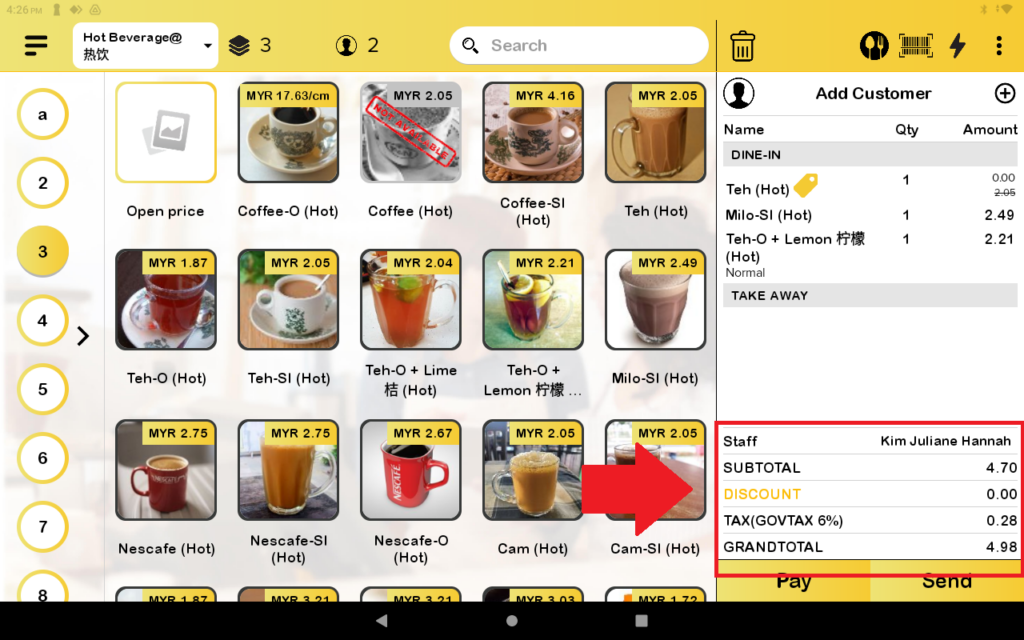
7. When the service charge is turned off /disabled the interface of the app is like this.
8. Now, I will set Enable Service charge takeaway to “NO” and click the “Save” button, which means the takeaway order will not have a service charge.
9. In app, the takeaway order will not apply service charge.