Selling Fast – Main Page
Introduction
Welcome to Bigpos support.
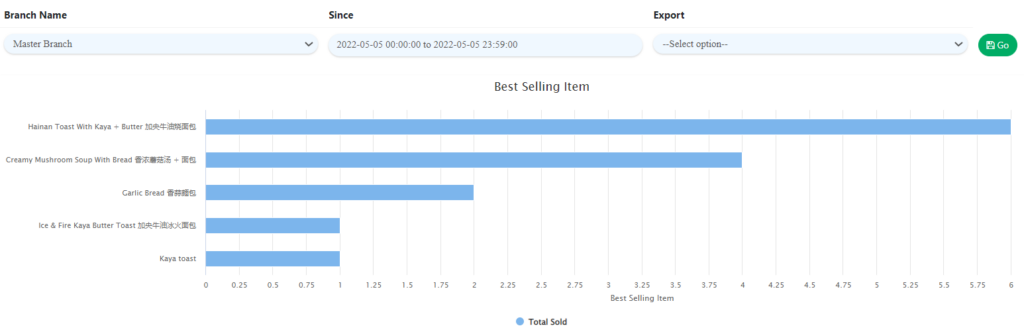
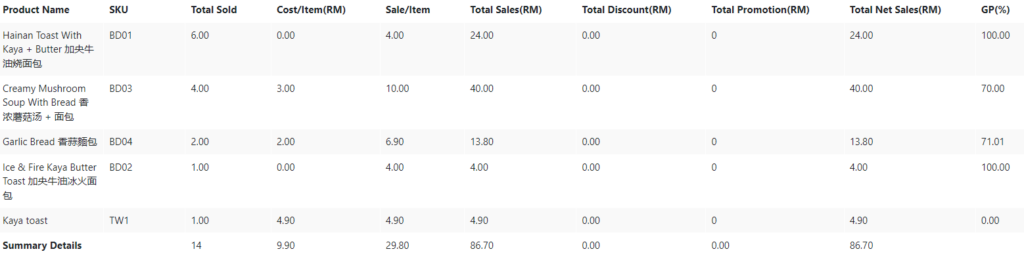
Selling Fast Page provides the overview of best selling products focusing on total sold quantity. Transactions details include the listing of products Name, SKU, Total Sold, Cost/Item, Total Sales, Total Discount, Total Promotion, Total Net Sales, GP percentage and Summary Details. The page will show the 10 best selling items in a chart according to the date range set to view.
How to view Selling Fast Report?
To view Selling Fast Report, follow the following steps:
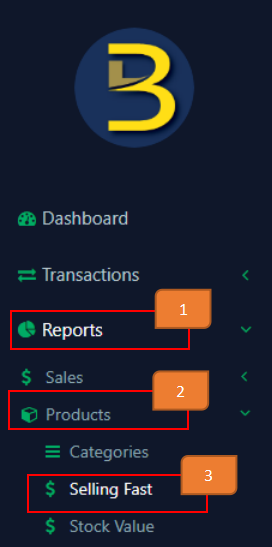
- Click ‘Reports’ on the left side panel.
- Click ‘Products’ from the dropdown menu.
- Click ‘Selling Fast’.

How to generate Selling Fast Report?
To start generate Selling Fast Report, follow the following steps:
- Select Branch Name to be inspected.
- Select Date Range.
- Click ‘Go’
Note: If you want to export records, select from the option (CSV or PDF). If not, leave it as ‘Select option’ by default.
Example of Fast Selling Report:
How to download Bar Chart?
- Click on the icon as shown below on the upper right side of the pie chart and select which format you want to download.

User can also ‘View it in full screen‘ or ‘Print chart‘.
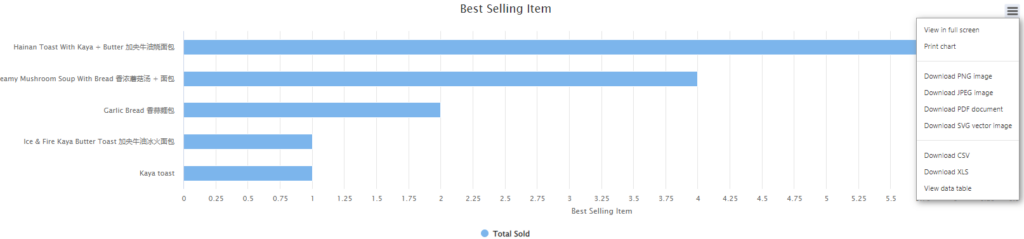
There are few format options to choose namely PNG image, JPEG image, PDF document and SVG vector image.