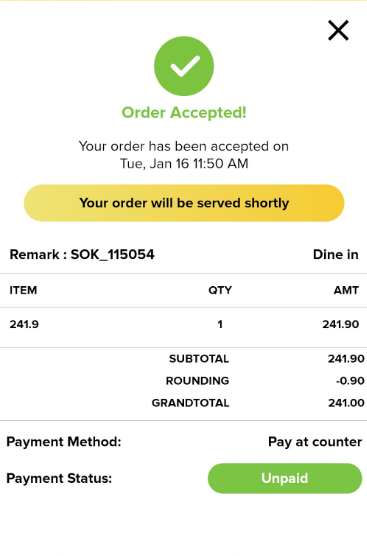
Rounding for Thai account
Introduction
This settings was introduce specifically for rounding issues related to Thai account.
Thai Rounding Setting
On web admin, it has three specific configuration for rounding, which are:
- Normal rounding
When setting for normal rounding, the value of an item is less than 0.5, it will round down by subtracting the amount. Meanwhile, if it is round up, it will round up by adding the amount.
Round down = 0.10, 0.20, 0.30, 0.40
Round up = 0.50, 0.60, 0.70, 0.80, 0.90
- Round up
When setting to round up, it will up by adding the amount.
Round up = 0.10, 0.20, 0.30, 0.40, 0.50, 0.60, 0.70, 0.80, 0.90
- Round down
When setting to round down, it will down by subtracting the amount.
Round down = 0.10, 0.20, 0.30, 0.40, 0.50, 0.60, 0.70, 0.80, 0.90
Settings in web admin
- Go to Setting > Company profile > Rounding setting.
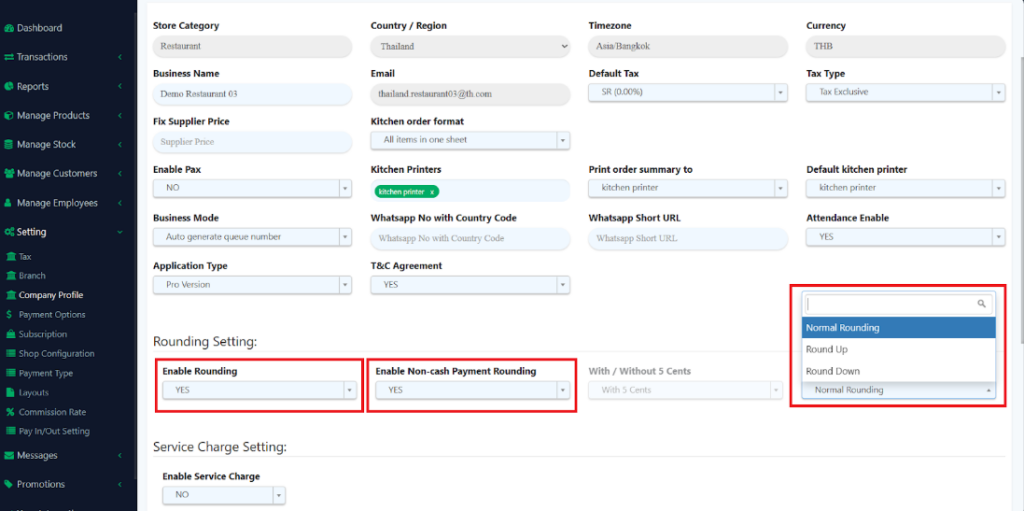
Note: For Thai accounts, the ” With / Without 5 Cents” option will not function.
Result for Normal Rounding
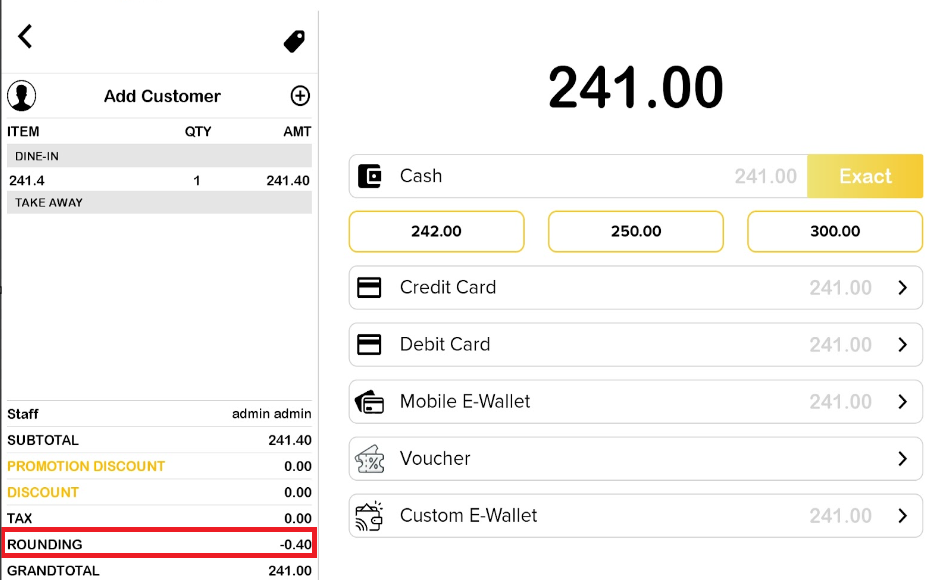
- When the setting for normal rounding is on, the value of an item that is less than 0.5, it will round down by subtracting the amount. The expected behavior of rounding for 0.10, 0.20, 0.30, 0.40 as figure below.
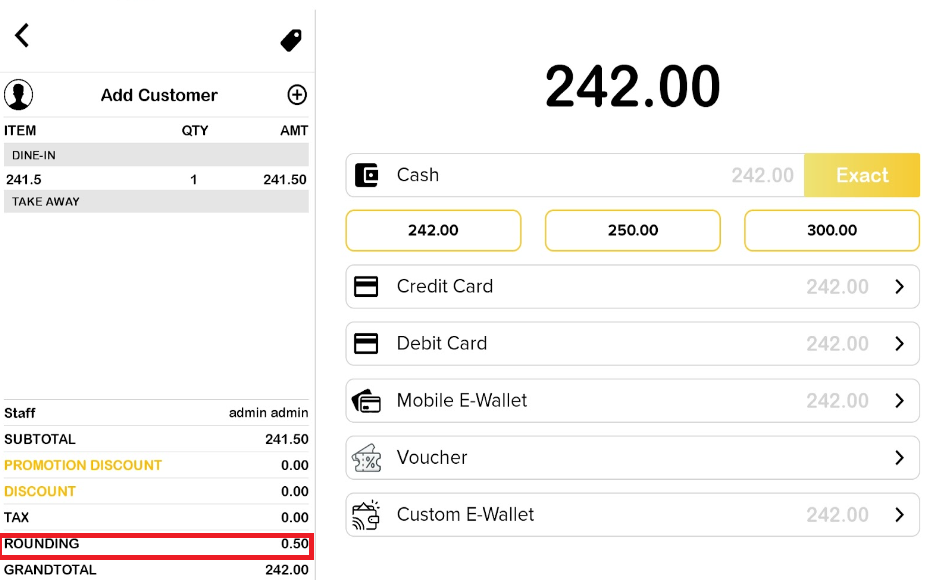
2. When the setting for normal rounding is on, the value of an item that is more than 0.5 will round up by adding the amount. The expected behavior of rounding for 0.50, 0.60, 0.70, 0.80, 0.90 is illustrated.
Result for Round Up
- When the setting to round up is on, it will up by adding the amount. The expected behavior of rounding for 0.10, 0.20, 0.30, 0.40, 0.50, 0.60, 0.70, 0.80, 0.90 .
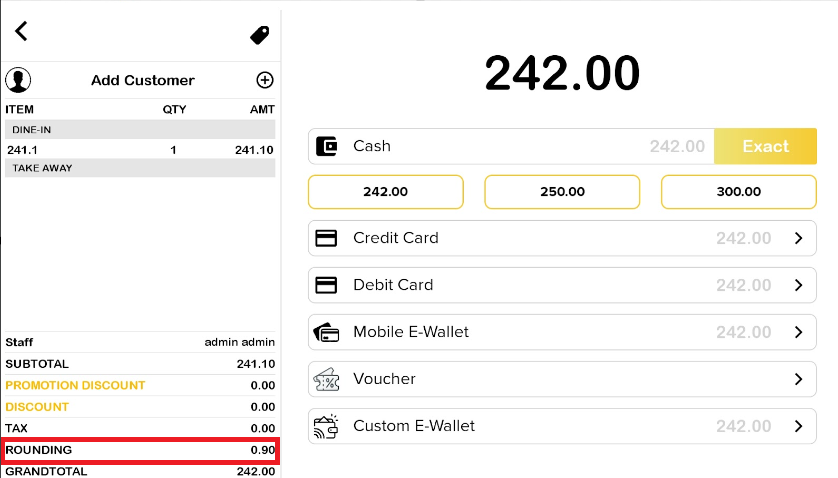
Result for Round Down
- When the setting to round down is on, it will down by subtracting the amount. The expected behavior of rounding for 0.10, 0.20, 0.30, 0.40, 0.50, 0.60, 0.70, 0.80, 0.90 .
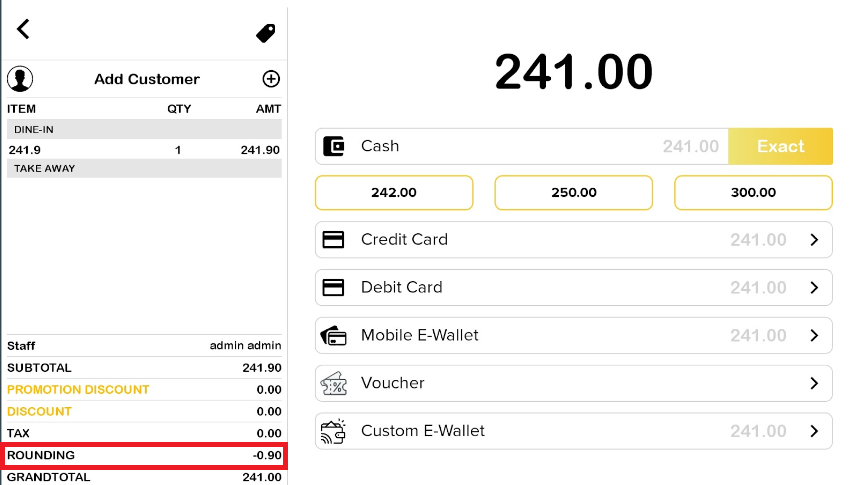
How Thai Rounding works on QR Menu?
- For QR Menu, it will depend on the rounding setting that has been configured in the web admin.
- To enable QR order, make sure to toggle on QR Menu on the BIG POS Pro.
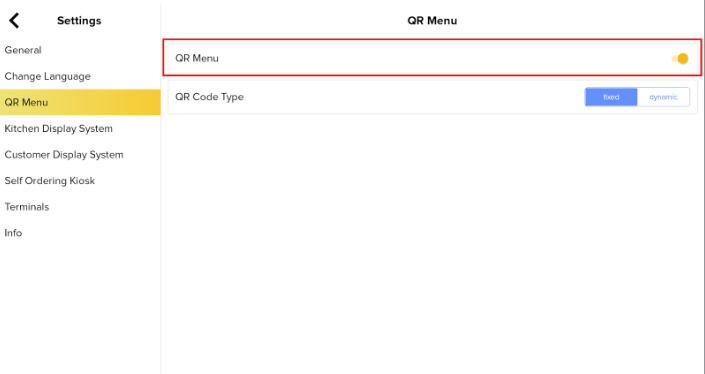
3. Then, scan the QR Menu and place the orders. It will directly to the Cart History. After double confirm the order, click on the “Checkout” button.
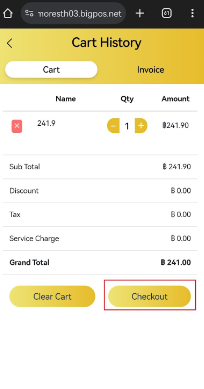
4. After selecting the the payments details, press the “Place Orders” button.
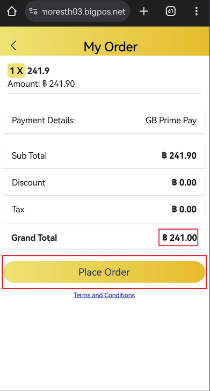
Note: For this demonstration, GB Prime Pay was chosen.
5. The page will go directly to the GB Prime payment page to complete the payment.
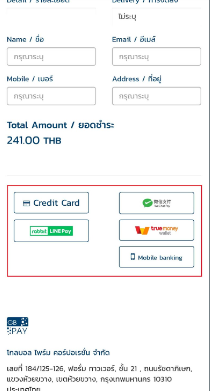
6. When complete the transaction, it will show the order invoice receipt as illustrated below.
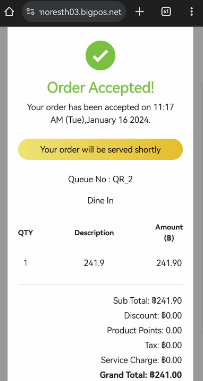
7. The invoice receipt be displayed with rounding in the application.
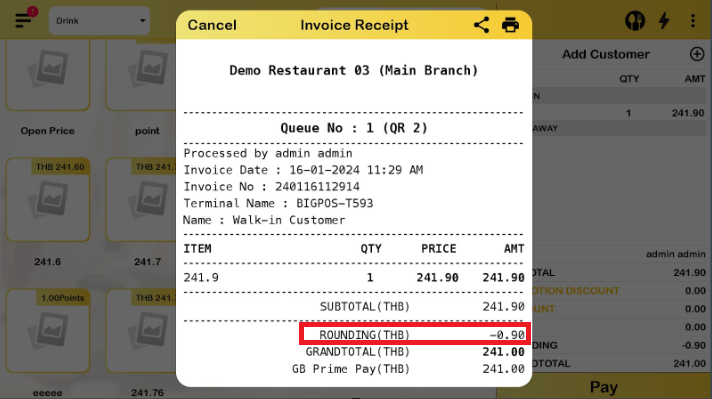
Note: For this demonstration, the setting in the web admin was round down.
How to Thai Rounding working on SOK?
- First, make sure to enable “This is Local Server” on the Big Pos Pro settings.
- Then, go to the Self Ordering Kiosk. Input device name and the IP Address.
- Complete the process to place orders by using SOK. The customer presses on the cart icon.
- On this page, the customer can press on the “Pay” button to proceed with the payment.
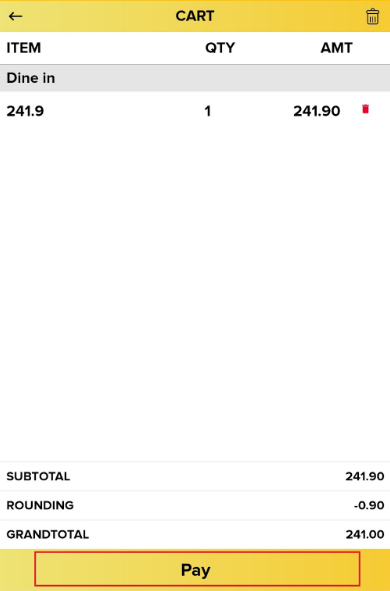
5. The optional payment methods will be displayed. The customer can choose either to Pay at counter or use GB Prime Pay payment.
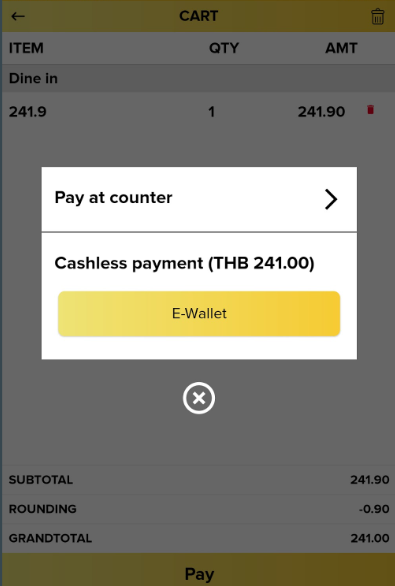
6. A complete transaction will show the order invoice receipt which determines that the customer order is successfully sent to the Pro app with the correct rounding setting.