Razer Fiuu Payment Gateway
Introduction
We’re excited to announce that our POS system now supports Razer Fiuu, giving your customers more flexibility and convenience at checkout.
With this new integration, you can now easily accept payments through Razer Fiuu alongside your existing payment methods. Our goal is to provide you with the tools to serve your customers better, streamline your operations, and stay ahead with the latest payment technologies.
First of all, for this phase we will introduce Razer Fiuu payment integration for Malaysia region only. This payment integration are available in Android:-
- BIGPOS Pro
- Razer Fiuu E-Wallet payment, Razer Fiuu Terminal payment, Razer Fiuu SoftPOS payment integration
- BIGPOS Lite
- Razer Fiuu E-Wallet payment, Razer Fiuu SoftPOS payment integration
- Online Payment (QR Menu and B Reward)
How to perform Razer Fiuu E-Wallet Payment in App?
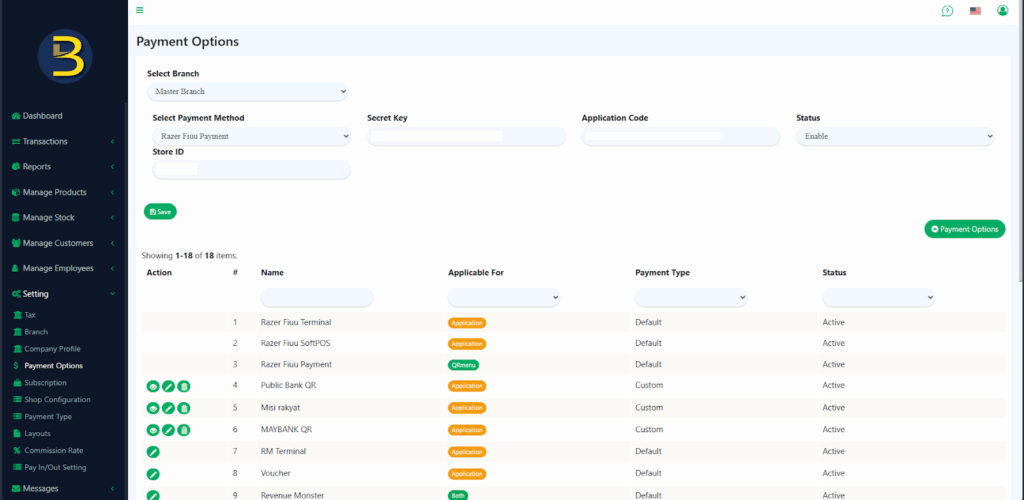
First you need to open Web Admin >> Setting >> Payment Options page
- Select Payment Method >> Razer Fiuu Payment
- Enter Secret Key
- Enter Application Code
- Status >> Enable
- Enter Store ID
Click ‘Save” button.
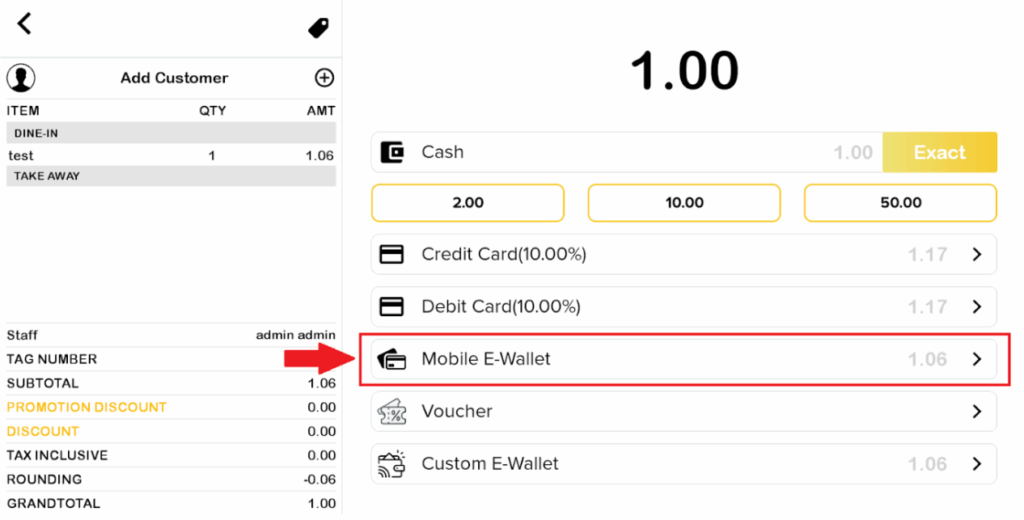
After finishing setup in web admin, open BIGPOS apps. Add item to cart and on payment page, you will see Mobile E-Wallet.
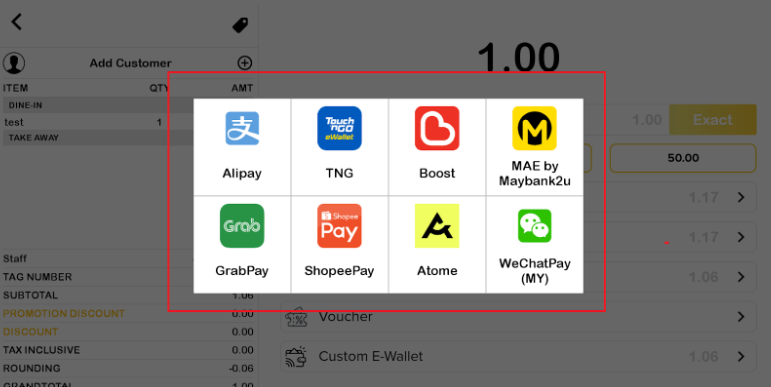
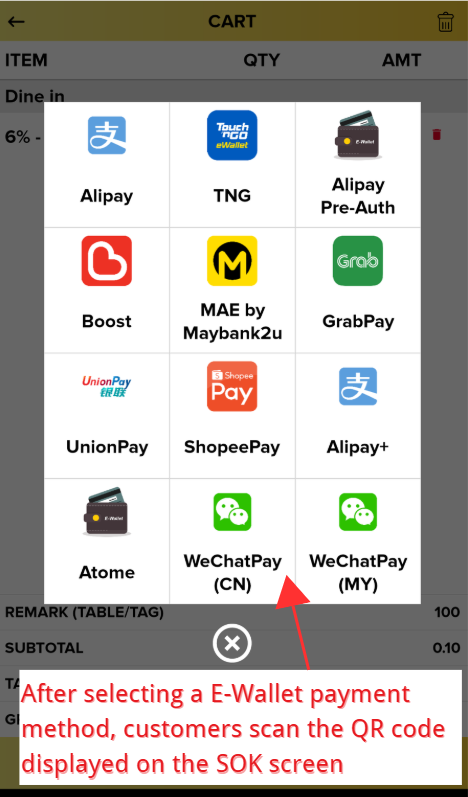
When click Mobile E-Wallet, a few selections of mobile e-wallet will be prompted. You can select any of these payments.
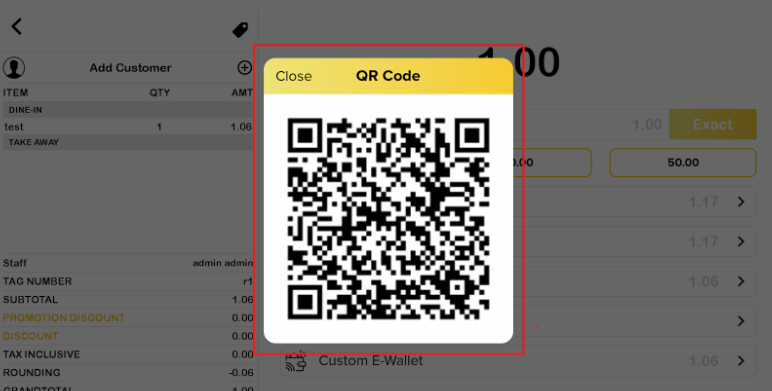
For example user selects TNG to complete this payment and it will pop out QR Payment code to complete the payment. User need to use such as TNG App to and scan this payment code to complete the payment.
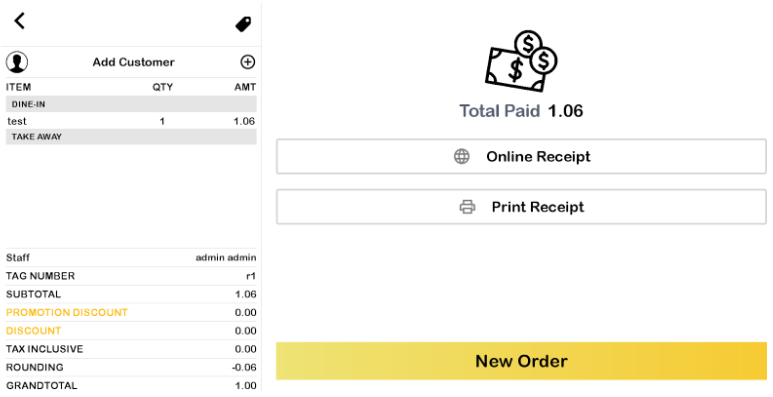
After using TNG app scan the payment QR code, and it will show total paid page. That means you are successful done payment using Razer Fiuu E-Wallet Payment in the app.
How to perform Razer Fiuu E-Wallet Payment in SOK?
Configure BIG SOK
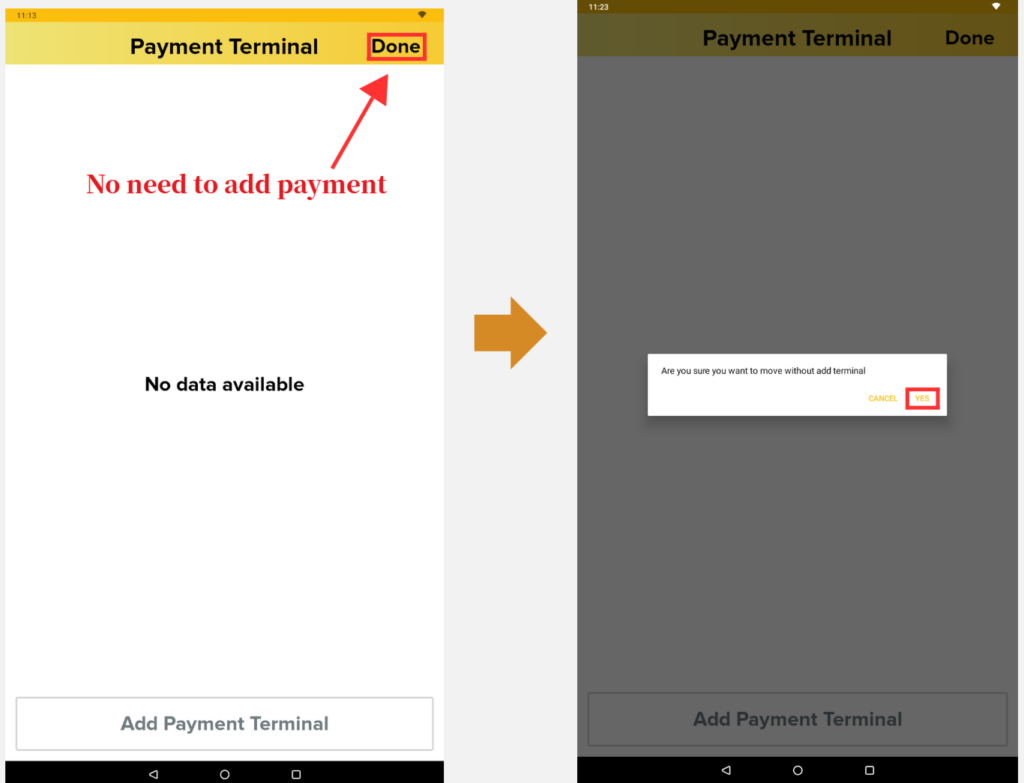
Unlike the Pro App, the SOK does not require you to manually “Add Payment” in the app settings if you are using the Web Setup for E-Wallets.
- Ensure your SOK is connected to the same Wi-Fi as your Pro App.
- Confirm that the Web Admin settings are correctly tied to Razer Fiuu.
- On the SOK device, there is no need to add a payment terminal for this specific flow.
Performing the Payment on SOK
Once the setup is complete, customers can use the kiosk to pay via E-Wallet:
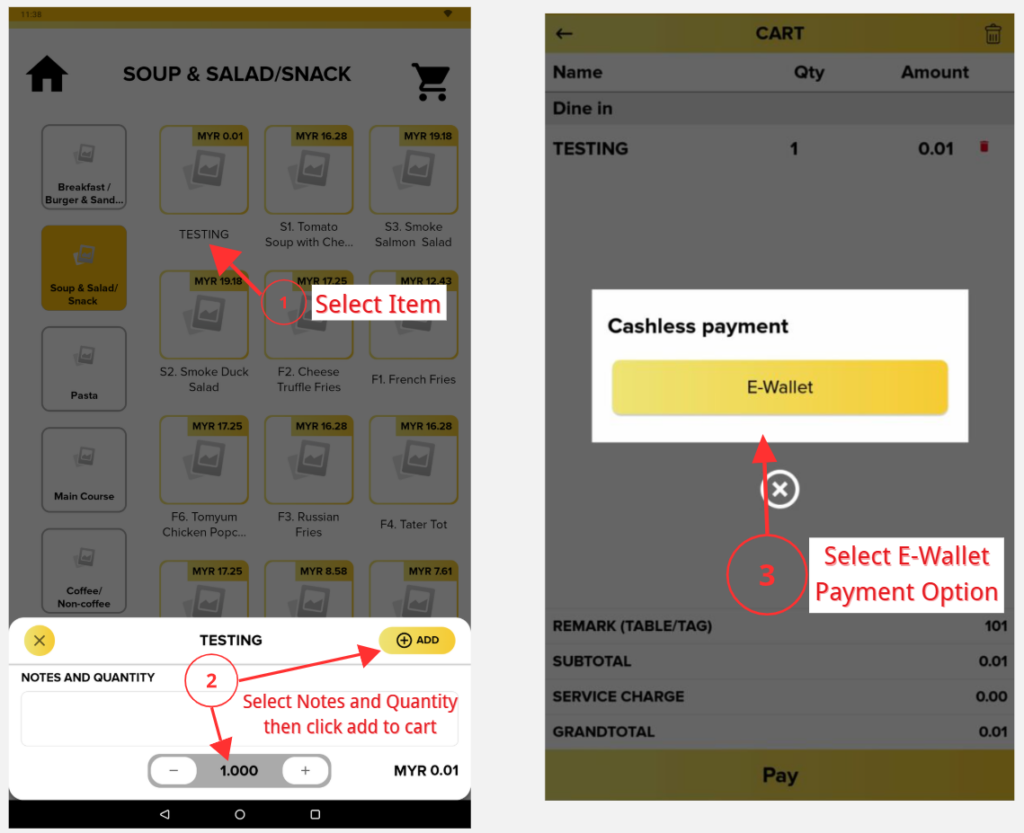
- The customer adds items to the cart and proceeds to the Checkout/Payment page.
- The customer selects the E-Wallet payment option on the SOK screen.
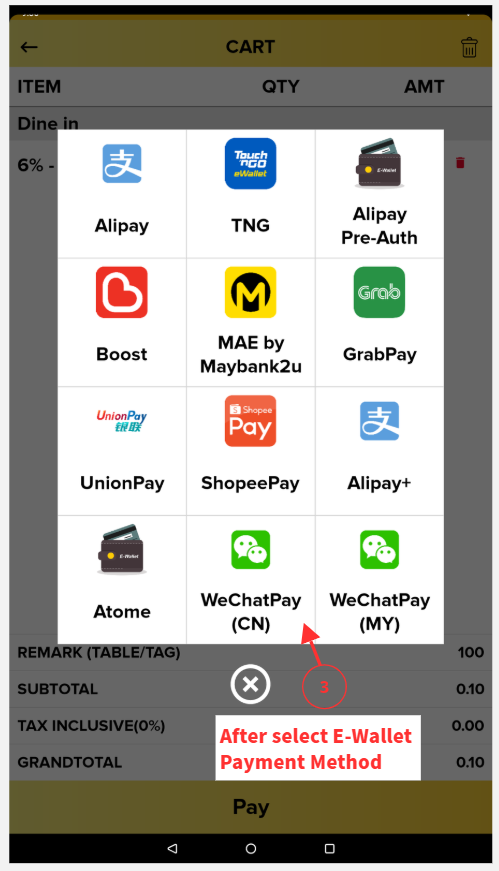
- A selection of mobile e-wallets such as TNG, GrabPay and others will be prompted.
- After selecting a provider, a QR Payment Code will appear on the SOK screen.
- The customer uses their mobile phone such as TNG App to scan the QR code displayed on the SOK.
- Payment Timeout: Please note that a 30-second timeout applies to complete the transaction.
How to connect and make payment with Razer Fiuu Payment Terminal in Pro APP?
Razer Fiuu Payment Terminal only support in BIGPOS Pro apps.
Connection Remark: Need to use same wifi for ip address connection between payment terminal and Pro app
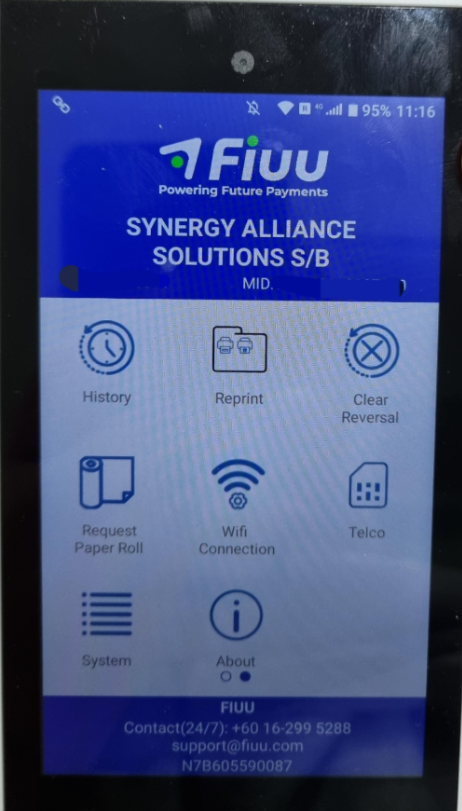
- Open Razer Fiuu Terminal >> Click Wifi Connection
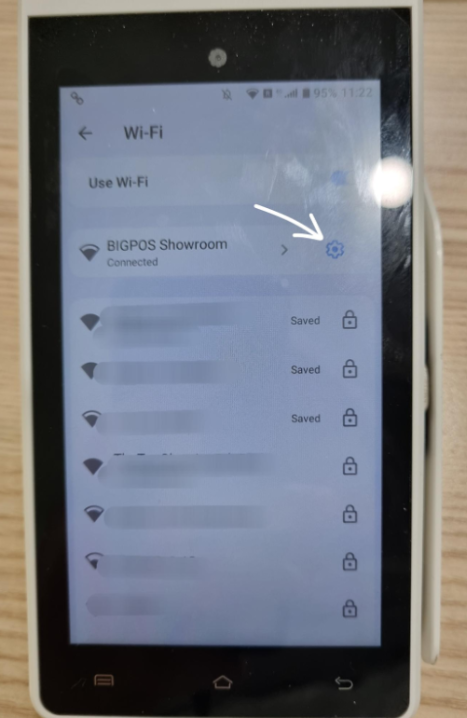
- Select wifi. Make sure Pro and Terminal using same wifi connection >> Click Settings icon
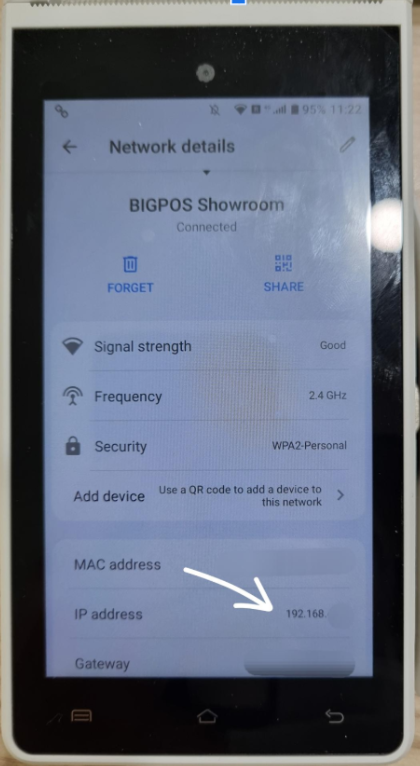
- Then find ‘IP Address’ and enter IP address from Razer Fiuu Terminal into BIGPOS Pro
- Open BIGPOS Pro >> Settings >> Payment Terminal >> Razer Fiuu Terminal >> Enter IP Address from Razer Fiuu Terminal >> OK
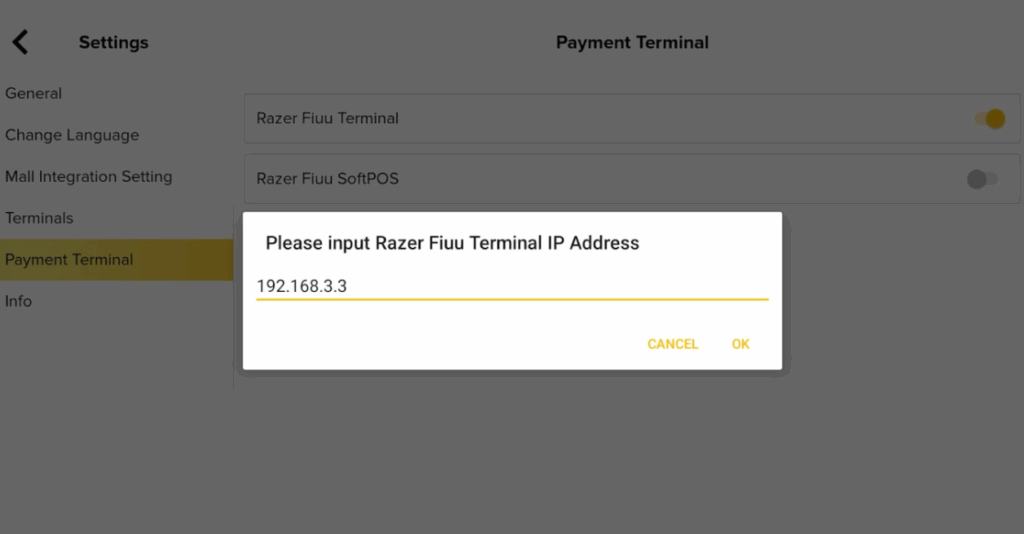
- Once connection is successful, payment option page will appear ‘Razer Fiuu Terminal’. If user select ‘Razer Fiuu Terminal’, user need to select between Card or E-Wallet.
Card – can pay by Tap, Insert, Swipe method
E-Wallet – can pay by terminal scan E-Wallet QR from user using terminal front camera or back camera
How to Connect and Set Up Razer Fiuu Terminal on BIG SOK?
Connection Remark
- Ensure that the BIG SOK, the Android Pro app, and the payment terminal (for terminal setup) are all connected to the same Wi-Fi network.
- For a successful connection, the IP addresses of these devices must be able to communicate with each other over the shared network.
Razer Fiuu Terminal Setup in Big SOK (Hardware)
If you are using a physical Razer Fiuu payment terminal with your SOK:
- Download and install the SOK APK onto your BIG SOK device.
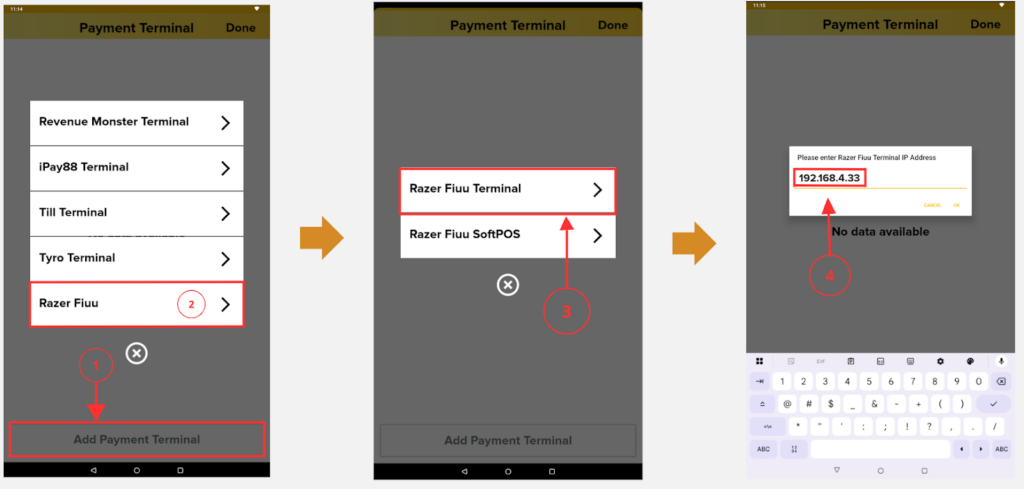
- Open the SOK app and navigate to Payment Terminal > Add Payment Terminal.
- Select Razer Fiuu and then choose Razer Fiuu Terminal.
- Enter the Terminal IP Address on the SOK screen and click OK button (this can be found under the terminal’s Wi-Fi settings or can be found from the above page “How to connect and make payment with Razer Fiuu Payment Terminal in Pro APP?” to find the Wi-Fi connection).
How to perform Razer Fiuu SoftPOS Payment in Pro/Lite apps?
For your information, Razer Fiuu SoftPOS only works on specific devices especially devices with NFC card readers and specific firmware. Please contact with our Technical Support, to confirm whether your device supports for Razer Fiuu SoftPOS or not.
For Razer Fiuu SoftPOS connection in Pro apps, only allow to use ideal Razer Fiuu Terminal OR Razer Fiuu SoftPOS at one time.
- Open BIGPOS >> Settings >> Payment Terminal >> Razer Fiuu SoftPOS >> Enter Razer Fiuu SoftPOS user ID >> OK
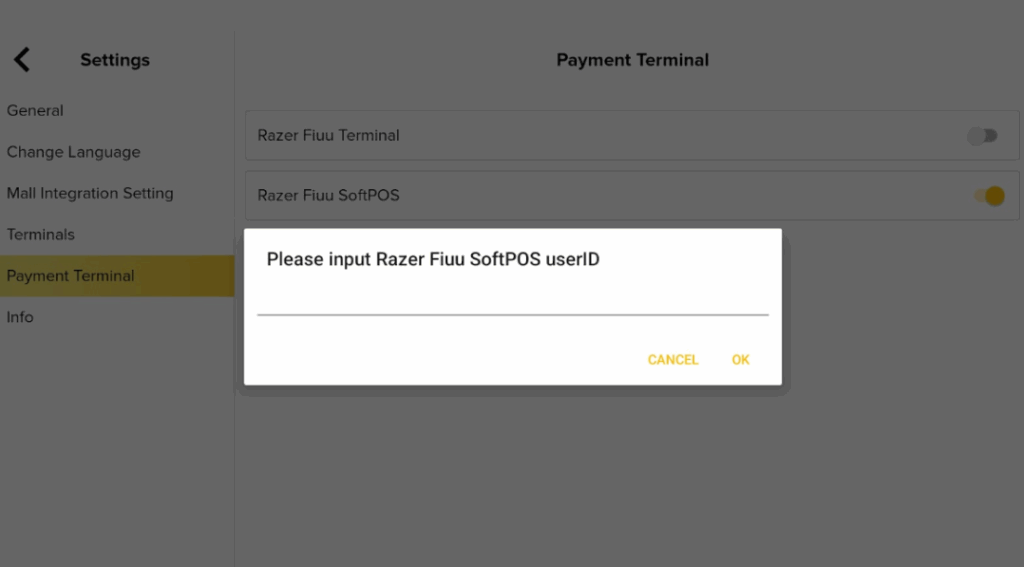
- Once connection is successful, payment option page will appear ‘Razer Fiuu SoftPOS’.
When click ‘Razer Fiuu SoftPOS’ need to present card near to NFC reader of the device. If card detected, payment will be successful.
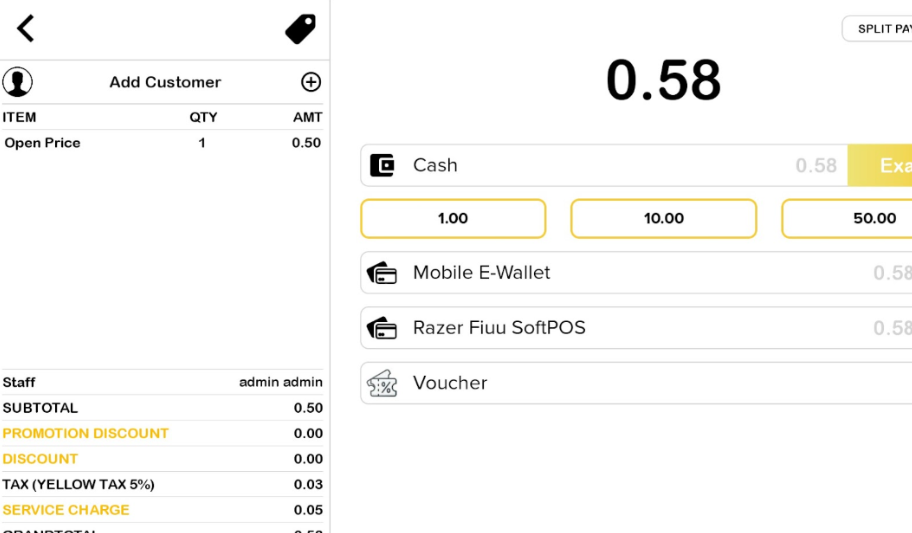
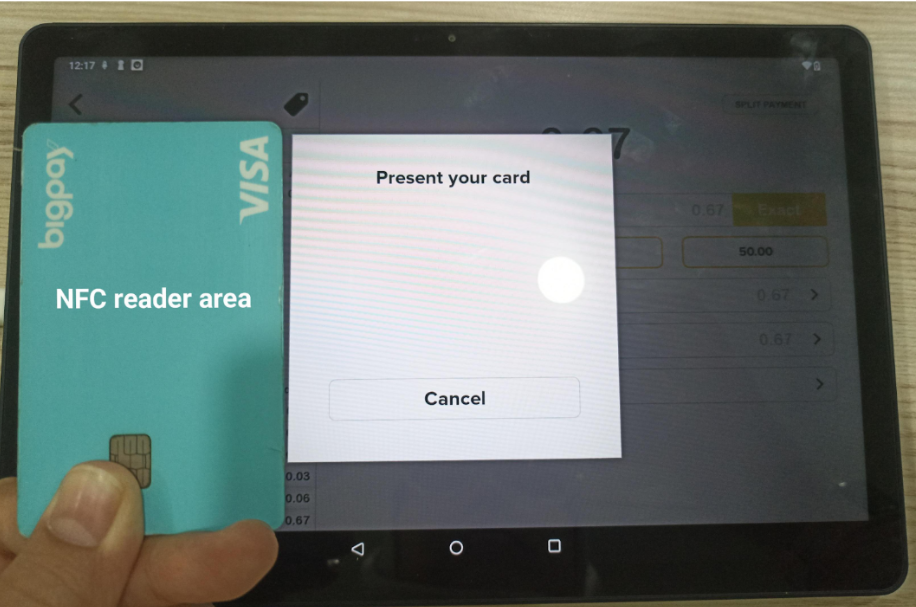
Remark: Payment exceed RM 200.00, user need to enter card pin on the POS device to proceed payment
How to Connect and Perform Razer Fiuu SoftPOS Payment in SOK?
Connection Remark
- Ensure that the BIG SOK, and the Android Pro app are all connected to the same Wi-Fi network.
- For a successful connection, the IP addresses of these devices must be able to communicate with each other over the shared network.
Razer Fiuu SoftPOS Setup (NFC Tap)
Merchant must use SOK’s built-in NFC sensor to accept card payments directly on the screen:
- Download and install the SOK APK on BIG SOK.
- Go to Payment Terminal > select Add Payment Terminal.
- Select Razer Fiuu and then choose Razer Fiuu SoftPOS.
- Enter Razer Fiuu SoftPOS ID’s and click ‘OK’
- Note: This method is specifically for Card Payments via NFC tap.
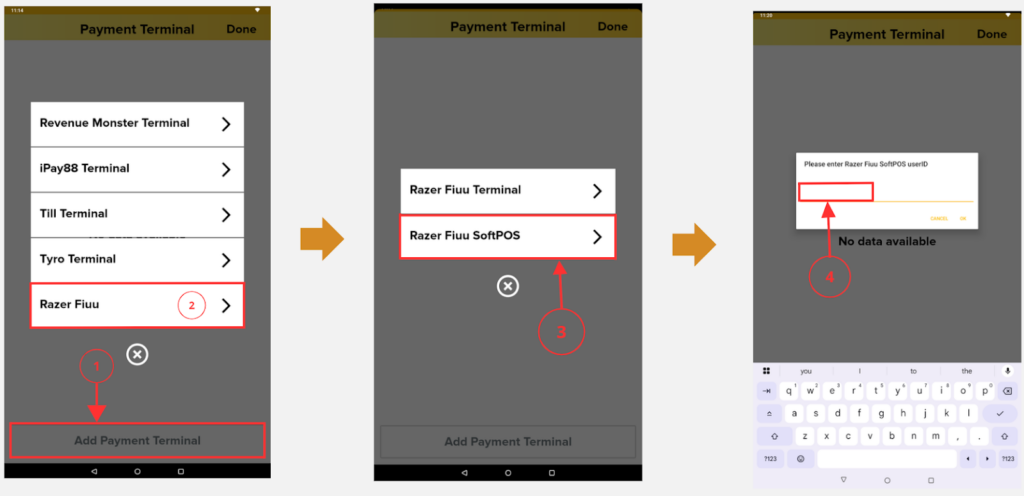
Customer Checkout Process:
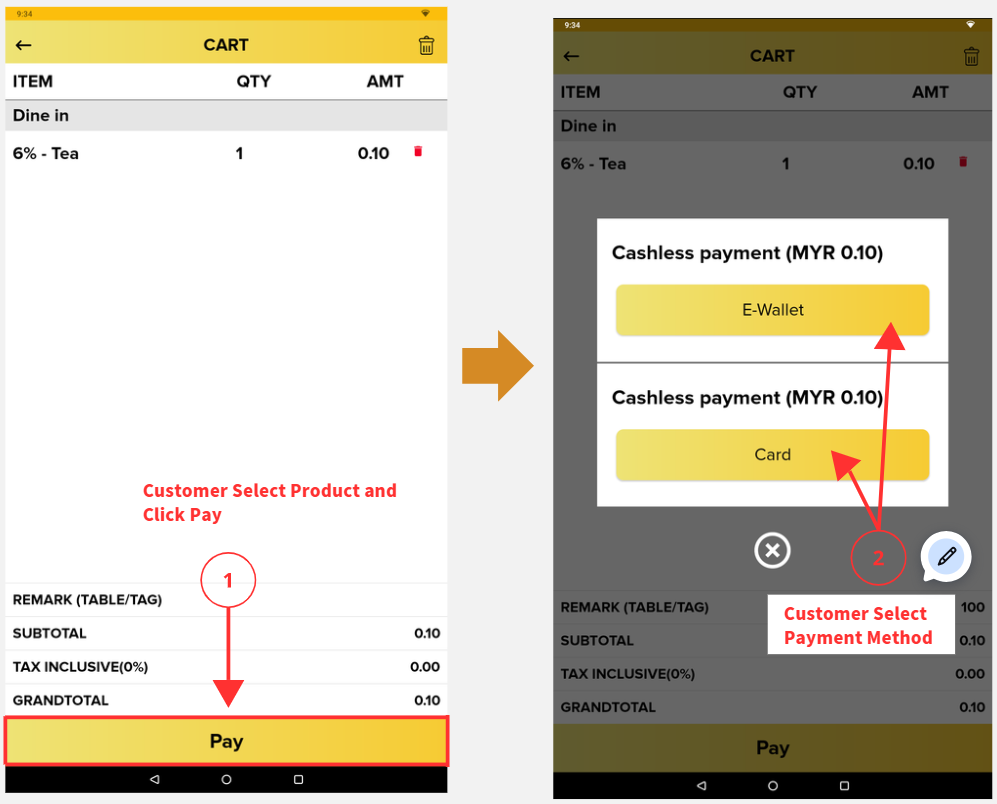
The customer selects an item and clicks the Pay button. The system then displays two payment options: E-Wallet and Card.
If selecting the E-Wallet payment method, the SOK will display the available QR code for the customer to scan and complete the payment.
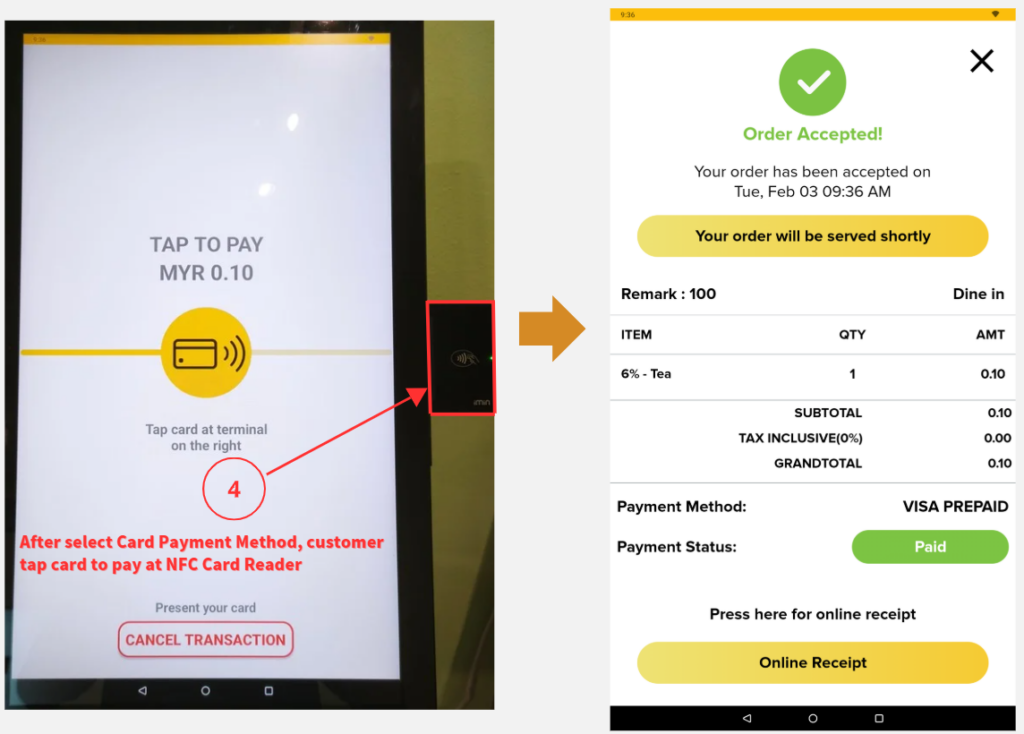
If selecting the Card payment method, the customer taps their card on the right side of the NFC card reader to proceed with the payment.
How to perform Razer Fiuu Payment in QR/Delivery Order?
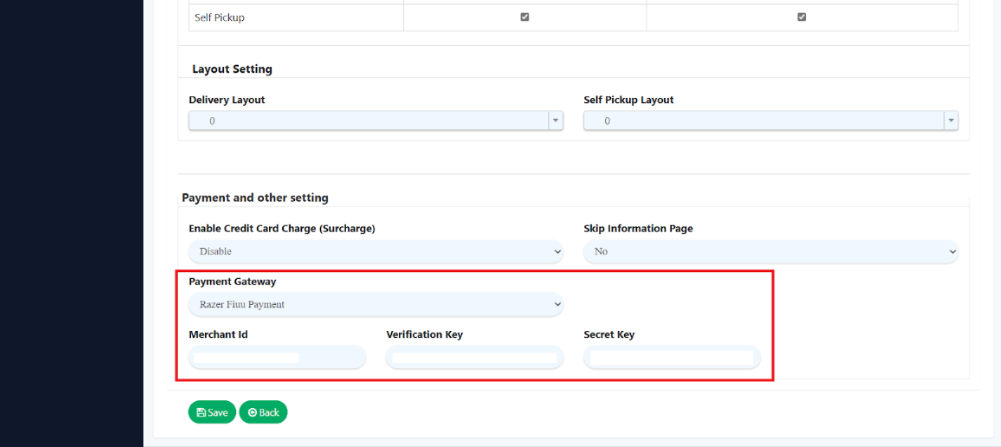
First you need to confirm in Web Admin >> Setting >> Branch >> QR Menu and select Payment Gateway Razer Fiuu Payment. Then enter correct Merchant Id, Verification Key, Secret Key, then click “Save” button.
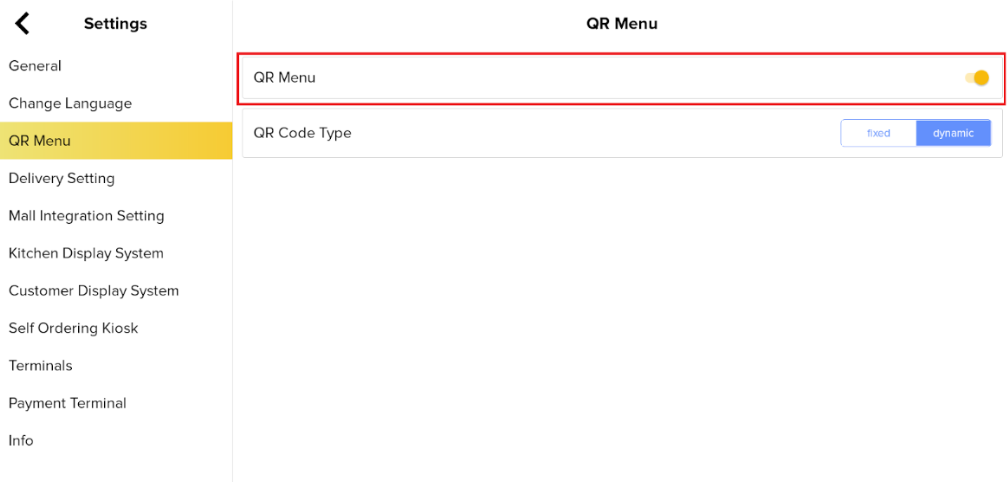
2. To perform QR order, you need to have QR code from Pro App. In Pro app go to Settings -> QR Menu -> Toggle On QR Menu and Scan QR Menu
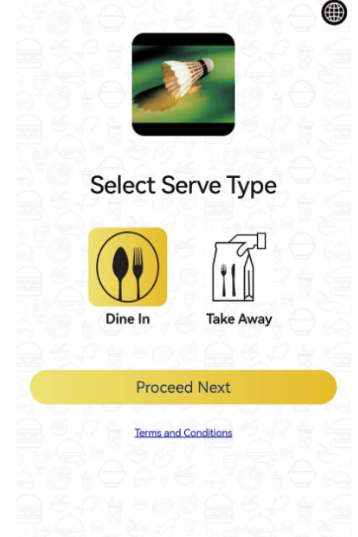
After scan the QR order code, you will redirect to QR Select Serve Type. Then you can select Dine in or Take away to proceed QR order.
Add product in cart and proceed “Checkout” button, you will be redirect to payment page, you can select “Razer Fiuu Payment ”, then press on “Place Order” button.
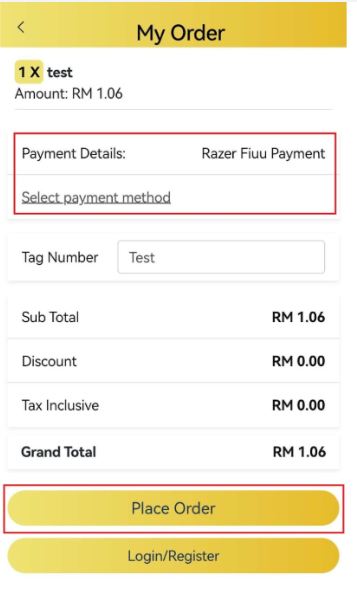
After press on “Place Order” button. You will redirect to Razer Fiuu Payment page. You can select either one payment method to complete payment status.
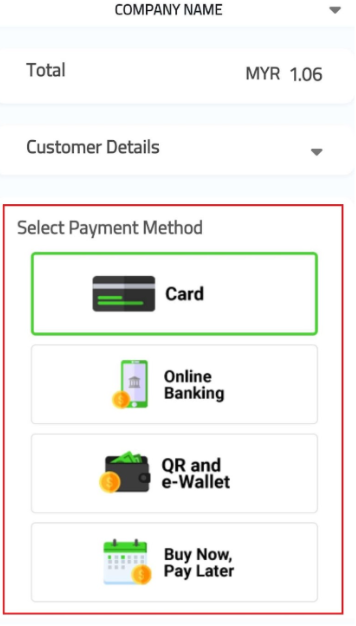
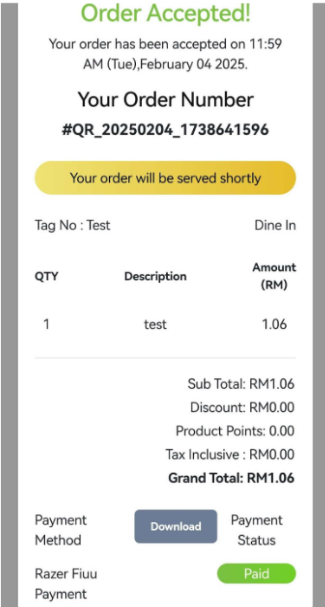
Proceed your payment with any of above payment selection. Once payment succed, page redirect to QR Menu order summary page.
Remark: If cancel transaction from Pro app, it will have cash option and Razer Fiuu Payment option, if select Razer Fiuu Payment option, it might take 10 or alot more minutes to refund it.
Comparison between Razer Fiuu E-Wallet, Razer Fiuu Terminal, Razer Fiuu SoftPOS
| Razer Fiuu E-Wallet | Razer Fiuu Terminal | Razer Fiuu SoftPOS | |
| Similarities | Refund with cash only. Cancel support cash and Razer Fiuu payment | ||
| Differences | |||
| Availability | Pro and Lite | Pro only | Pro and Lite |
| Support card Support E-Wallet | E-Wallet only | Card and E-Wallet | Card only |
| NFC reader | No need NFC | No need NFC | Need NFC reader |
| E-Wallet scan | User and merchant scan | Merchant only | – |
| Card reader | – | Tap, Insert, Swipe | Tap only |
Refund and Cancel behavior
For all Razer Fiuu payment transactions, refund process not allowed to refund with Razer Fiuu payment. Refund payment only allowed Cash options. Hence, if merchant want to proceed with this method, merchant can manually refund from Razer Fiuu portal
https://portal.merchant.razer.com
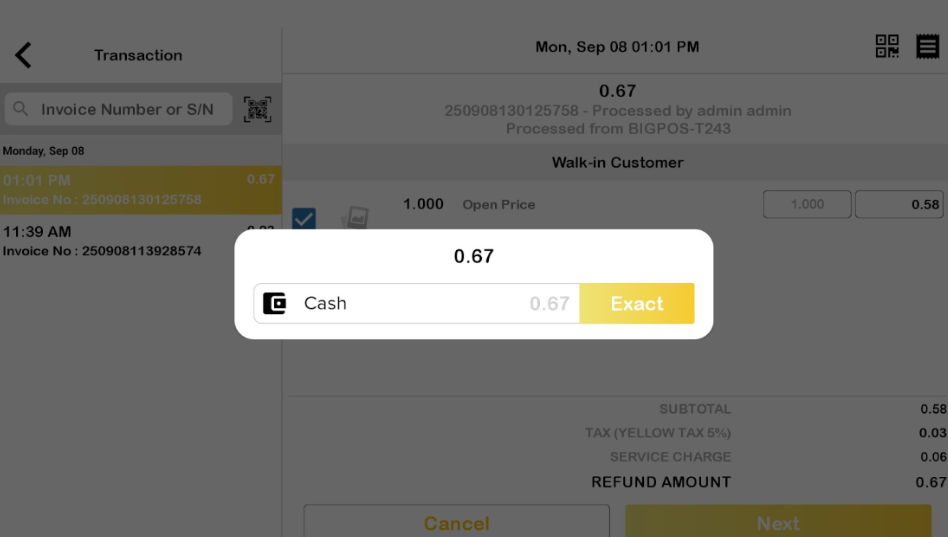
Razer Fiuu payment only supports full refunds which is ‘Cancel’ process in BIGPOS. If merchant wants to return back customer money with Razer Fiuu integration, can proceed using ‘Cancel’ option. Customer will get return without need to manually refund from Razer Fiuu portal.
Refund and Cancel behavior Payment in SOK
Refund Behavior
For all Razer Fiuu payment transactions on BIG SOK, the refund process does not allow a direct refund back to the original Razer Fiuu payment method.
1) Refund Method: Refunds are only allowed via Cash.
2) Manual Refund: If a merchant needs to refund the customer via the original payment channel, they must manually process it through the Razer Fiuu Merchant Portal:
https://portal.merchant.razer.com
Cancel Behavior
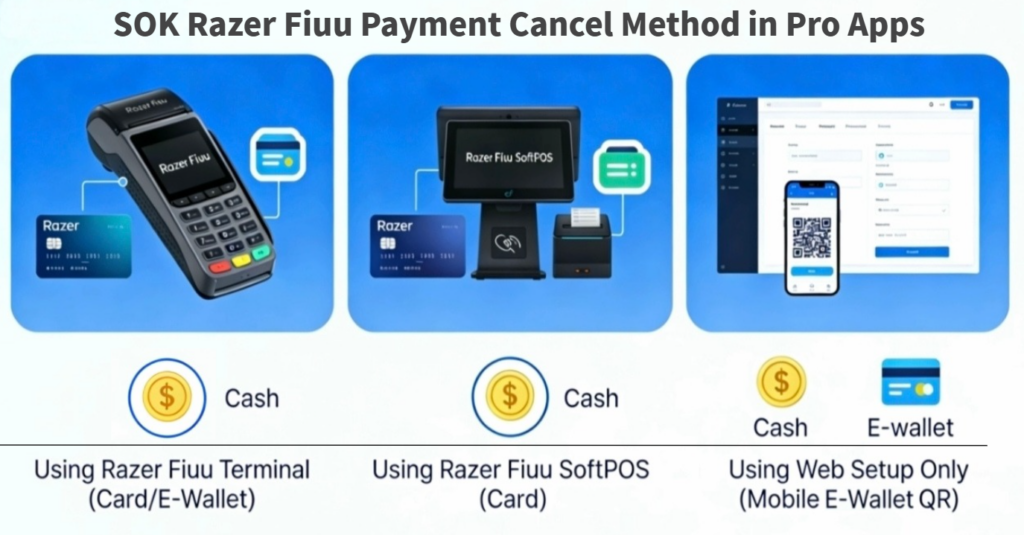
If a merchant wishes to return a customer’s money using the Razer Fiuu integration without manual portal entry, they must use the ‘Cancel’ process in BIGPOS. The options available depend on the connection type used:
1) Using Razer Fiuu Terminal (Card / E-Wallet):
Cancellations must be processed via the Cash Only option in the PRO app. Although selected as “Cash,” the terminal cancellation logic is supported and will work to reverse the transaction.
2) Using Razer Fiuu SoftPOS (Card):
Cancellations must be processed via the Cash Only option.
3) Using Web Setup Only (Mobile E-wallet QR):
This method supports an integrated reversal. You can choose either the Cash or E-wallet option to cancel the transaction.
Note: Card payments are not supported under the Web Setup Only flow.