QR Menu Flow Changes
Introduction
This post will explain some changes for the new QR menu flow. To enhance the user experience, several functional and display adjustments have been implemented. The only parts of the previous flow that will remain are the customer login / sign up details and payment order.
Latest QR Menu
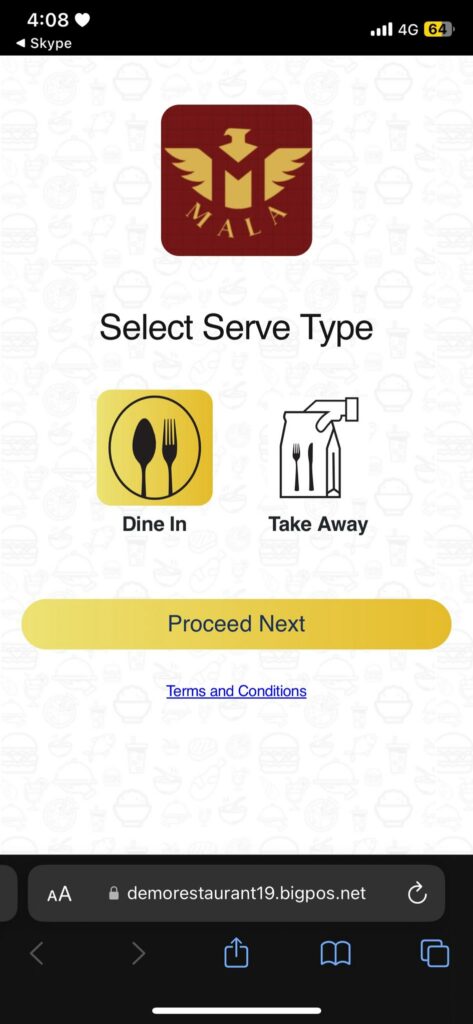
- After scan QR Menu , Serve type page will display first for option Dine in / Take away and Proceed Next .
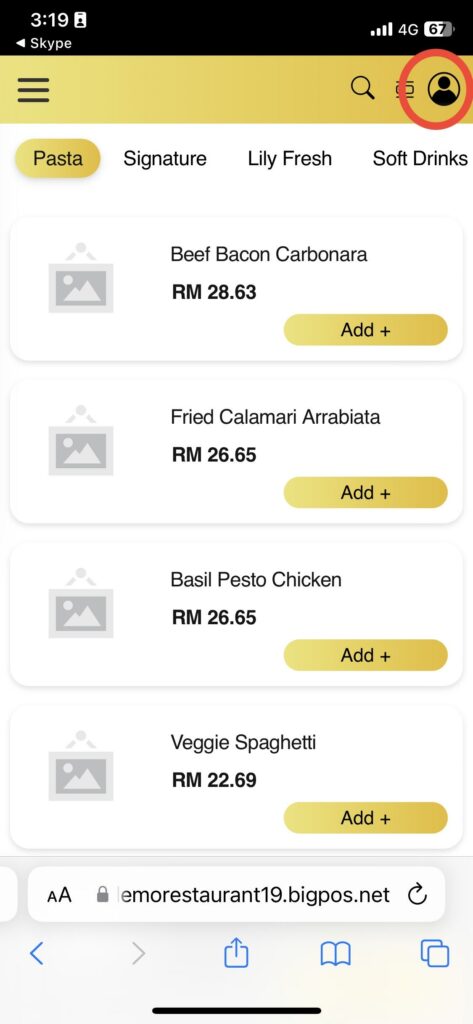
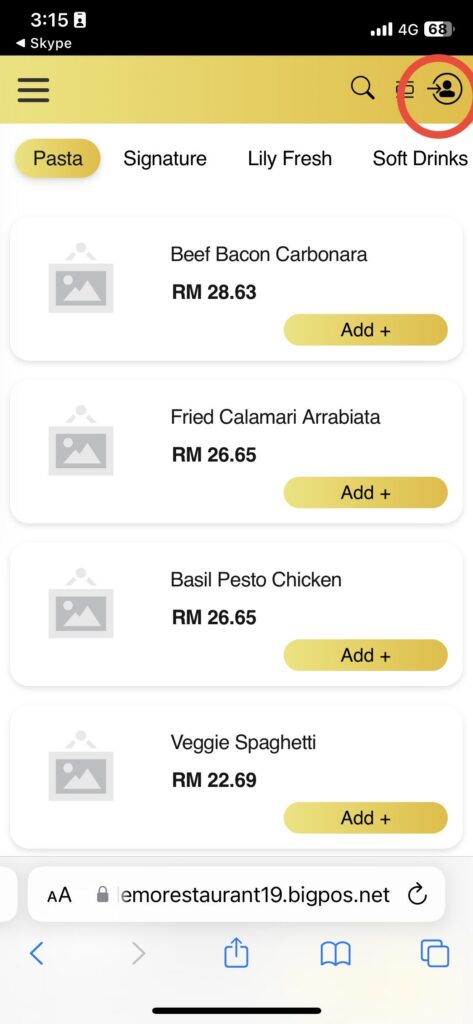
2. Next , Menu page display and select any product . Login icon (before / after) will display on top right corner of every page.
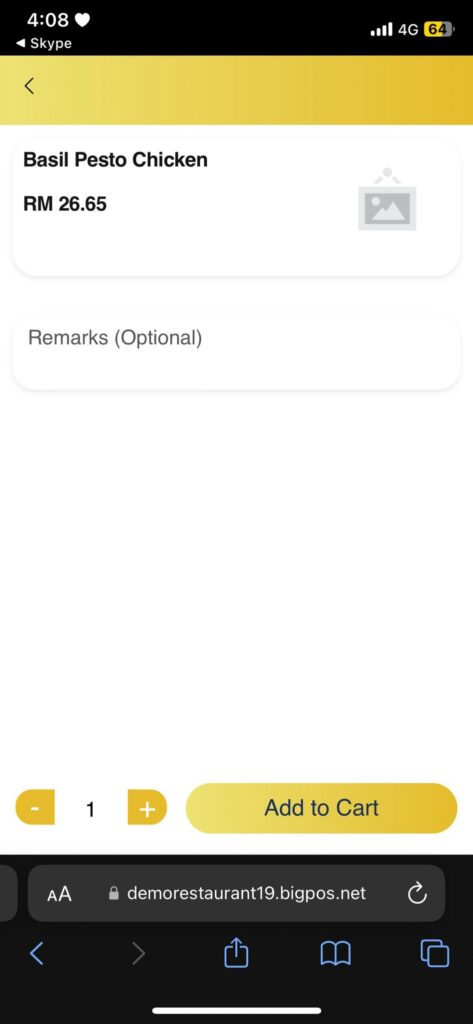
3. Selected Product page display to add product to cart .
4. Back to menu page after add product to cart .
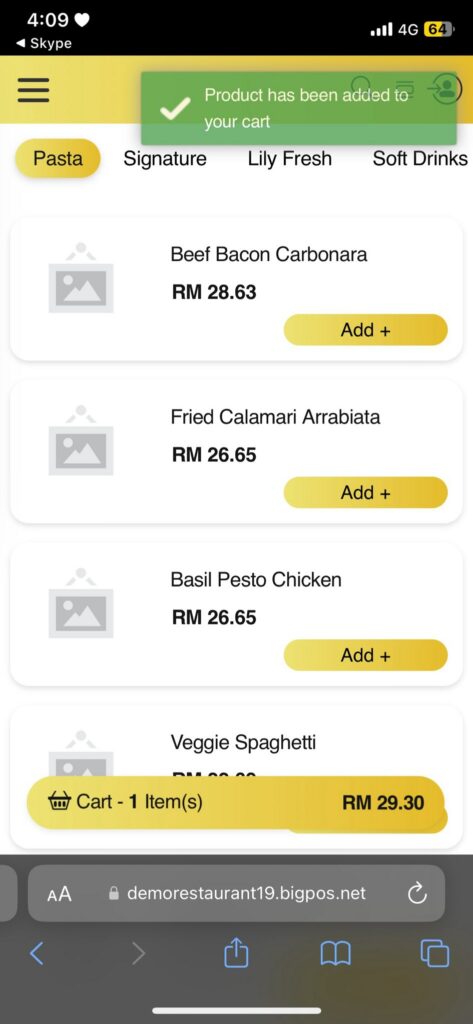
5. Cart History page display to checkout . There are login /register button in checkout page (if user not yet login) below “clear/checkout” button .
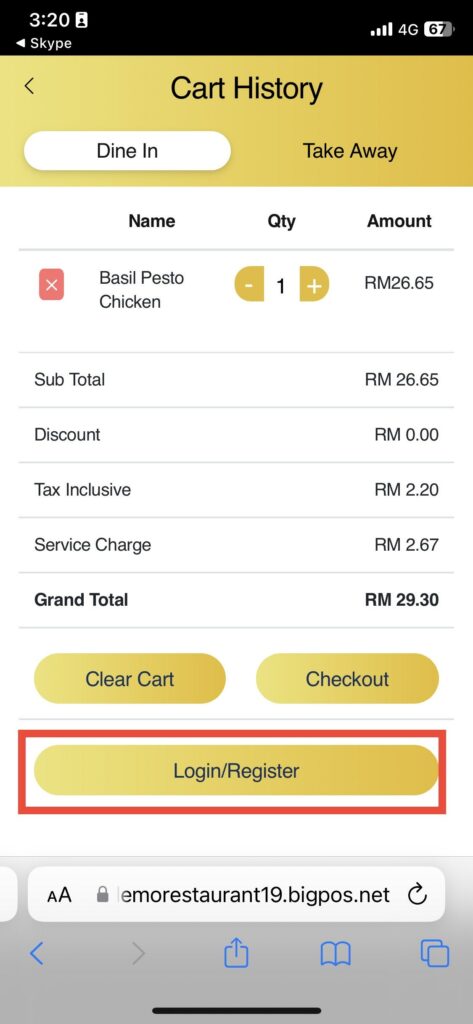
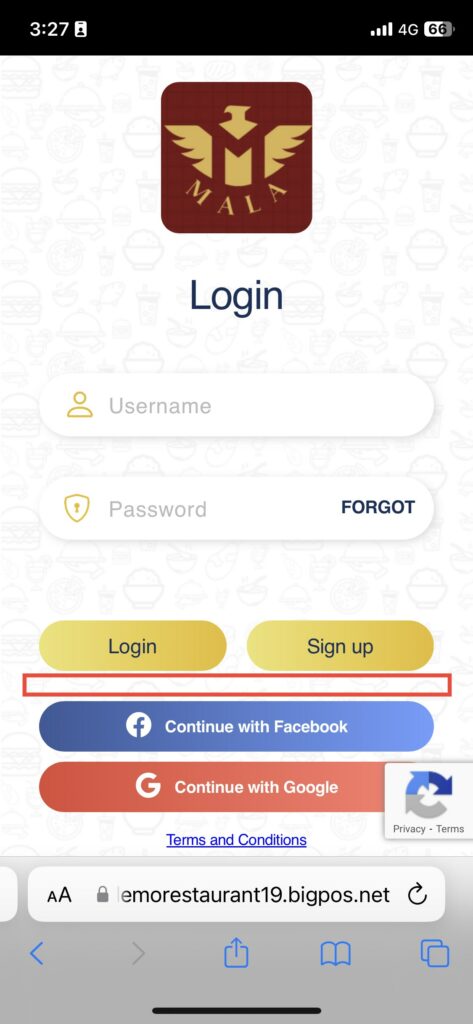
6. Login page will later display for customer login / signup options . ‘continue as guest’ button removed. If user scan qrmenu without login/signup, then they consider as guest.
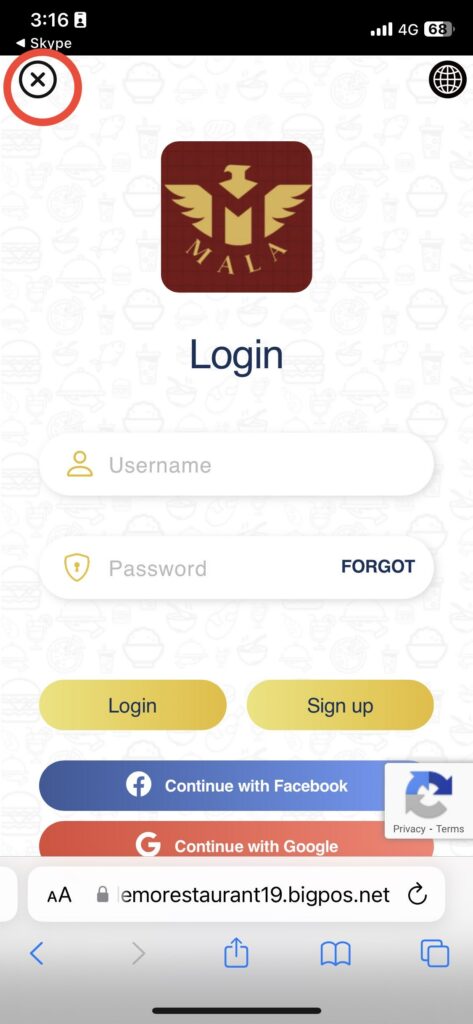
7. There are back button ‘x’ on top left corner on login/sign up page and forgot password page if user still want to continue as guest.
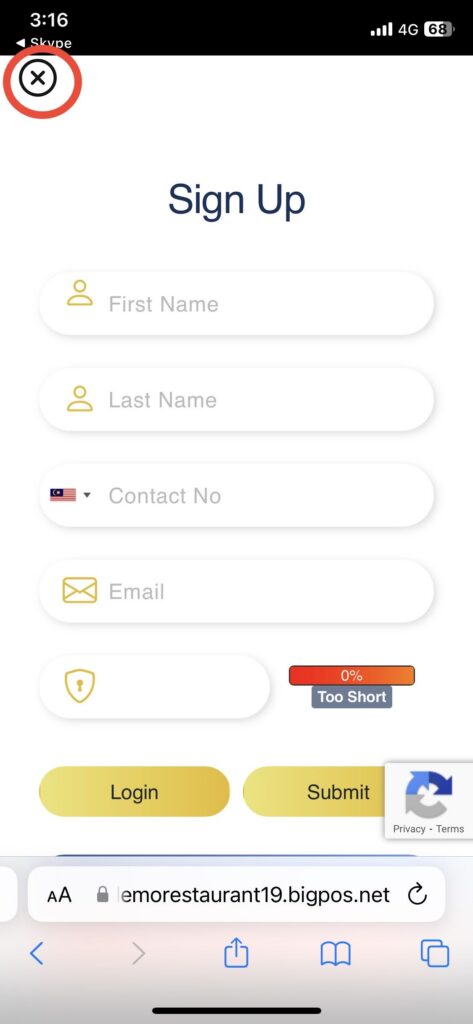
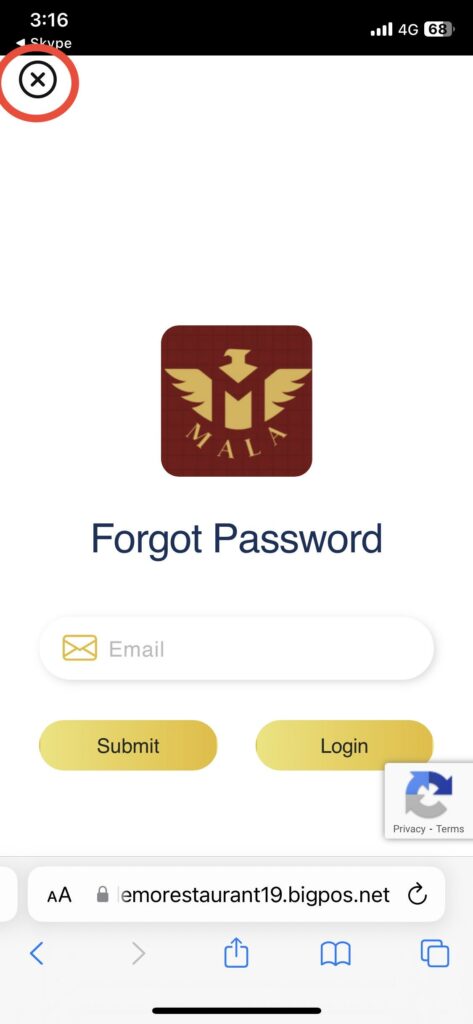
8. Next flow of Customer login / Newly sign up / First time user for Facebook & Google will remain previous flow as it will display Information / Contact details page.
9. Place order page display for payment. There are login /register button in place order page (if user not yet login) below “Place Order” button.
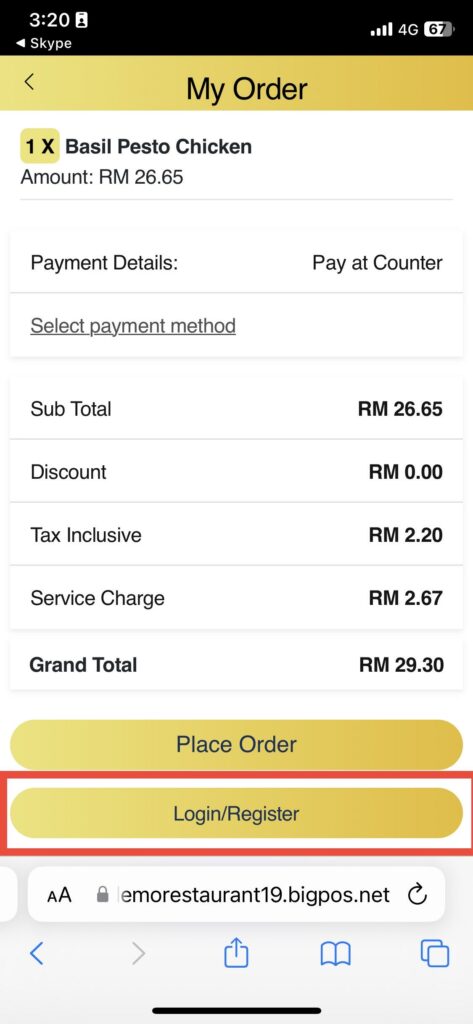
10. Flow for payment order also will remain previous flow as pay using online payment will redirect to merchant payment and generate QRMenu invoice and pay at counter will only generate QRMenu invoice.