How Can We Help?
Printer – How to set the printer?
Introduction
Users can set up printers for the use of receipts printing in the BIG POS System. This section explains how to set up a printer in the BIG POS App.
How to Set Up Printer?
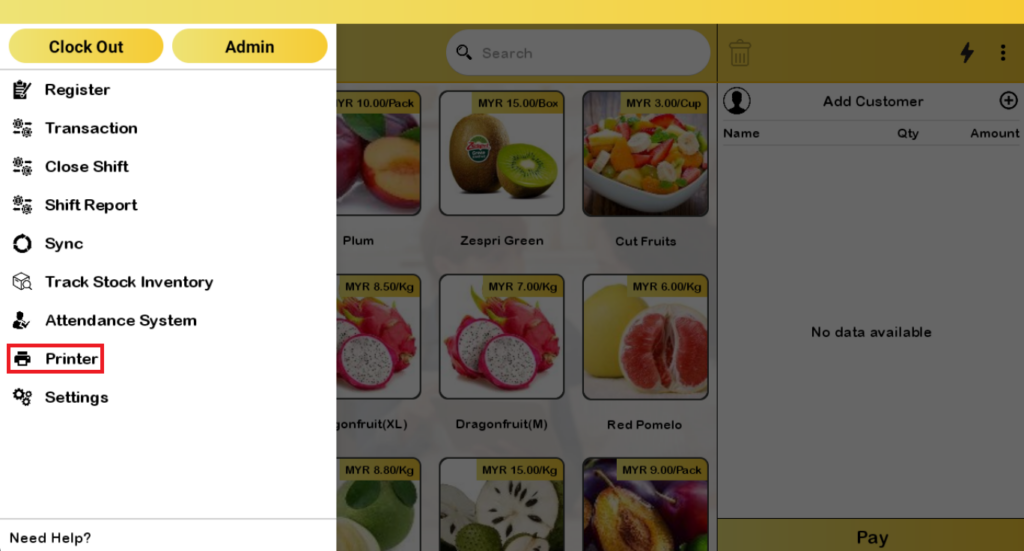
Follow these steps to go to the ‘Printer’:
- Go to the left side panel and click ‘Printer’.
- Proceed by clicking the ‘Search Printer’ button in the Printer Page.
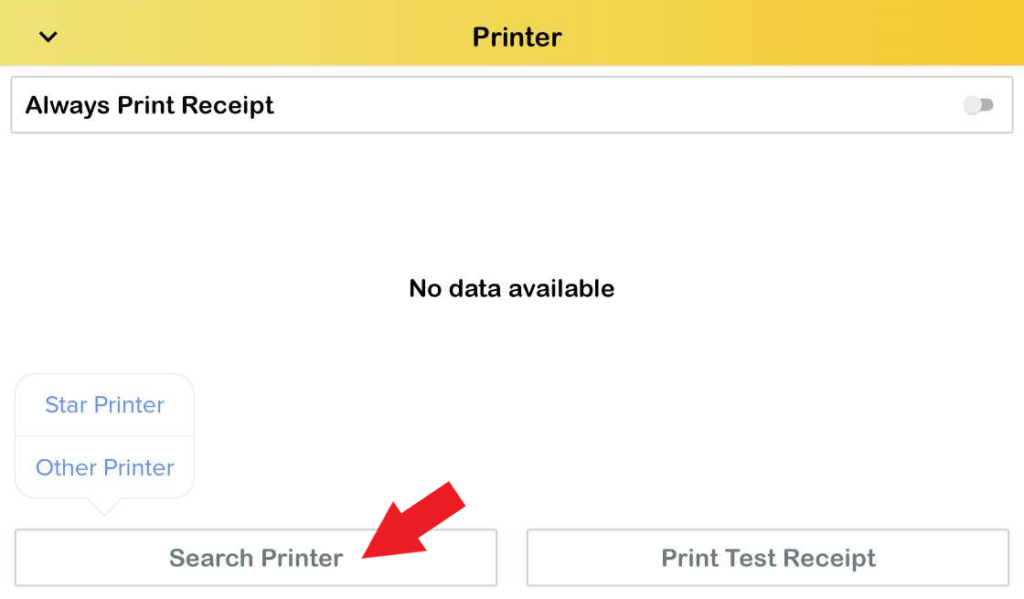
- You may search for other printer. In this case, select ‘Other Printer’.
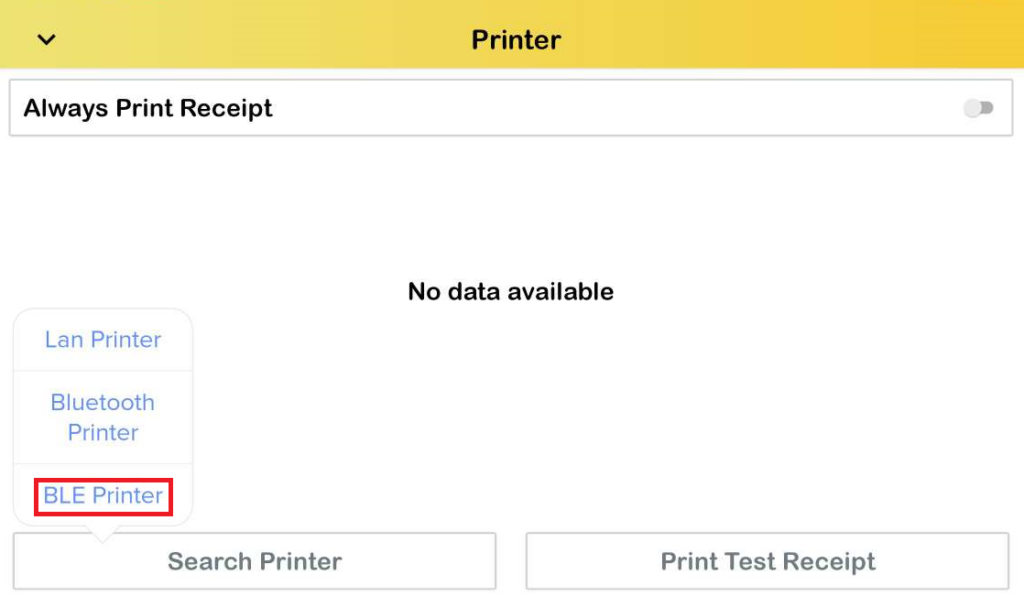
- Select the ‘BLE Printer’.
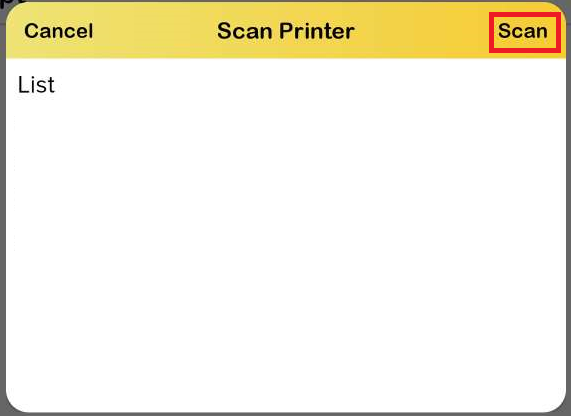
- Click on the ‘Scan’ button to search for available bluetooth printers.
- In order to search for available bluetooth printers, make sure you have turned on your device’s bluetooth and location service.
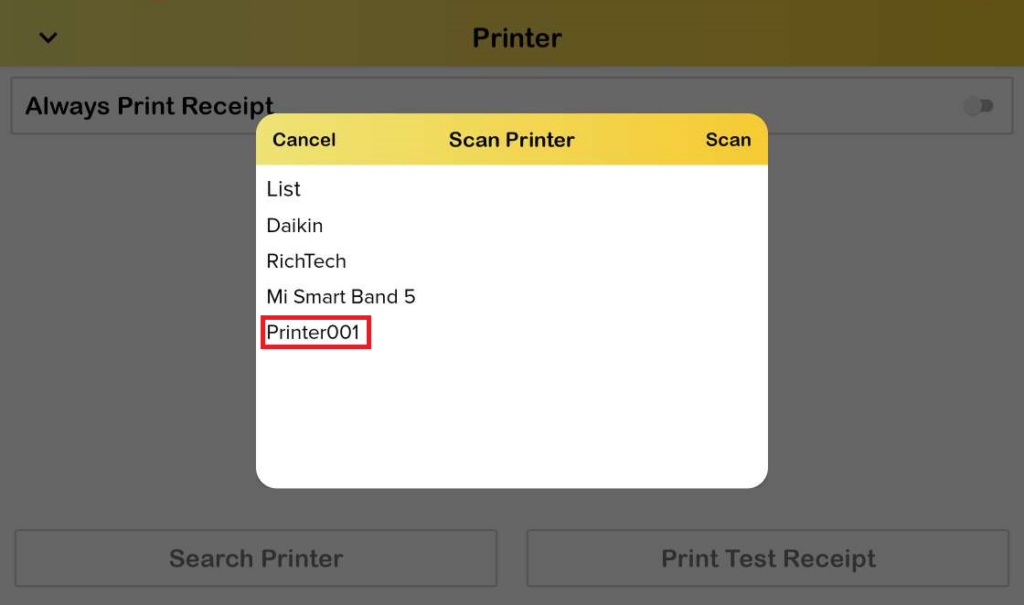
- Select your printer in the list.
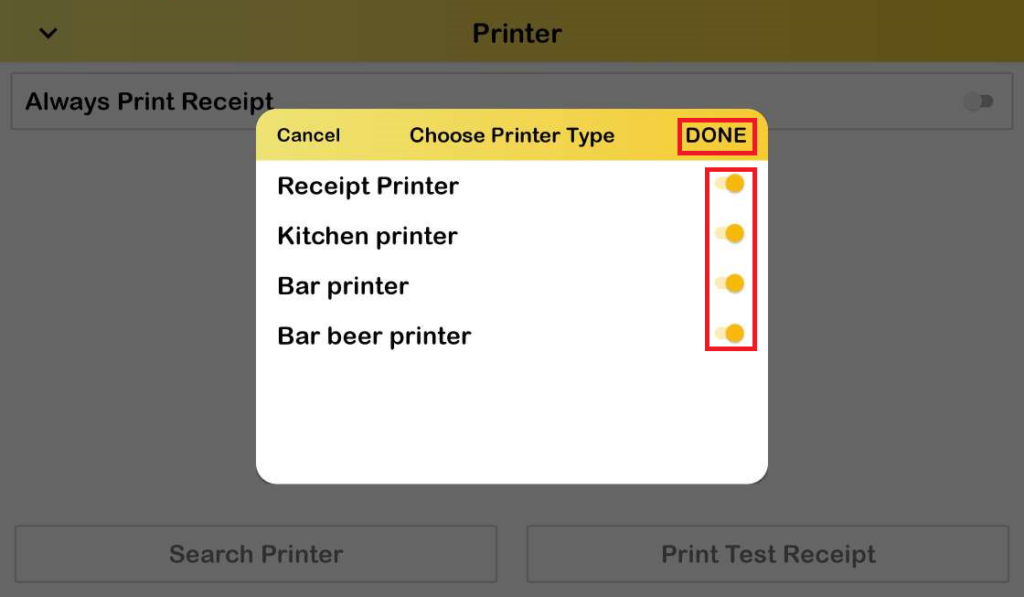
- You may toggle on the Receipt Printer, Kitchen Printer, Bar Printer and Bar Beer Printer, click on the ‘DONE’ button.
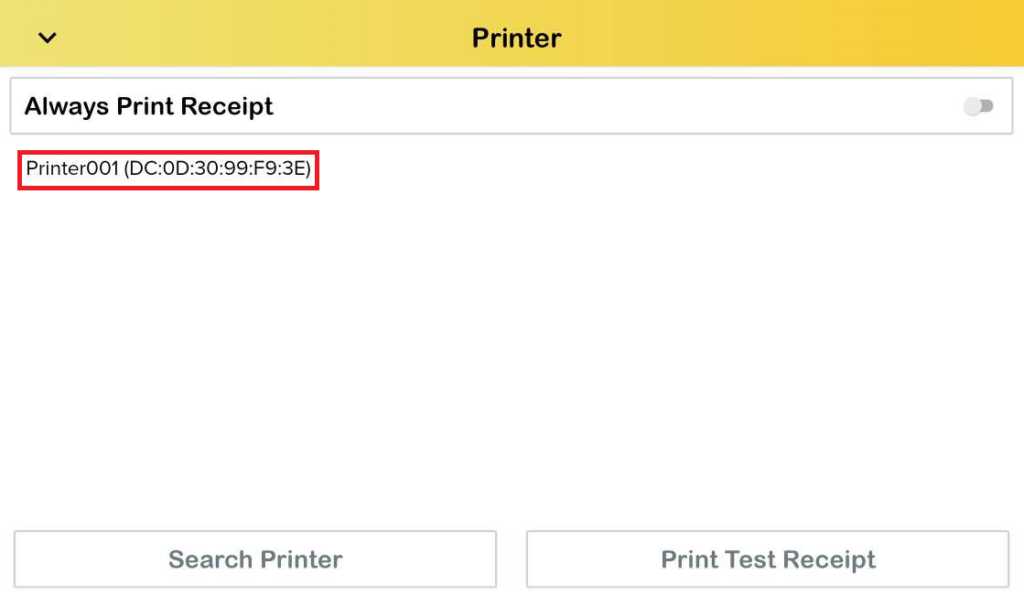
- Your printer has been successfully connected.
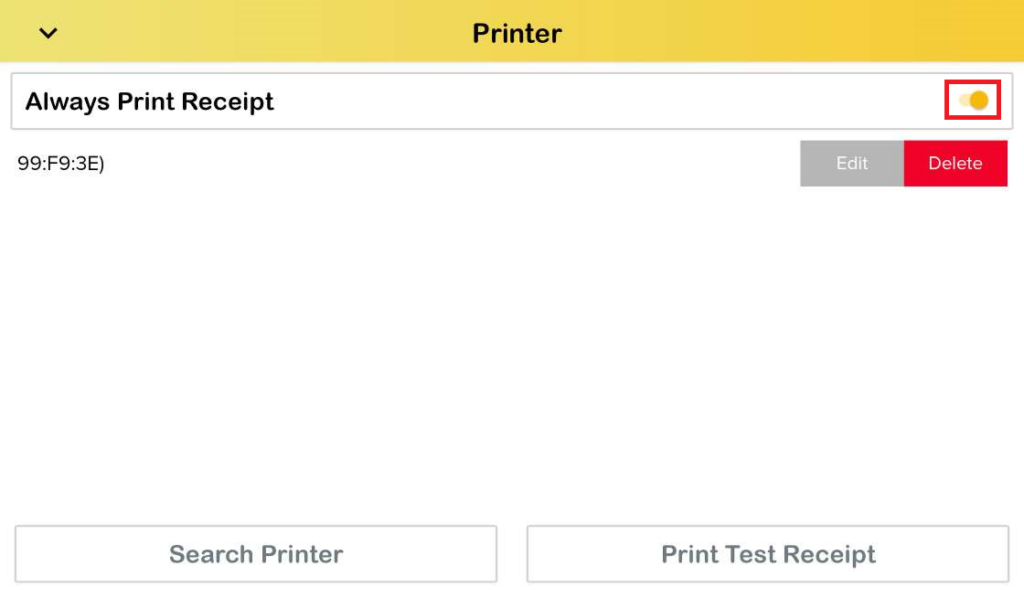
- You can also Edit or Delete your connected printer by sliding left on your printer name.
- Toggle on the Always Print Receipt option to always print a receipt every time you make a transaction.
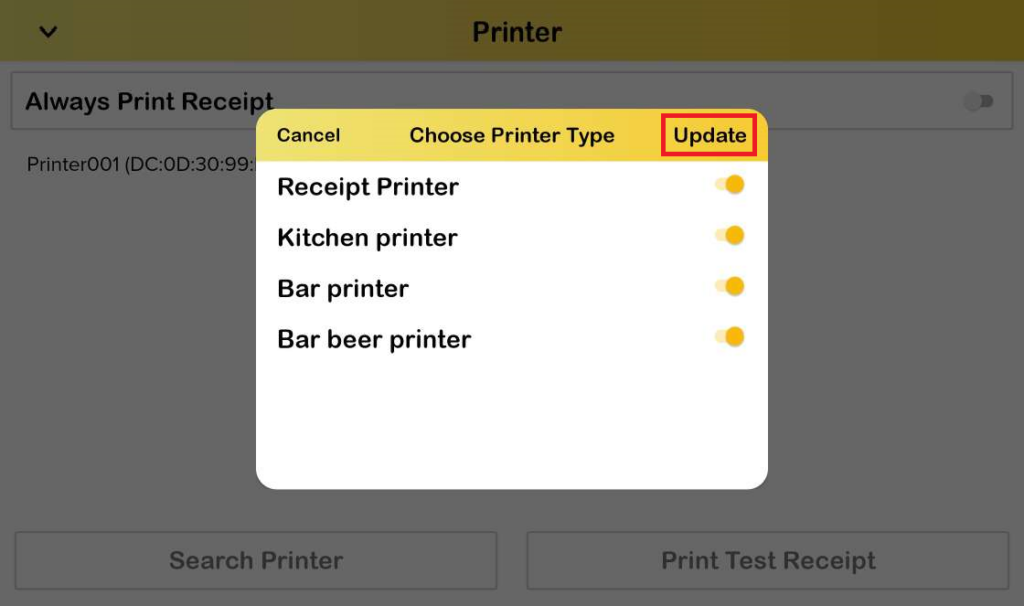
- After you finish editing your connected printer, click on the ‘Update’ button to proceed.