Manual Apply Promotion
Introduction
With the manual apply promotion feature, the system has more flexibility to apply promotions and various apps, including Pro, Lite, and Waiter. This process of promotion ensures a hassle-free experience in selecting and applying promotions that suit each situation.
Setting in the web admin
- Go to the Web Admin > Click the “Promotions” > Press the subcategories “Manage Promotions“.
- Create new promotion.
- User can enabling whether to Auto Apply Promotion or Manual Apply Promotion. See the example in the red box. Those buttons can toggle Auto Apply Promotion on or off.
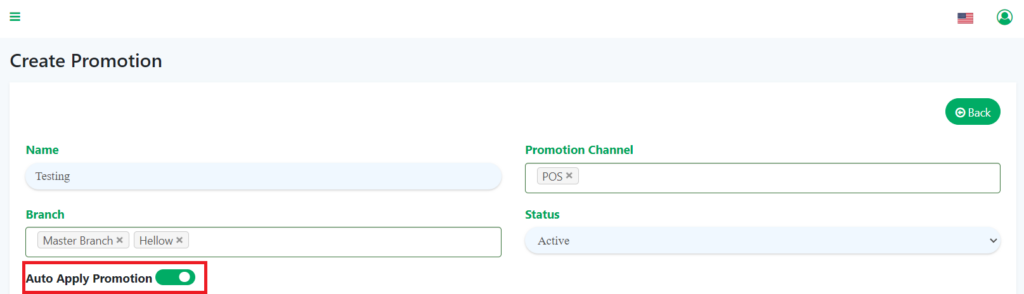
a) If Auto Apply Promotion = Enable
Promotions will automatically be applied to the chosen product in the case of Item Promotion, or to the entire cart for Promotion Discount.
b) If Auto Apply Promotion = Disable
Promotions won’t be automatically applied to specific products or the entire cart. Instead, need to manually choose the promotion in either the Item Promotion or Promotion Discount sections.
Promotion Layout in apps
- On the cart page, the promotion is divided into 2 sections, which are:
a) Item Promotion :
- Particular for products of category, product by tag and specific product.
- When click on the three dots button, the Item Promotion will appear.
b) Promotion Discount :
- Particular for all orders and orders over or equal to.
- When click on Promotion Discount in the subtotal section, the Promotion Discount will be displayed.
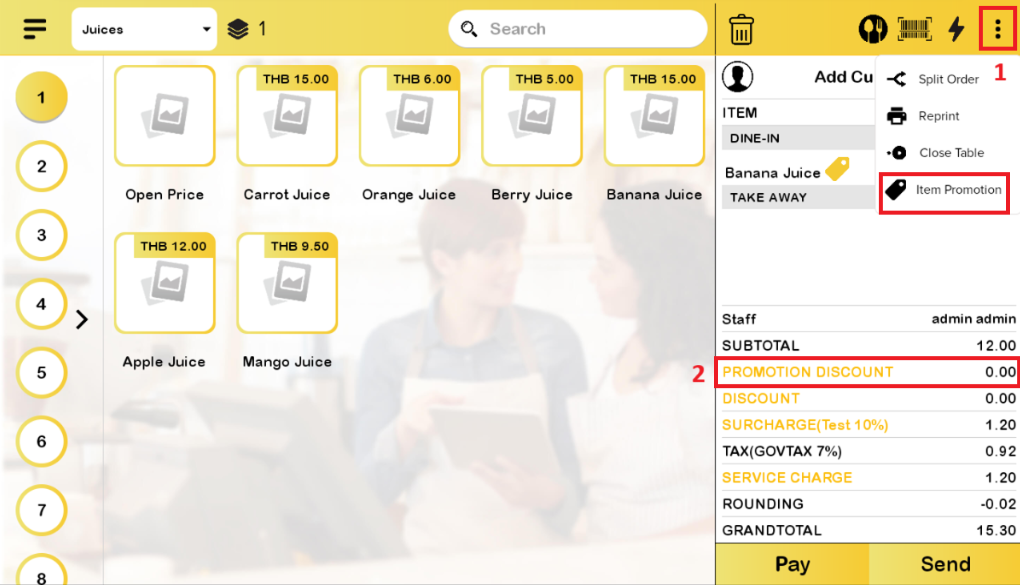
The flow of the applied promotion in the cart
a) Auto Apply Promotion = Enable
- The item promotion is automatically applied in the cart based on the promotion setting in the web admin.
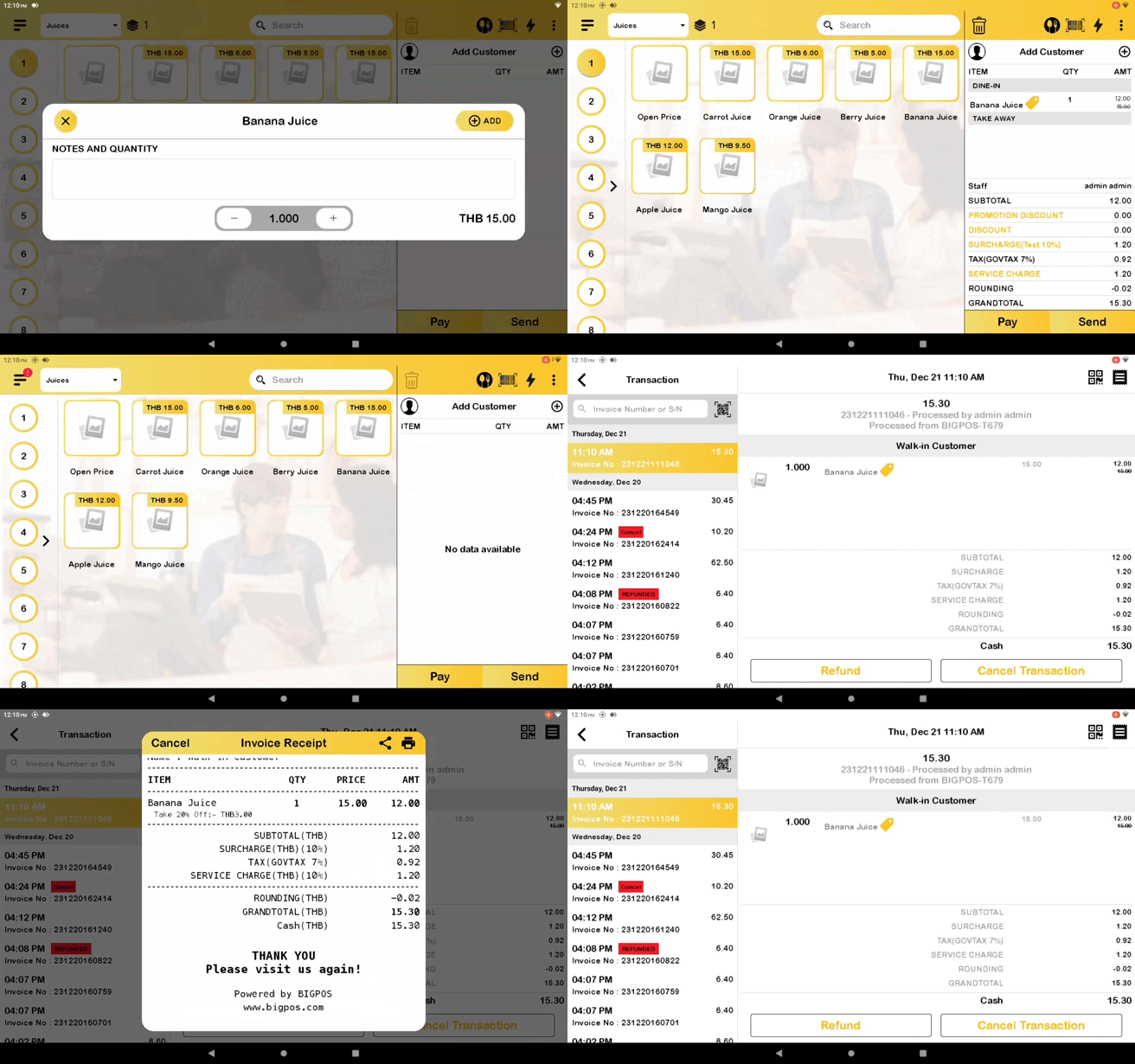
b) Auto Apply Promotion = Disable
- The item promotion is manually applied by clicking on the three dots button, then pressing the Item Promotion button, and selecting the promotion that want to apply.
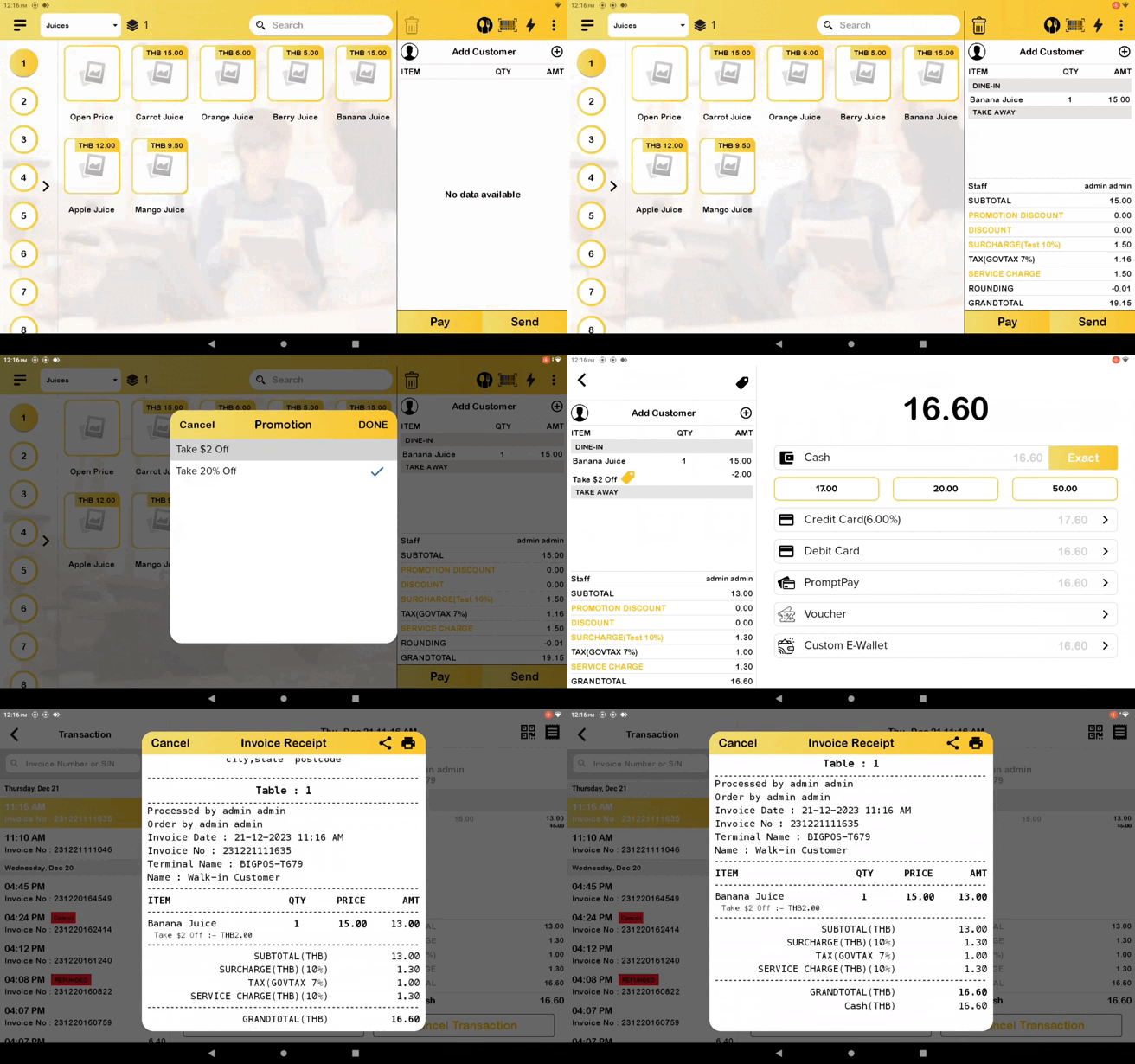
Note: For Promotion Discount, the process of applying the promotion is similar to Item Promotion, but need to click on “Promotion Discount” on the cart page.
Reminder: For manual promotion in split order, follow these steps:
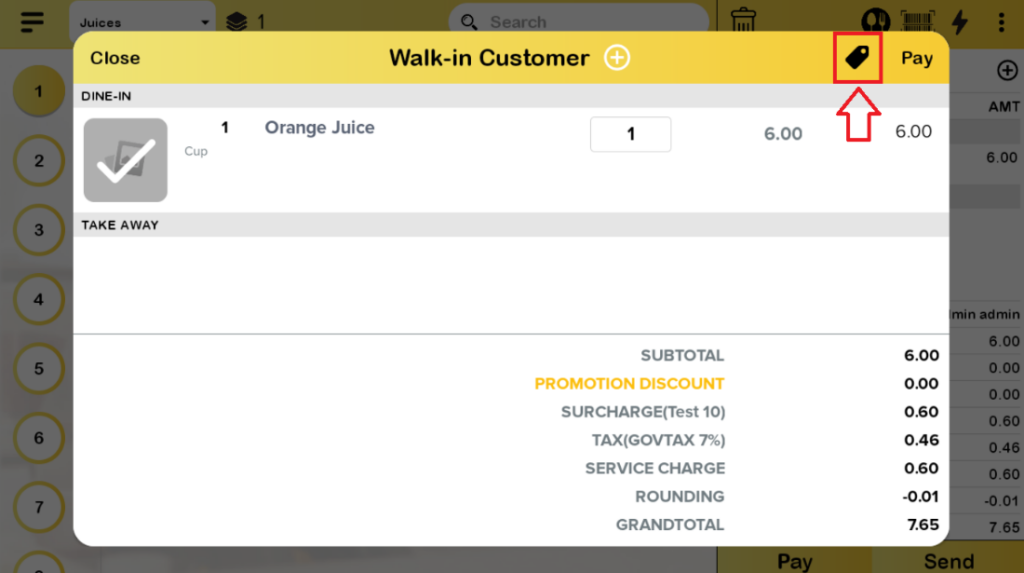
- On the split order page, the user needs to click on the tag icon to apply the promotion to the product.
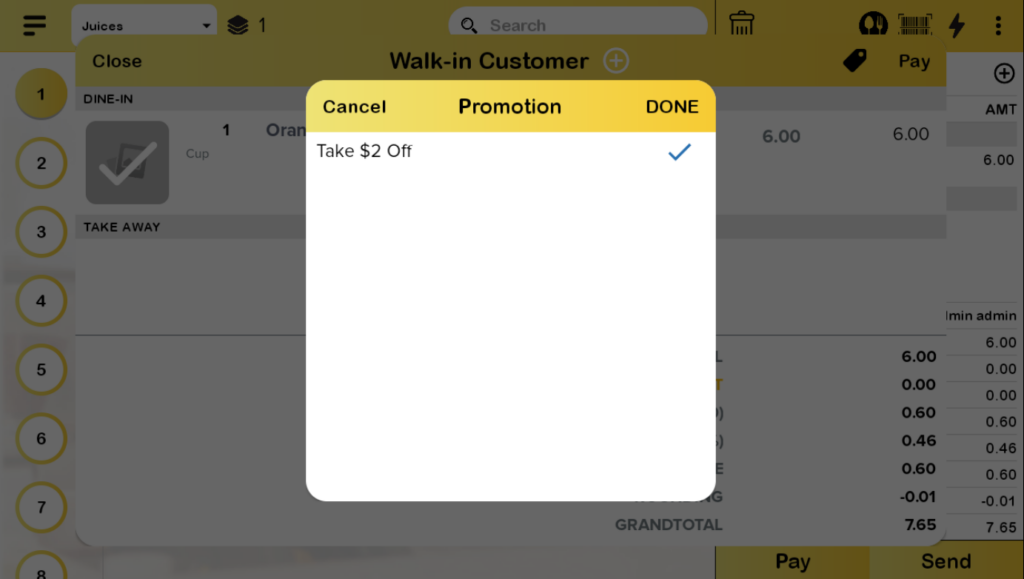
2. The list of item promotions will be displayed. Click on the promotion and press Done. The promotion “Take $2 Off” will be applied.
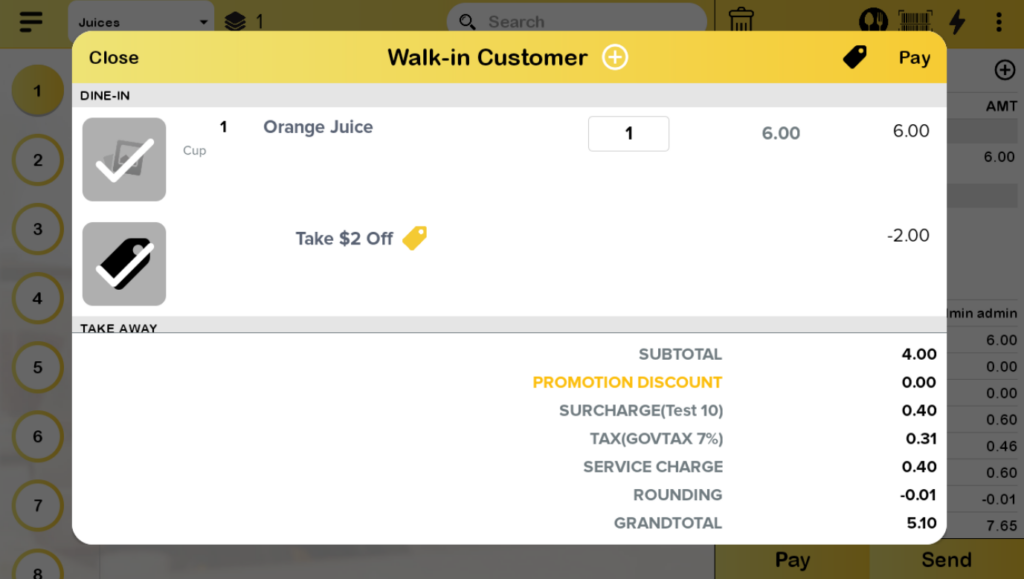
Note: Manual Promotion need to re-select again in split order even already select in cart before. The promotion also cannot be changed on the payment page when choose split order.
Product with multiple promotion
a) If a product have more than 1 promotion [Auto-Auto]:
- The promotion is applied based on the list set in the web admin.
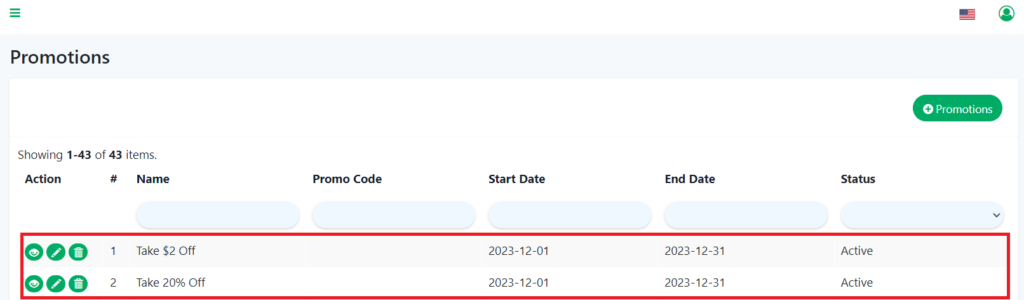
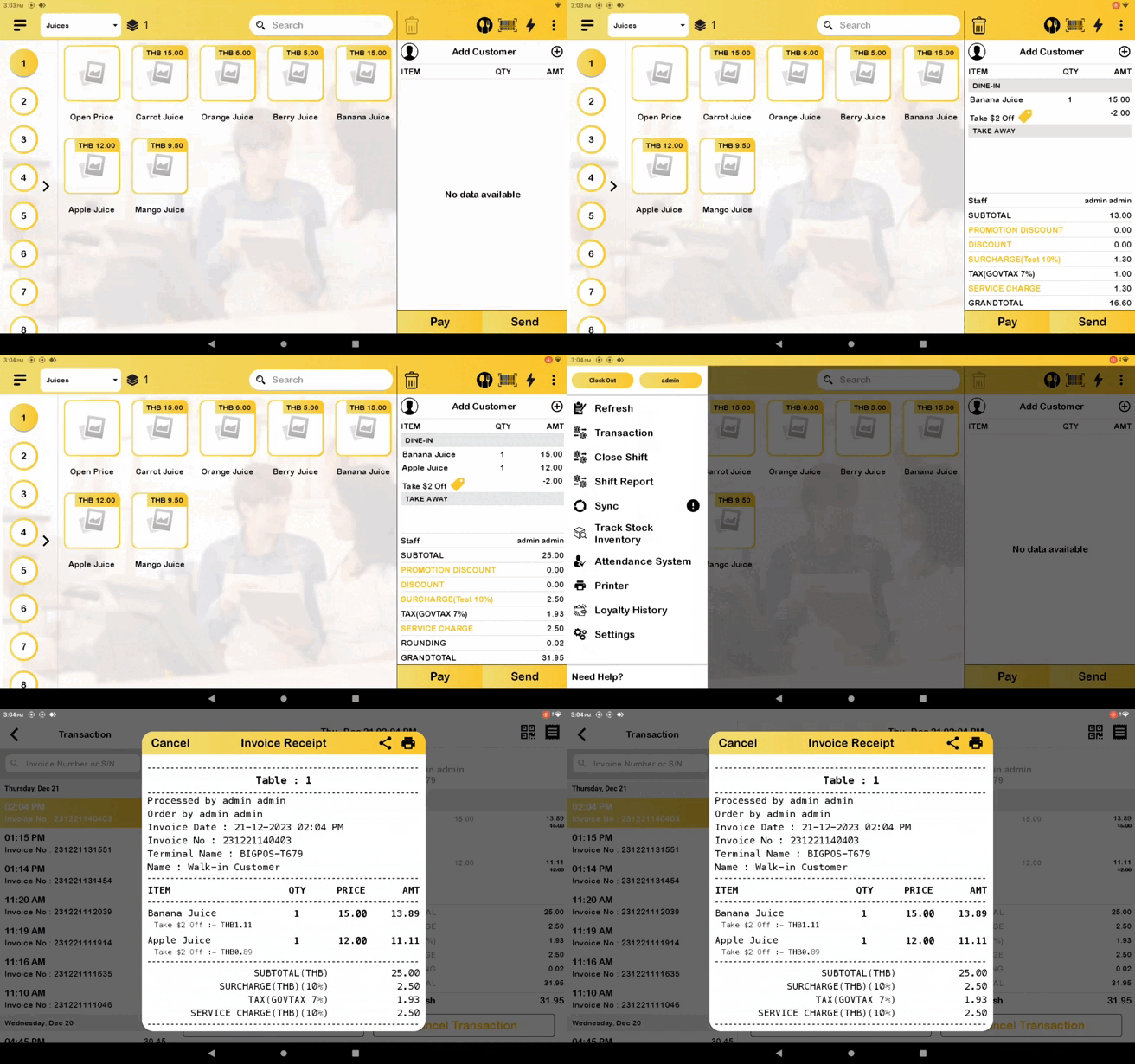
Example of items: Add 1 Banana Juice and 1 Apple Juice to cart.
- [Auto] Take $2 Off: Product by Category = Juice, Quantities = 2
- [Auto] Take 20% Off: Banana Juice, Berry Juice, Apple Juice, Quantities : 2
2. On the BIG POS Application, the priority of the promotion to be applied is “Take $2 Off” when two auto promotions are applied at the same time.
b) If a product have more than 1 promotion [Auto – Manual]:
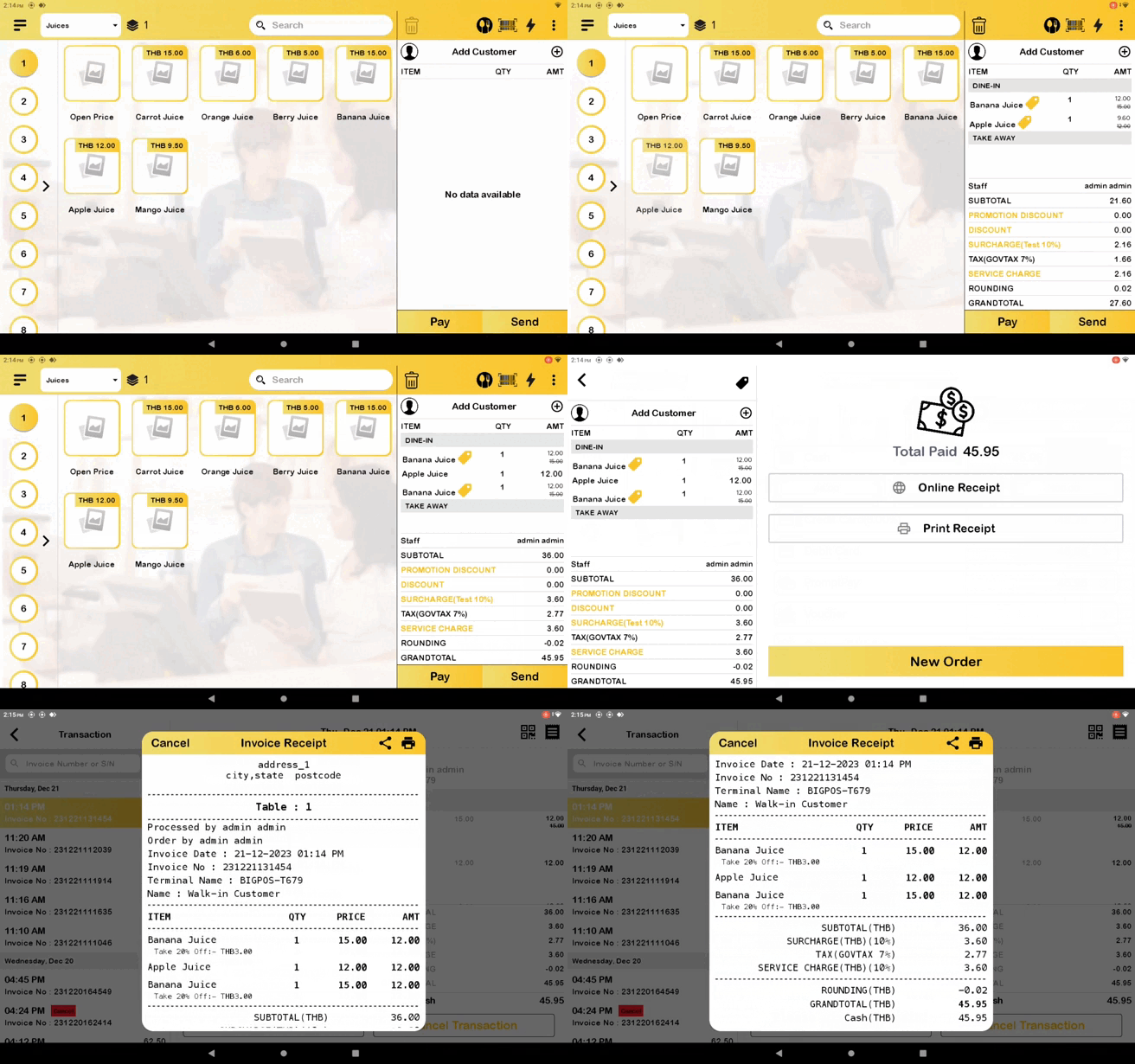
- Once 2 Banana Juices add to the cart, the auto promotion apply Take 20% Off, but the apple juice did not because the promotion was limited to 2 quantities.
Example: Add 2 Banana Juice and 1 Apple Juice to cart
- [Manual] Take $2 Off: Product by Category = Juices, Quantities =2
- [Auto] Take 20% Off: Banana Juice, Berry Juice , Apple Juices, Quantities = 2
2. When select manual promotion, 1 Banana Juice and 1 Apple Juice use the manual promotion limit of 2 quantities.
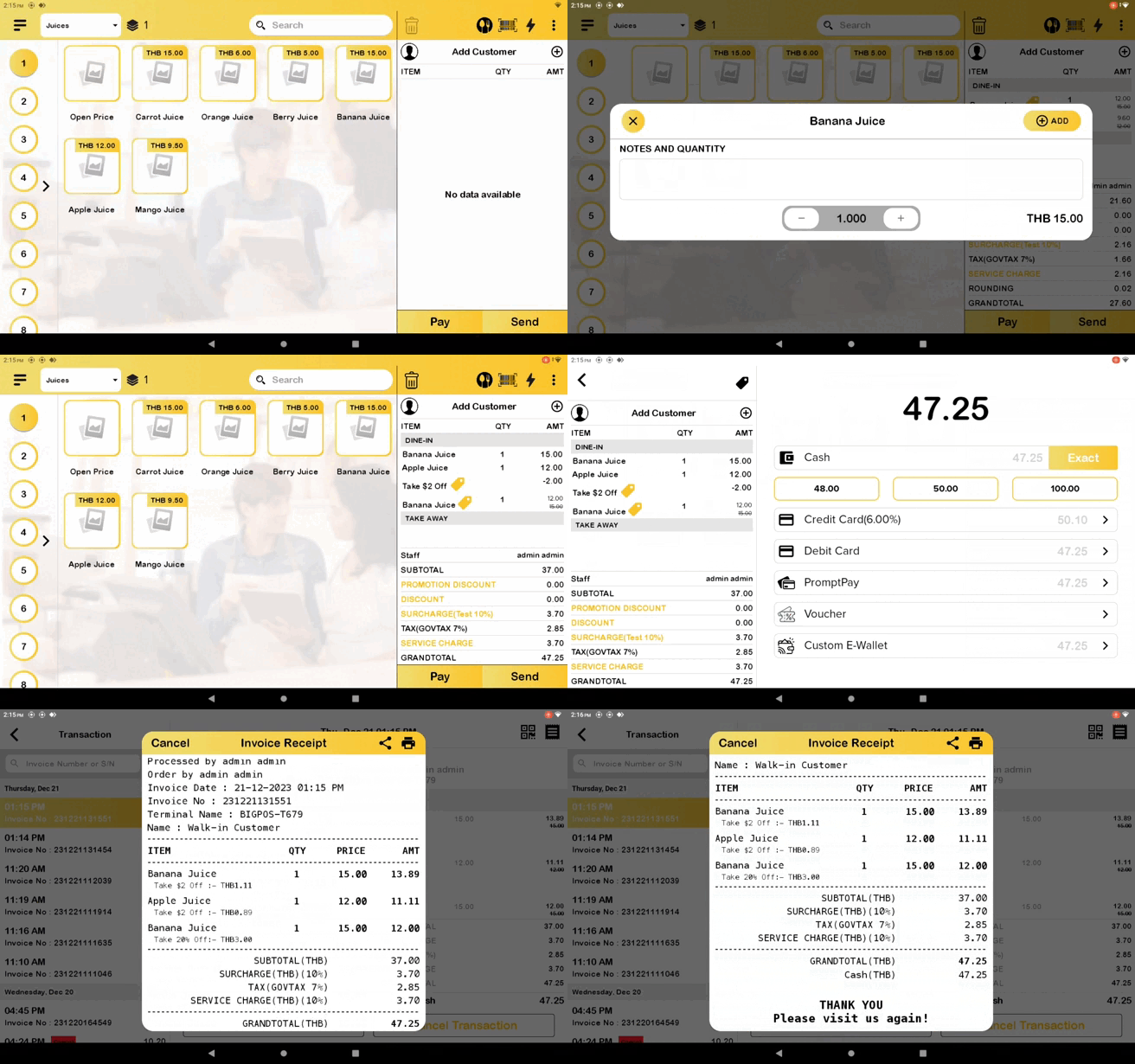
Reason: Manual promotion overrides auto promotion, which leaves 1 product, Banana Juice, to use the auto apply promotion.