Label Printer Integration
Introduction
This post introduces Label Printer to further utilizes F&B business. The new feature only available for Store Category > Restaurant and applied in the listed application below:
- Big Pos Pro
- Big Pos Lite
- Big Waiter
Label Printer Setup
To setup the label printer, follow the steps below:
- Go to the web admin and click on “Company Profile” under “Setting” page. Add new printer tag for label printer in Kitchen Printers. Example: “Label Printer”
- Head to “Products” and select “Label Printer” in product page.
- On the app side, add printer option “LABEL PRINTER” and toggle on “Label Printer”
Note: Setting Print order summary to “Label Printer” may result in duplicate prints.
Example Label Printer Setup

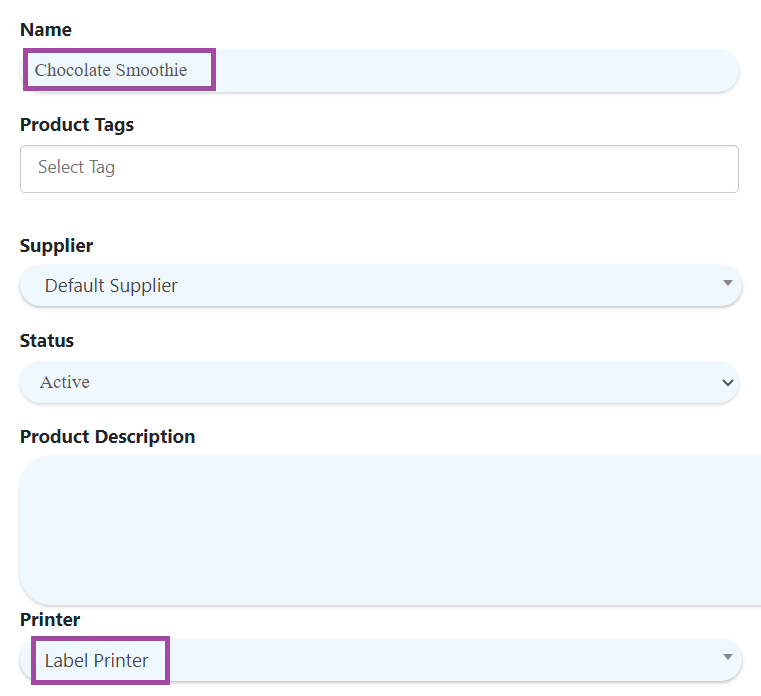
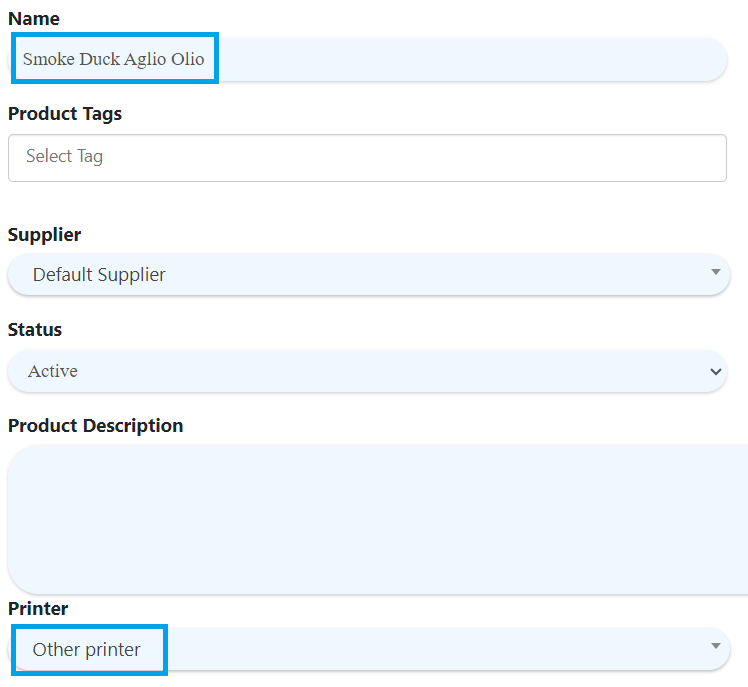
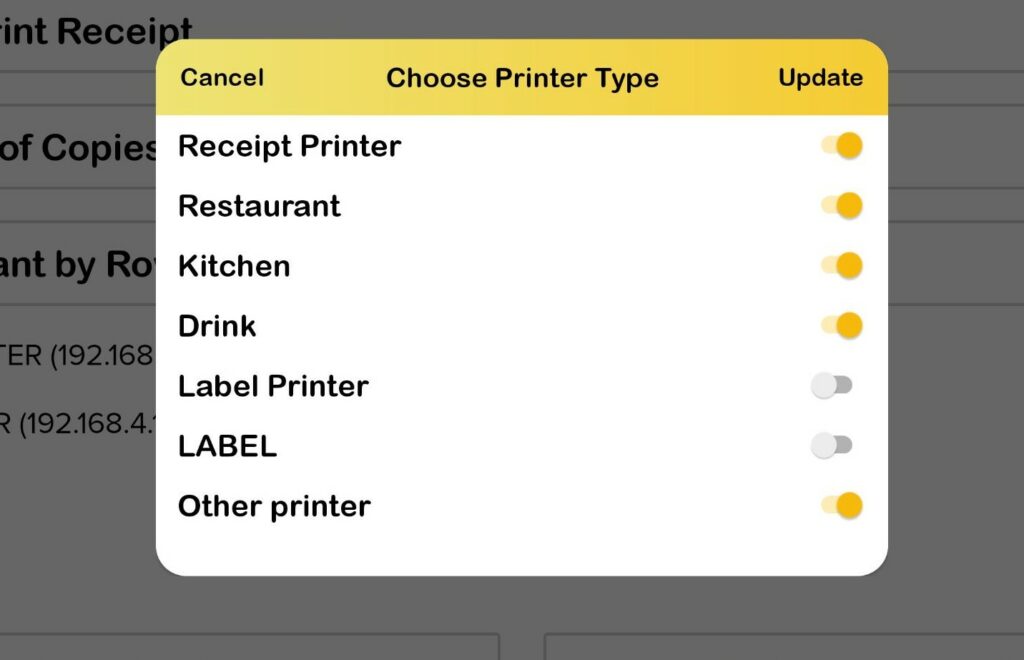
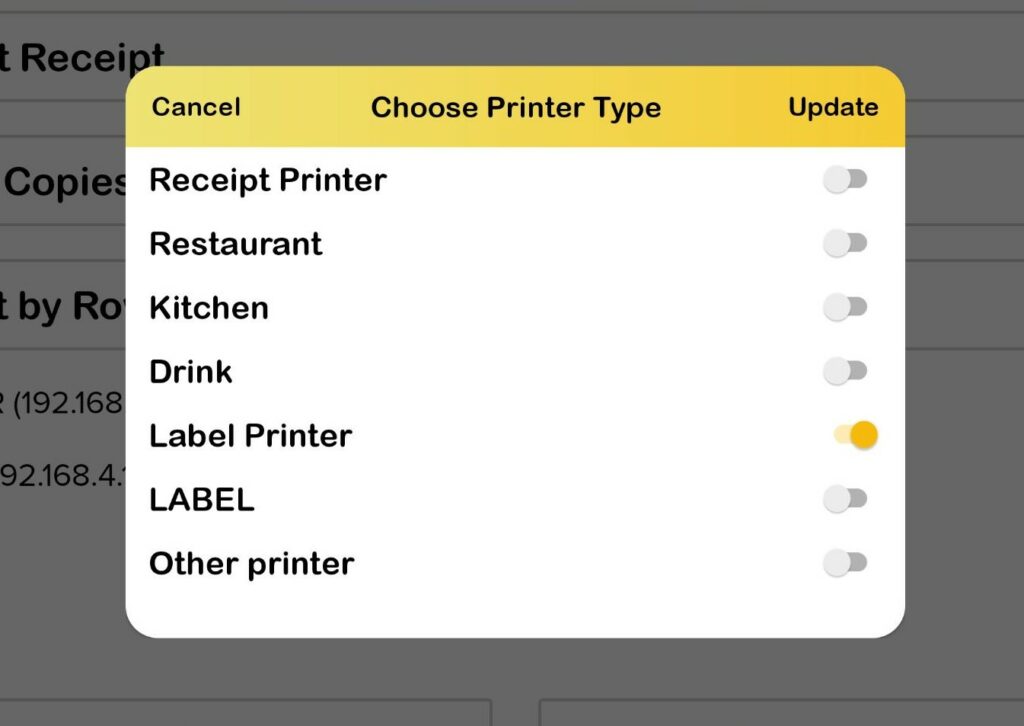
- LAN Printer/Inner Printer : Products which set other than Printer = label printer in product page will print in LAN PRINTER/INNER PRINTER.
- Label Printer : Products which set Printer = label printer in product page will print in LABEL PRINTER.
Based on the example given above, Chocolate Smoothie label printed in LABEL PRINTER while Smoked Duck Aglio Olio order sheet printed in LAN PRINTER. Order Summary and Receipt also printed in LAN PRINTER.
Label Format
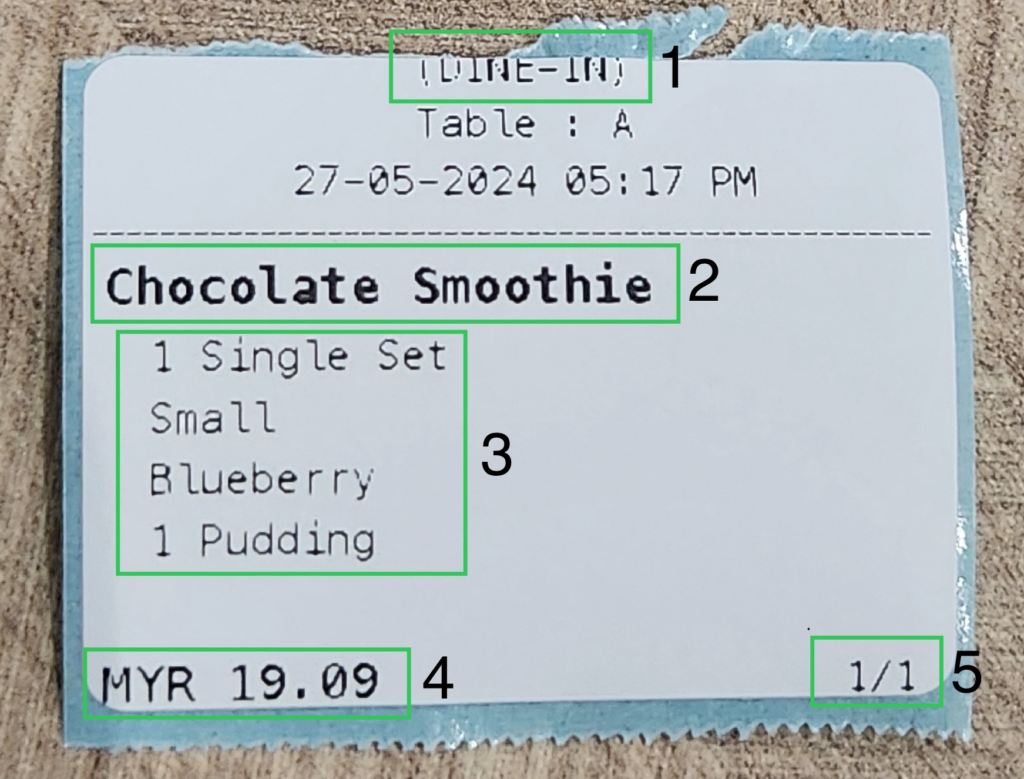
- Serve Type :
- DINE IN/TAKE AWAY/DELIVERY/ PICKUP
- Product Name :
- Bold
- Variants :
- Maximum quantity to display in label: 8 variants
- 1 to 4 variant: Will show full variant name (Max 26 char)
- 5 to 8 variant: Every variants name will limit to 11-12 char. If exceed, char will show “…”
- Price :
- Per item price
- Include product promotion
- Include product discount
- Include inclusive tax
- Include takeaway charge per item
- Quantity
- Quantity item printed using label printer
Label Format for All Business Mode
Business Mode: Table Number
Format for label in Table Number Business Mode is as displayed below.
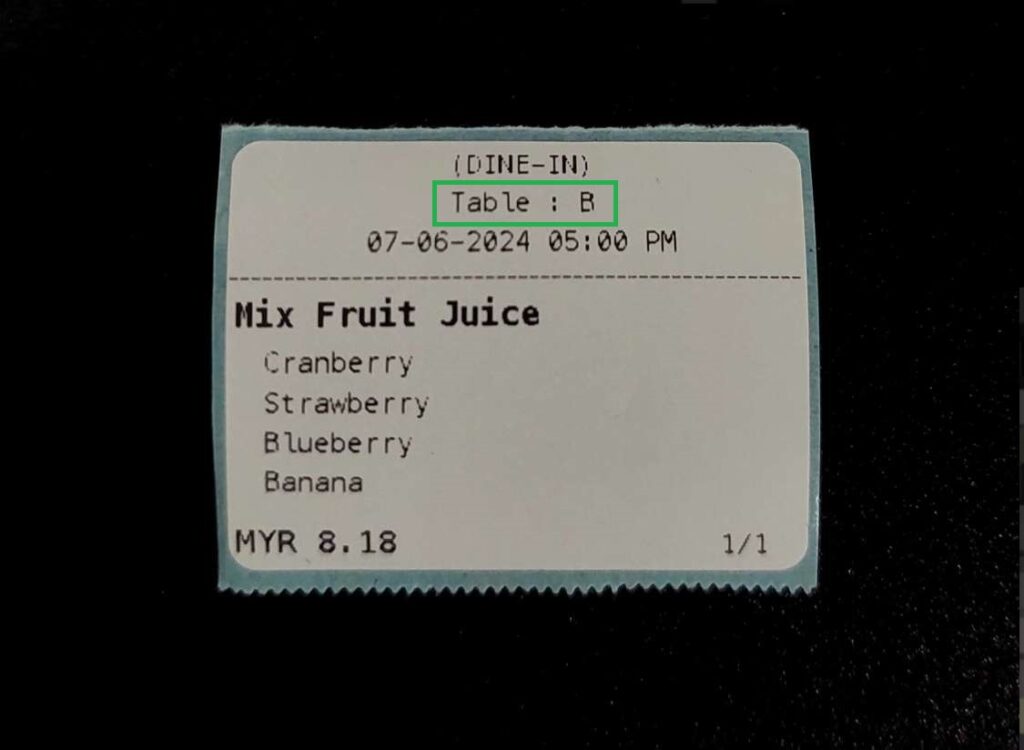
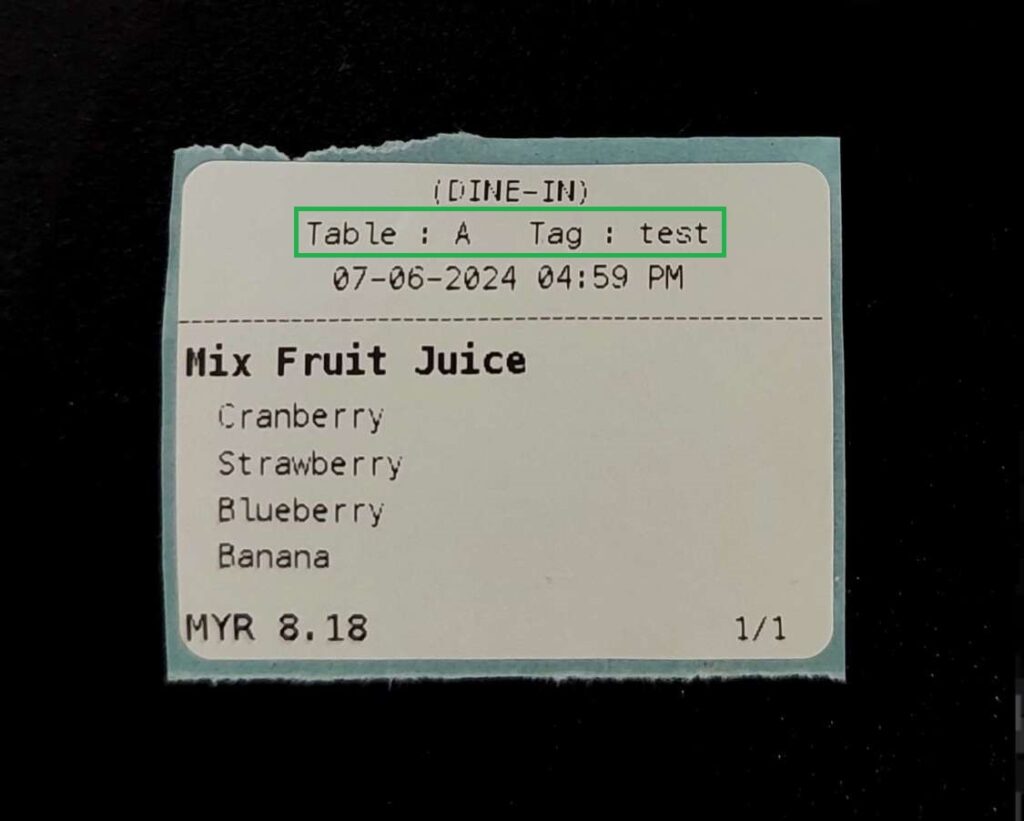
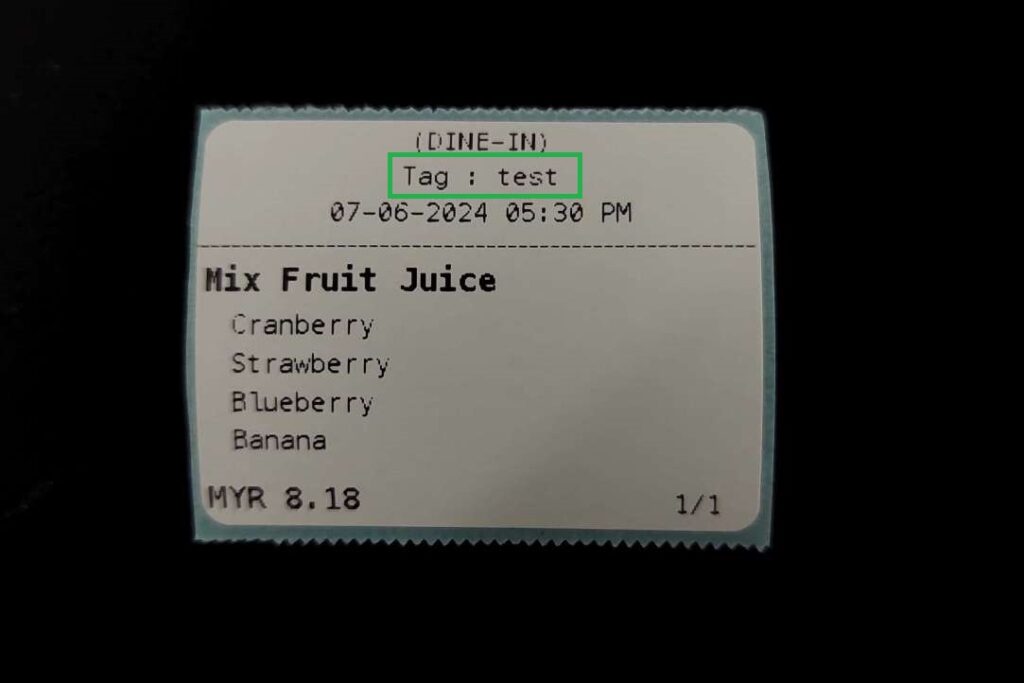
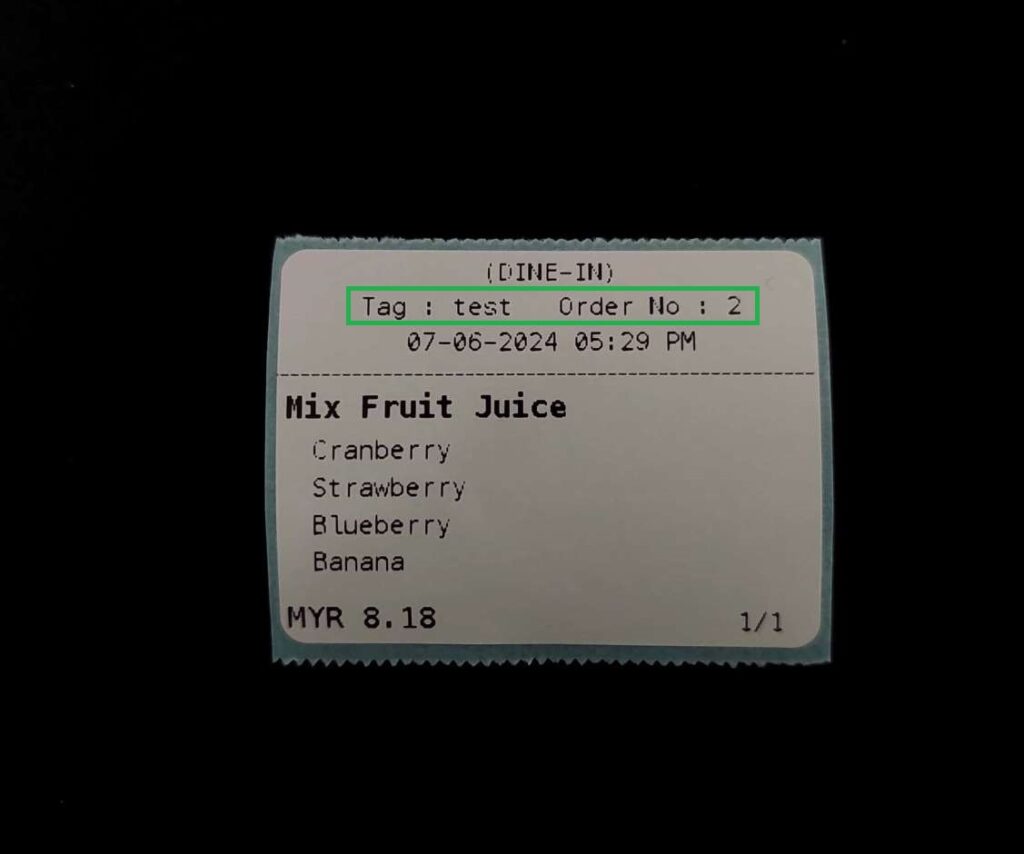
Business Mode: Tag Number
Format for label in Tag Number Business Mode is as displayed below.
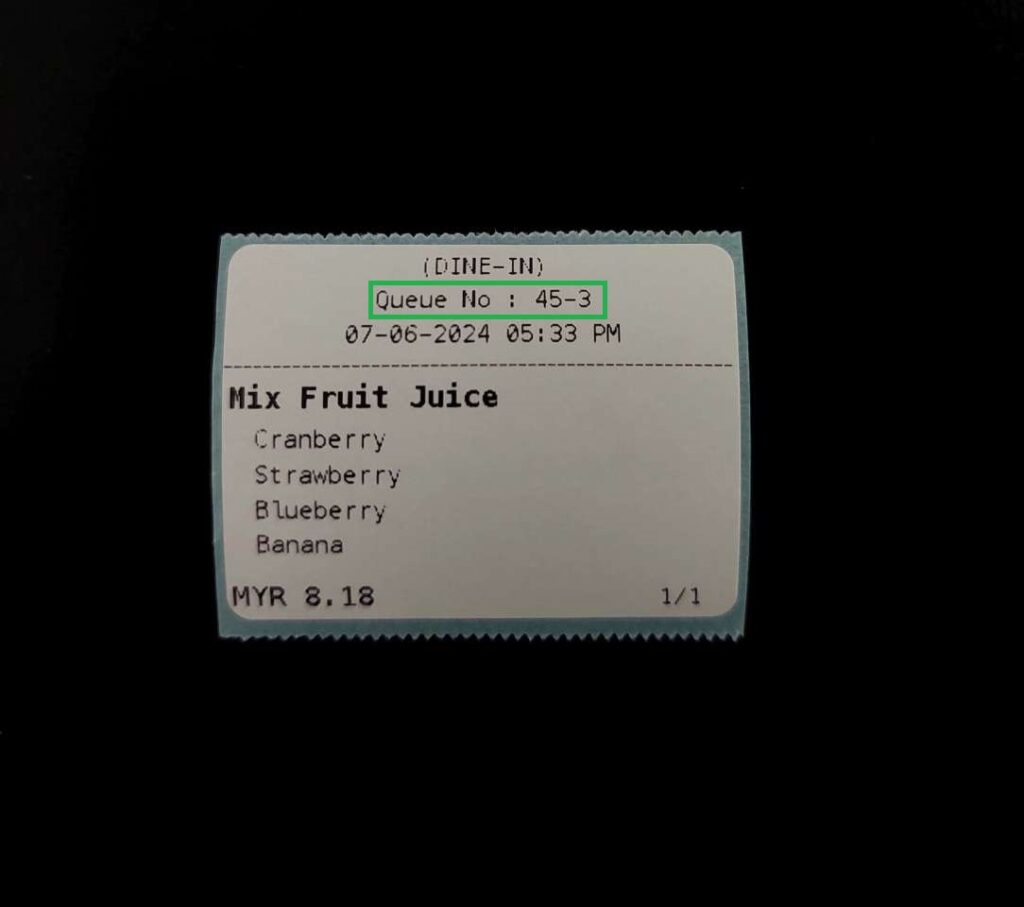
Business mode: QUEUE NUMBER
Format for label print in Queue Number Business Mode is as displayed below.
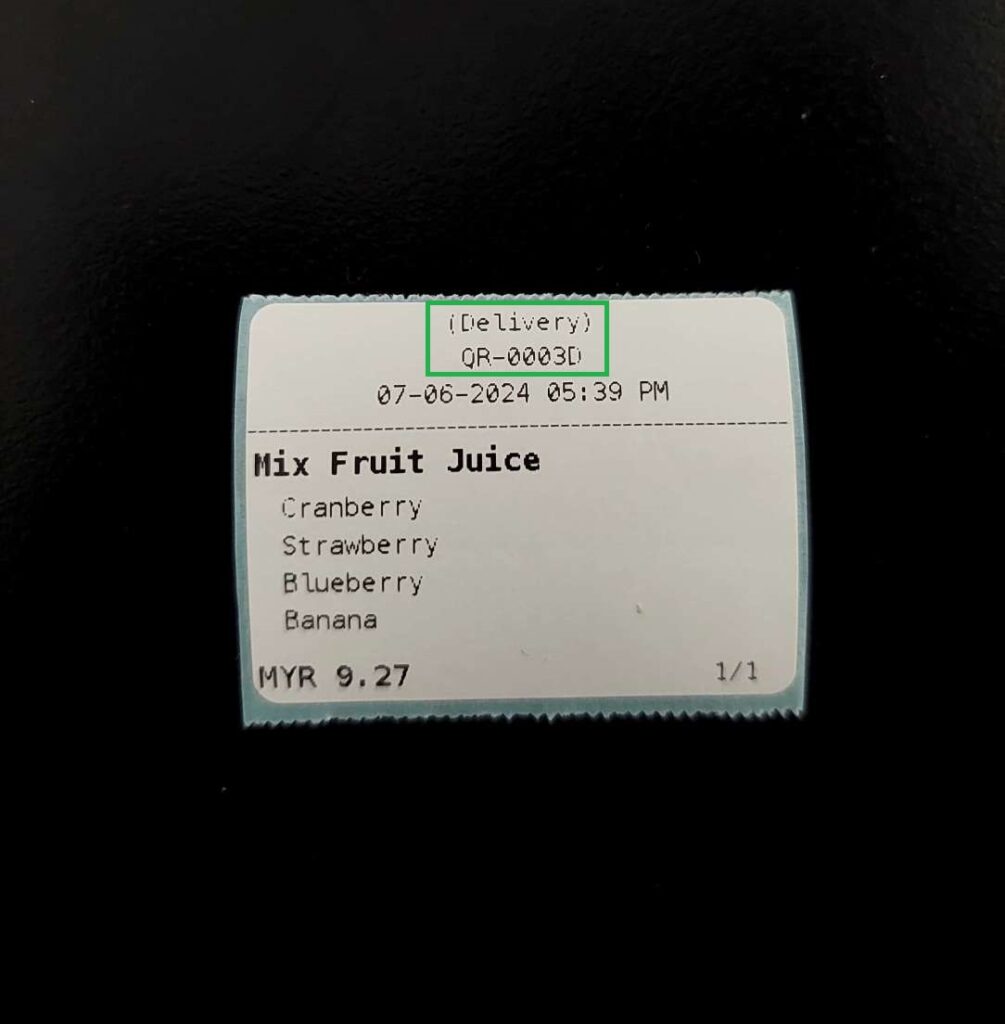
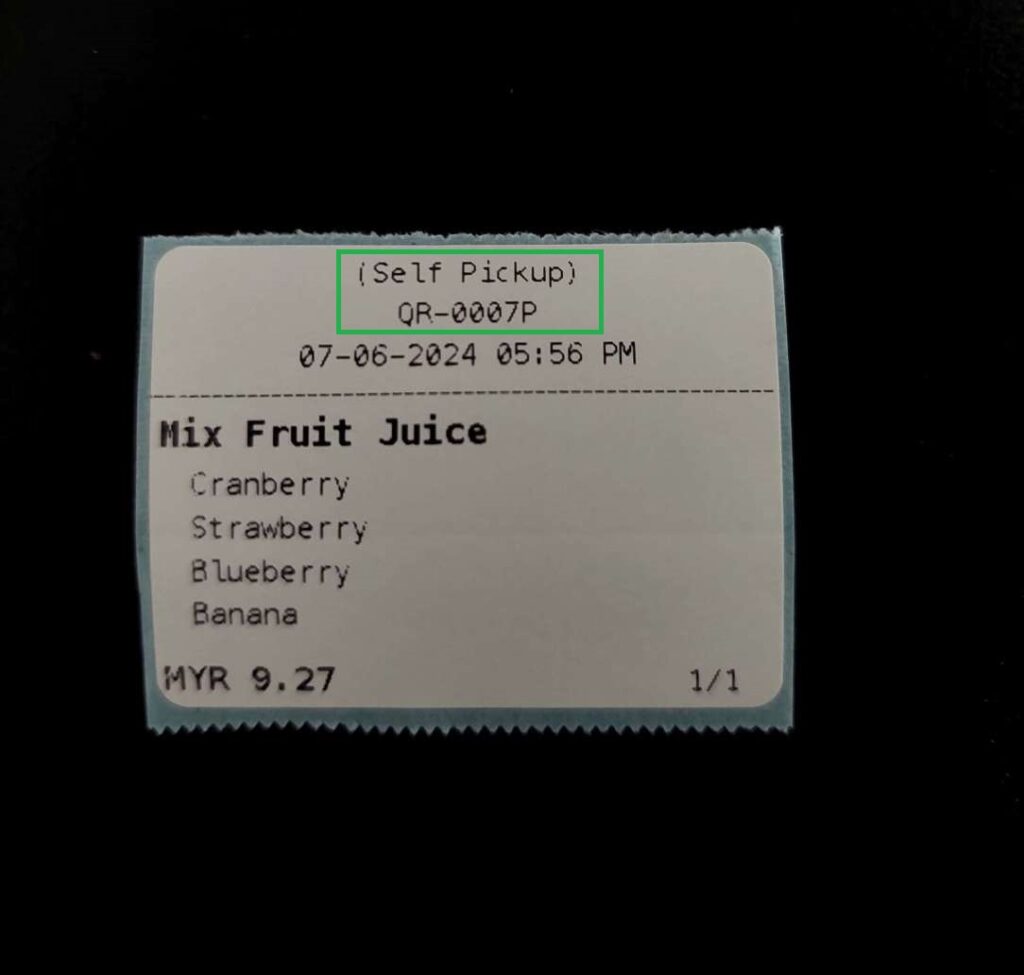
Delivery and Pickup
Update Item Quantity
| Add Quantity | Reduce Quantity |
| Print added quantity | No label printed |
Adding more of the same item to the cart after it has been sent to the kitchen will trigger another label print. However, reducing the quantity of the item will not trigger any additional labels from being printed.
Update Variant
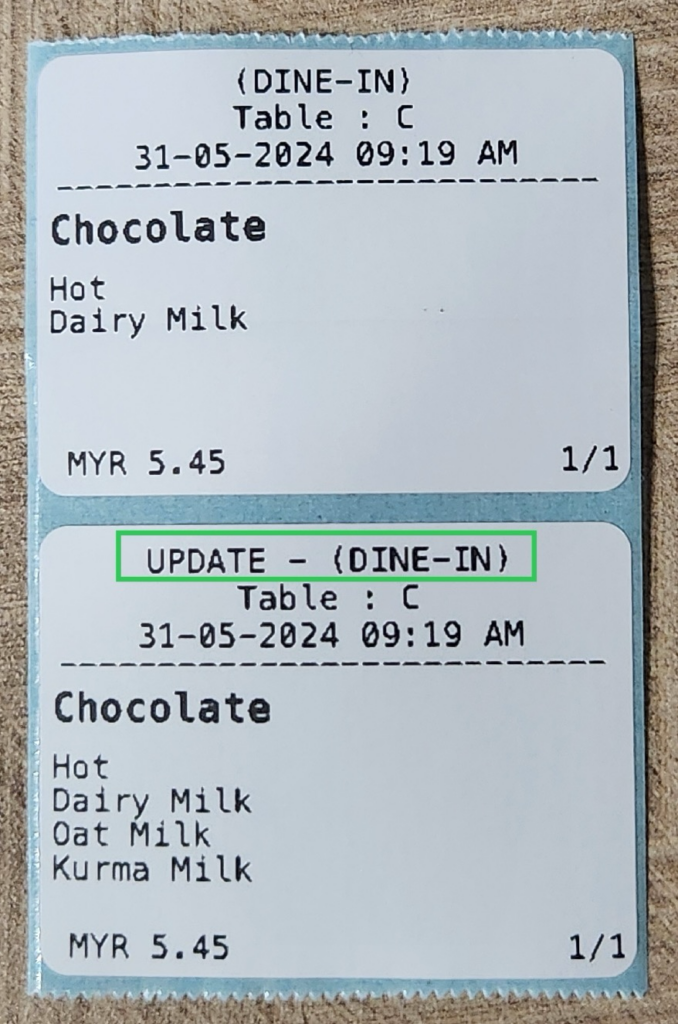
When updating an order variant, a new label will be printed with the word ‘UPDATE’ added beside the serve type to indicate the change.
Comparison
Compared to LAN or other printer, Label Printer offer a distinct range of settings. The following table shows the comparison between Label Printer and Other Printer.
| Other Printer | Label Printer | |
| Print Variant by Row | / | X |
| Print Extra Margin | / | X |
| All item per sheet | / | X |
| One item per sheet | / | X |
| Delete order | Print order sheet/summary | No label printed |
| Change table | Print table changed notes | No label printed |
| Enable order number in tag mode | Only in receipt | Receipt and label |