Keep Order to Next Shift
Introduction
Keep order helps users to keep the order even after the shift is closed. This feature enables the user to view the previous order after the new employee open the shift. This section elaborates on how to keep order for the next shift.
How to keep order to next shift ?
Follow these steps:
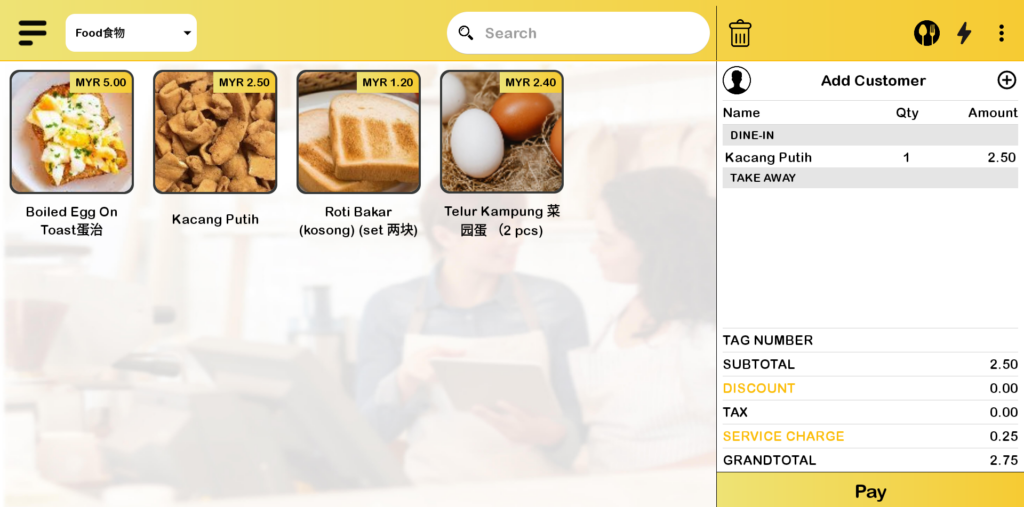
- After open shift, add a product to the cart.
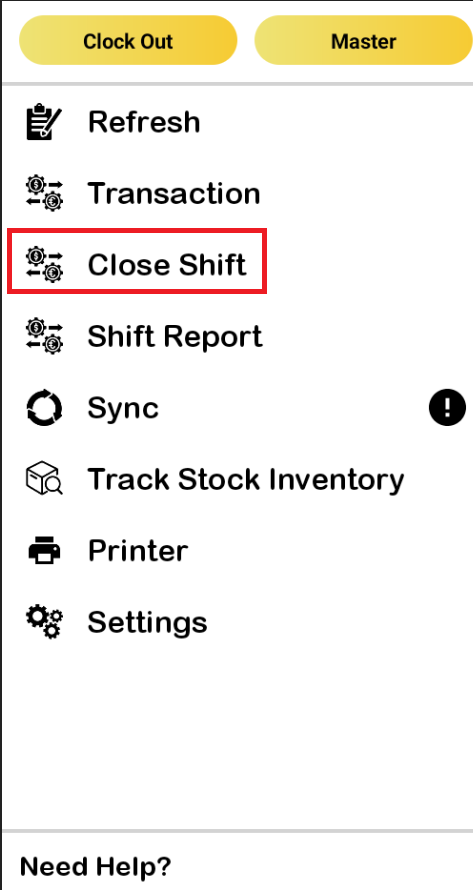
2. Click Close shift.
A. Choose Keep Option
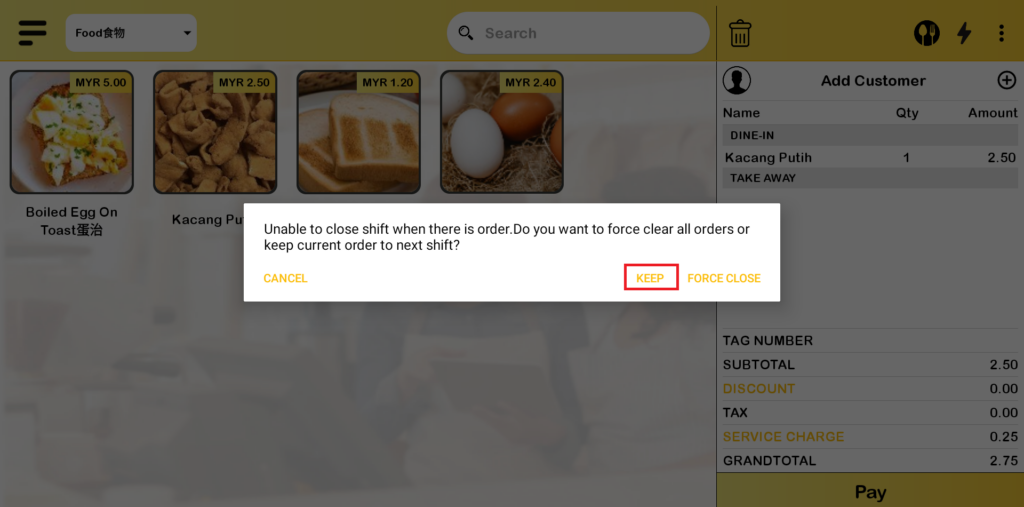
- After click “Close Shift”, the following message will prompt out. There are three options in the message which are “CANCEL”,”KEEP” and “FORCE CLOSE”. Choose “KEEP” to keep the order for the next shift.
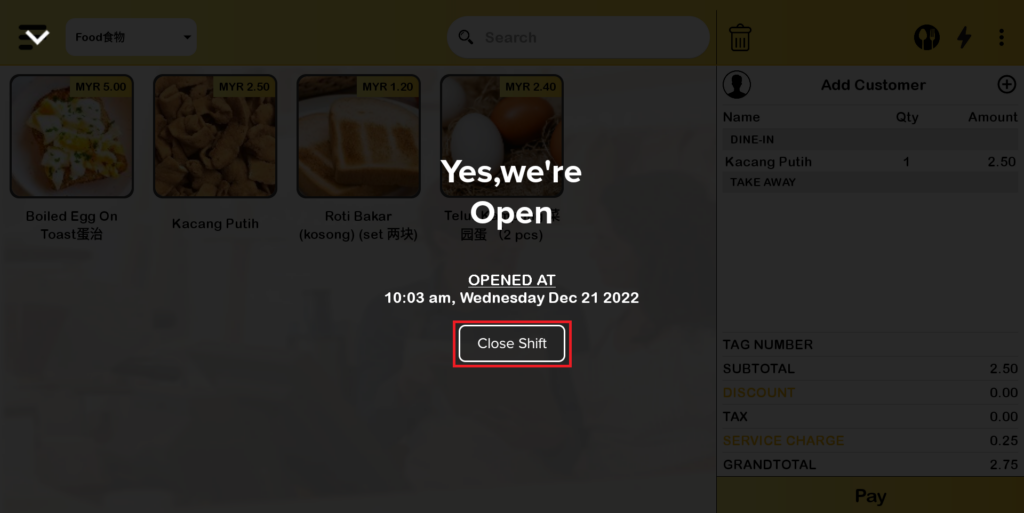
2. After “KEEP” is chosen, the page will be directed as shown below. Click “Close Shift”.
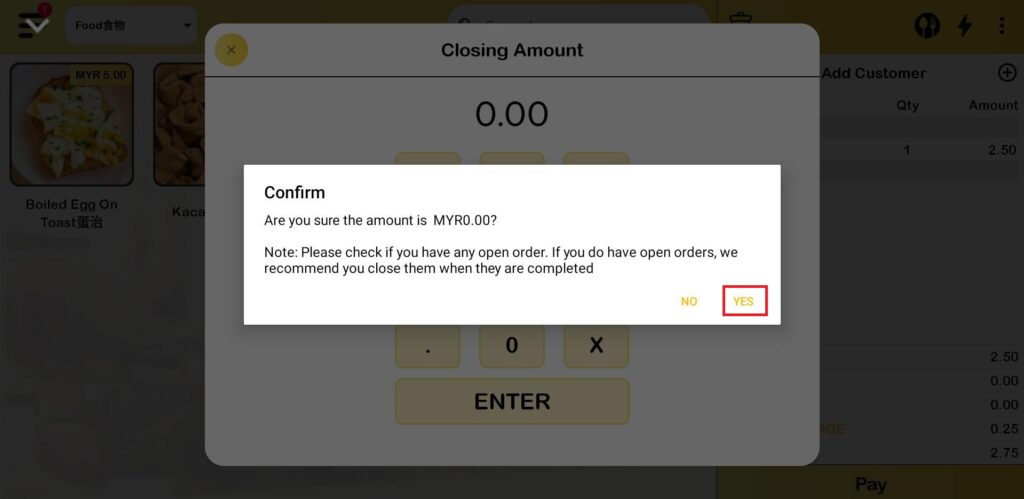
3. Enter the closing amount to proceed with closing the shift and click “YES”
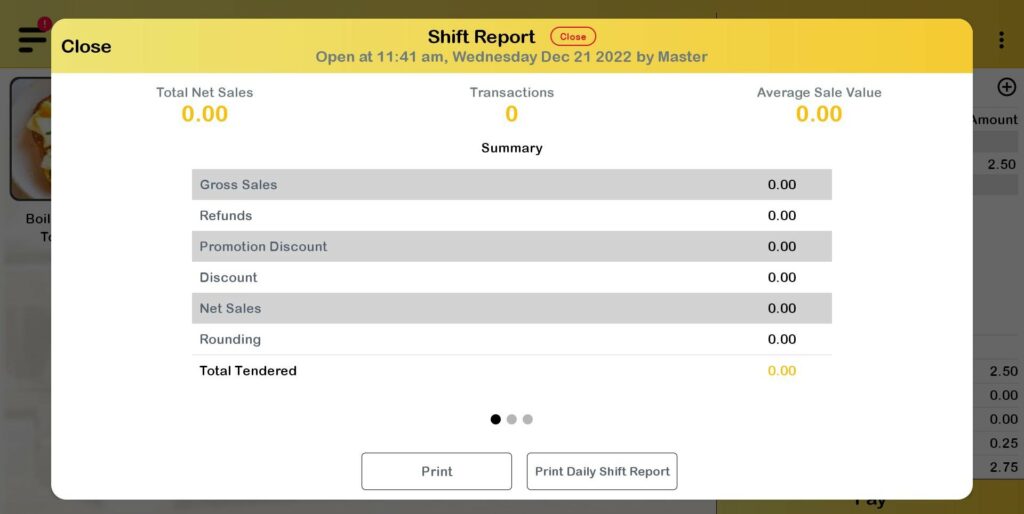
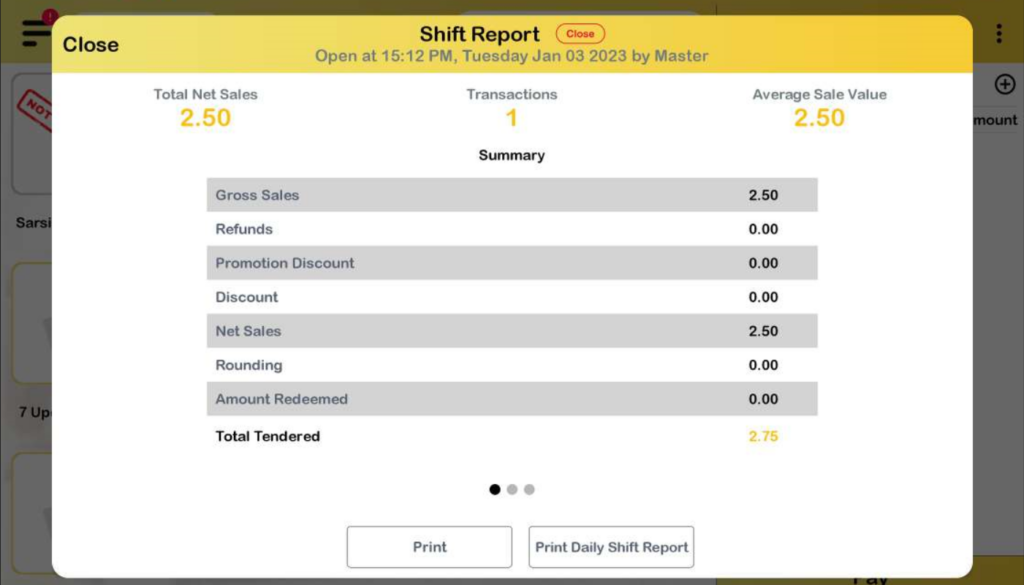
4. The Shift Report will be displayed. The product that has been added to cart will not be calculated in this shift report.
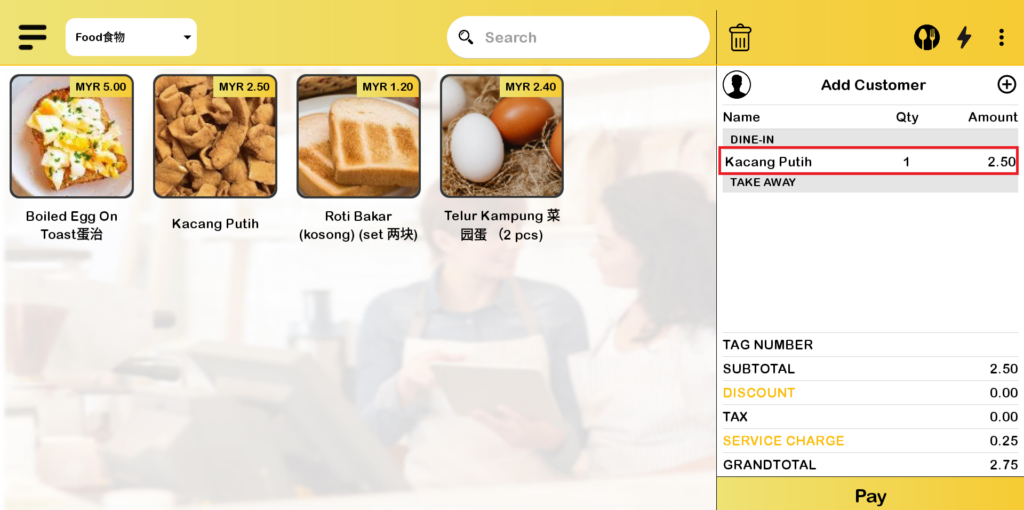
5. Close the shift report. As we can see here, the product still remains in the cart.
6. Open the shift and enter the Opening Amount.
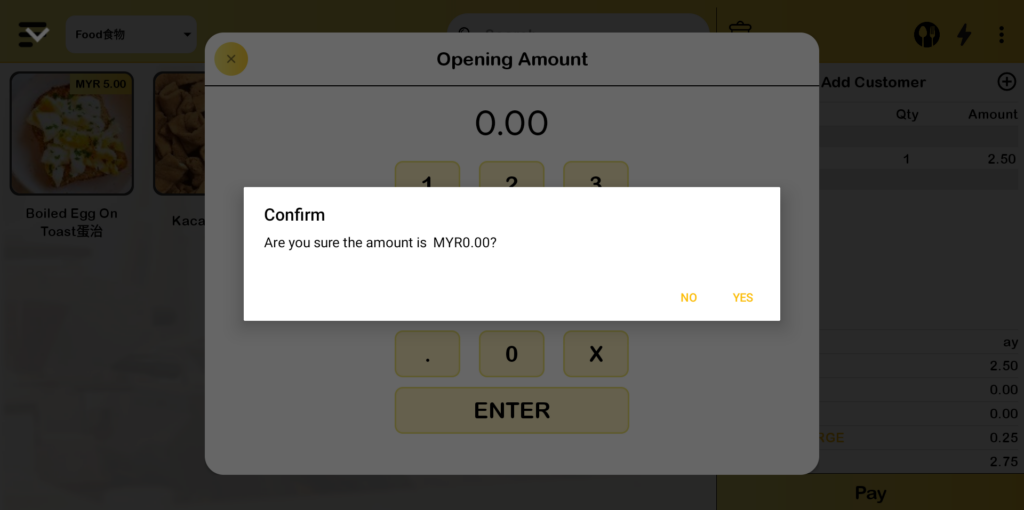
7. Proceed to make payment for the product that remains in the cart. For business mode “Table Number”, user can click “Send” button and proceed to click “Pay” button.
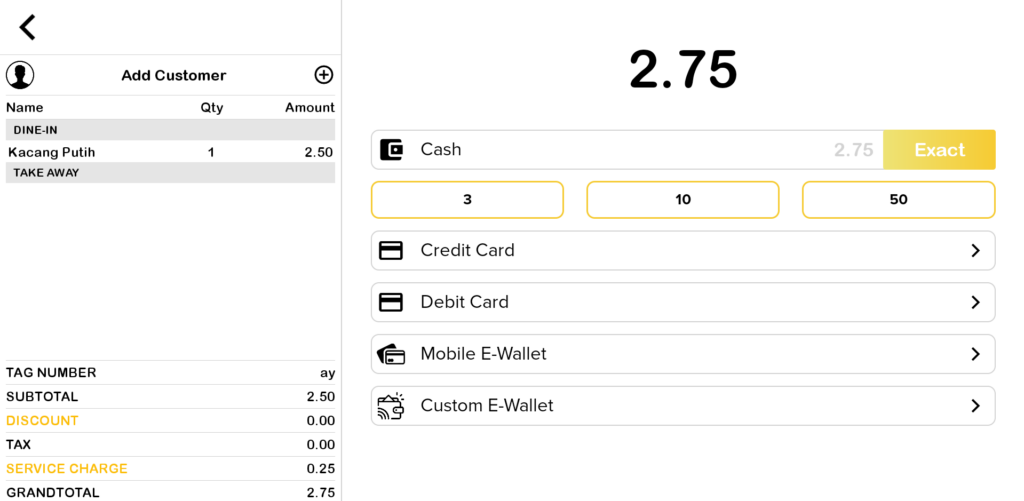
8. Close Shift and check on the Shift Report. The order is calculated in this new shift report even though the product is in the cart from the previous shift.
B. Choose Force Close.
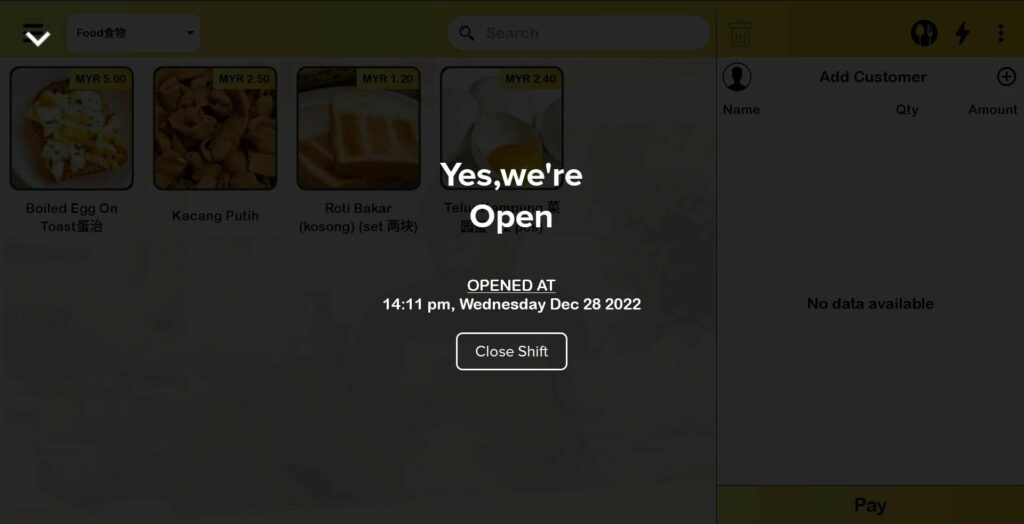
- If user choose “FORCE CLOSE” from Step 3, all products in cart will be removed and display as shown below.
C. Choose Cancel
- If user choose “CANCEL” from Step 3, the page will directed to dashboard again.
Take Note :
After the shift is closed, user is unable to do the followings actions:
a. Edit the product that has been added before close the shift
b. Click “Send” button
c. Click “Pay” button
d. Click  in cart
e. Make an Express Checkout
f. Search product at 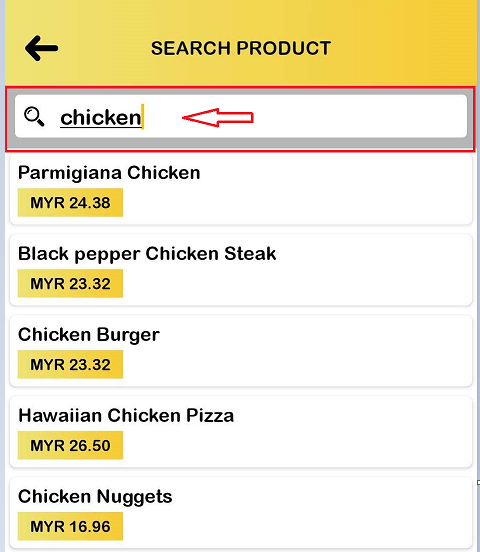
g. Add product using barcode scanner.
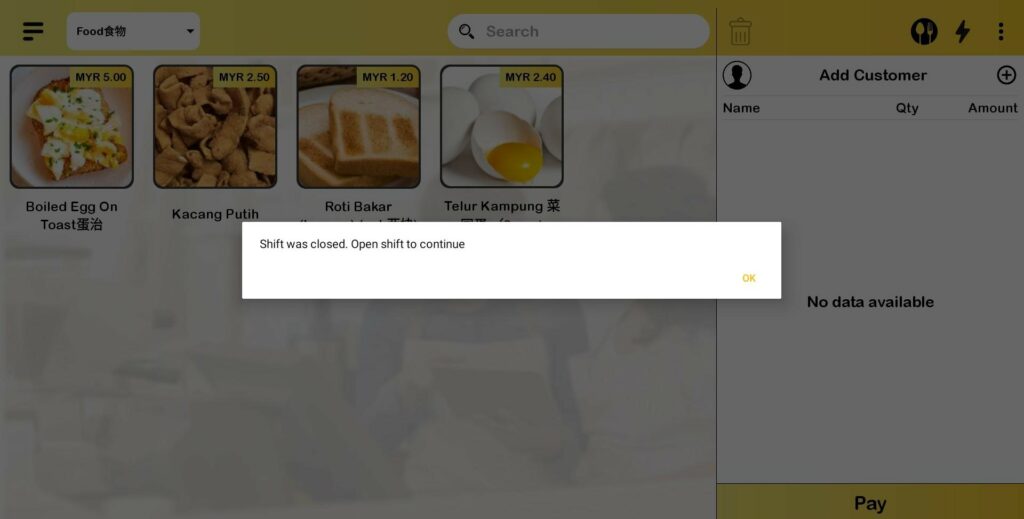
If user performs any actions from a to g, a message will prompt out showing that user must open shift in order to make an order.