iMin Falcon 1 – Logo & QR Code Overlapping Issue
Introduction
A logo and QR code overlap issue exists when using the BIG POS application in iMin Falcon 1 device, which is visible on printed full receipts. This section will introduce this overlapping issue as this problem is thought to be a normal outcome if first time print with a logo.
Logo & QR Code Overlap issue
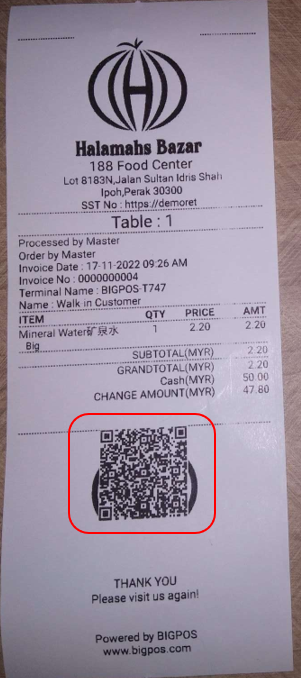
This overlapping issue will appear when the user enables the company logo, QR code, or both in the receipt. The printed QR code overlaps with the company logo, as seen in the example below, if the user choose to pay for an order directly / reprint invoice receipt / reprint receipt from transaction section.
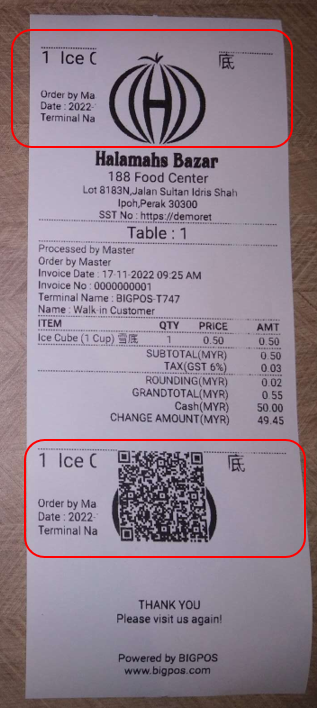
According to the illustration below, if a user sends an order before paying for it, the company logo section above overlaps with the previously printed order summary, and the QR code below overlaps with both.
However, this issue can be fix after upgrade the device software. Here are the steps to upgrade iMin Falcon software.
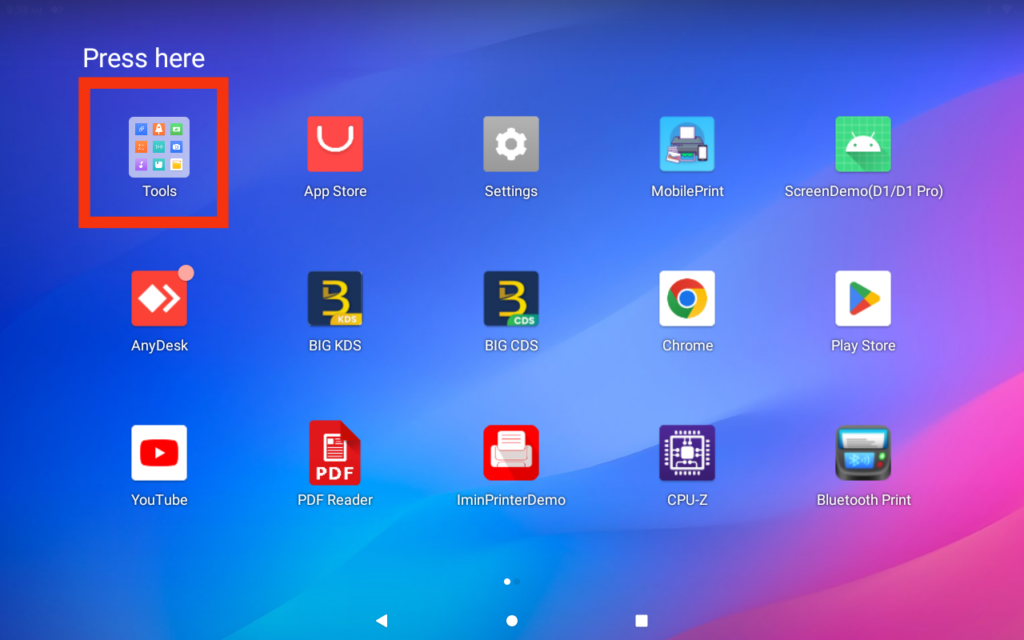
1. Go to homepage of your iMin Falcon, then press ‘Tools’ folder.
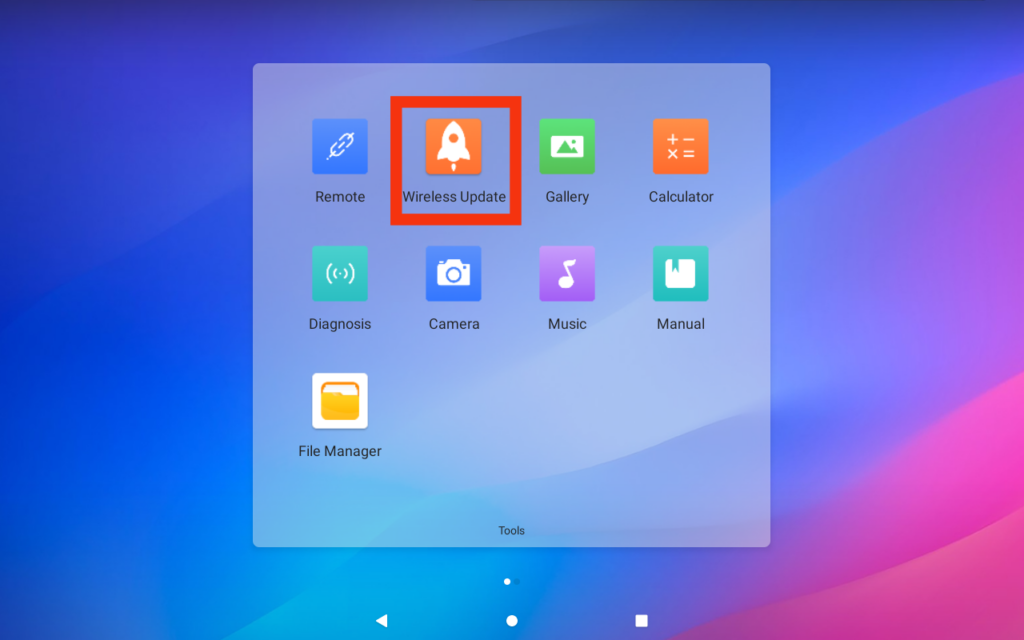
2. After folder open, you can see this page. Then click ‘Wireless Update’.
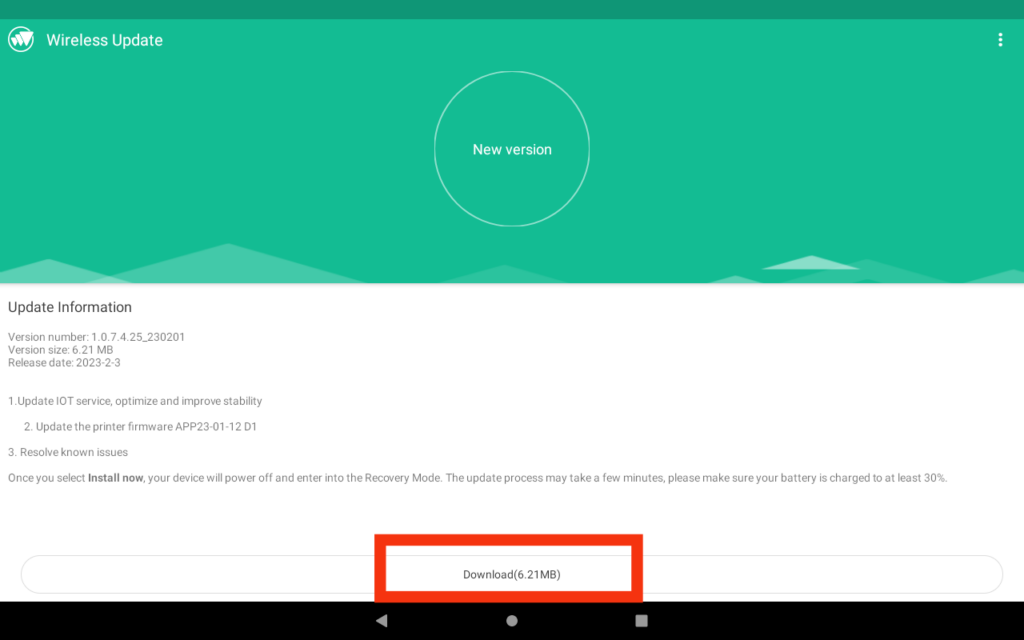
3. Next, it will show like this. You need to click button ‘Download’ to upgrade your device software. It will take some time to upgrade the software.
After download is completed. Please restart Bigpos app and try again to print with the logo. This method should be helpful to overcome this issue.