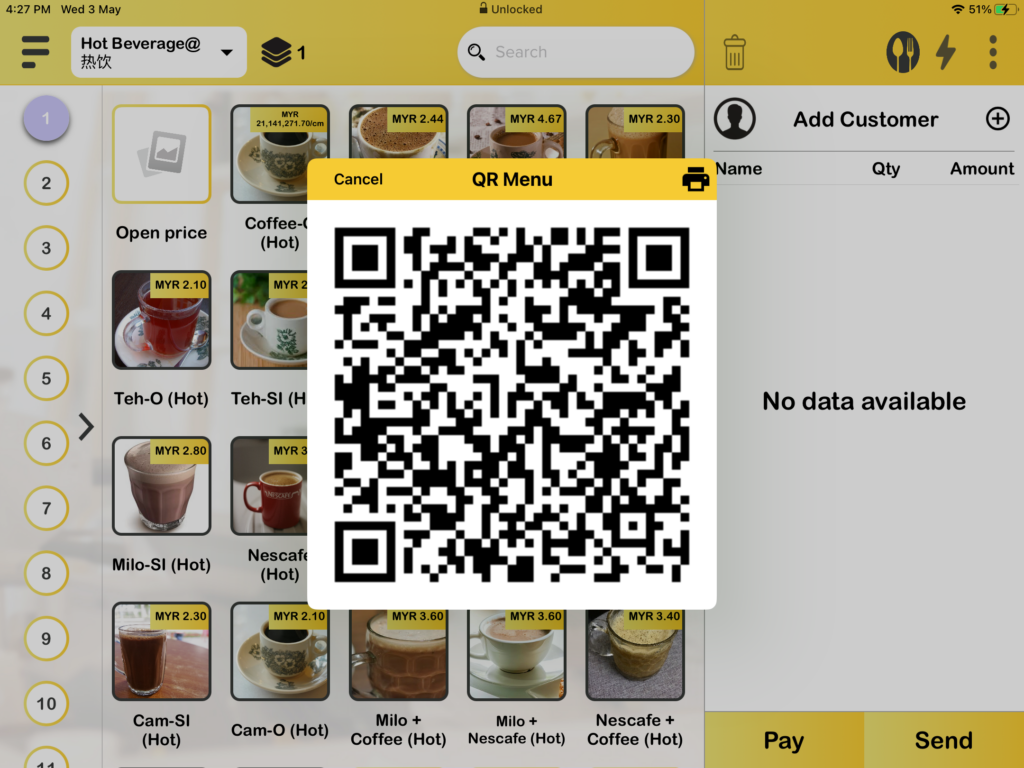
How to use smart QR Ordering (fixed QR or dynamic QR) in BIGPOS Pro with three different business modes.
Introduction
BIGPOS provides a QR Menu option for BIGPOS Pro only which is a Fixed QR code and Dynamic QR code. This post will show QR Menu with 3 different business modes which are Table mode, Queue mode, and Tag number mode.
How to use smart QR Ordering with fixed QR in Table mode?
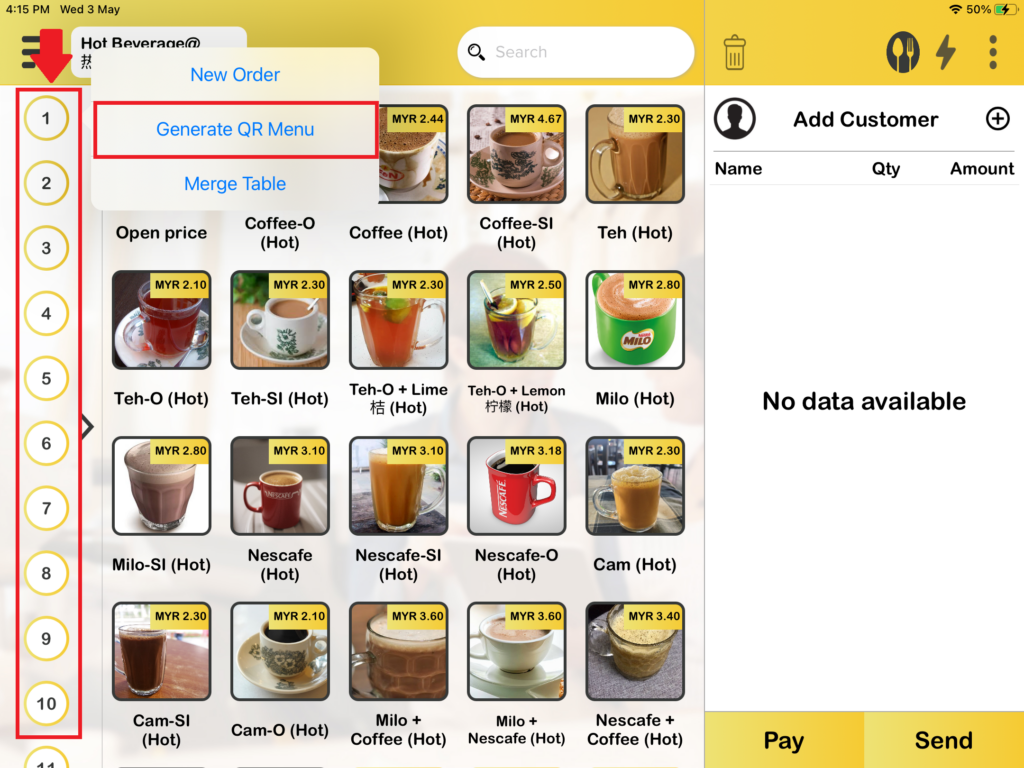
1. First, you need to press the table icon on the left side to generate a QR code to proceed with QR Ordering. Each table has its Fixed QR code.
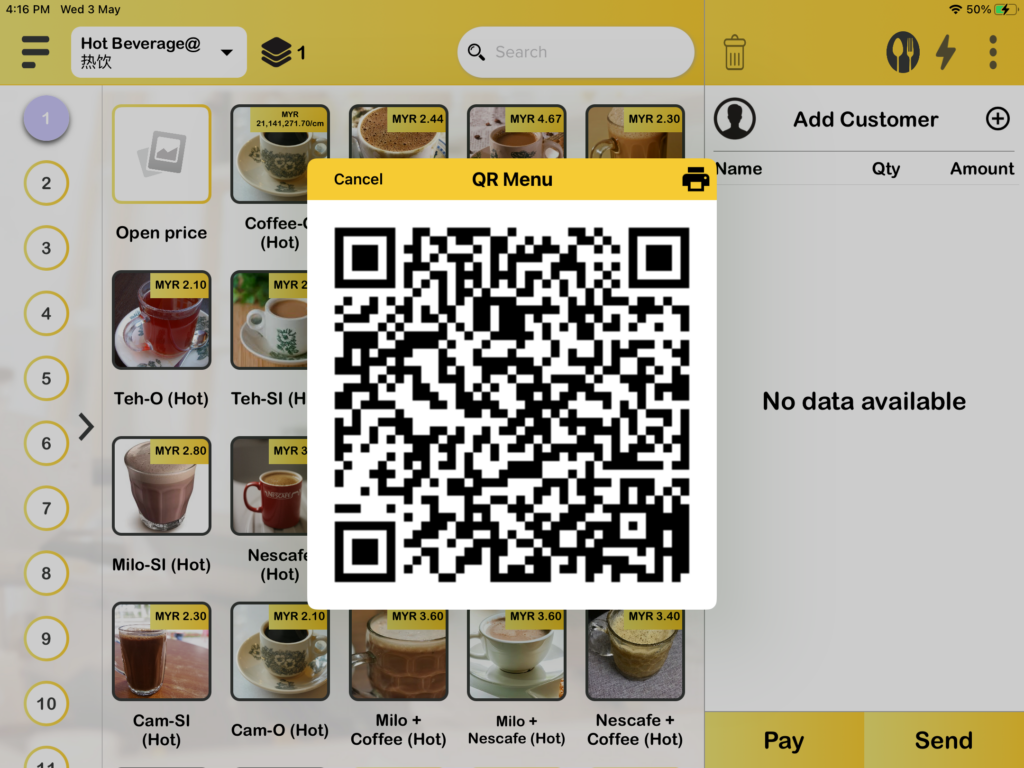
2. Then you can let the customer scan the fixed QR code to perform orders.
How to use smart QR Ordering with fixed QR in Queue and Tag mode?
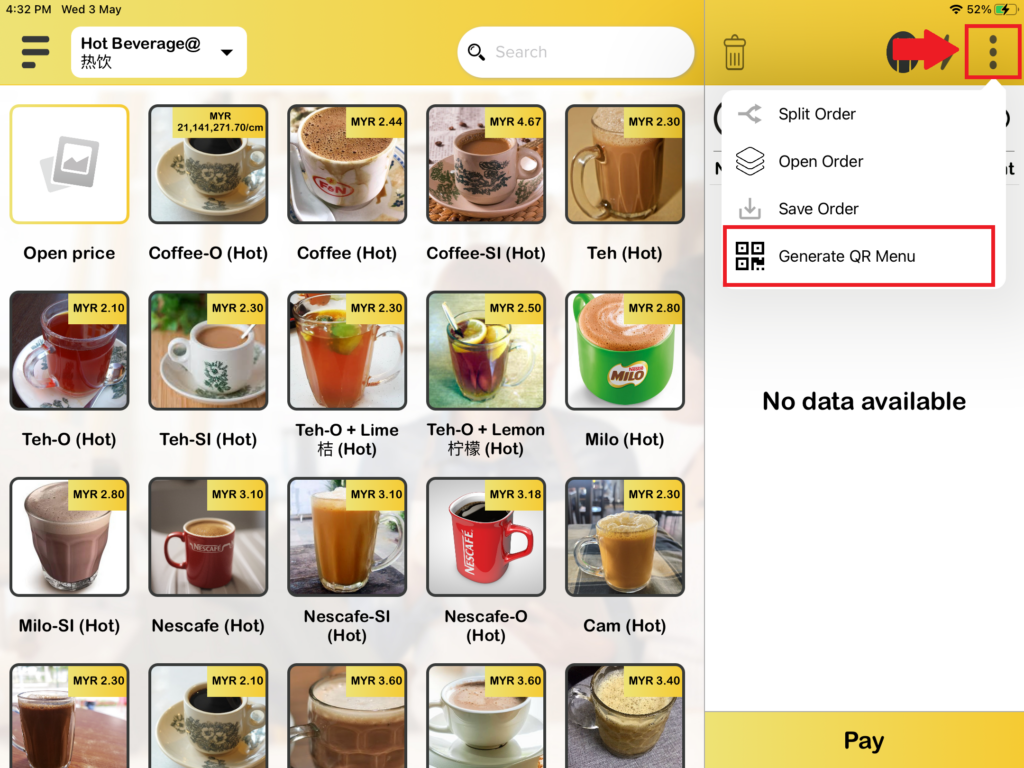
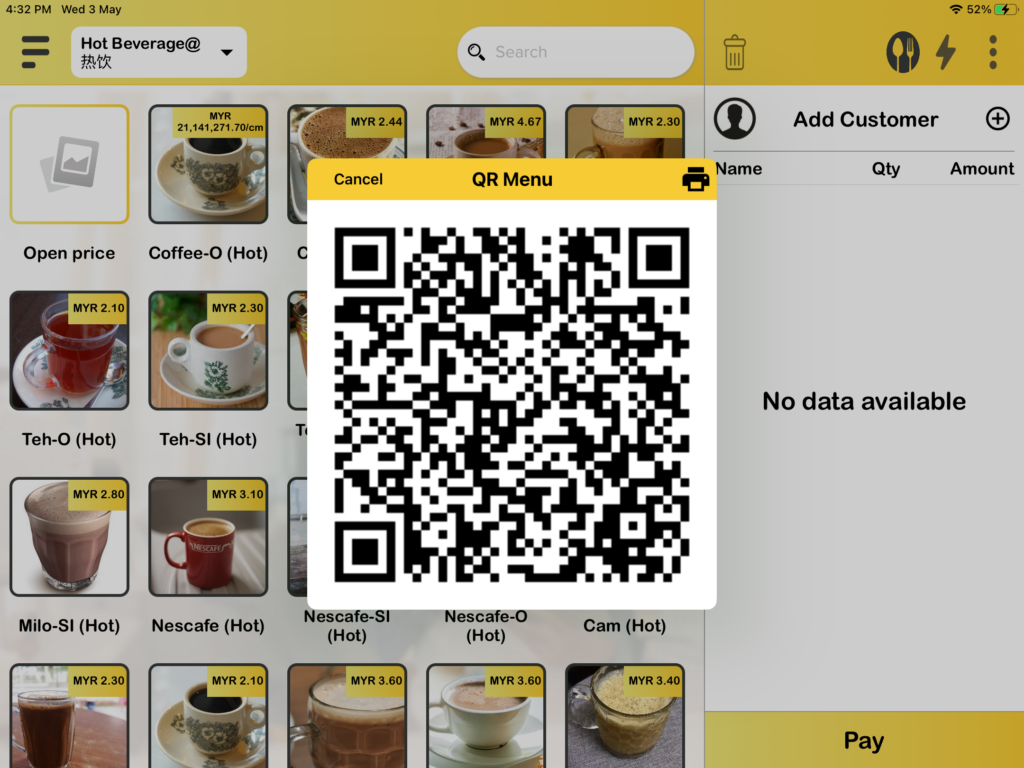
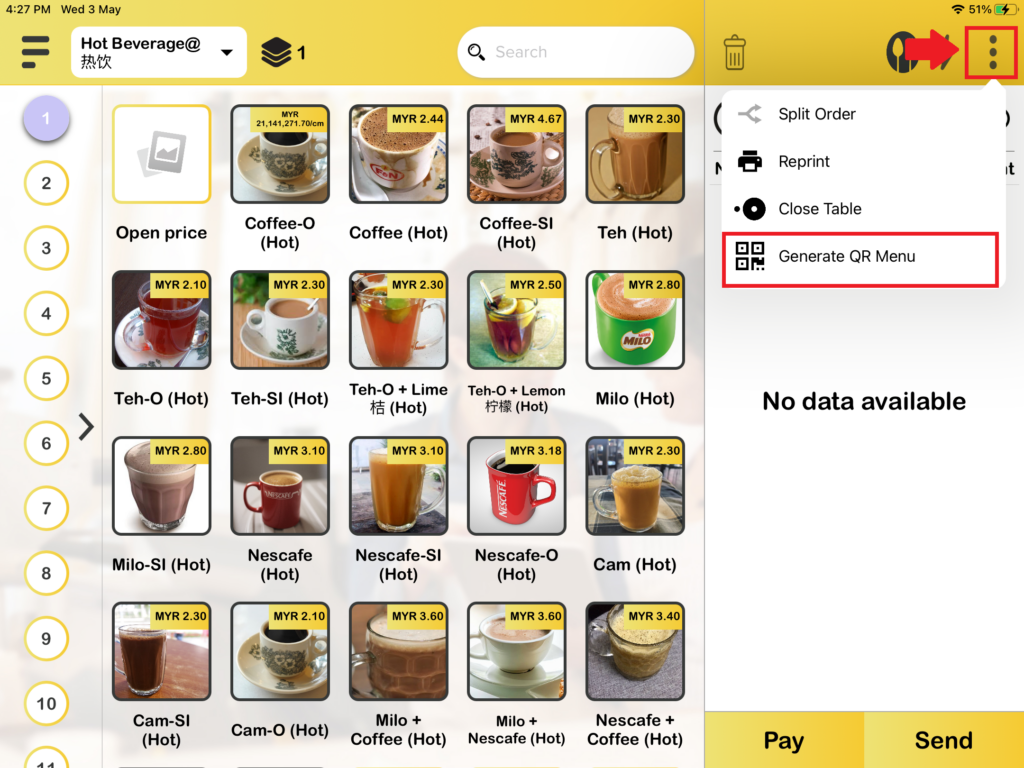
1. First, you need to press the 3-dot icon on the top right side to generate a QR code to proceed with QR Ordering.
2. Then you can let the customer scan the fixed QR code to perform orders.
How to use smart QR Ordering with dynamic QR in Table, Queue, and Tag modes?
1. This will be the same method to generate dynamic QR Menu for 3 business mode which is Table mode, Queue mode, and Tag number mode. First, you need to press the 3-dot icon on the top right side to generate a QR code to proceed with QR Ordering.
2. Then you can let the customer scan the fixed QR code to perform orders. For table mode, after the customer scans the dynamic QR code, it requires the customer to enter the table number.