How to use multiple printers to print out order receipts in BIGPOS Pro and Lite?
Introduction
This post will guide you to using multiple printers to print out order receipts in BIGPOS Pro and Lite. Typically, multiple printers are utilized to efficiently manage order printing. For instance, one printer can be designated for kitchen orders, while another can be specifically assigned to handle barista orders.
How to use multiple printers
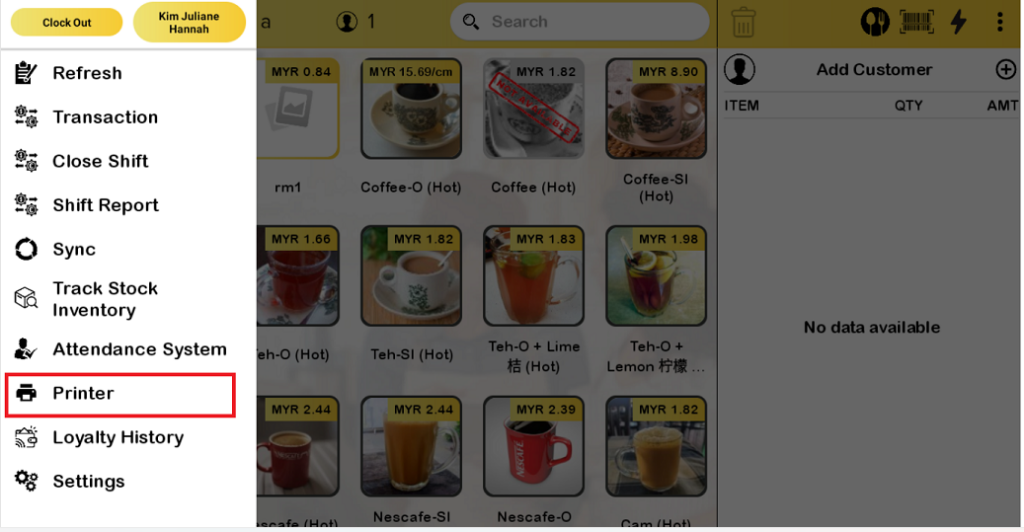
- First, you need to go to “Printer“.
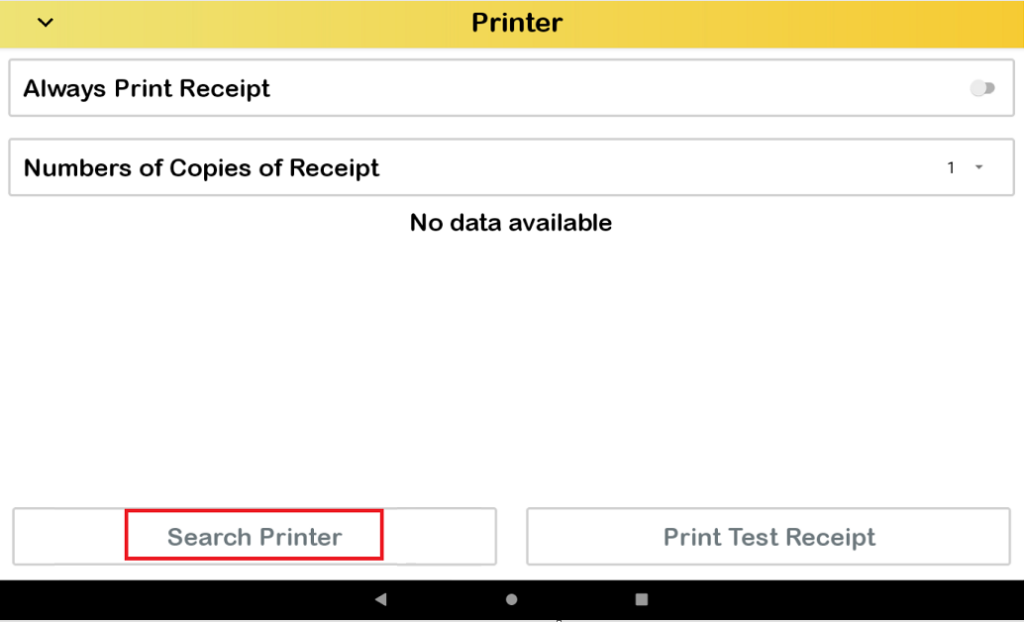
2. Then, click on ” Search Printer“.
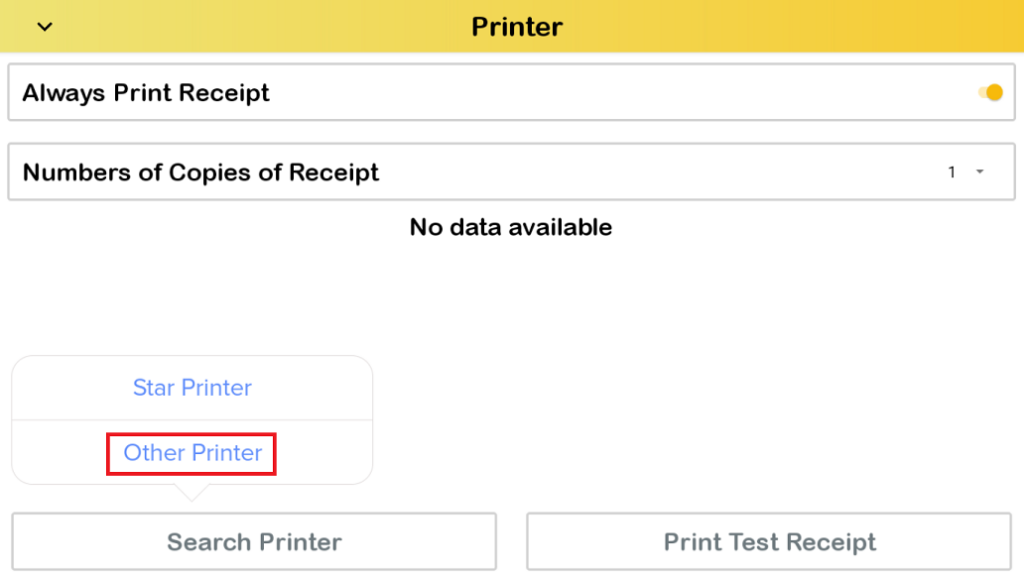
3. Choose “Other Printer“.
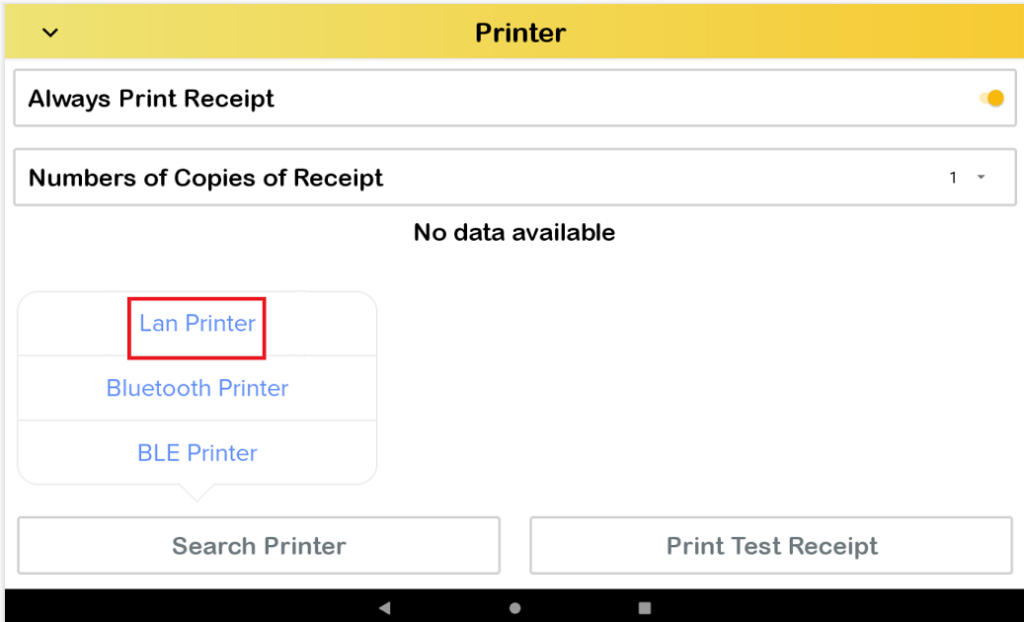
4. For this demonstration, we will use an example of a “LAN Printer“. Make sure that the device is using the same wifi or internet.
5. Scan and select the correct IP address.
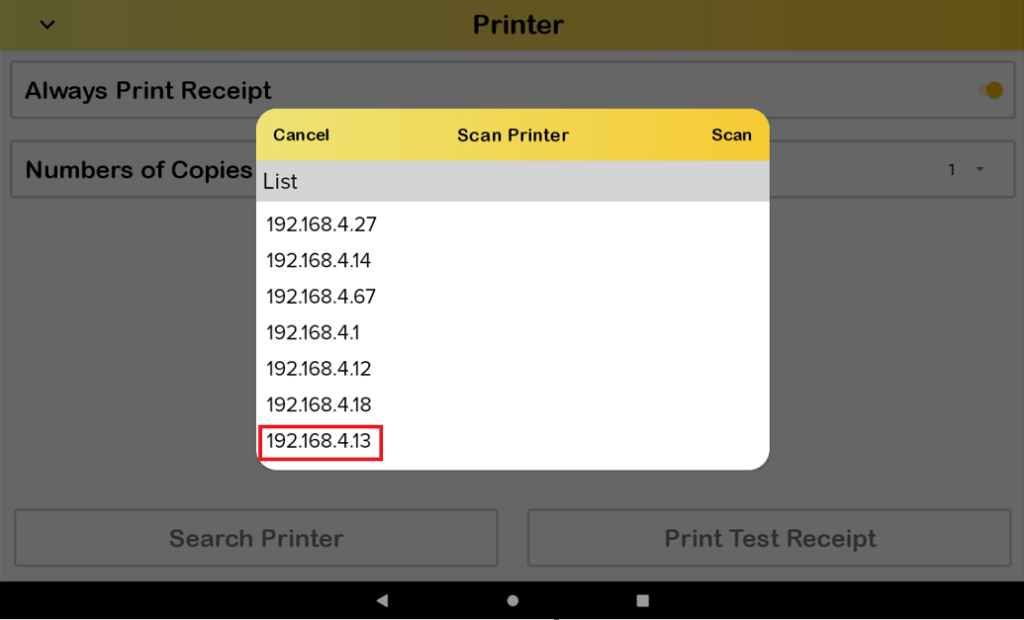
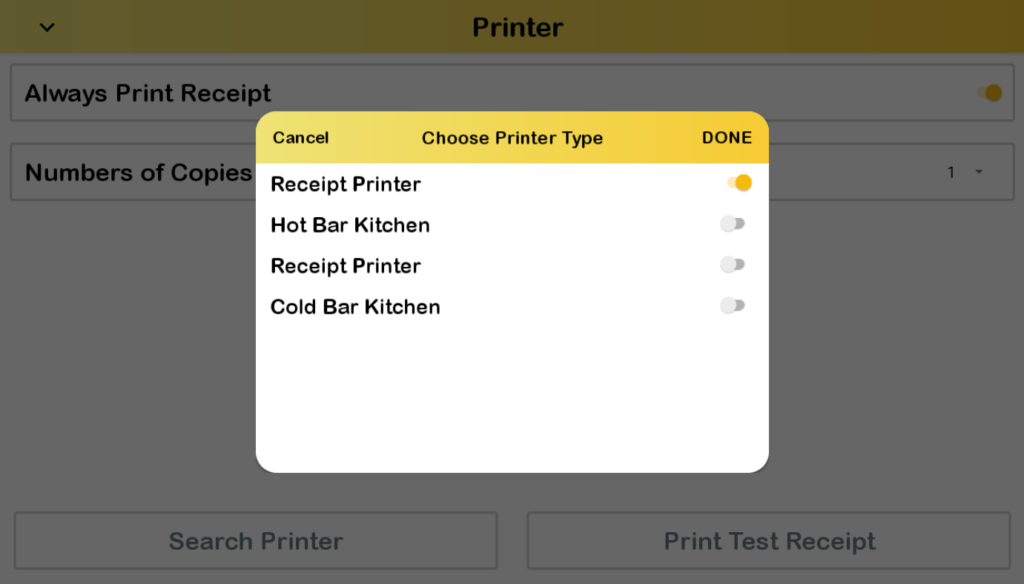
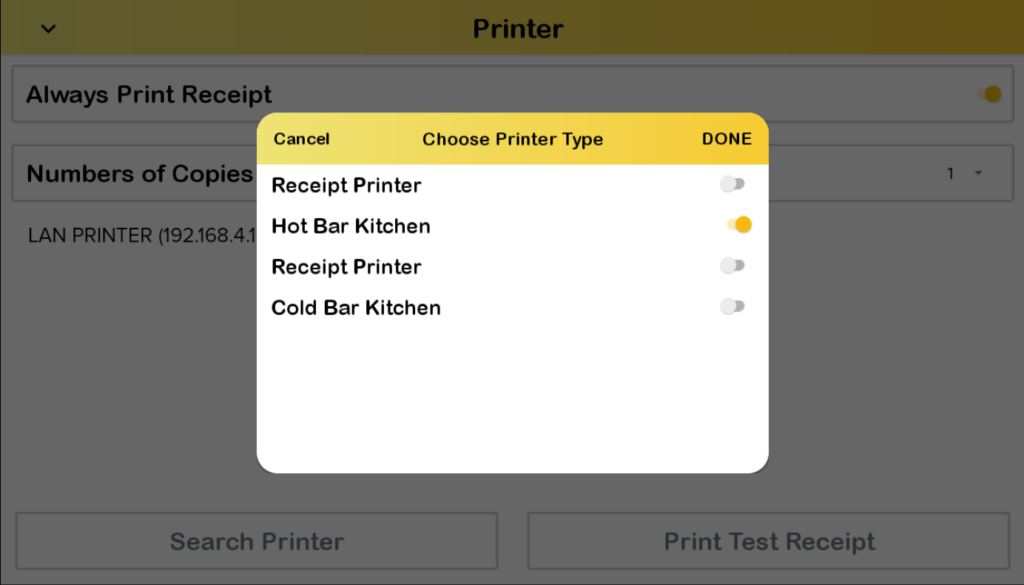
6. Set the printer type and click “DONE“.
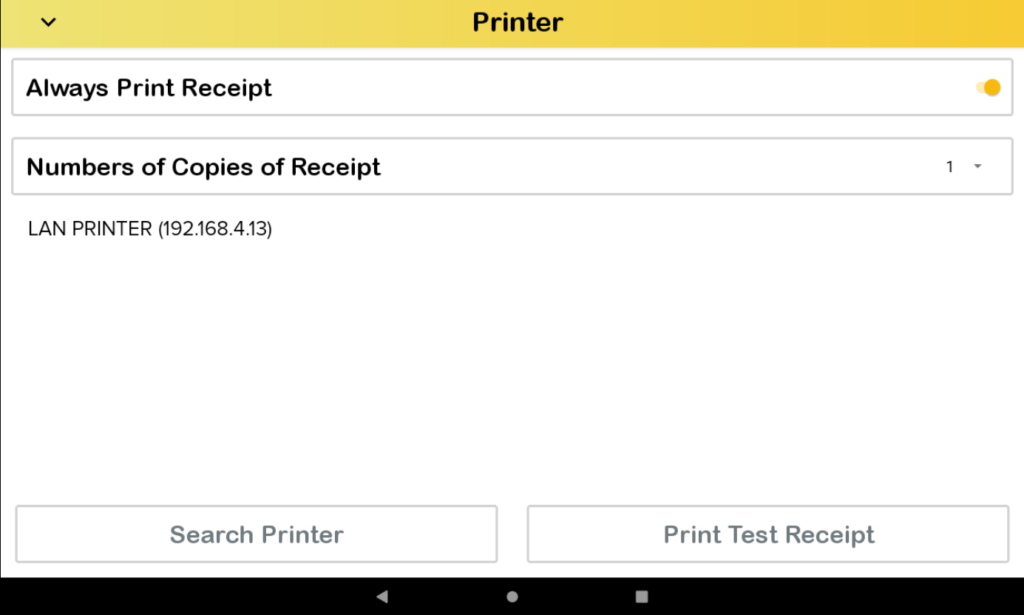
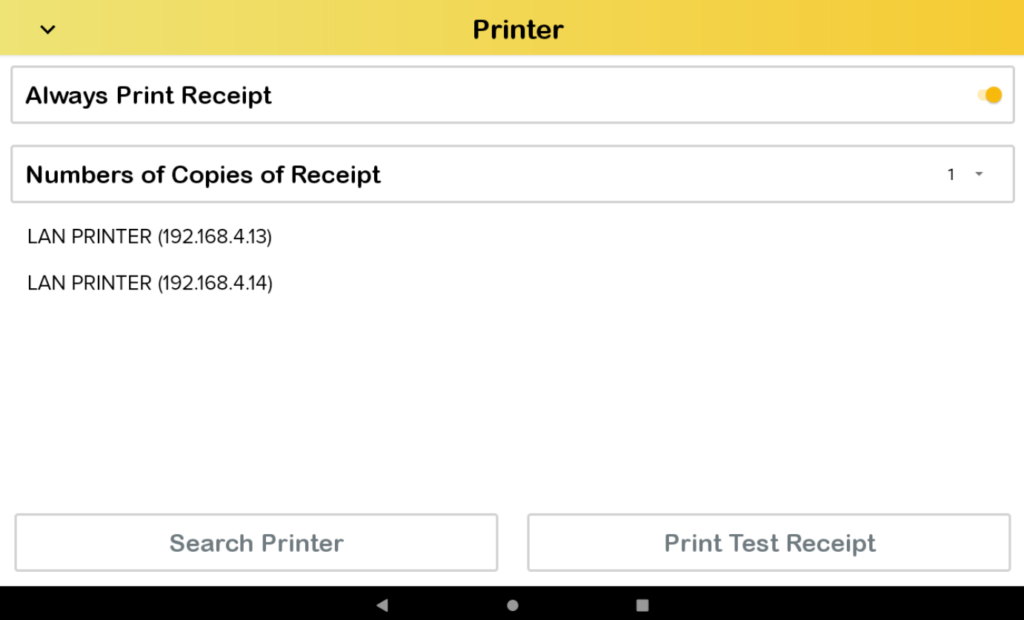
7. The LAN printer will successfully connect with the correct IP address as picture below. The receipt will be printed from this printer.
8. Repeat steps 3 to 6 for connecting additional printers. Make sure the printer has a unique IP address.
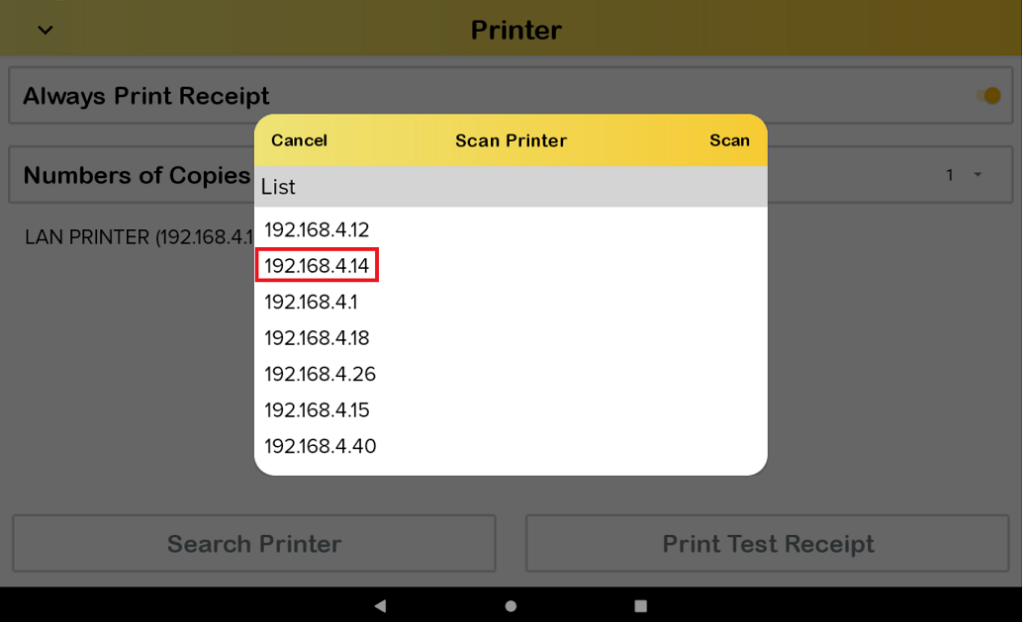
9. Set the additional printer with its specific printer type.
10. As shown in the picture below, you can see that both printers have been successfully connected. The order sheets or summaries will be printed from both of these printers.
Noted: For Bluetooth and BLE printers can be used for multiple printers.