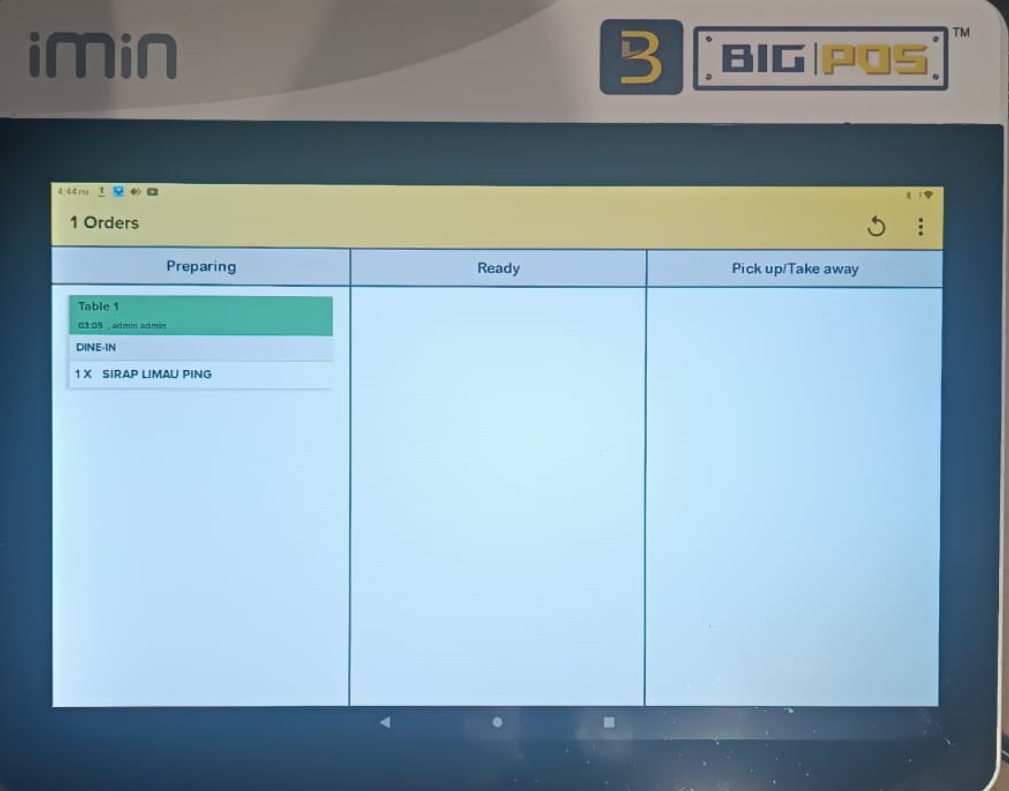
How to use multiple Kitchen Display System (KDS) connection
Introduction
This post will guide you on how to connect multiple devices using one BIGPOS Pro apps and two Kitchen Display System (KDS). In many cases, restaurants have separate screens for the kitchen and barista areas.
How to manage multiple Kitchen Display System (KDS) connection?
- Open the BIGPOS Pro.
- Go to the “Settings“.
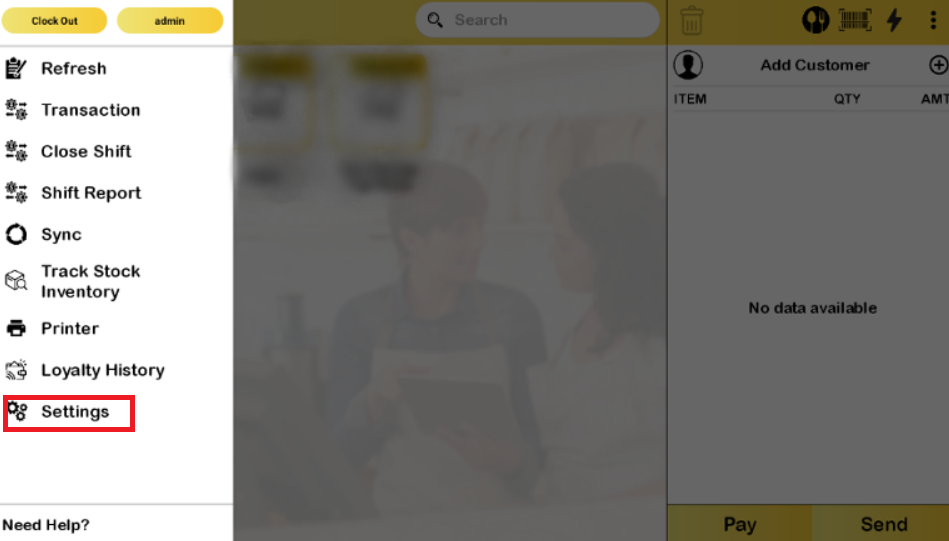
3. Make sure to switch on ” This is Local Server“.
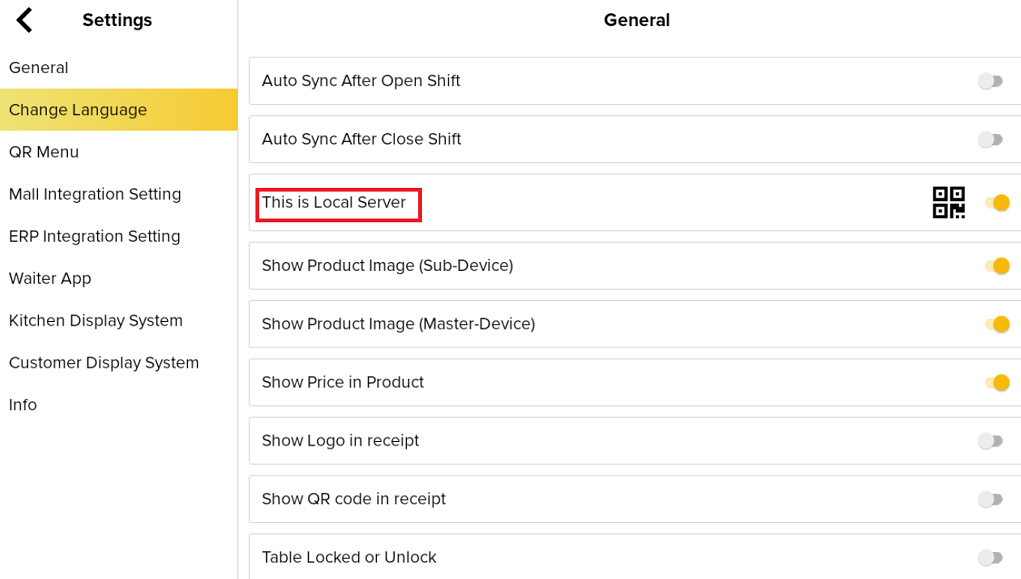
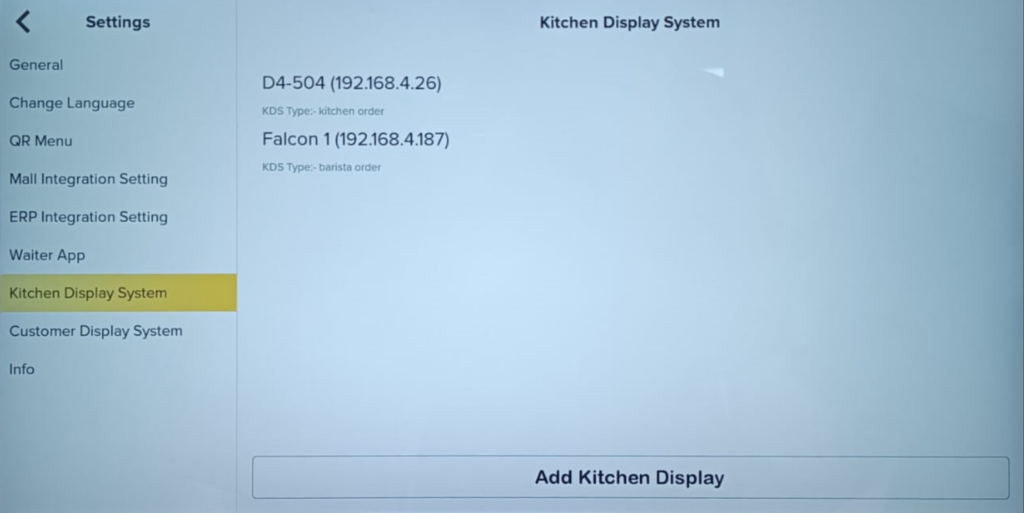
4. Then, click “Kitchen Display System” and tap “Add Kitchen Display“.
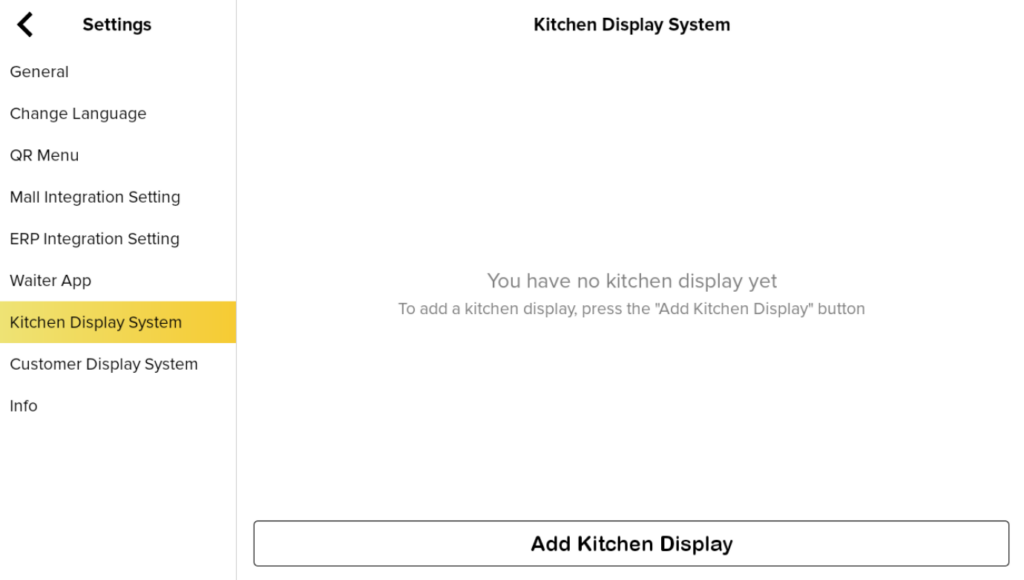
5. Scan and select the IP address corresponding to the KDS location, choose the appropriate KDS Type, and click “DONE.” A successful connection will be displayed as shown in the picture below.
Note: Ensure that you are using the same Wi-Fi or internet connection.
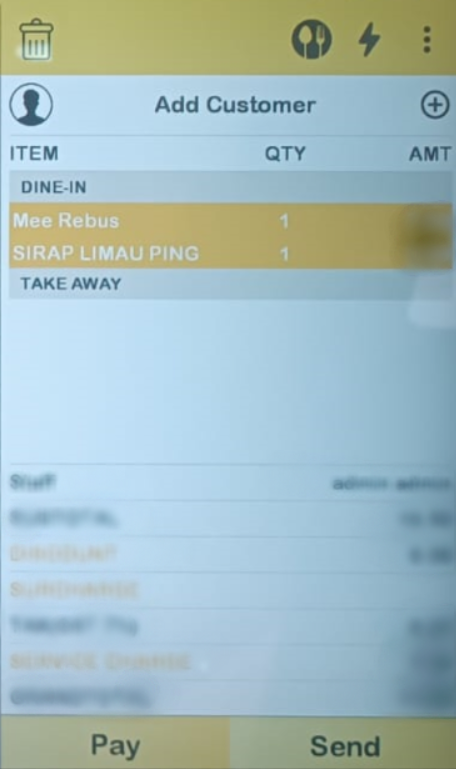
6. When the waiter press “Send“, it will directly go to specific KDS for Kitchen Order and Barista Order.
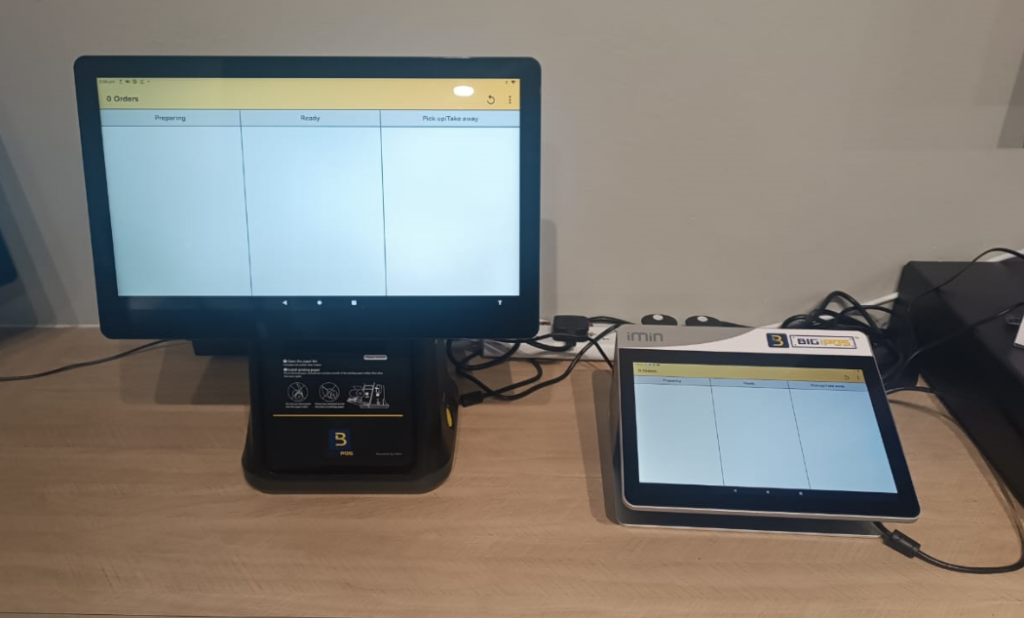
7. As the picture below, this is before the order is send to KDS. On the left side, the device has been set for kitchen orders, and on the right side, it has been set for barista orders.
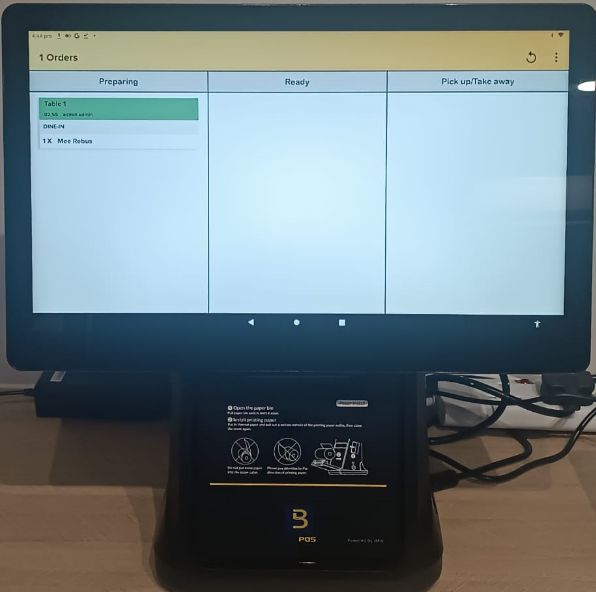
8. This is the kitchen order after receiving the order, as shown in the picture.
9. Another order will be received for the barista.