How Can We Help?
How to use multiple Big Waiter Apps Connection
Introduction
This post will guide you on how to connect multiple waiters using the BIGPOS Pro and BIGPOS Waiter app. In most cases, a restaurant will have more than one waiter to take orders. Alternatively, if the restaurant manages orders on different floors.
How to manage multiple big waiter apps connection?
- Open the BIGPOS Pro.
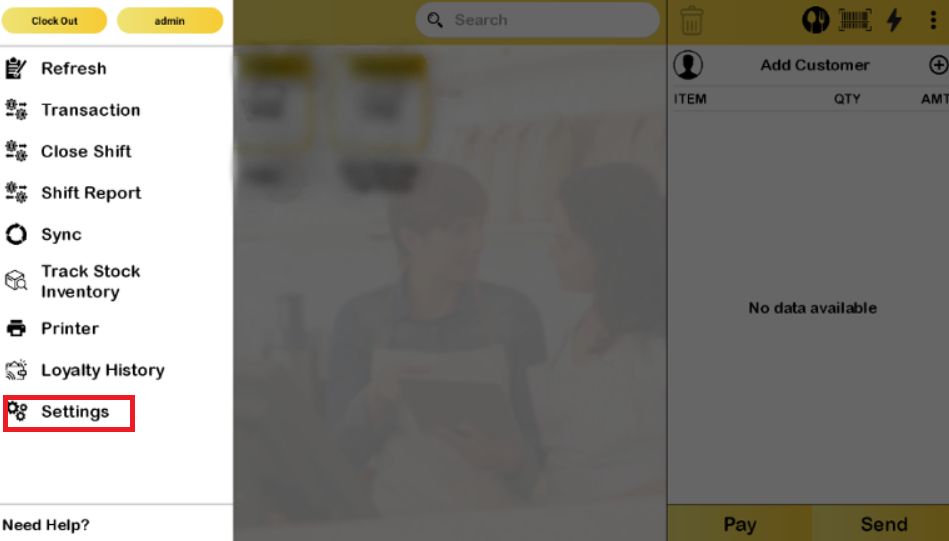
- Go to the “Settings“.
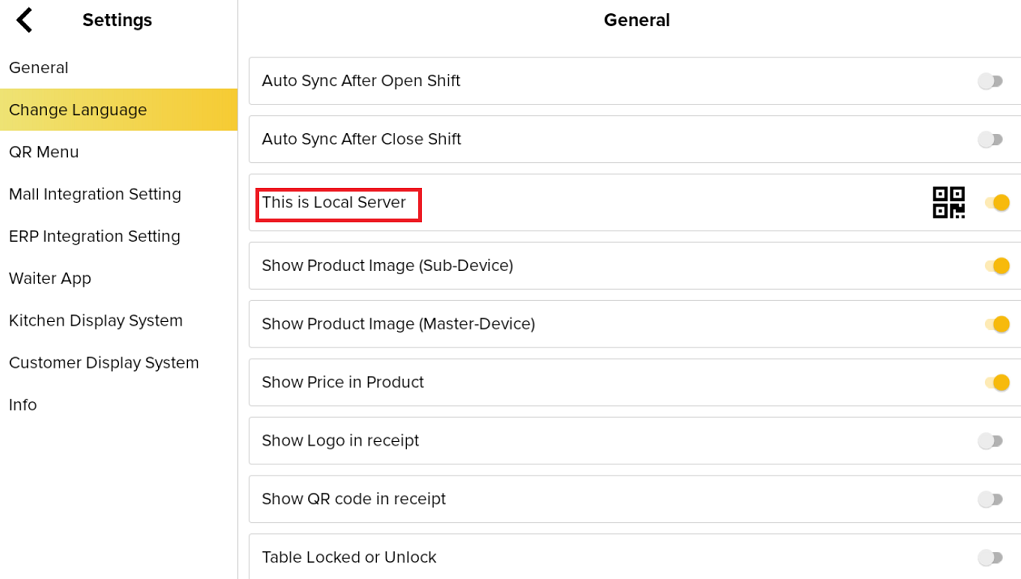
3. Make sure to switch on ” This is Local Server“.
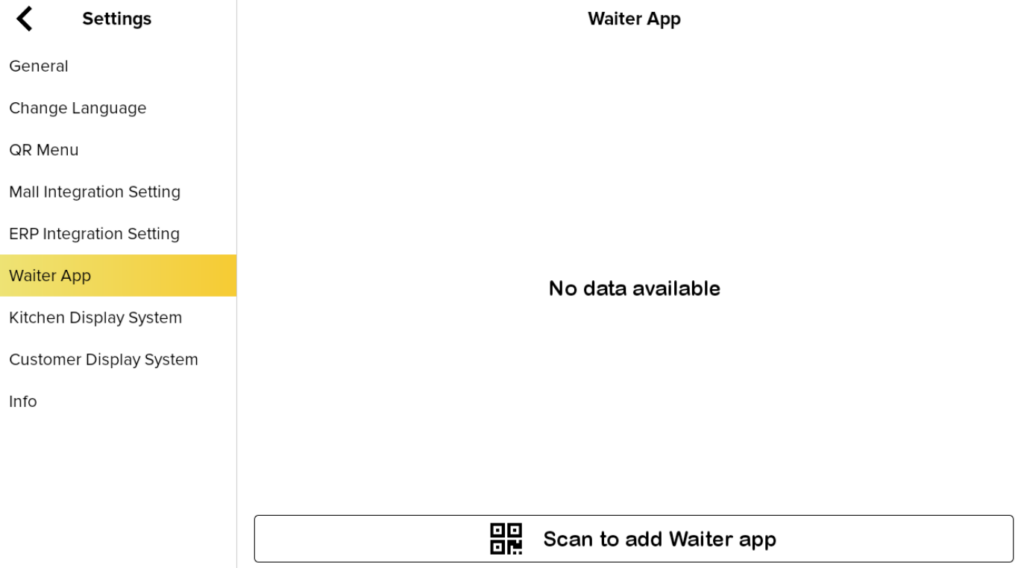
4. Directly click “Waiter App” and tap “Scan to add Waiter app“. The QR code will appear, and waiters can scan it using BIG Waiter.
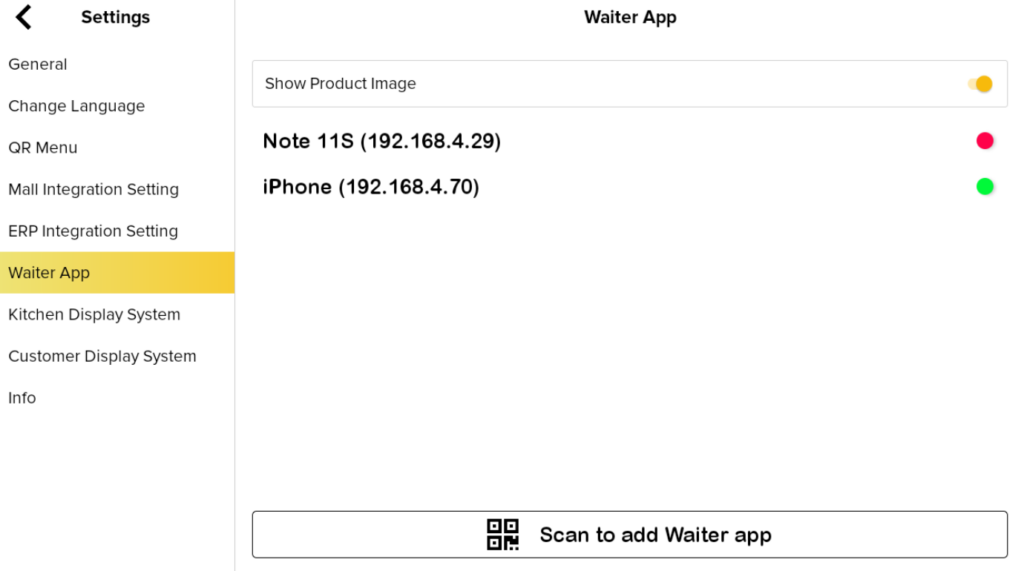
5. When the connection is successful, the phone model and its IP address will be shown, as depicted in the picture below.