How Can We Help?
How to show Logo or QR in receipt Function in BIGPOS Pro and Lite?
Introduction
This post will assist you how to show out logo or QR in receipt step by step.
How to show logo or QR in receipt function in BIGPOS Pro and Lite?
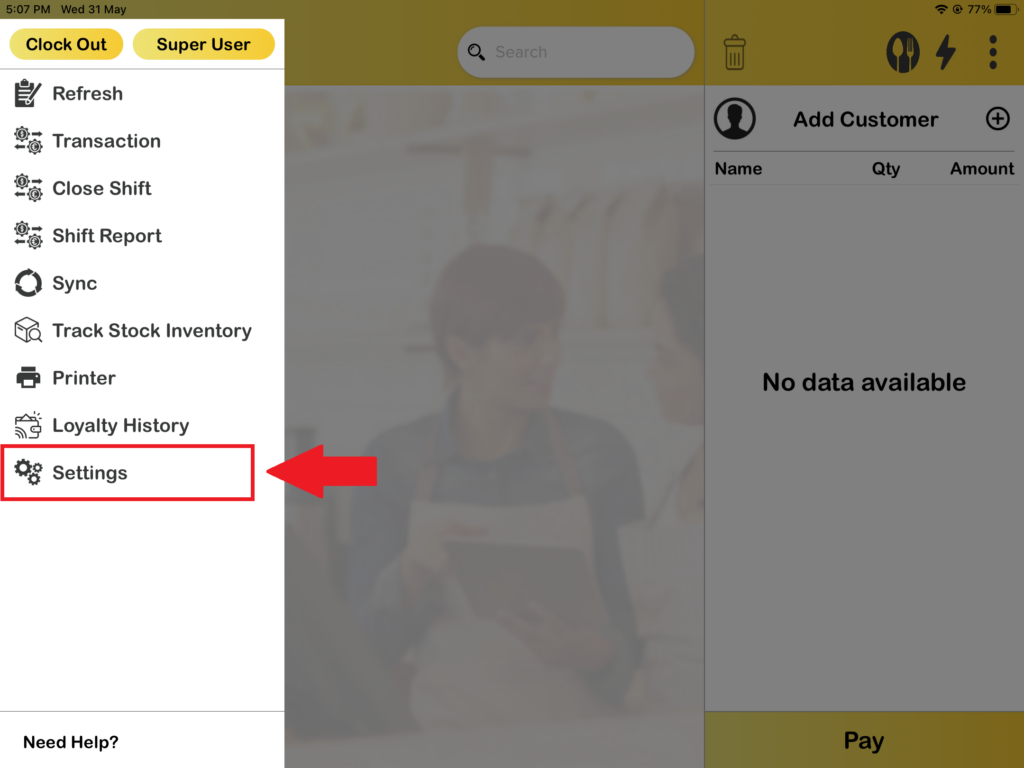
1. First, you need go to “Settings“.
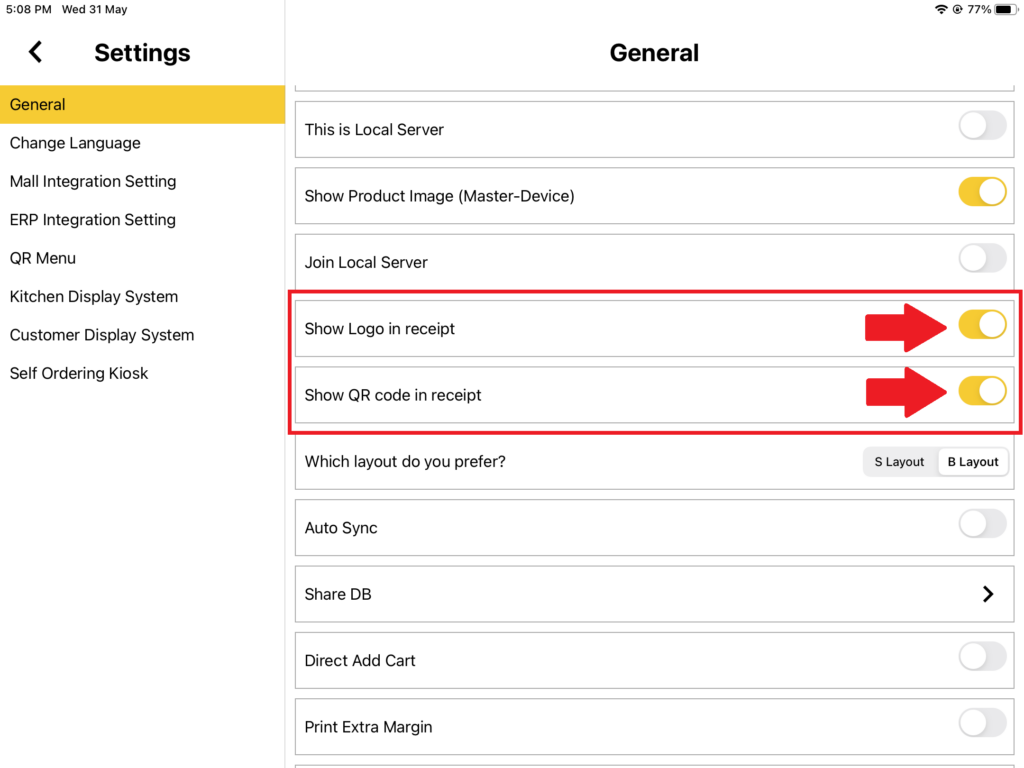
2. Then, you need to toggle on “Show Logo in receipt” and “Show QR code in receipt“.
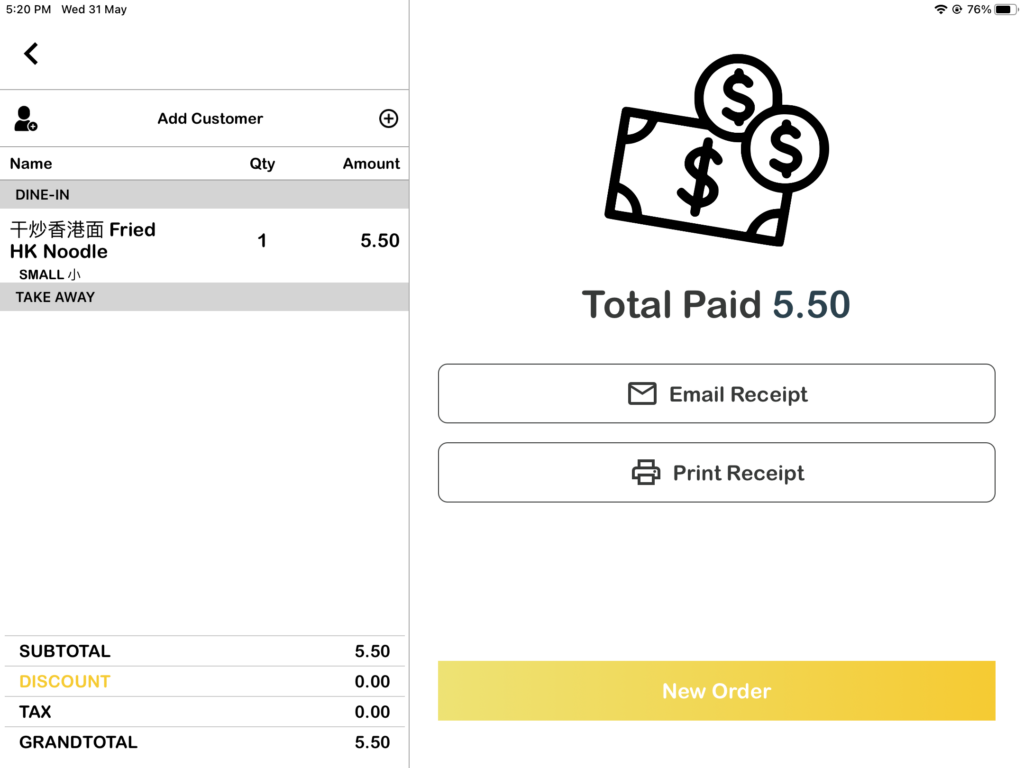
3. After that, you need to add order to your cart and proceed to payment page and press “Pay“. Make sure you have connected to the printer.
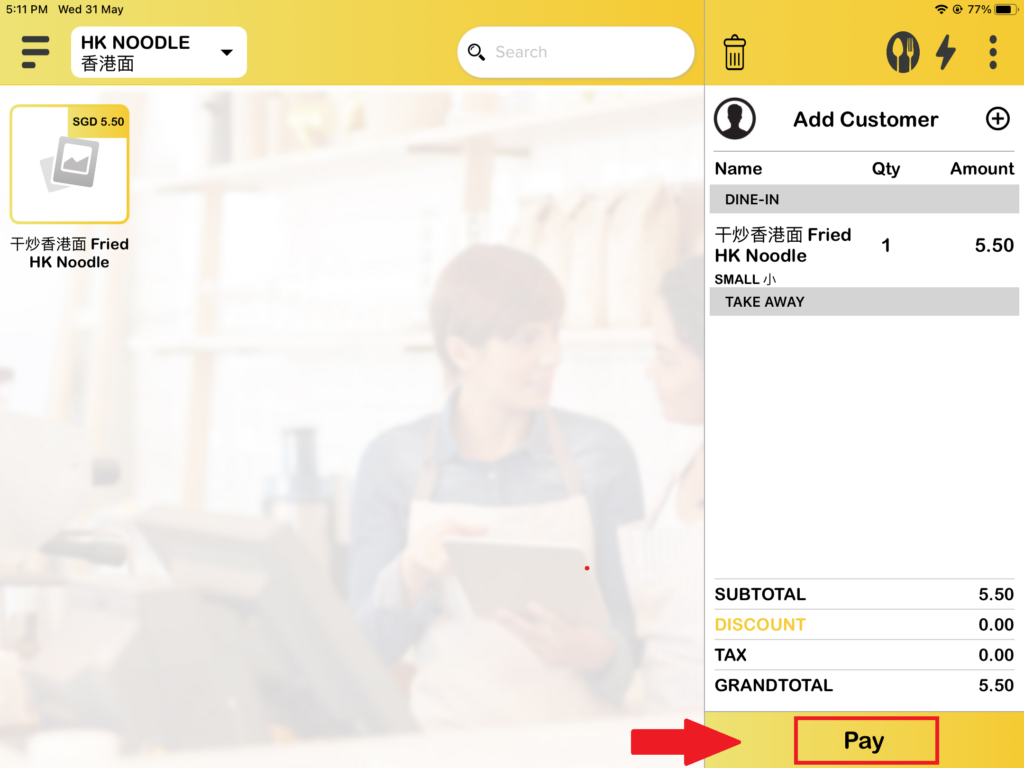
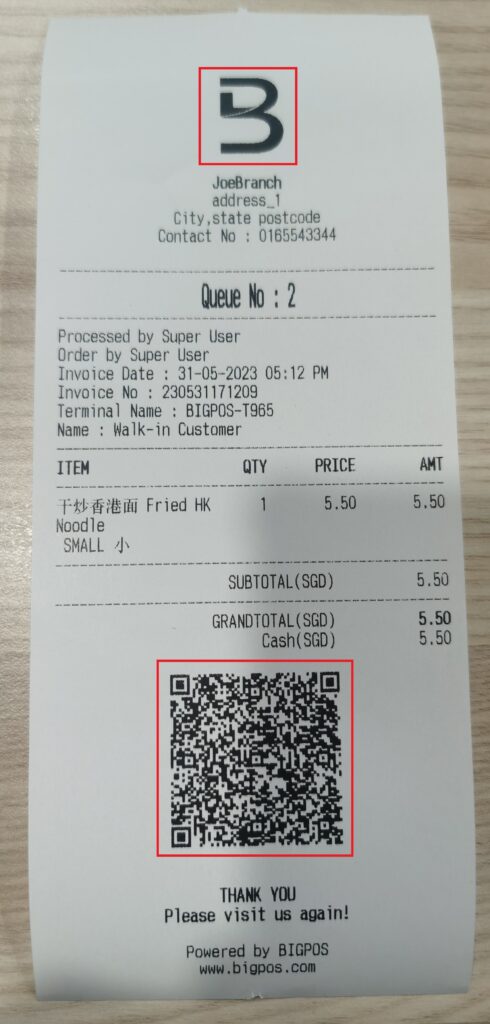
4. After pressing “Pay“, the receipt will be printed out with logo and QR code.