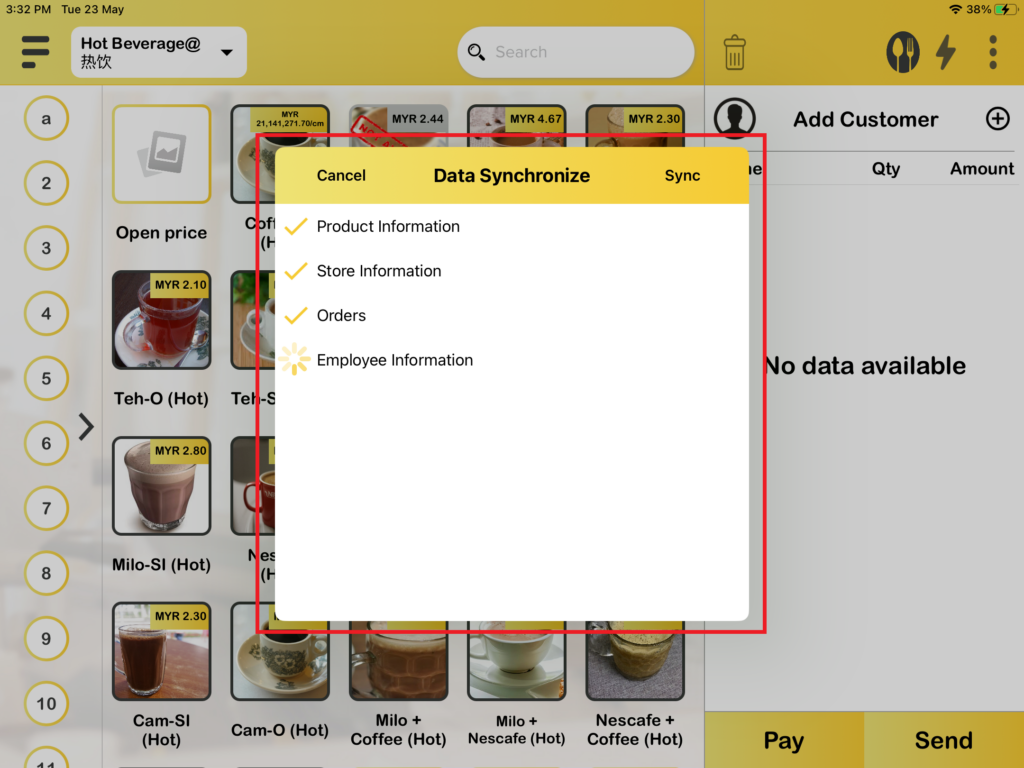
How to perform Auto sync after open shift or close shift Function in BIGPOS Pro and Lite?
Introduction
This post will assist you how to perform auto sync after open shift or close shift function in BIGPOS Pro and Lite.
How to perform auto sync after open shift or close shift.?
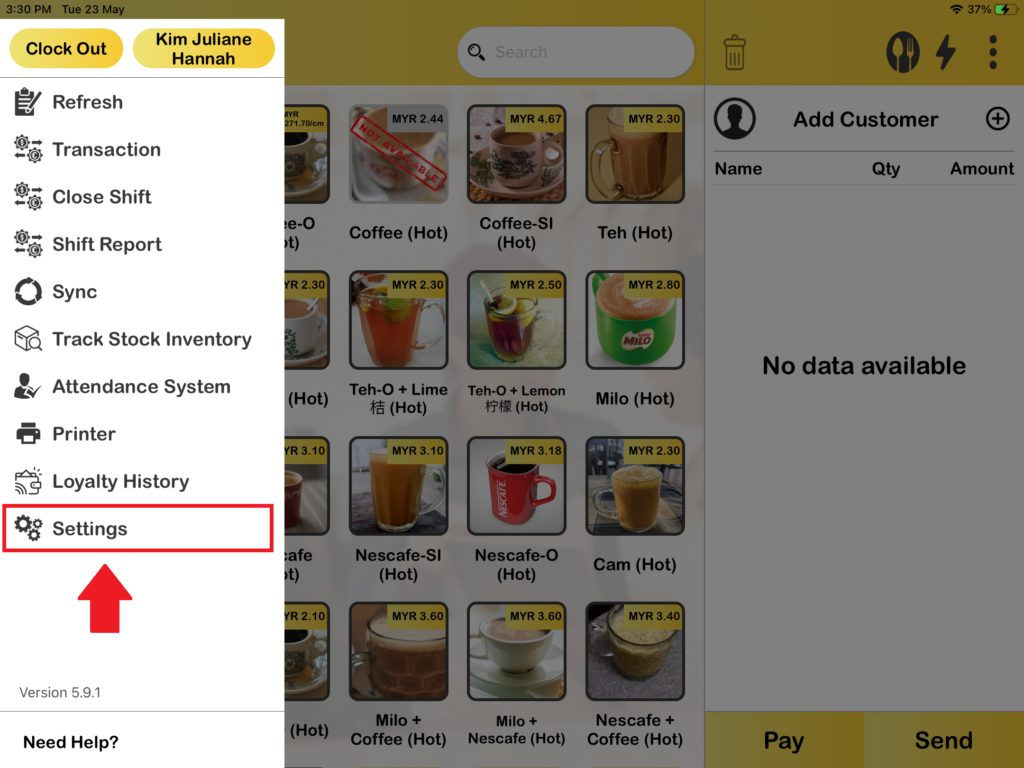
1. First, you need to choose “Setting“.
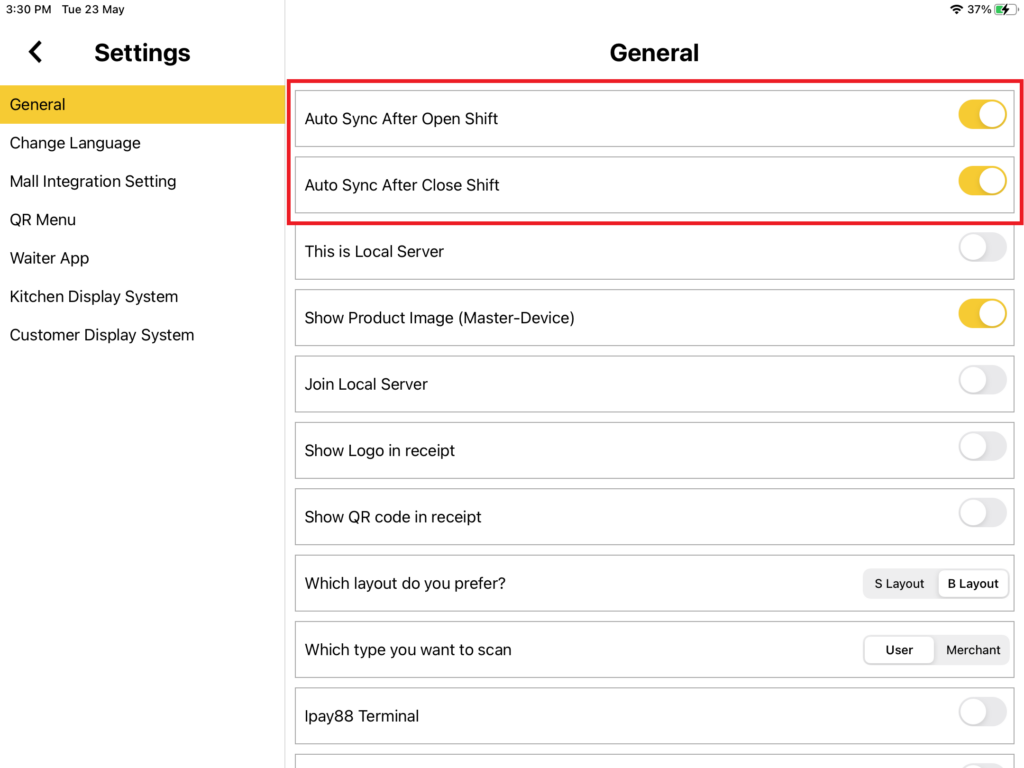
2. Then, you need to toggle on “Auto Sync After Open Shift” and “Auto Sync After Close Shift“.
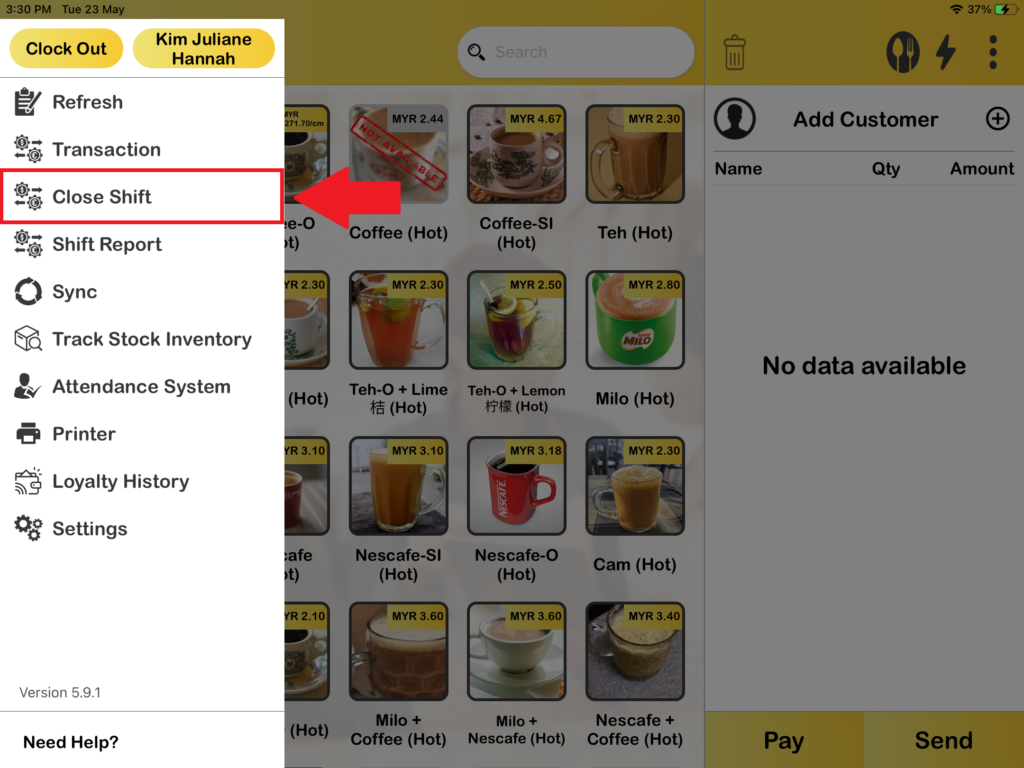
3. After toggle on “Auto Sync After Open Shift” and “Auto Sync After Close Shift“, the auto sync is ready to use and now press on “Close Shift“. After that, you need to enter amount to close shift and press on “Yes“.

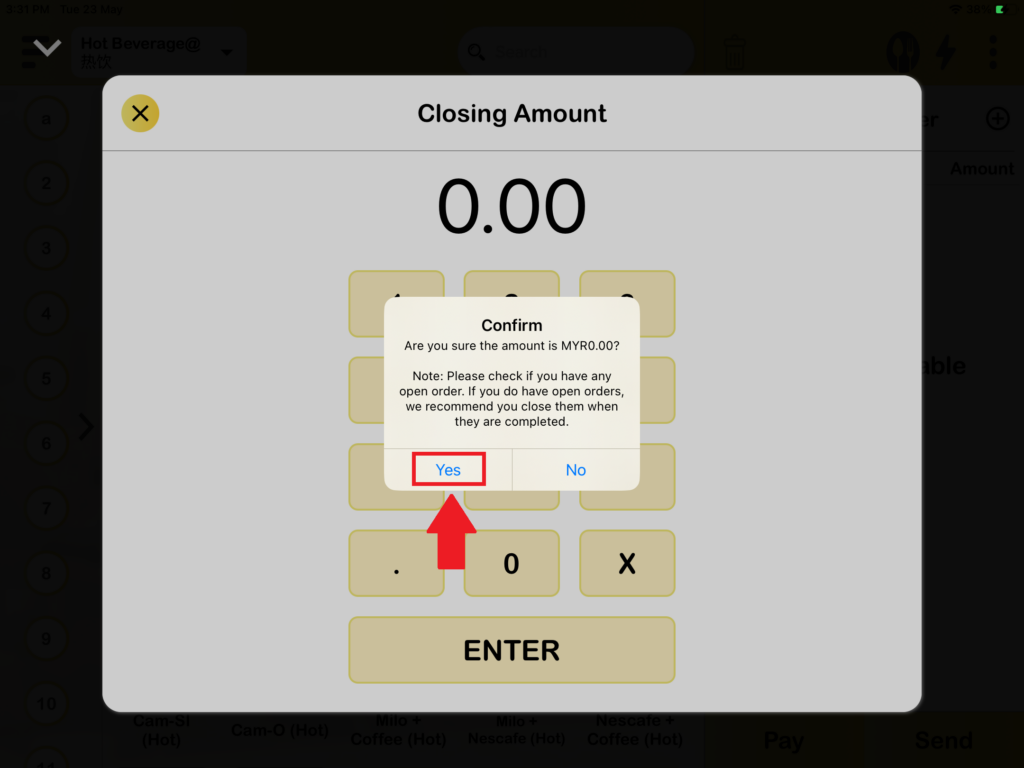
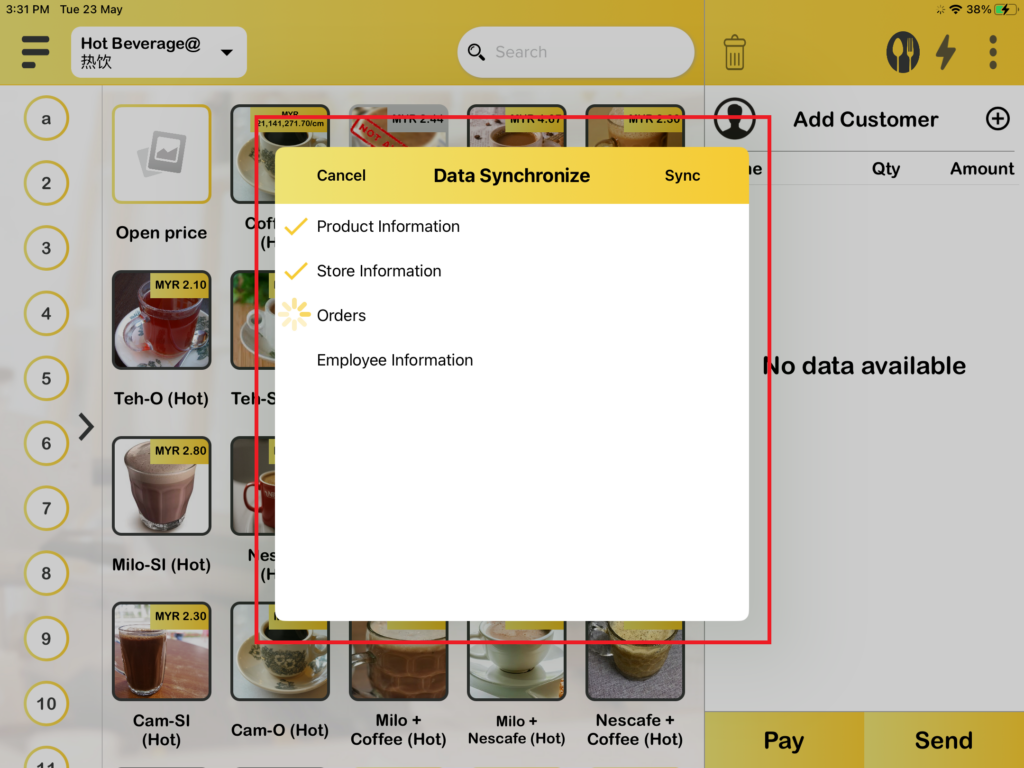
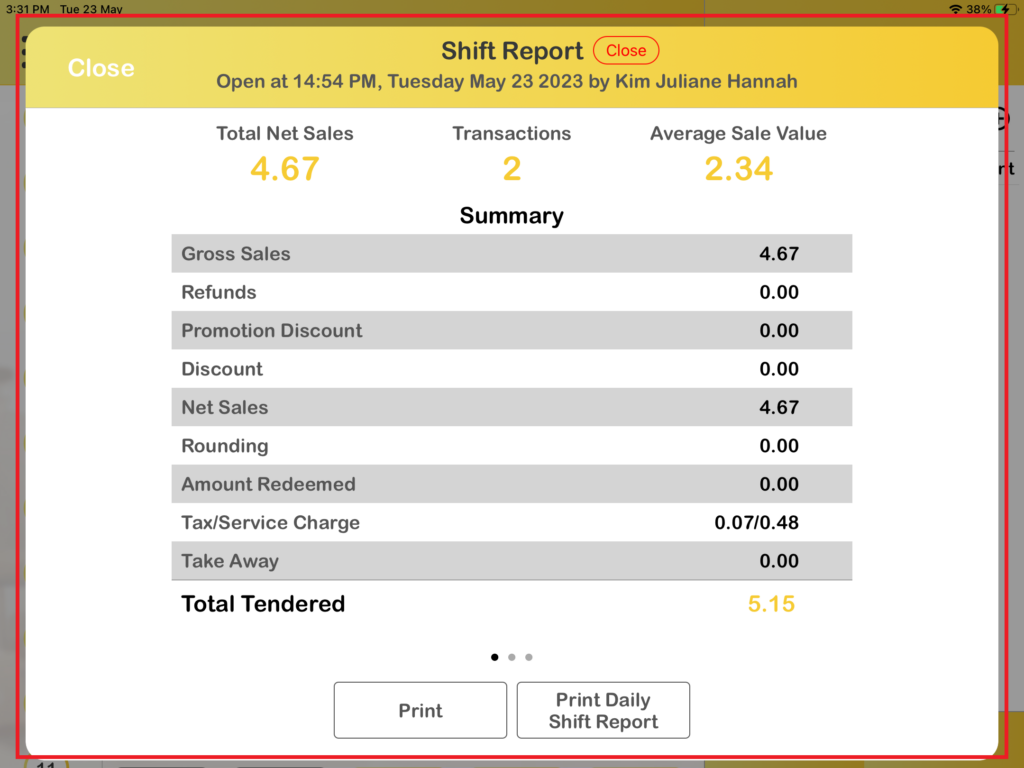
4. After press “Yes” to close shift, the app will perform auto sync and the shift report will be show out too.
5. And now, it came to open shift. Press on “Open shift“. After that, you need to enter amount to open shift and press on “Yes“.
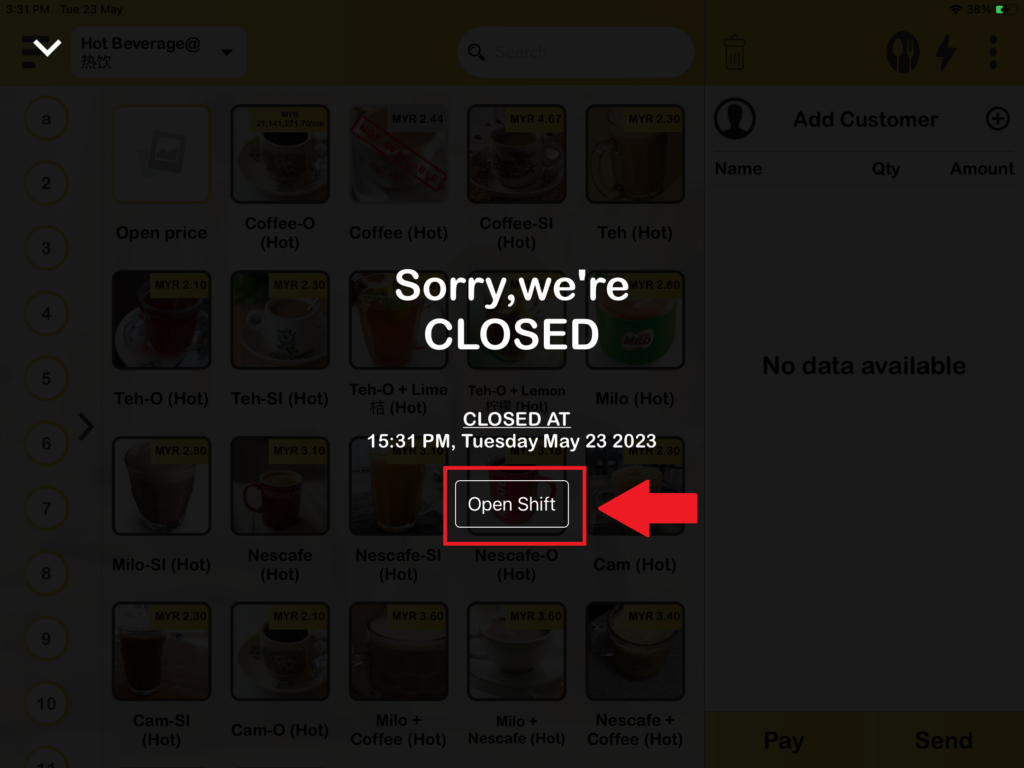
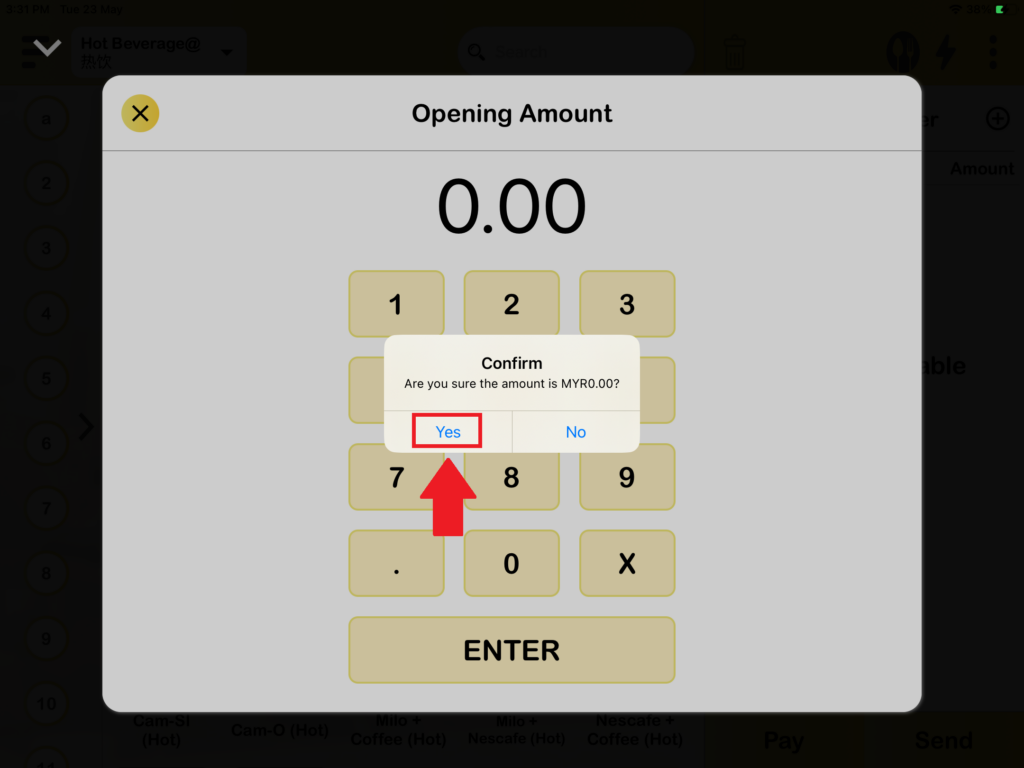
6. After press “Yes” to open shift, the app will perform auto sync.