How to Open or Close Shift in BIGPOS Pro and Lite.
Introduction
Shift management includes the buttons Open Shift/Close shift, which track the hours a shift is open and closed. You receive a shift report with a sales summary created from the time the shift opened to the time it ended based on this information. In this post will show you how to open or close shifts in BIGPOS Pro and Lite.
How to open shift?
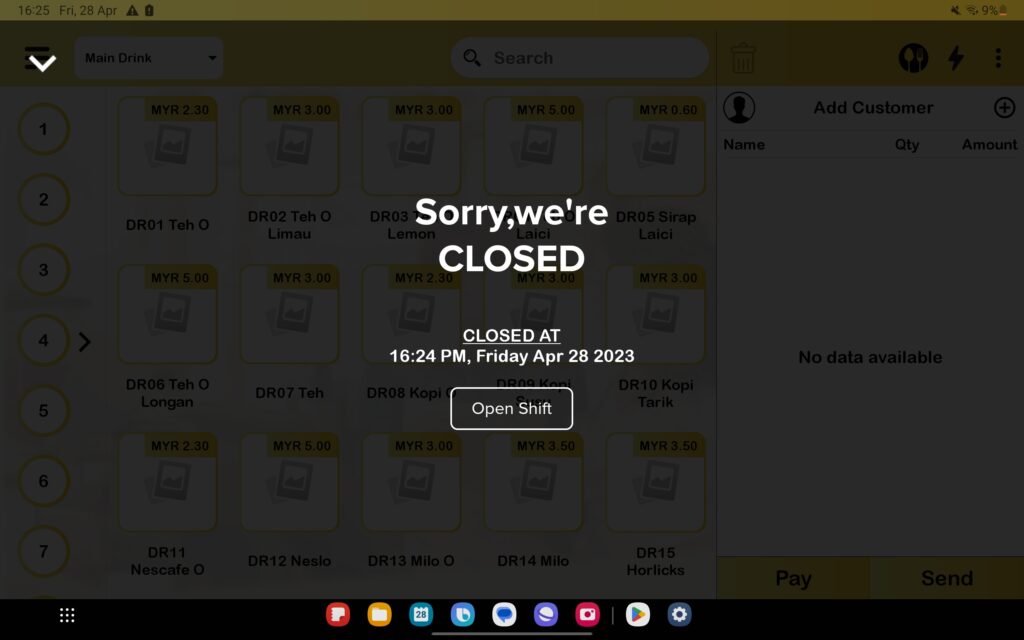
- After you successfully login into your account with your 4-digit PIN, you will see the “Open Shift” button and press it to open shift.
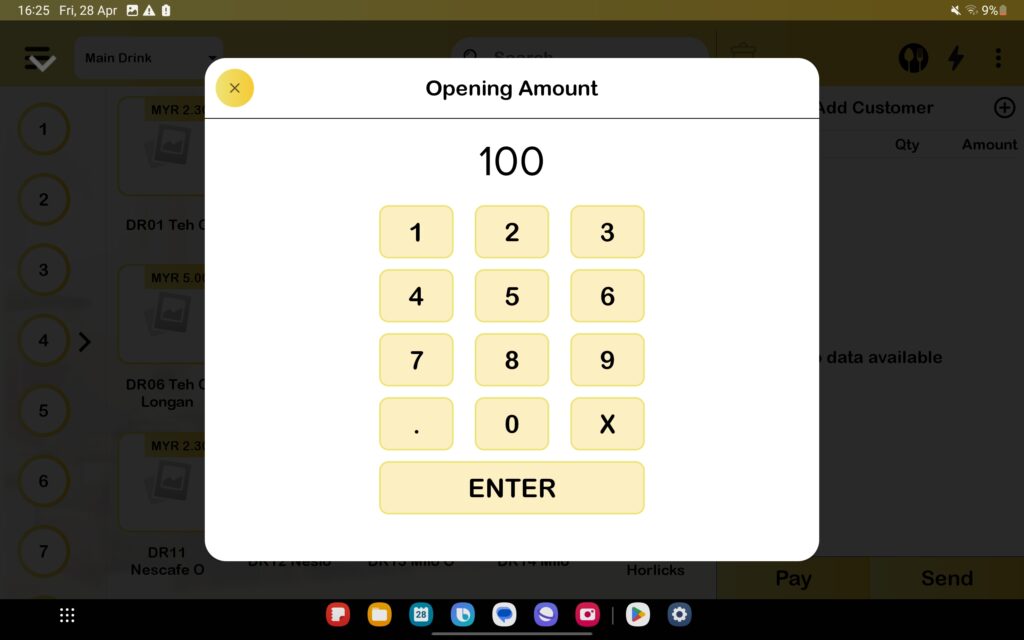
2. Then, you need to enter the “Opening Amount“.
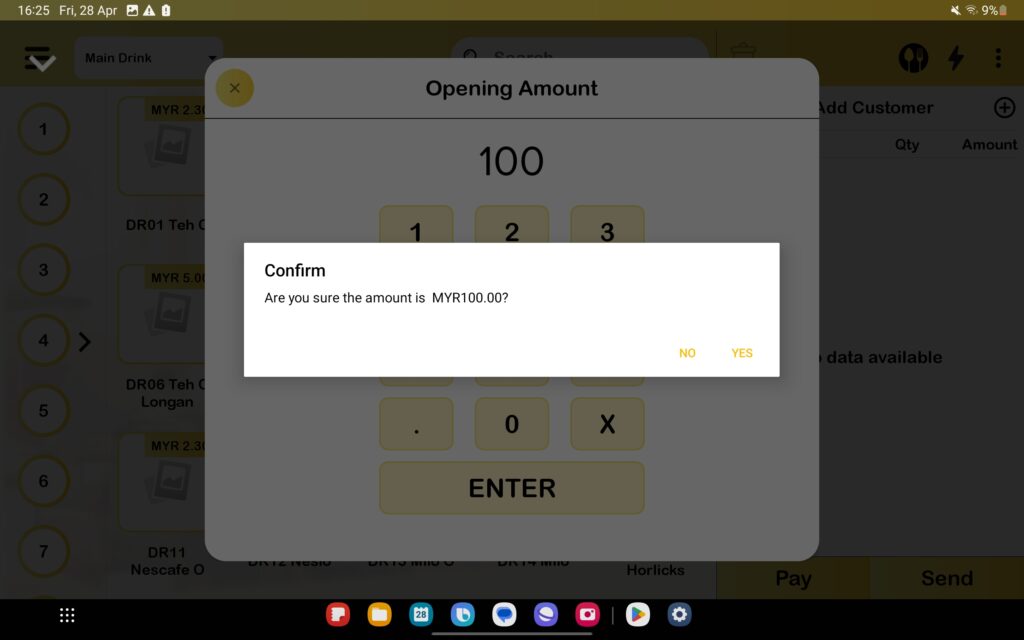
3. After that, you need to press “Yes” to complete the open shift action and that how to open a shift in BIGPOS Pro and Lite.
How to close shift?
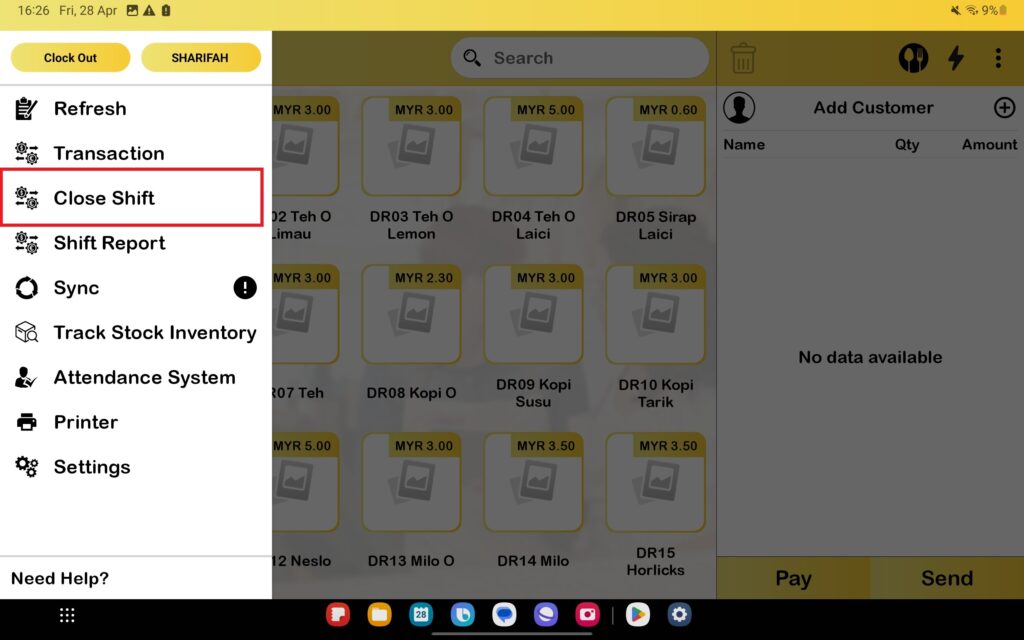
- Firstly, you need to press “Close Shift“.
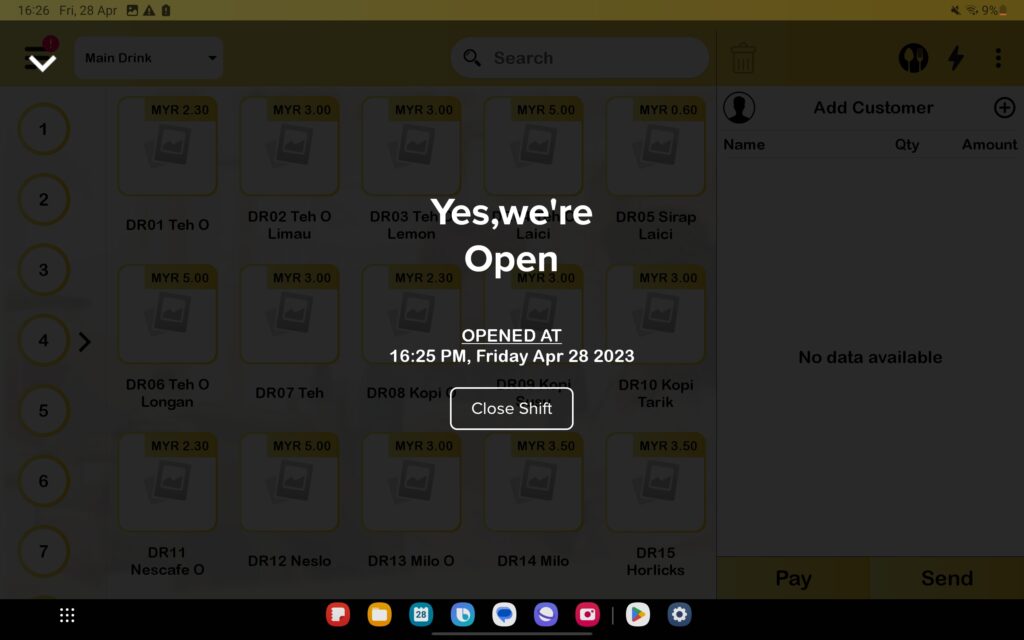
2. After that, you need to press the “Close Shift” button.
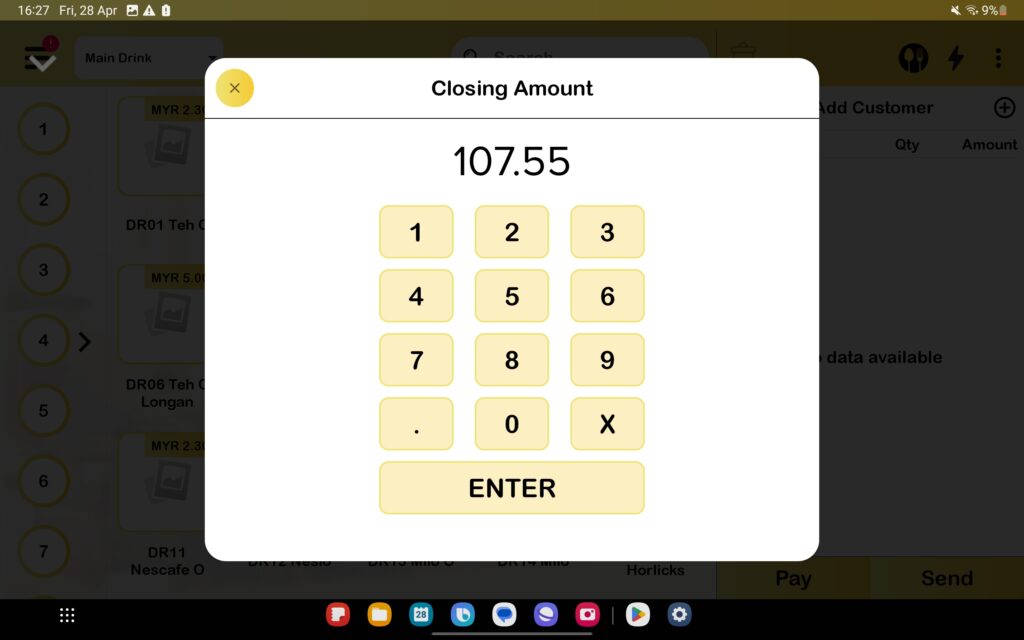
3. Then, you need to enter the “Closing Amount“.
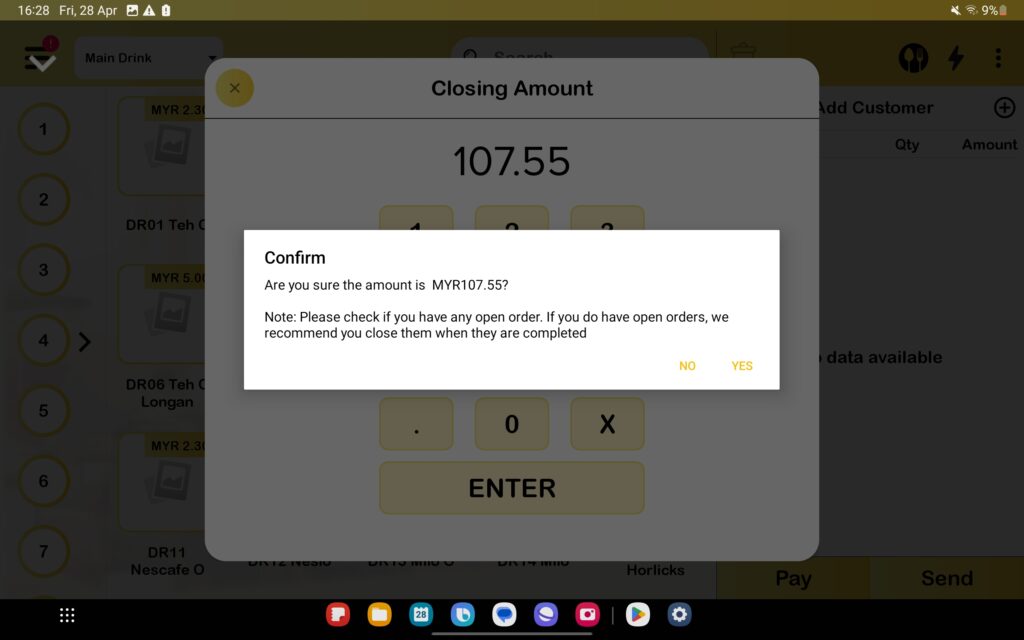
4. After that, you need to press “Yes” to complete the close shift action, and that is how to close a shift in BIGPOS Pro and Lite.
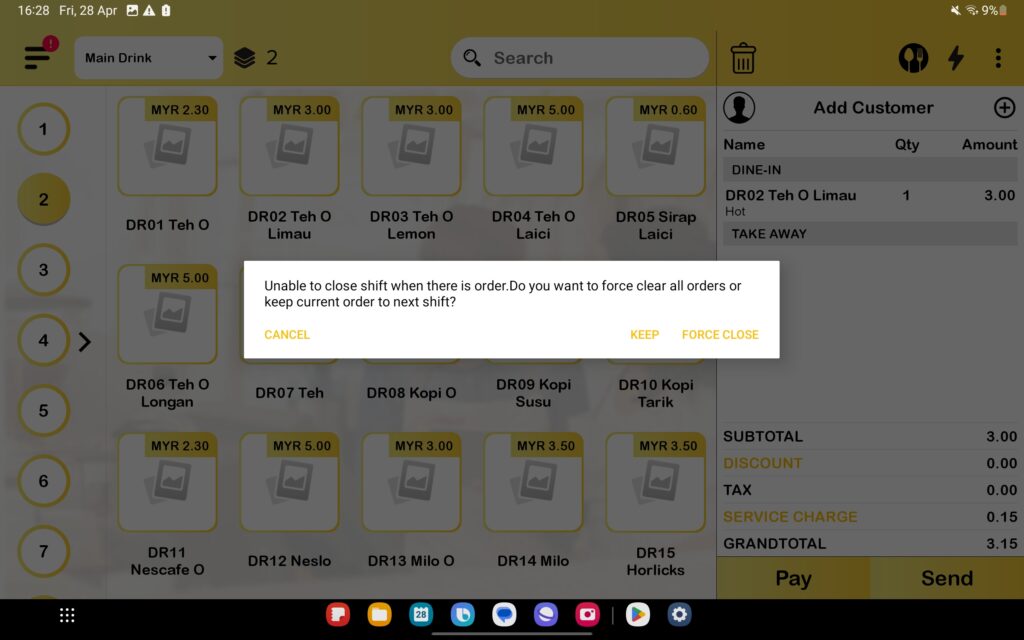
5. When you have orders not yet done, the system will show “Unable to close shift when there is order. Do you want to force clear all orders or keep current order to next shift?” You can press “Cancel” to finish your order or press “Force Close” to close the shift.
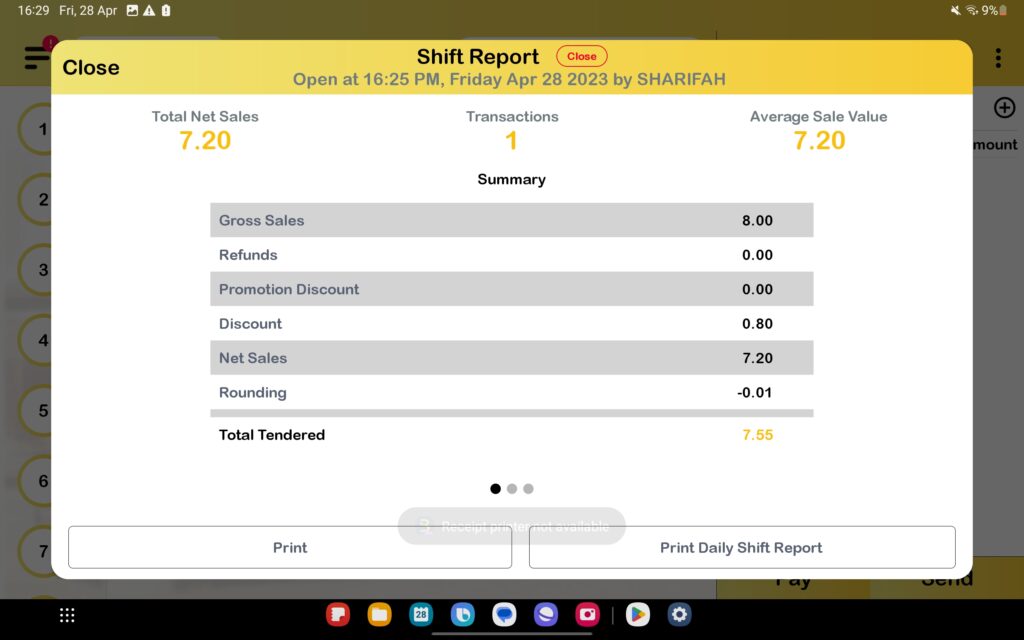
6. After closing the shift, the system will show out shift report and automatically print out the shift report when you connected to your printer.