How to enable Loyalty History and setup Loyalty Points in BIG POS web admin for B Reward App?
Introduction
In the BIG POS system, there is a loyalty program for customers and BIG POS had built a webapp and app for loyalty program purposes. The loyalty points can be use when customer purchase items.
Steps to enable the loyalty history in the BIG POS web admin.
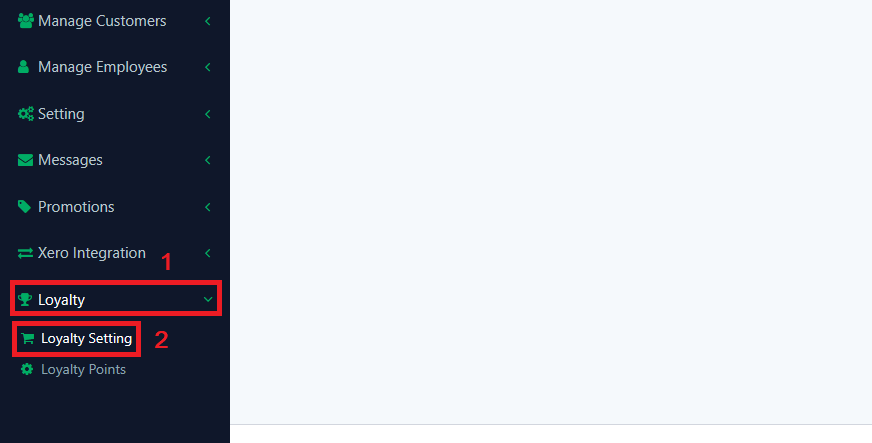
- First, you need to press “Loyalty” on web admin, then press “Loyalty Setting“.
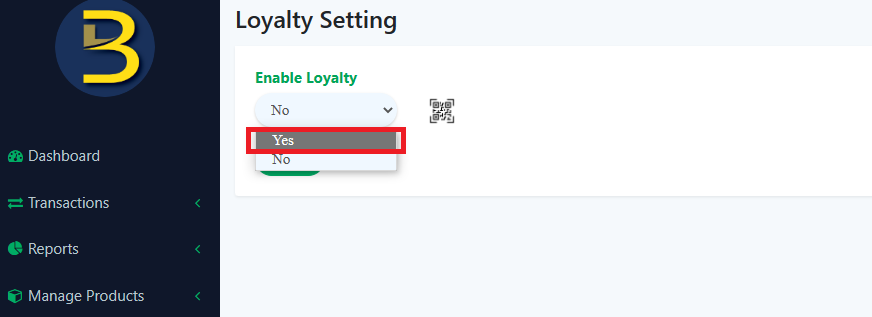
2. Then, you need to select “Yes” and click “Save“.
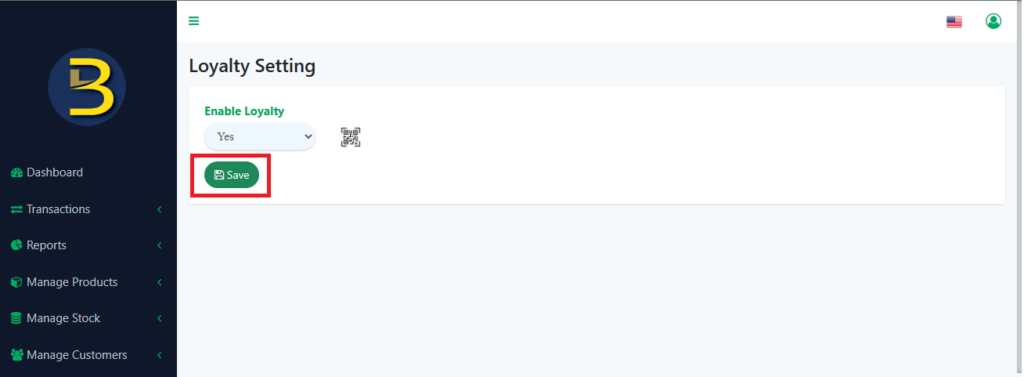
3. After that, you will be able to check “Loyalty History” which will show in your BIGPOS Pro app.
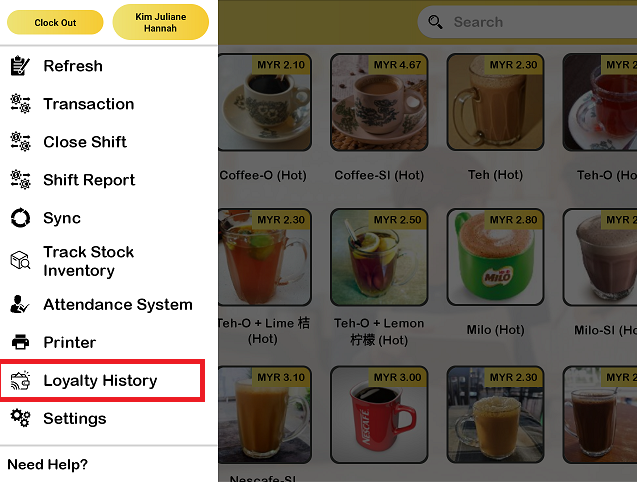
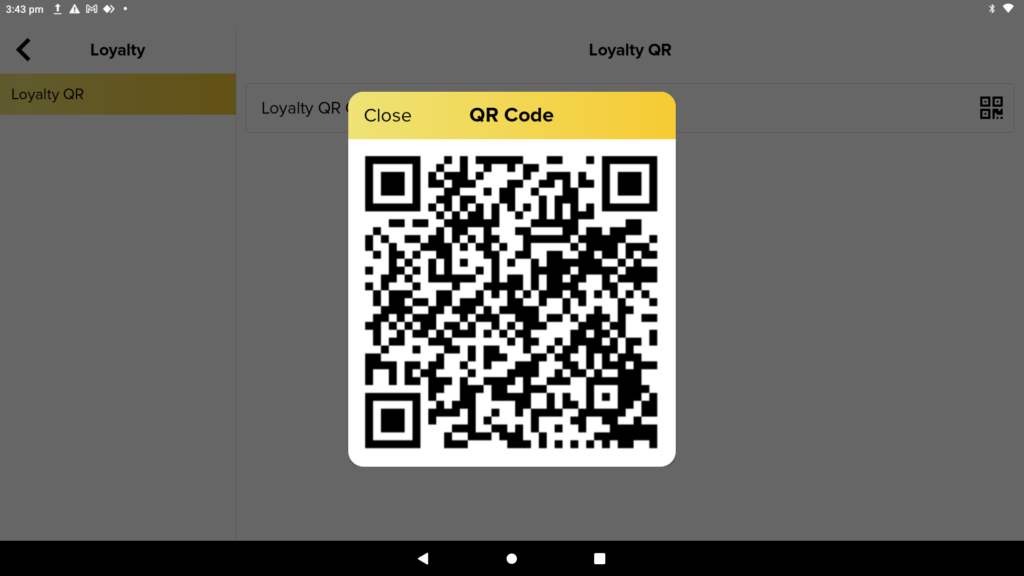
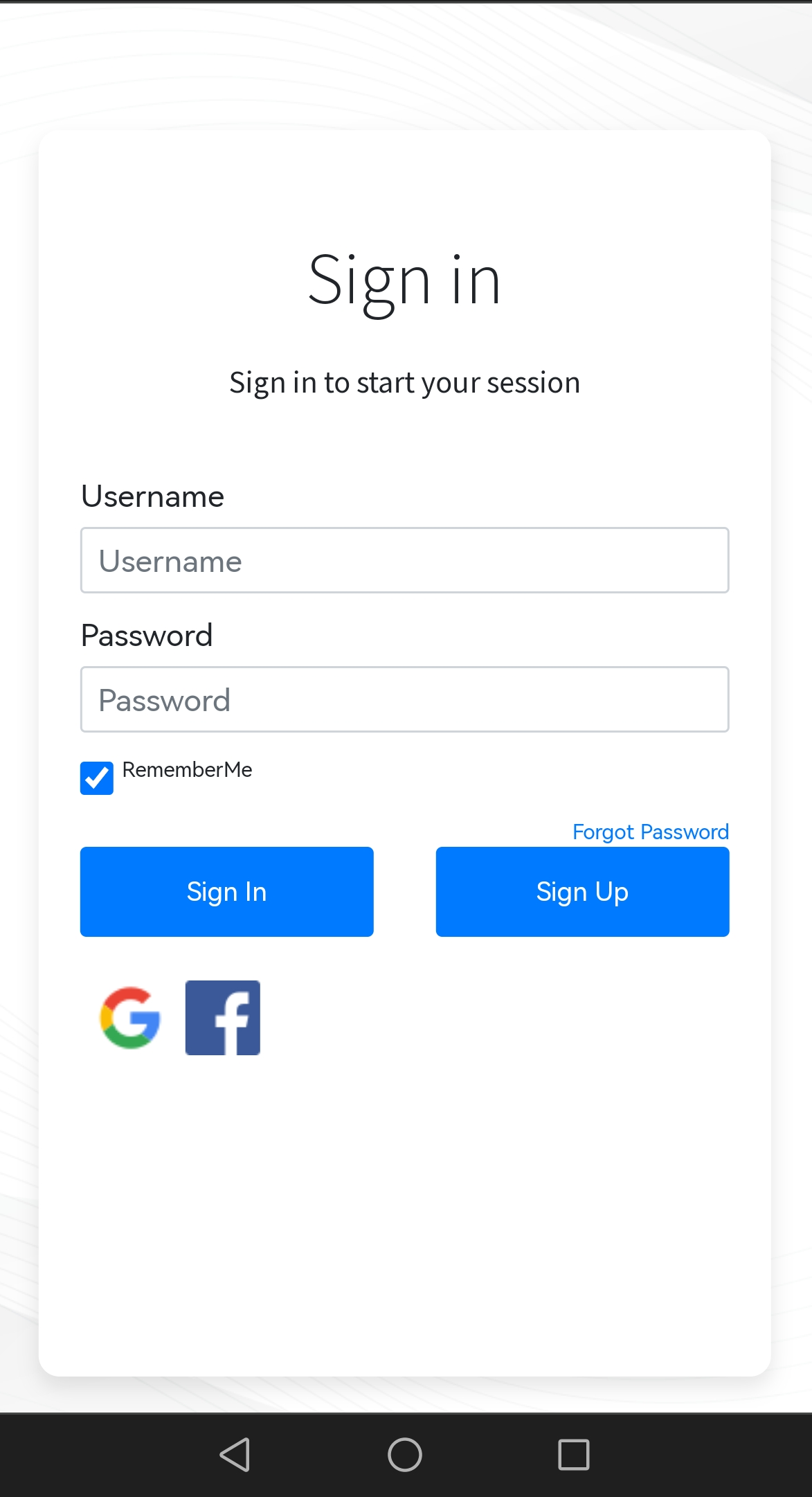
4. Lastly, you can press “Loyalty History” in the BIG POS Pro app to scan the QR code and it will redirect you to Loyalty Website Login Page.
Steps to setup loyalty points in the BIG POS web admin.
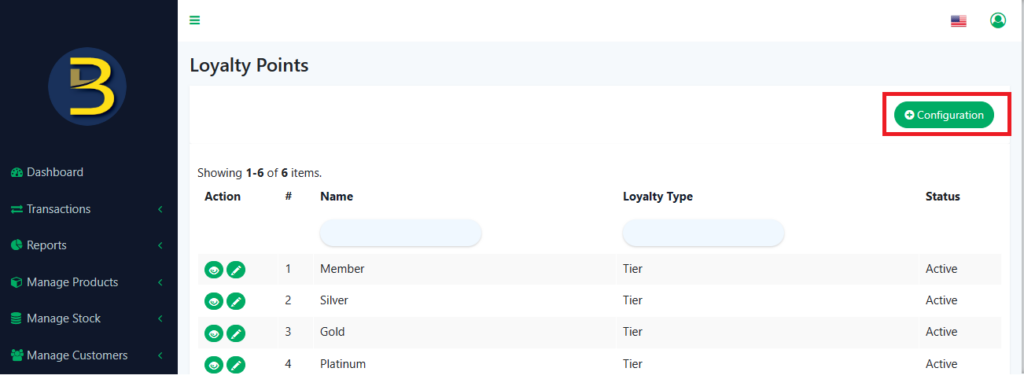
- First, you need to click on “Loyalty Points” in web admin.
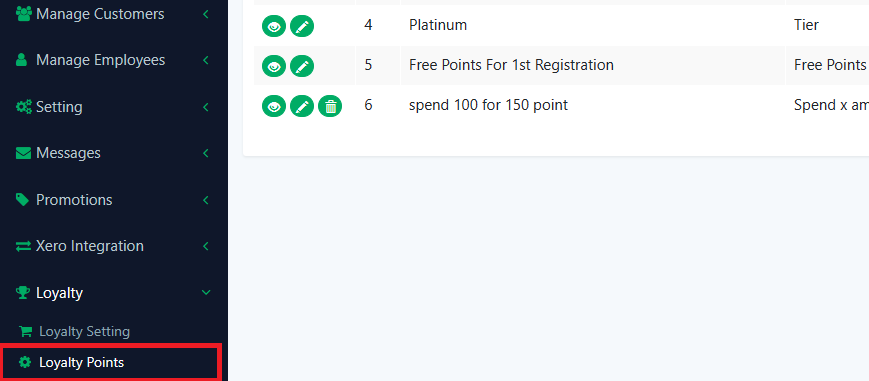
2. Then, click on “Configuration” to create Spend x amount for y points.
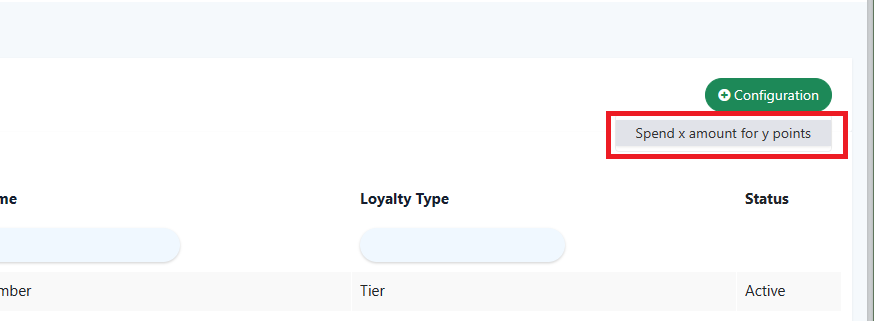
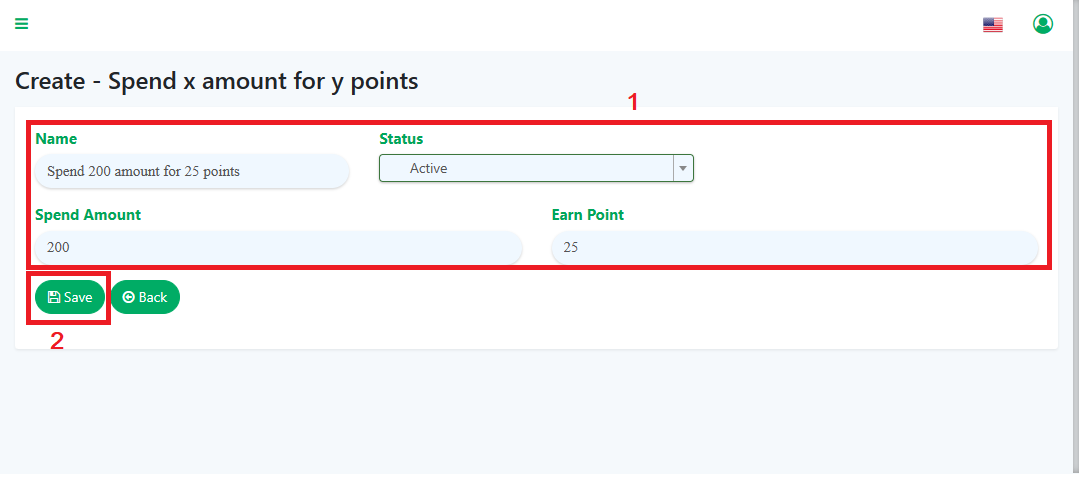
3. After that, you can fill in the name of your loyalty point, status, spend amount which means how much you want the customer to spend, and earn points which means how much you want to let the customer earns the points. Lastly, click “Save” and the setup are done.