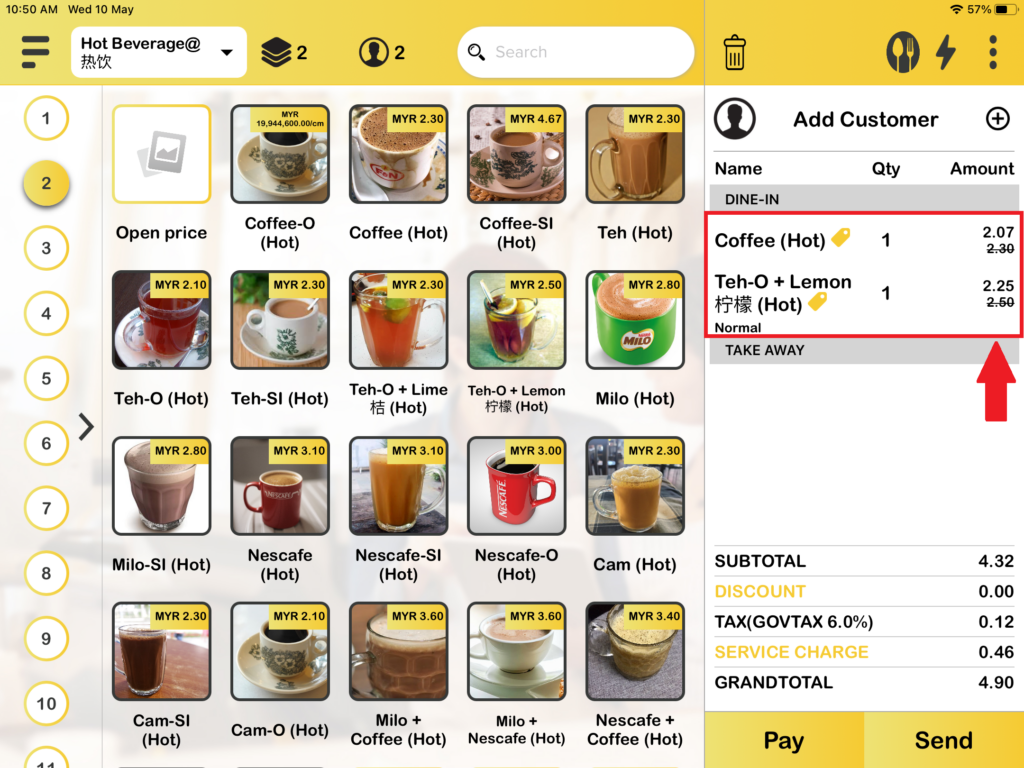
How to apply auto or manually for the full bill or product discount in the BIGPOS system.
Introduction
This post will assist you in how to apply auto or manually for the full bill or per-item discount in the BIGPOS system. Full bill discount is every item in the cart will get a discount. Product discount is which item you choose to get a discount on.
How to manually apply a full bill discount in the cart?
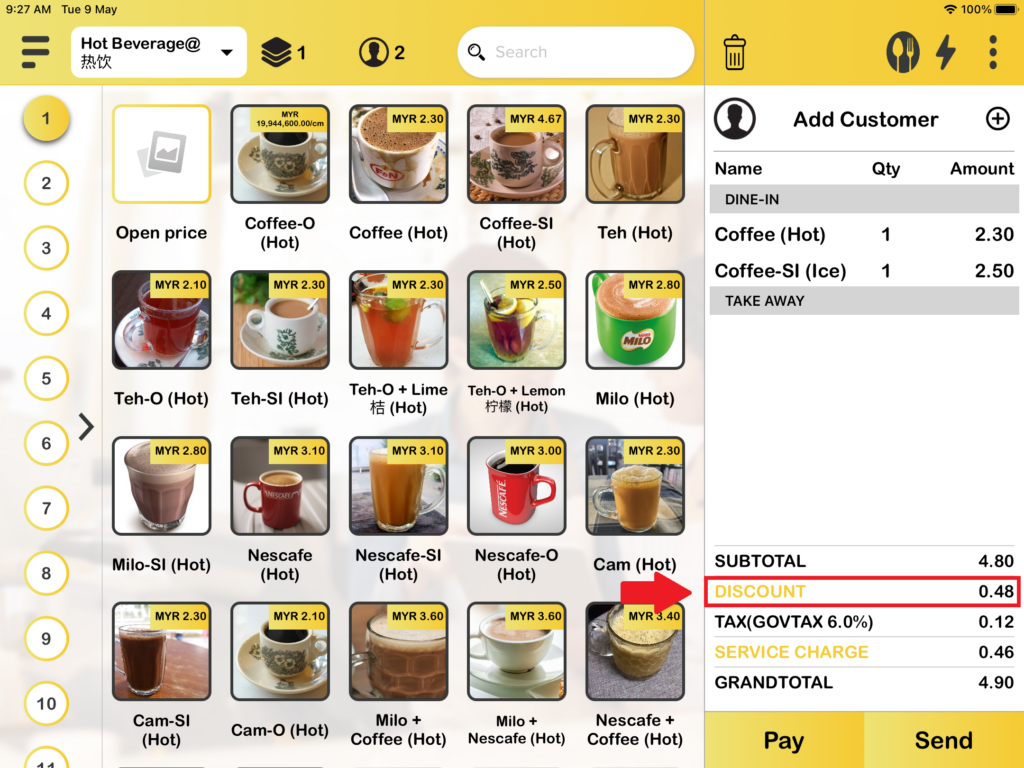
1. First, you need to press “DISCOUNT” on the order page or payment page.
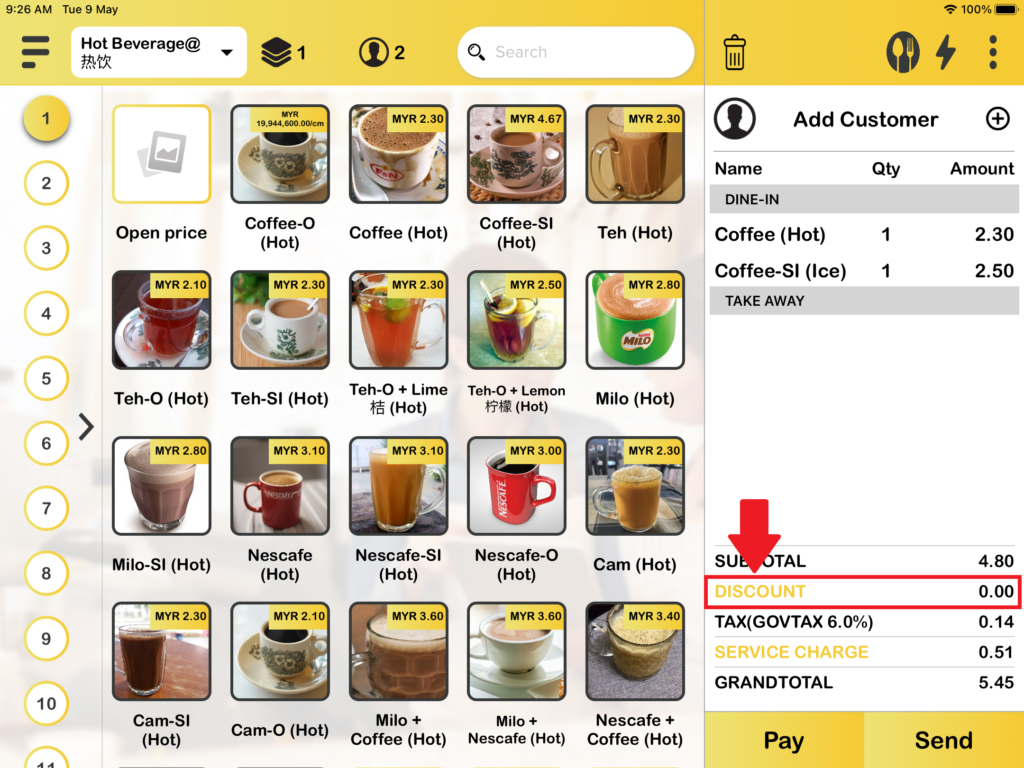
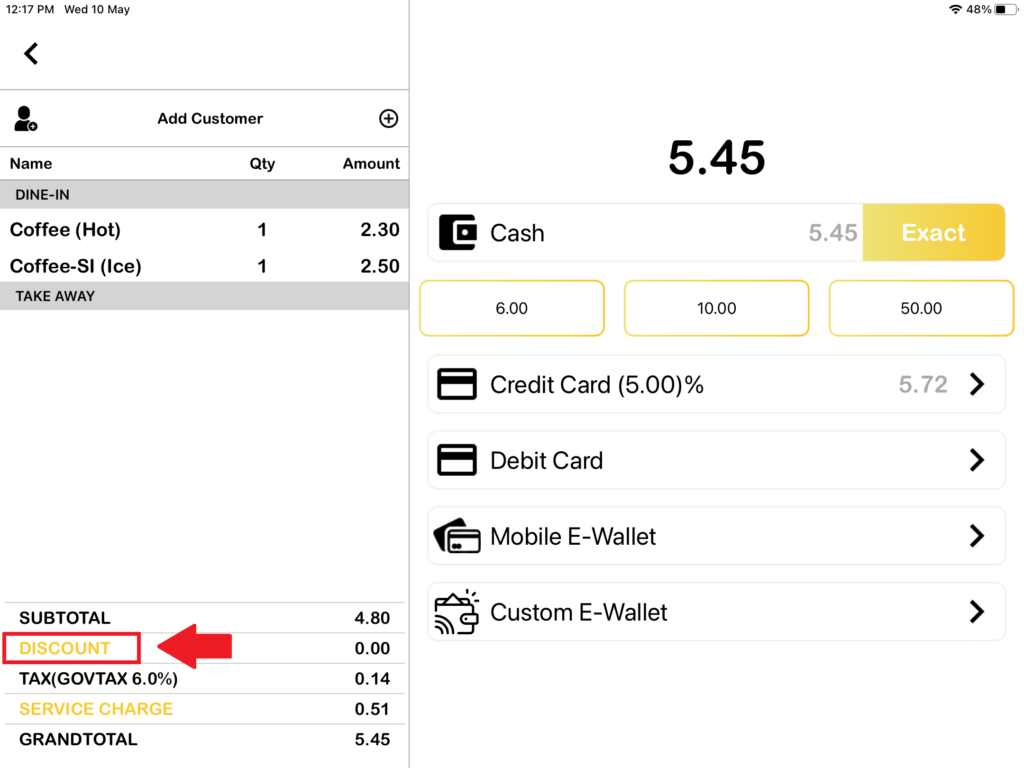
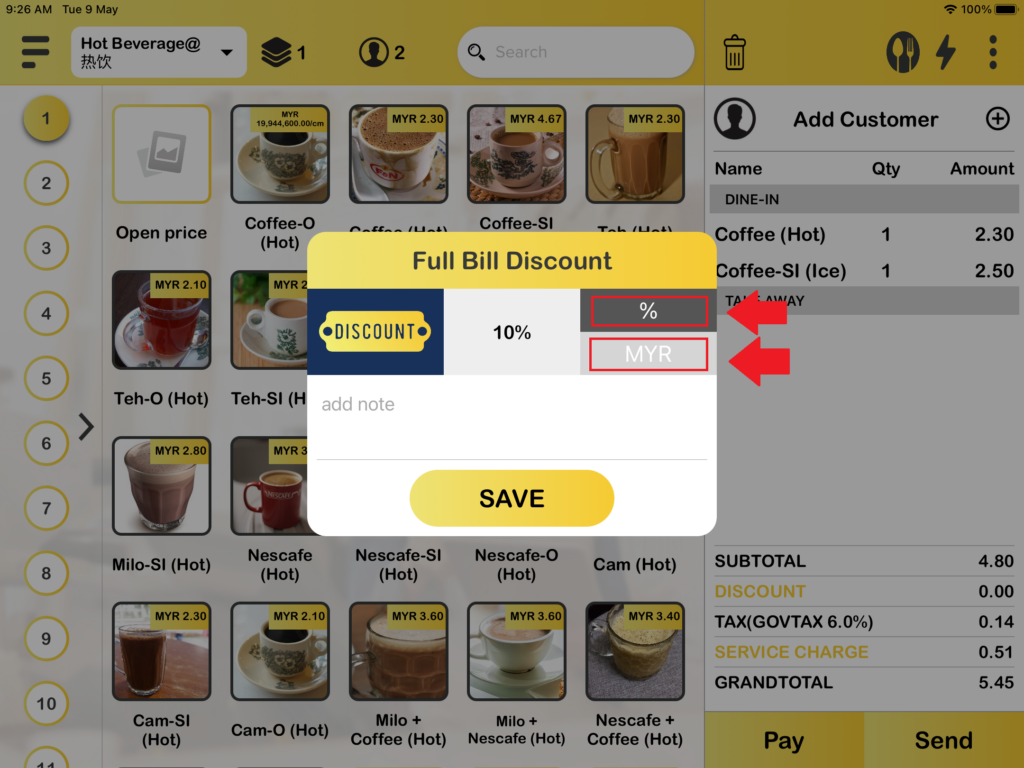
2. Now, you can select Full Bill Discount in percentage or fixed price for the discount. Other than that, you can add your note for the full bill discount too. After that click the “Save” button. and your full bill discount is applied to the cart.
How to manually apply a product discount?
1. First, you need to press which item you want to apply the discount in the cart on the order page and also on the payment page.
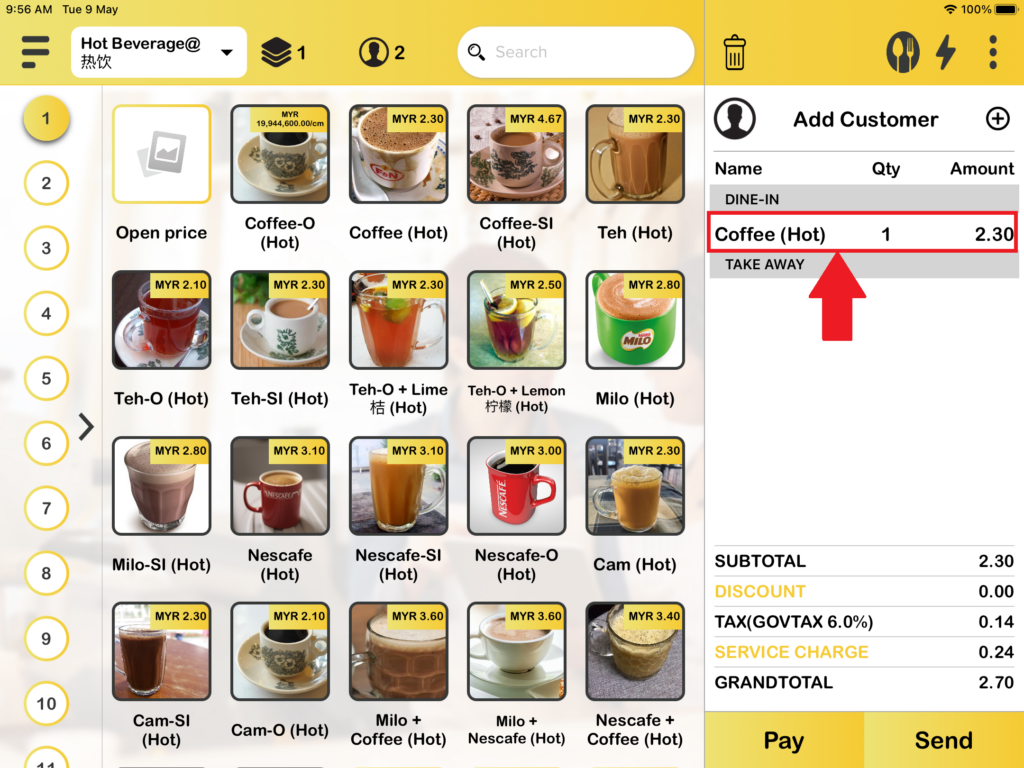
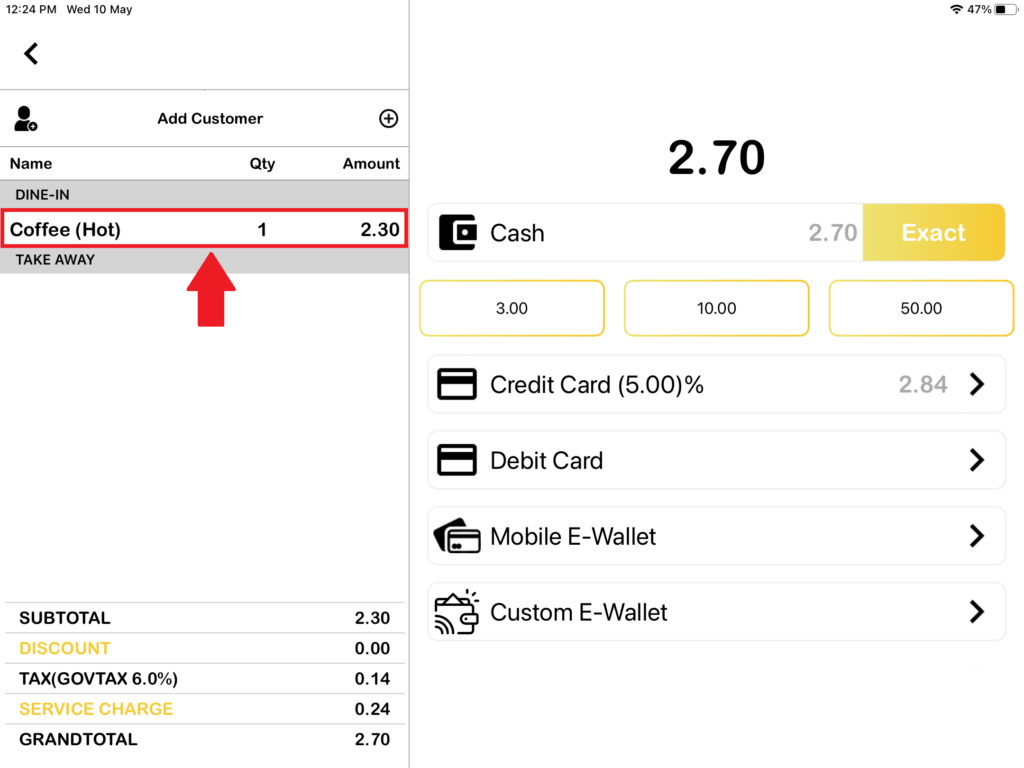
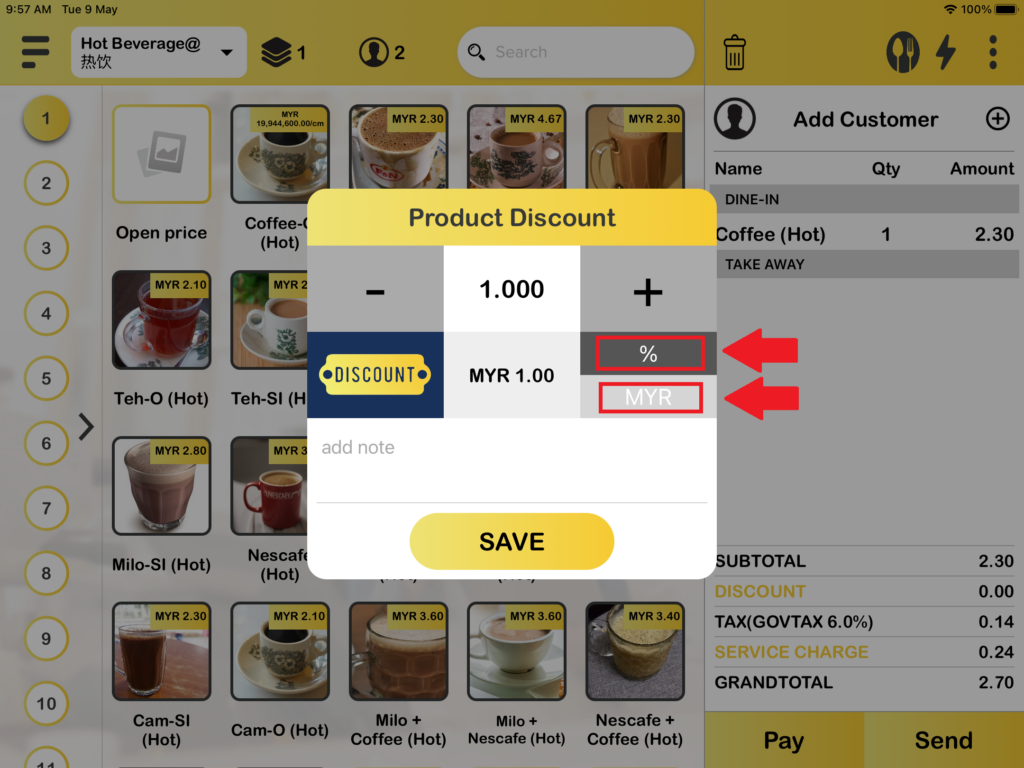
2. Now, you can select Product Discount in percentage or fixed price for the discount. Other than that, you can add your note for the full bill discount too. After that click the “Save” button. and your product discount is applied to the cart.
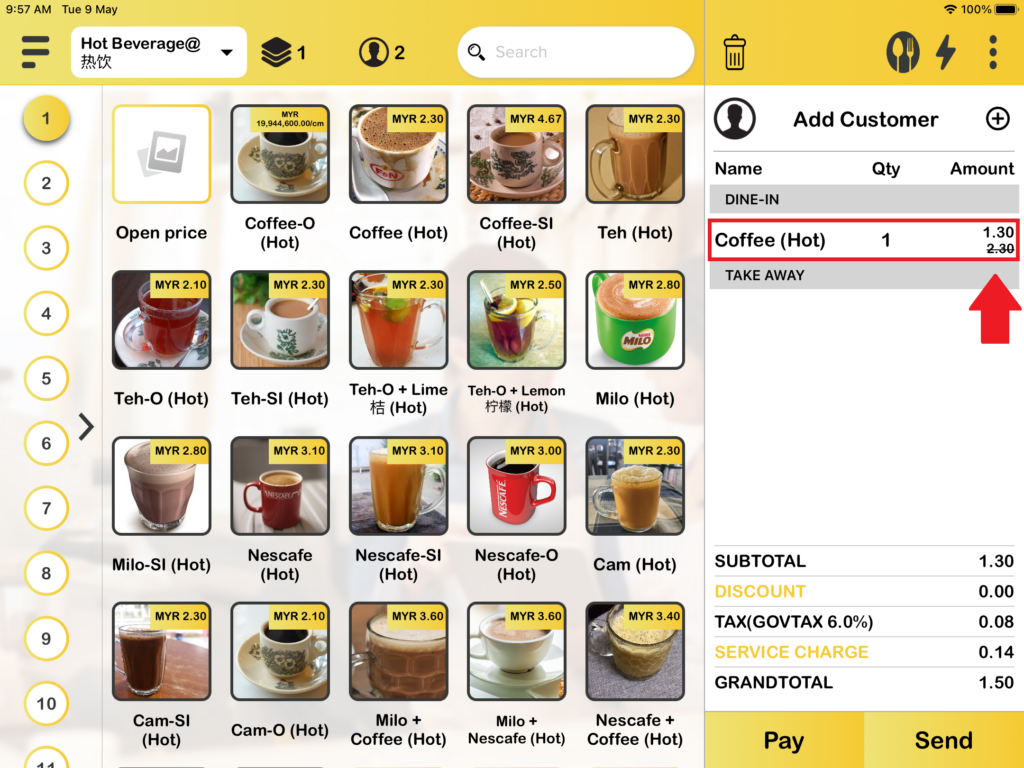
How to auto-apply a full bill discount?
1. First you need to go to the web admin and click on “Manage Promotions“.
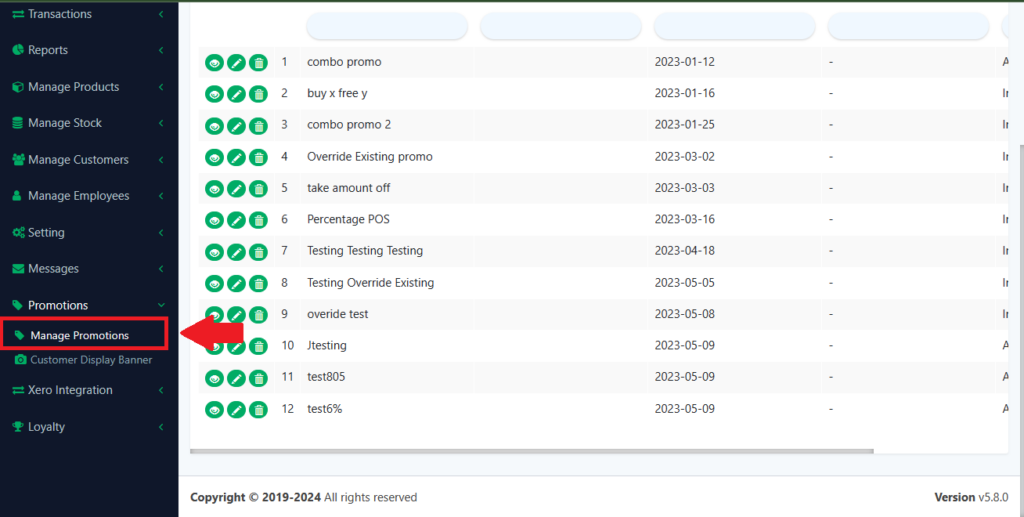
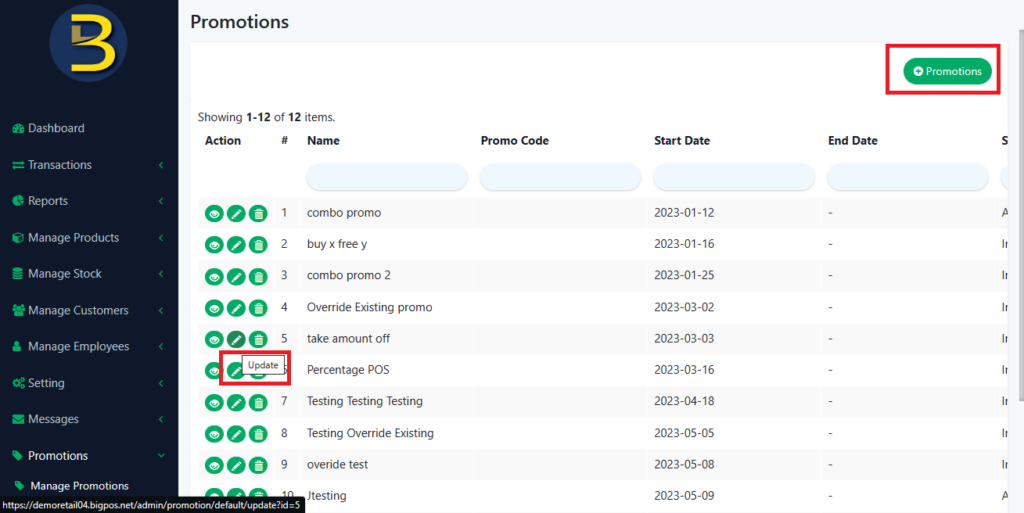
2. After that, if you don’t have any promotions, you can create one. If you already have one you can just choose to update.
3. In Discount Type, you can choose “Take percentage off” or “Take Amount Off” only.
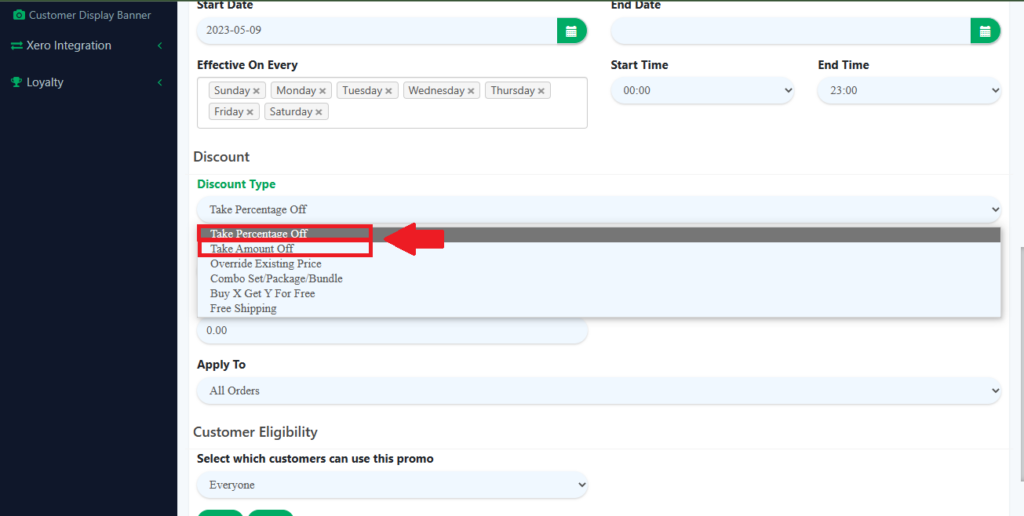
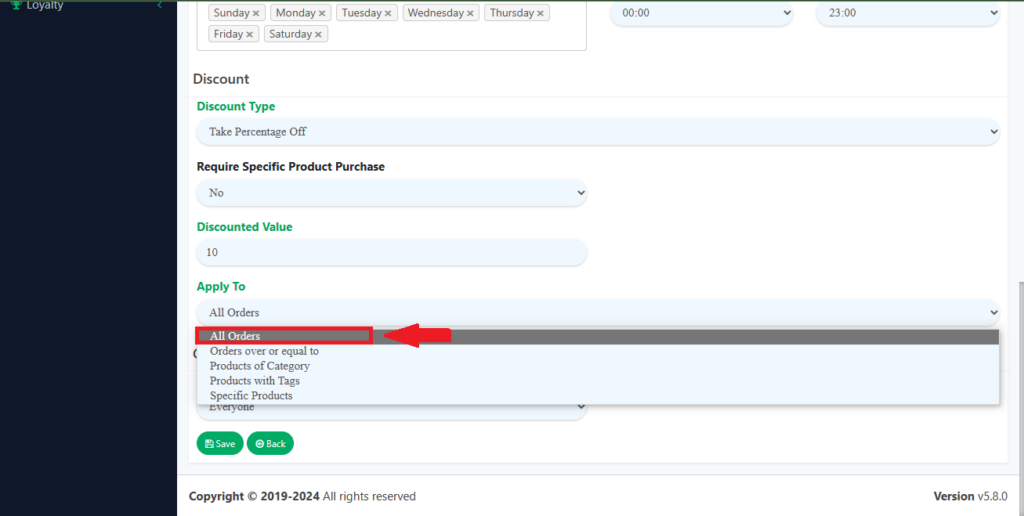
4. Then, you can choose to Apply To “All Orders” which means apply for a full bill discount and click “Save“.
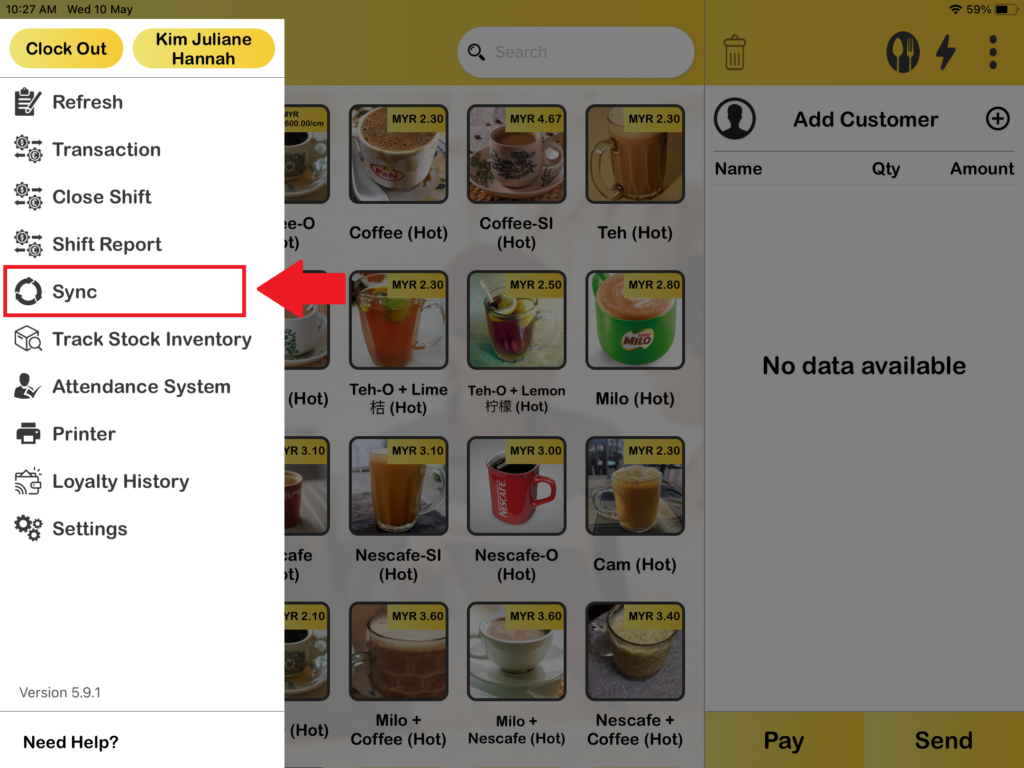
5. After done setup in web admin, go to BIGPOS App and remember to press “Sync“.
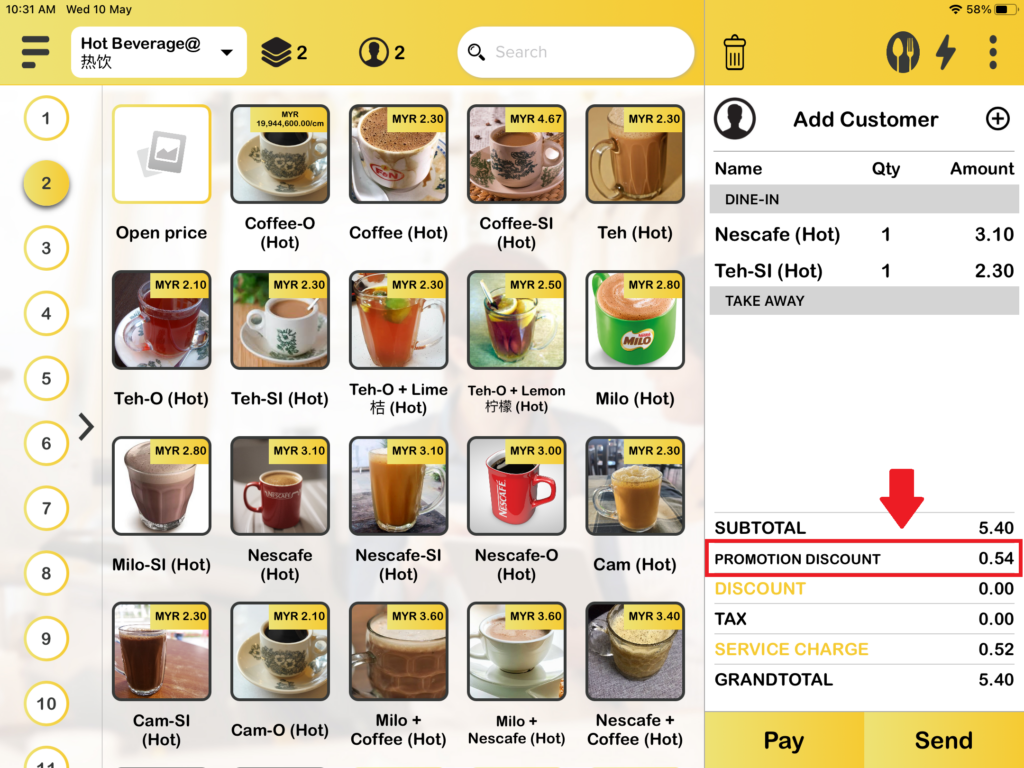
6. Now, you can add multiple items to the cart, and the full bill discount will be auto-applied.
How to auto-apply a product discount?
1. First you need to go to the web admin and click on “Manage Promotions“.
2. After that, if you don’t have any promotions, you can create one. If you already have one you can just choose to update.
3. In Discount Type, you can choose “Take percentage off” or “Take Amount Off” only.
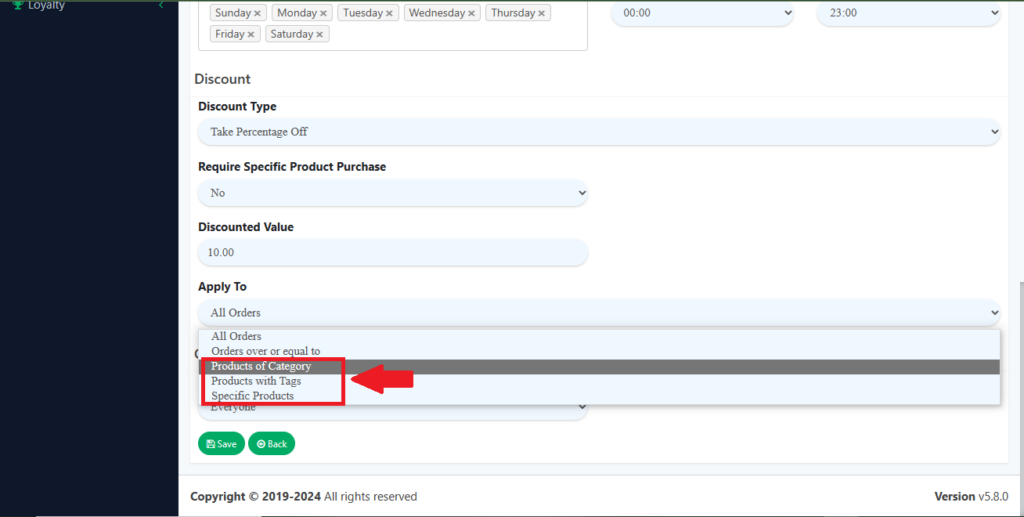
4. Then, you can choose to Apply To “Product of Category“, “Products with Tags“, or “Specific Products” which means apply for a product discount and click “Save“.
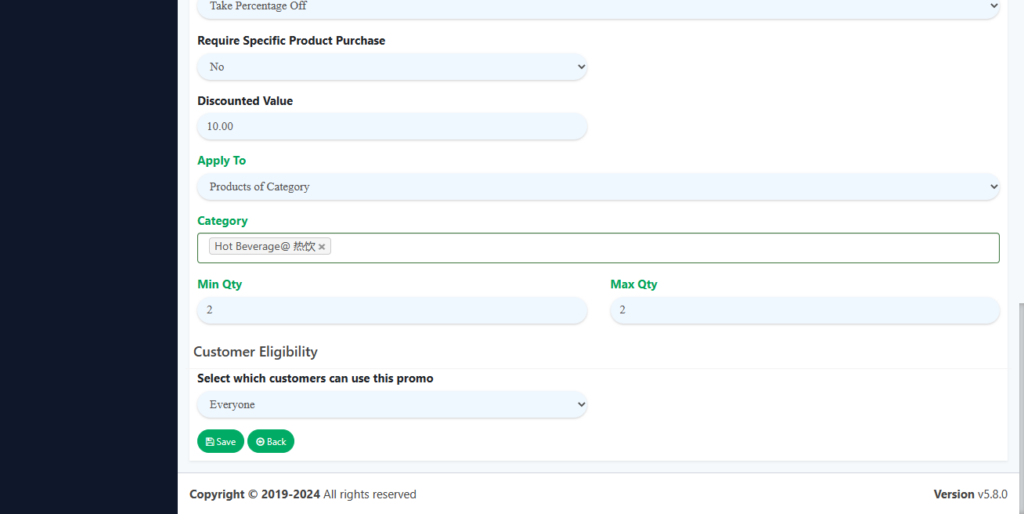
5. After done setup in web admin, go to BIGPOS App and remember to press “Sync“.
6. I had set product discounts applied to products of categories. The category that I choose is Hot Beverage. The maximum and minimum quantity is 2. So, I will add 2 hot beverage products to the cart, and the product discount will be auto-applied.