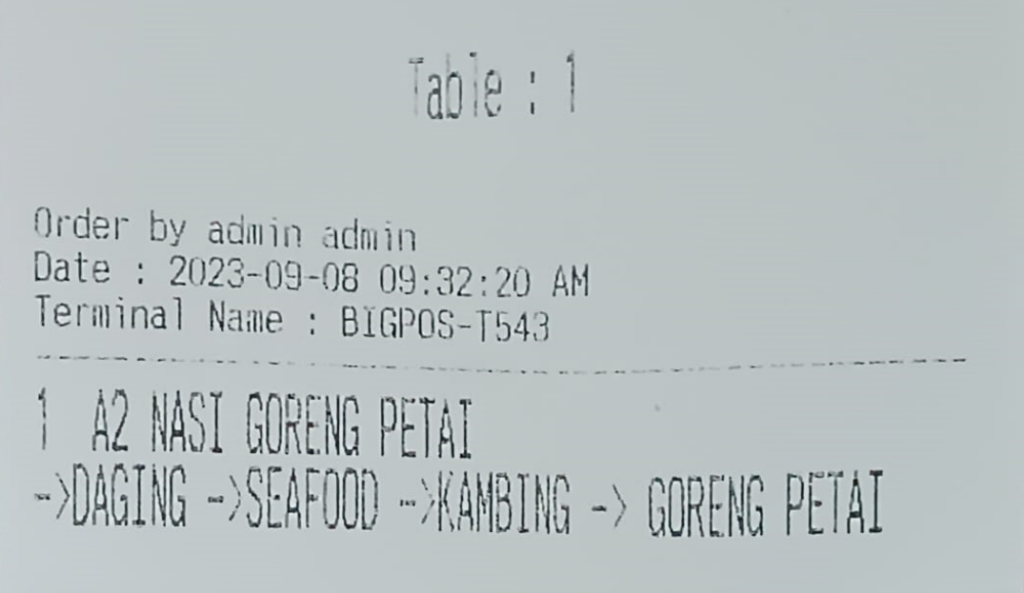
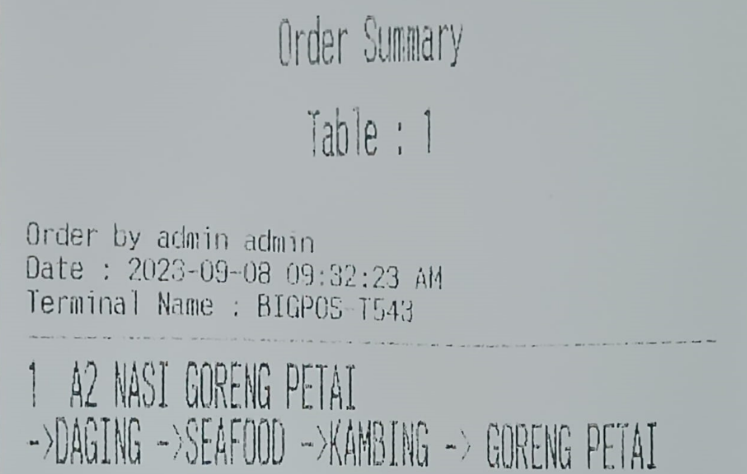
How print variant by row in order sheet/ order summary
Introduction
This post will guide you on how to print variants in rows within the order sheet/ order summary. This customization can be done based on your preference for printing the order sheet or order summary.
How to arrange variants in rows within the order sheet/ order summary?
- Open the BIGPOS Pro/Lite.
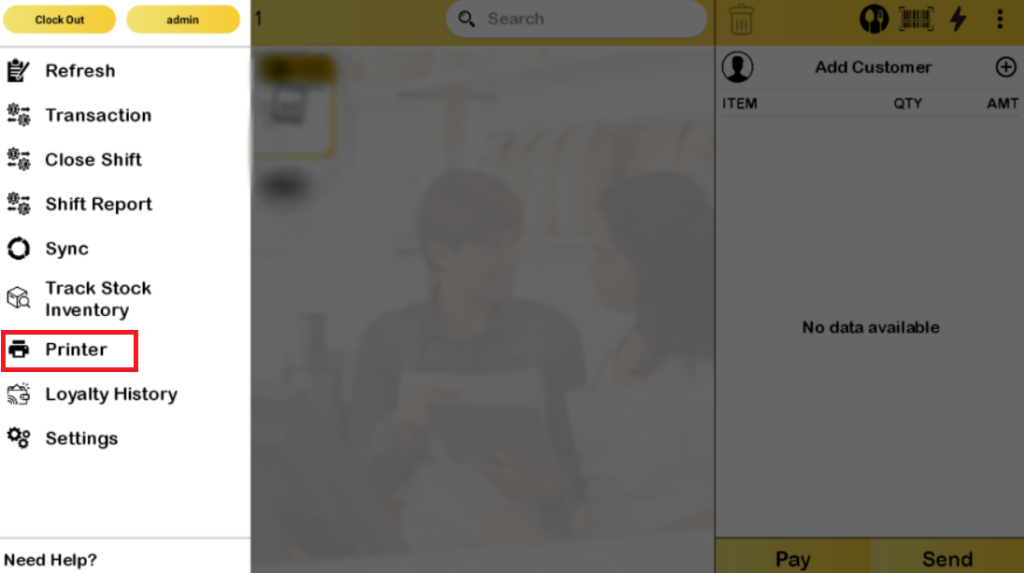
- Go to “Printer“.
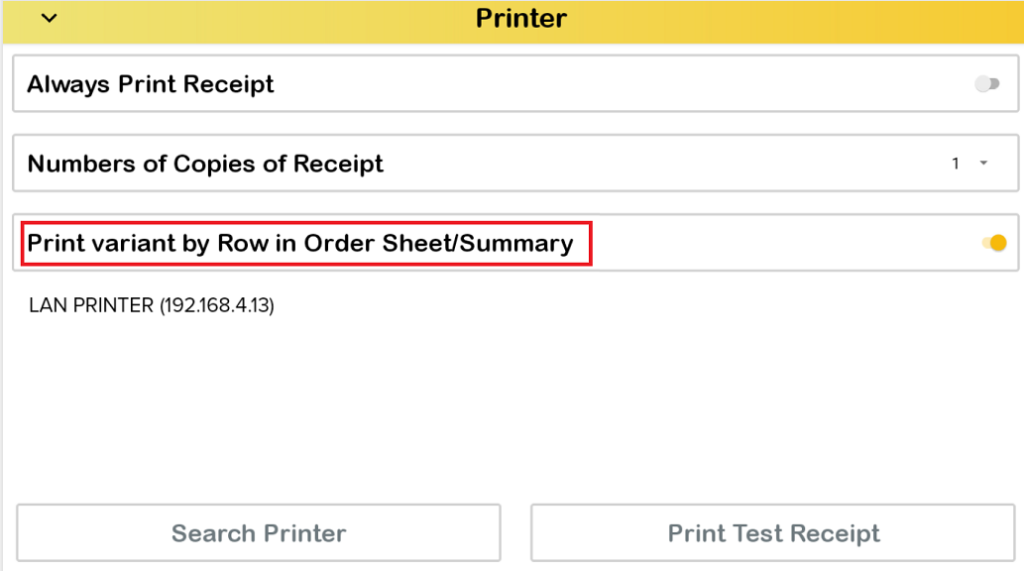
3. The first step is to make sure set your printer and then, activate the “Print variant by Row in Order Sheet/Summary“.
4. Next, press “Send” with variants order.
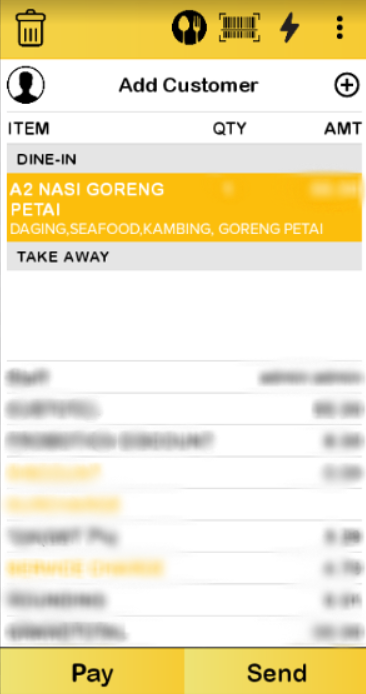
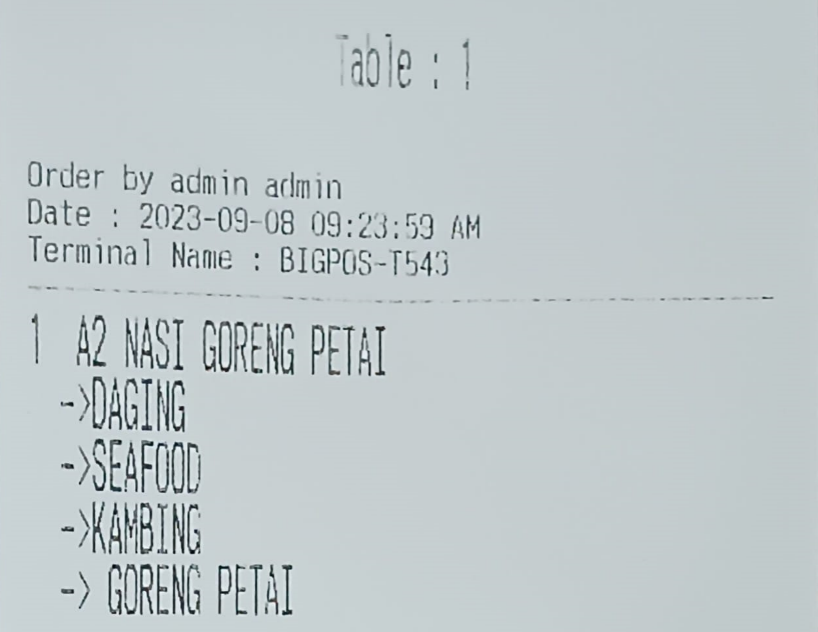
5. This receipt represents an order sheet that will be printed in rows, as illustrated in the image below.
6. A separate receipt is an order summary that will be printed as depicted in the accompanying picture.
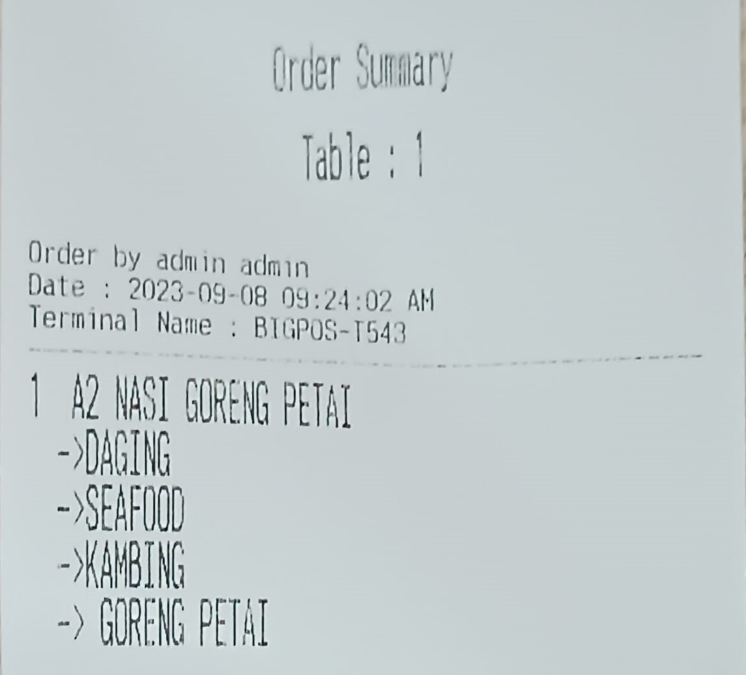
Note: Changes apply to updating/deleting order variants for printing in row format.
7. In case the “Print Variants in Rows in Order Sheet/Summary” option is switched off, as indicated in step 3, the order sheet and order summary will be displayed as shown below.