How do you Add, update, or delete items in the cart for BIGPOS App?
Introduction
Add/update/delete items in the cart are the basic function to use in the POS system. Add items in the cart which are adding items you want to purchase into the cart. Update items in the cart which are change items that you want to purchase in the cart. Delete items in the cart which is deleting orders that customers order that they not needed. This post will show you how to use Add/update/delete items in the cart in BIGPOS App.
How do Add items to a cart?
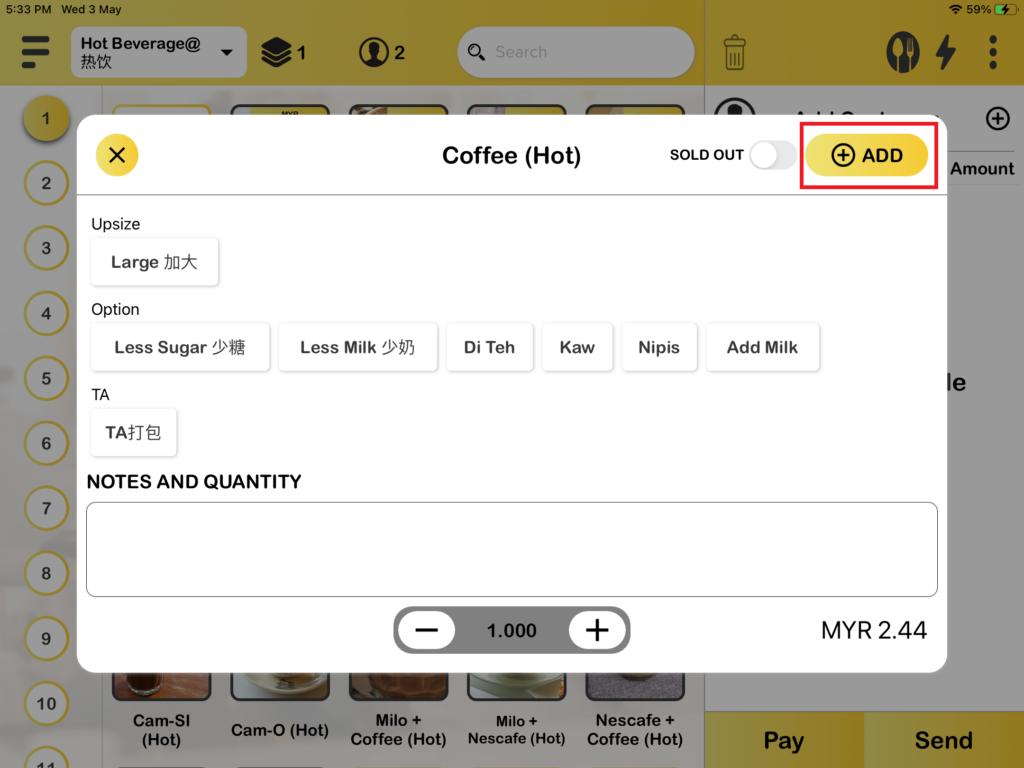
When you are on the order page, you can select an item and you will see there is a “+Add” button, press it and you can add your orders to the cart.
How do Update items in the cart?
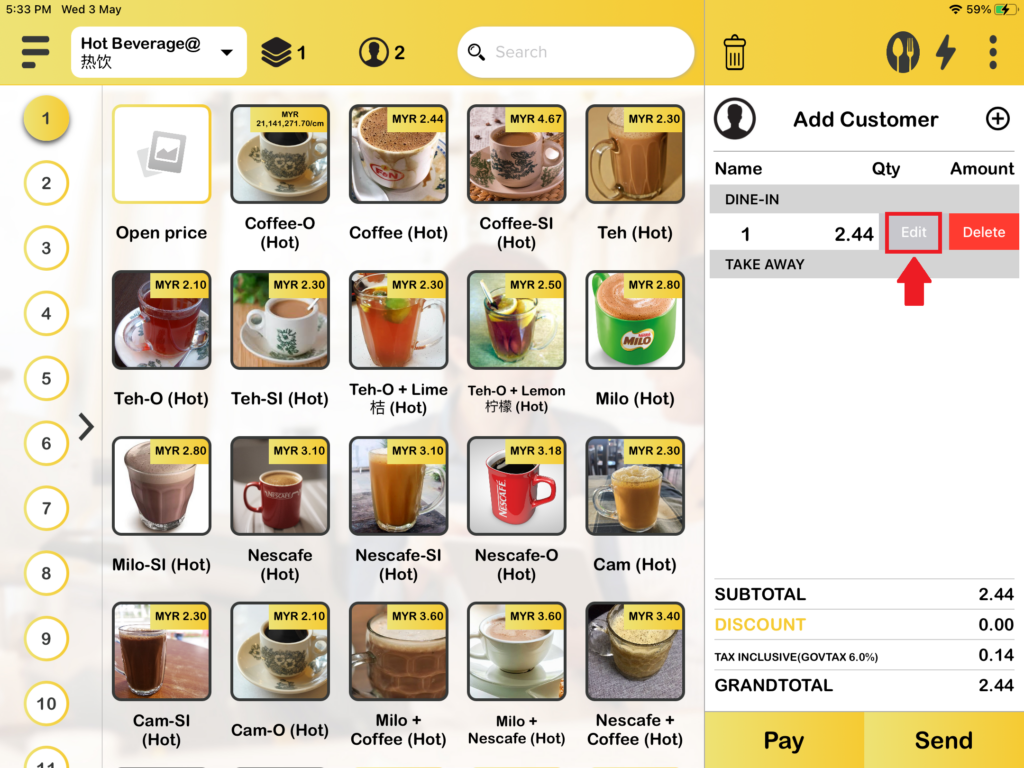
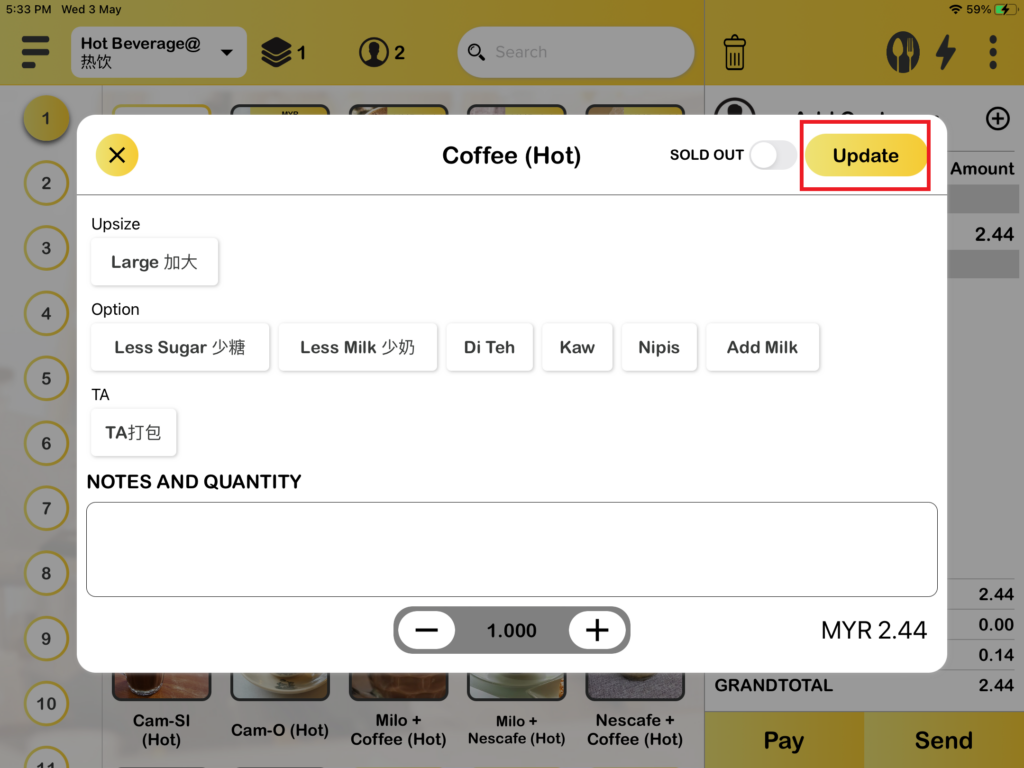
You need to go to your cart, then select the item that you want to update by swiping to the left and you will see an “Edit button.” Press it and you will be able to edit your item.
How do Delete items in the cart?
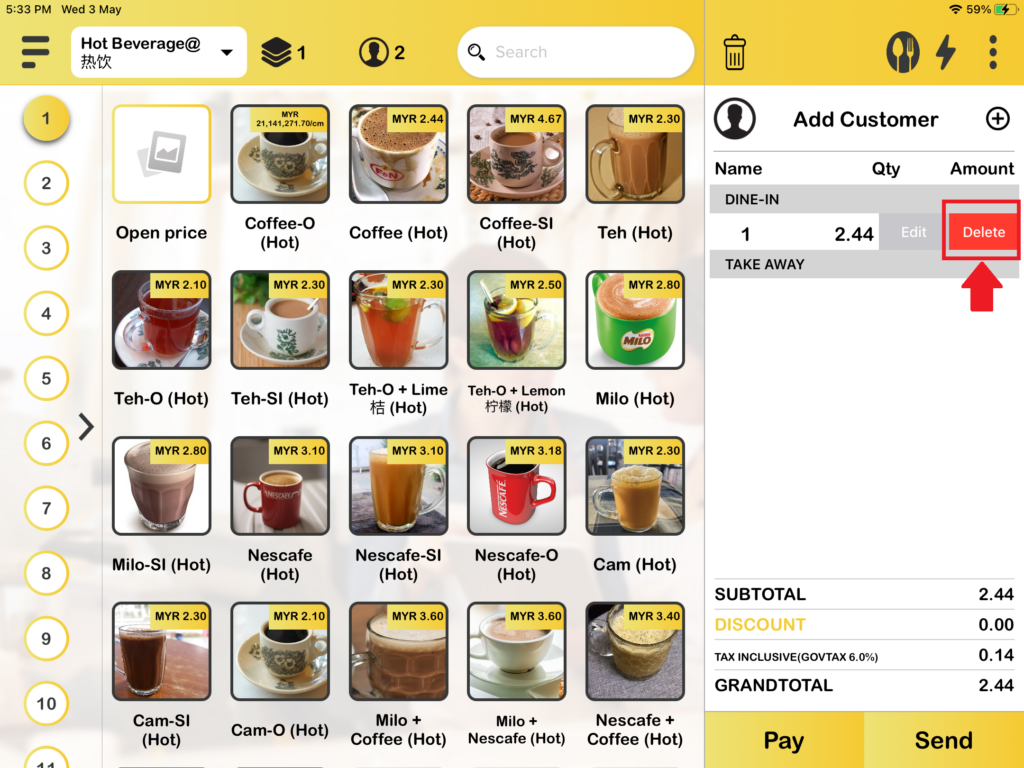
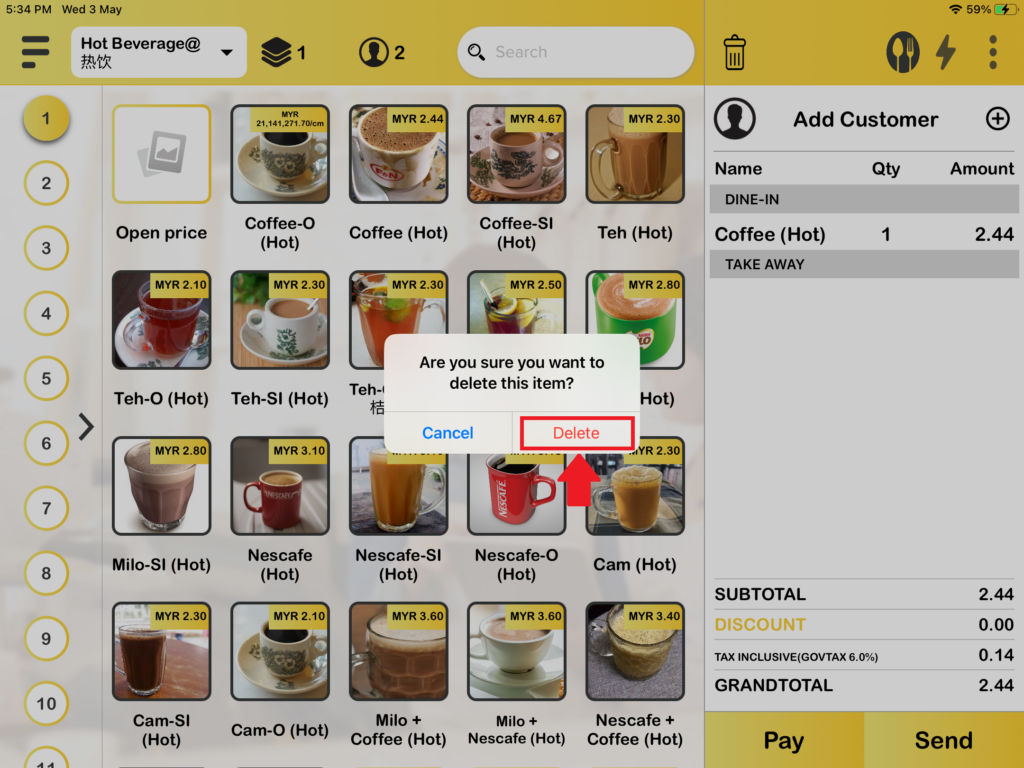
There are two ways to delete items in the cart. The first way, you need to go to your cart, then select the item that you want to delete by swiping to the left and you will see a “Delete button.” Press it and you will be able to delete your item.
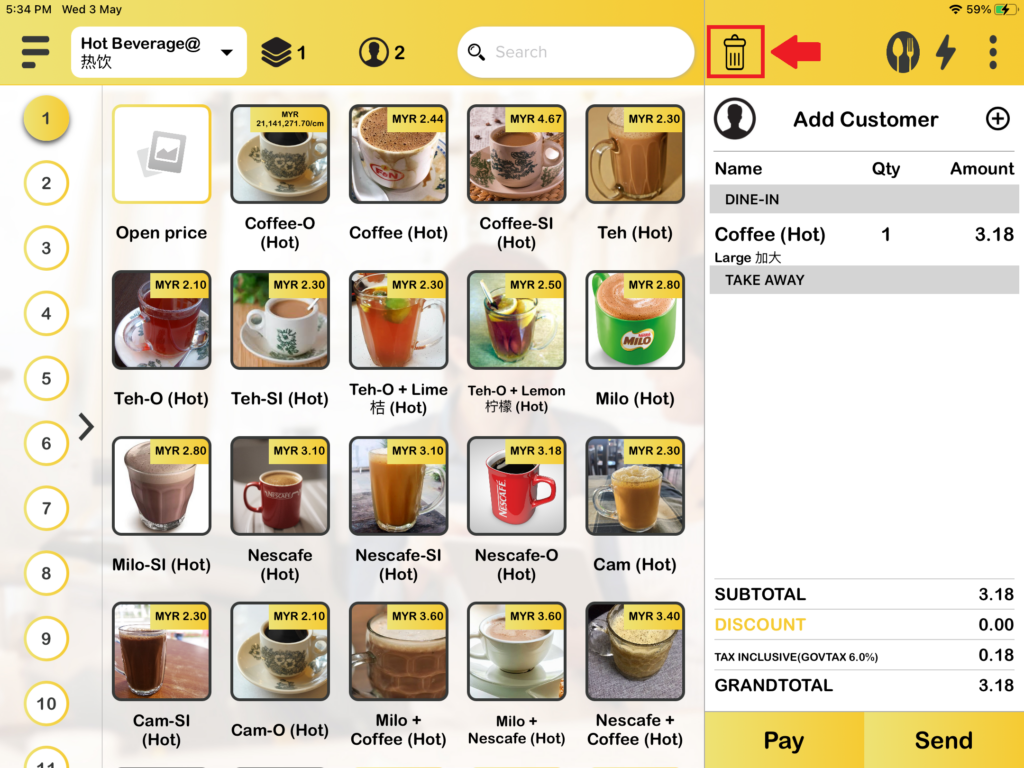
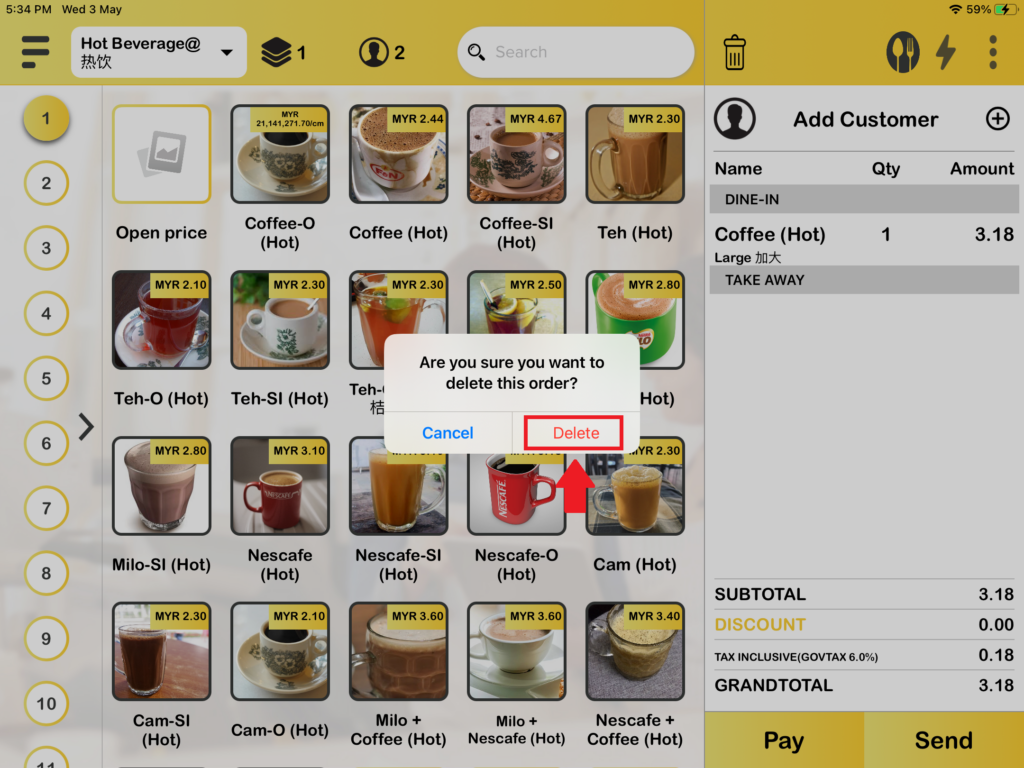
The second way is you will see a trash icon on the top of the right-hand side, press it and all your orders will be deleted.