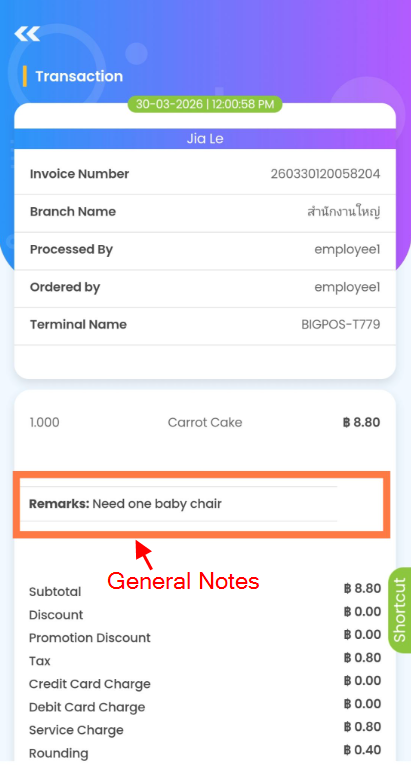
General Notes Function For Full Order
Introduction
The General Notes function allows users to add free-form remarks for the entire order, separate from item or modifier comments. This function helps capture special requests, reminders, or instructions that apply to the full order, and the note can be printed together with kitchen print or printed separately when needed.
Feature Overview & Availability
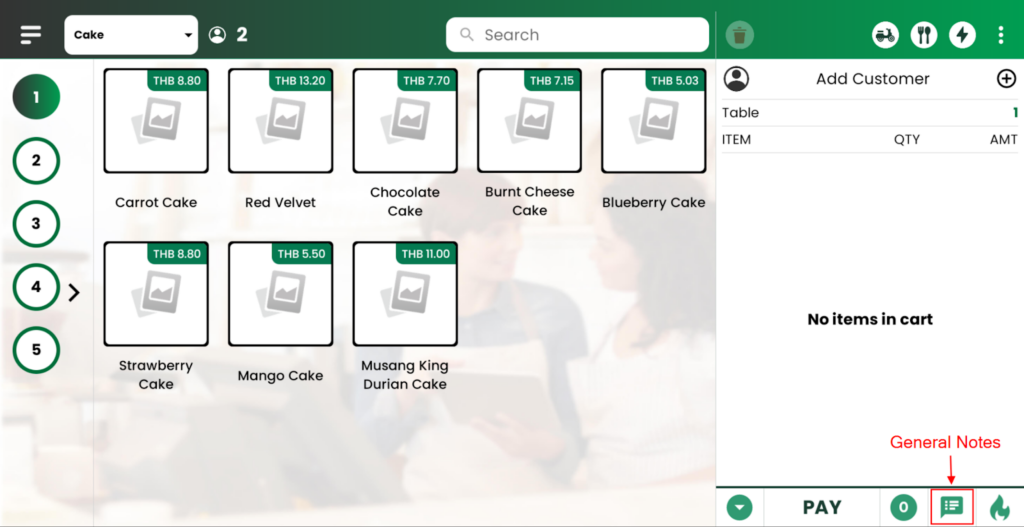
General Notes is available in all Business Mode and can be accessed directly from the Cart screen. A new Note icon is displayed in the cart to indicate where users can add order-level remarks.
Remark: The Note button will remain disabled when the cart is empty and becomes active once items are added, ensuring notes are only created for active orders.
How General Notes Works
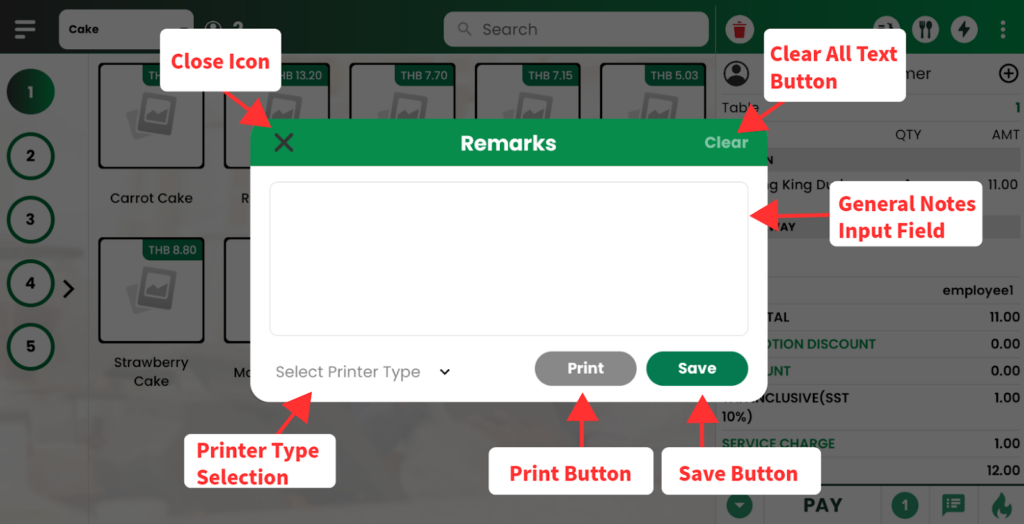
When the Note button is tapped, a Note pop-up window will appear, allowing you to enter, edit, or delete the order note. You can choose the printer type to print the notes together with kitchen print or separately, tap Save to save the entered notes and apply printer type.
Click the close icon will auto-save the note, ensuring any changes are not lost. The saved note can also be viewed later in Customer Order History and the Transaction page.
Printer Type & Printing Behaviour
Printer Type
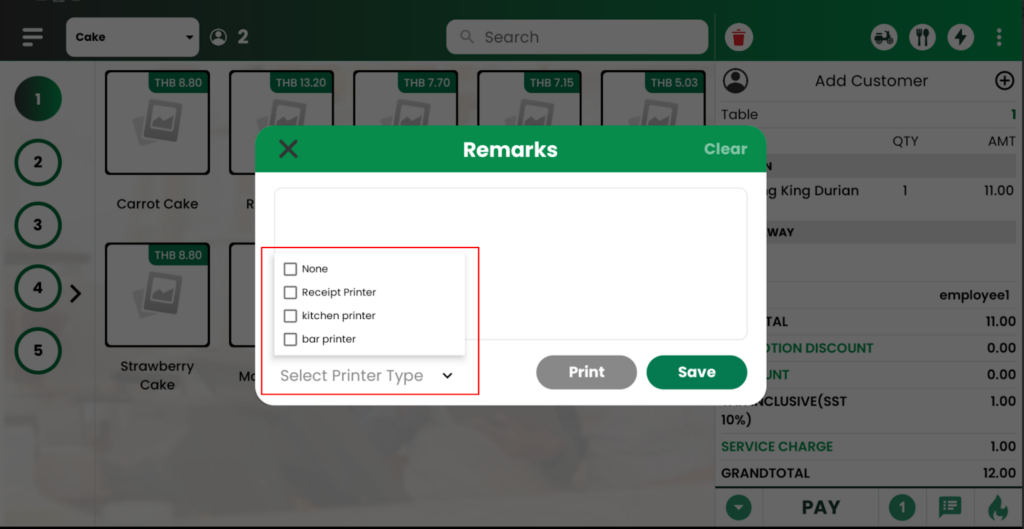
You can select one or multiple printer types for the note using a multi-select checkbox. The available printer options are synced from Web Admin, Selecting None means the note will be saved but not printed.
Remark: The Print button will remain disabled until a printer type is selected and a prompt will remind you: “Please select printer type”, ensuring notes are only printed when a valid printer is chosen.
Save, Update & Delete Behaviour
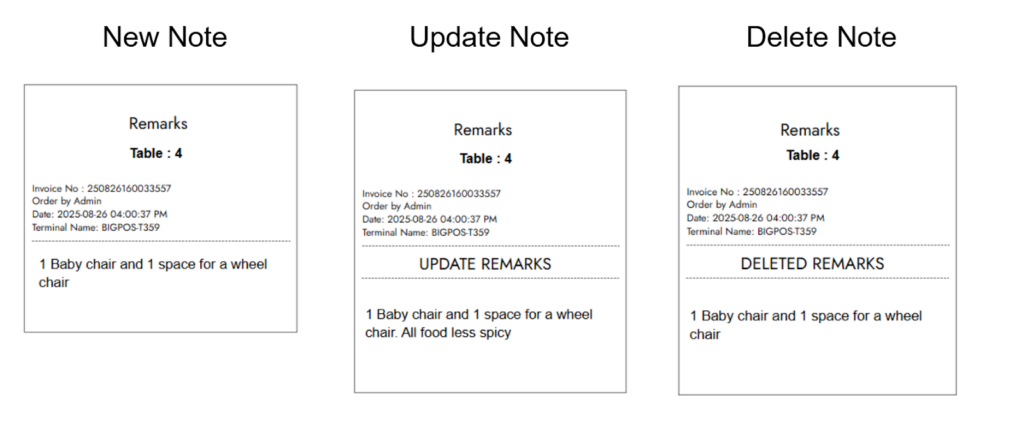
This is an example of the print new note, update note and delete note.
Save Note Behavior:
- If the order has not been sent to the kitchen, clicking Save will only save the note commentary.
- The note is stored in the order.
- No printing will be triggered.
- An alert icon will be indicated on the Note button, to notify that note has been added.
- If the order has been sent to the kitchen, the note will be printed on the same order sheet, based on the selected printer(s).
- The commentary note becomes part of the order.
- The note will be printed together with the order sheet / receipt / order summary.
- Printing will follow the selected printer type.
Update Note Behavior:
When a note is edited after the order has been sent, the system will reset the print flag and allow the updated note to be printed as the new version.
Delete Note Behavior:
When a note is deleted after the order has been sent, the system will print a separate note slip to notify the kitchen.
Remark: Separate Notes only for updated note remark and deleted note remark.
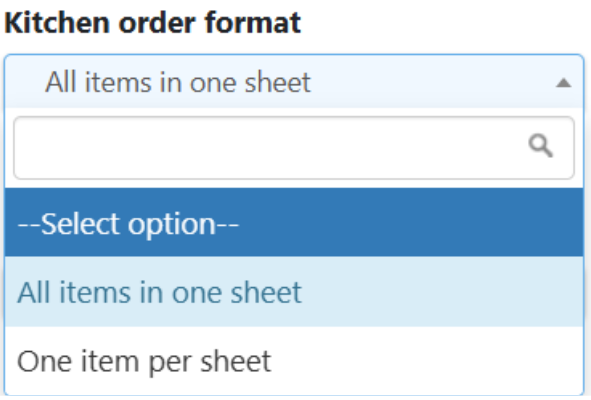
It is recommended to print notes using the order summary printer. When you change the kitchen order format type in the web admin, the notes will automatically follow the updated settings. For orders printed all items in one sheet, all notes will appear together with the order sheet, receipt, or order summary. For orders printed one item per sheet, the notes will print on every individual sheet.
Exceptional case when:
- Tag printer for Printer and Note is different, the note still will be printed but on a separate sheet.
Printing Behaviors & Alerts
1. Print without note commentary: If you click Print without entering a note, a prompt will appear: “Please enter a remark before printing.”
2. Re-printing: Notes will not print again unless the notes is updated, because the print flag is not queued again.
3. Saving a note: When you add a note and click Save, an alert icon will appear on the Note button to indicate a note has been added.
4. Editing notes: Updating a note will reset the print flag, allowing the updated note to be printed.
5. Character limit: Notes can contain up to 250 characters. Exceeding this limit will trigger a prompt: “Maximum character limit of 250 reached”.
Reservation Integration
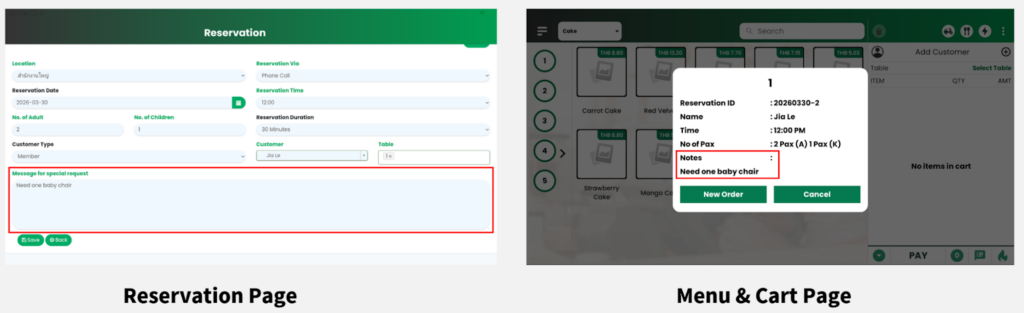
It allows you to handle reserved customer special requests efficiently. Any message entered as a special request will automatically be added to the General Notes section as a commentary note, ensuring all important details are captured with the order.
General Notes Display in Web Admin, Apps and QR Menu
Web Admin
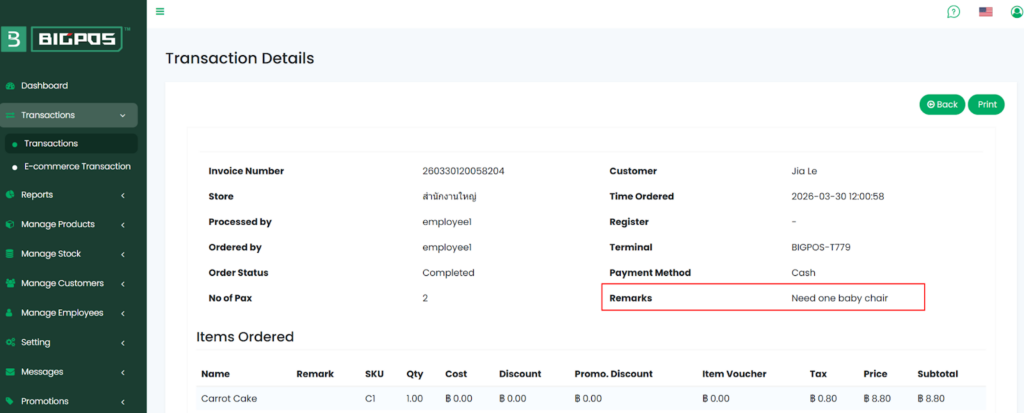
In the Web Admin, general note commentary is stored under the Transaction Details Page.
Big Waiter (Android and iOS)
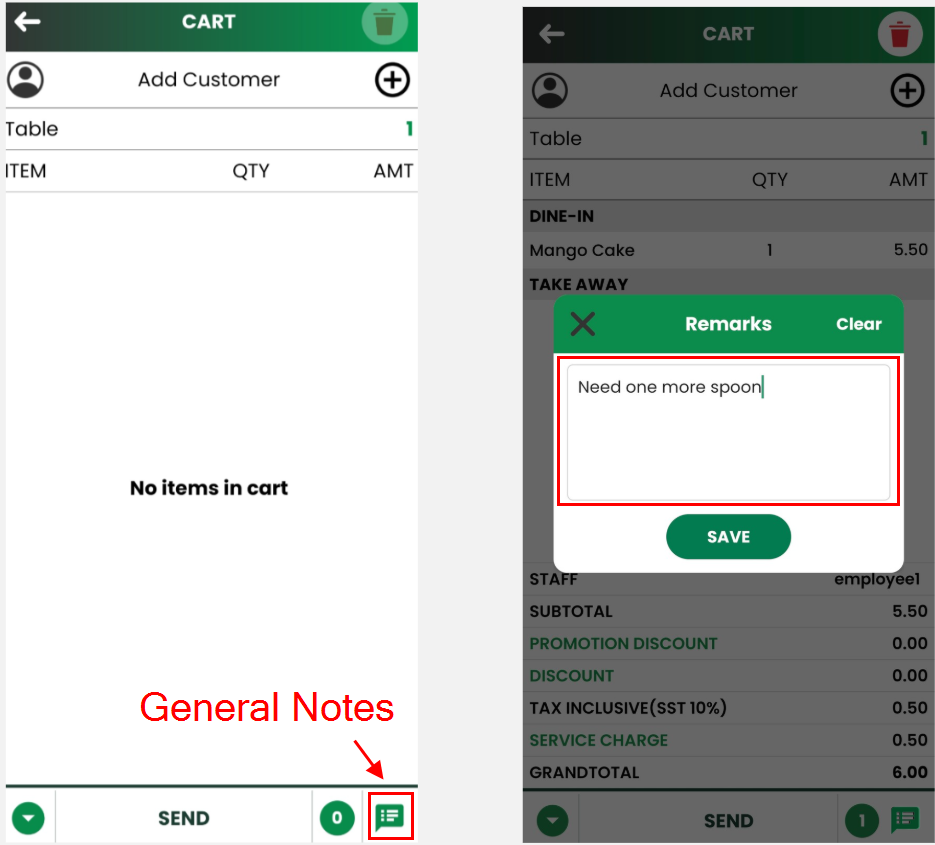
- The UI follows the Pro App version with the Note button in the Cart Section.
- Printing follows the Pro App printing settings, and no Print button in the note pop-up.
- Clicking Save triggers printing, while Close automatically saves the commentary.
- Notes can be updated, deleted and viewed inCustomer Order History.
QR Menu & Online Ordering
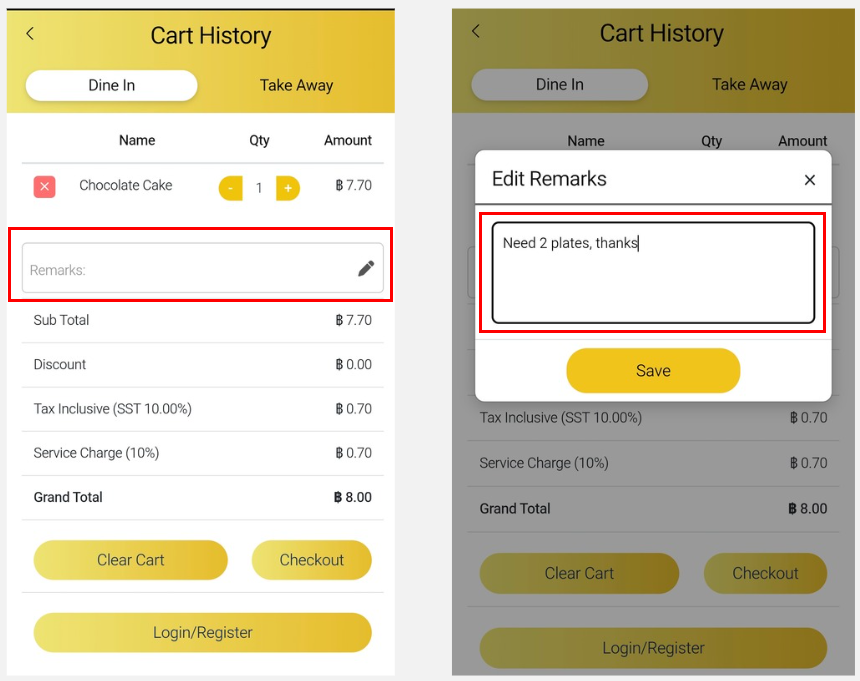
- Applicable for DINE-IN, TAKE-AWAY, DELIVERY, SELF PICKUP once QR Menu is enabled.
- Users can add and edit commentary before clicking Payment.
- Once the order is sent to the kitchen, notes cannot be edited unless a new item is added. Users can view order history with note commentary after order is sent.
- Pay at Counter allows using the Close (back) button to add new orders and edit notes. However, Online Payment does not allow adding new items or editing notes after payment; note commentary appears on online receipt.
- Once order is accepted, printing is triggered automatically based on printer type selection.
Remark: For DELIVERY & PICK-UP orders, once payment is completed, users will be directed to the Successful Order page and will not be able to return to the previous page, Clicking Close will bring users to the Thank you page.
B Reward