How Can We Help?
E-commerce Transactions – Main Page
How to view e-commerce transactions?
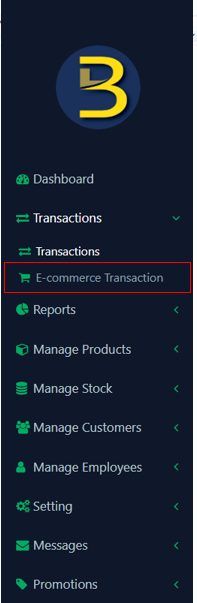
- Click on ‘E-commerce Transaction’ under ‘Transaction’ category on dashboard page.
E-commerce transactions Details
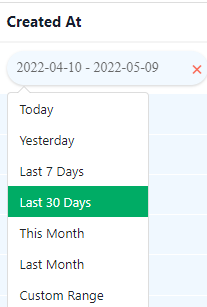
- Created At
You may choose transaction date to filter transactions.
- Branch
You can select to view which branch’s transactions.
- Customer
You can select customer that you want to view the transactions he/she made.
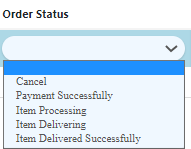
- Order status
- Sub total
You may enter transactions sub total amount to filter relevant transactions.
- Discount
You may enter transactions discounted amount to view for relevant transactions.
- Tax
You may enter tax amount charged to view relevant transactions.
- Grand total
You may enter grand total amount charged to view relevant transactions.
Note:
- If you want to view transactions in one page, click the below icon.

- If you want to view transactions page by page, click the below icon.

How to export transactions data
The transactions data can be exported into CSV format(Comma-separated values),please click the below icon to proceed.
