How Can We Help?
Dashboard
Introduction
Welcome to Bigpos support.
Dashboard is the main page of the BIG POS Web Admin. It gives you an overview of Total Customers, Today’s Transactions, and Today’s Sales. It also displays charts of Total Cumulative Sales (current month vs previous month) and Today’s Sales per Branch chart.
How to enter Dashboard Main Page?
To enter Dashboard main page, follow the following steps:
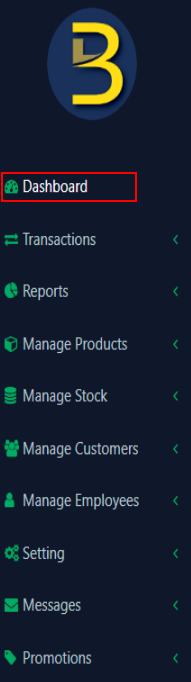
- Click ‘Dashboard’ on the left side panel menu. You will enter the main page.
How to change language?
- Click on the ‘Flag’ icon on the top right corner as shown in the image below.
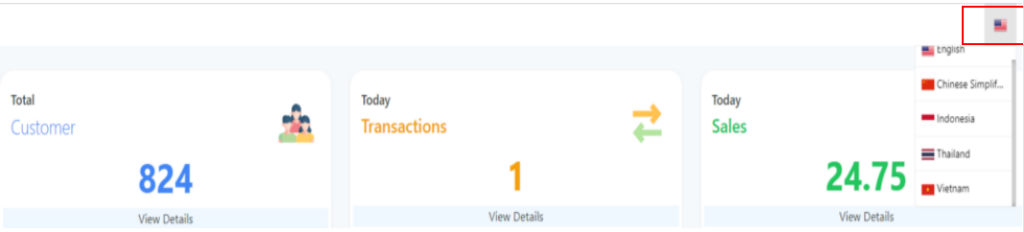
For more information, you may refer to the Change Language Section.
How to view Profile?
- Click on the human icon on the top right corner of the page, then click on Profile.
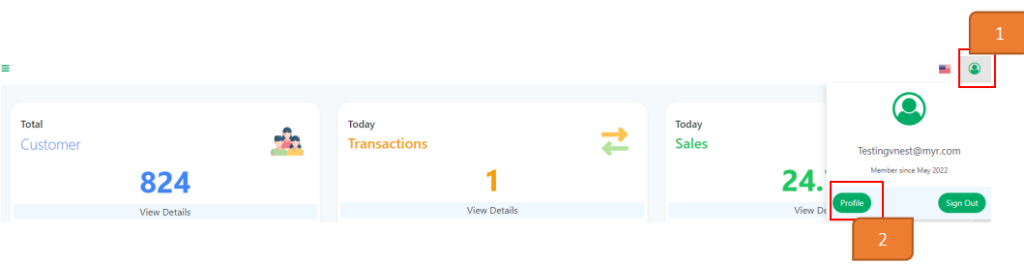
For more information, you may refer to the Edit Profile Section.
How to Sign Out?
- Click on the human icon on the top right corner of the page, then click on Sign out.
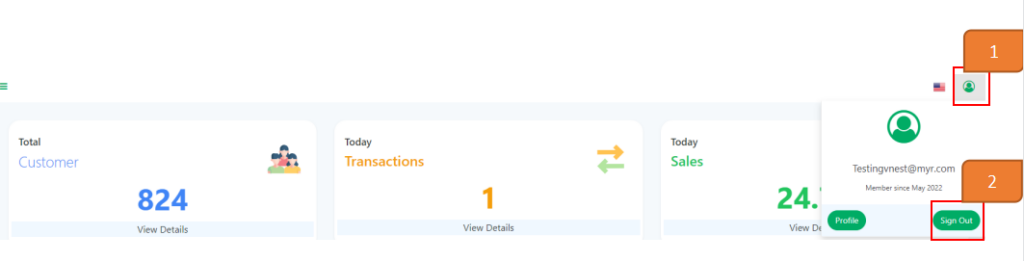
Section to view total customer, today’s transactions and today’s sales.
- When you click on ‘View details’ under Total Customer section, the page will lead you to Manage Customers > Customer page
- When you click on ‘View details’ under Today Transactions section, the page will lead you to Transaction > Transaction page
- When you click on ‘View details’ under Today Sales section, the page will lead you to Report > Sales > Today’s Sales Report page.

Total Cumulative Sales(Current month VS Previous month) Chart
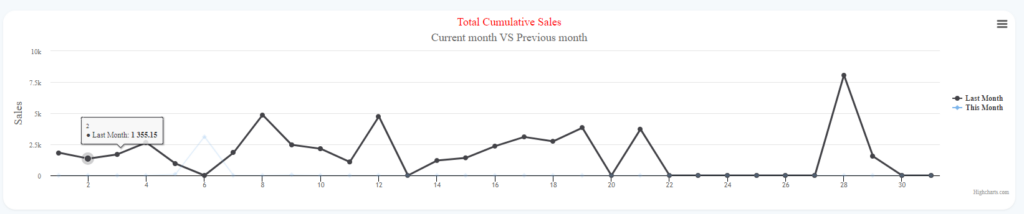
Today Sales Per Branch Chart

How to download chart?
- Click on the icon below on the chart and choose which format you want to download. you can also print or view it in full screen.

You can also ‘Print’ or ‘View it in full screen’.


There are few format to choose which are PNG image, JPEG image, PDF document and SVG vector image.