How Can We Help?
Customer Display Banner – Create Customer Display Banner
Introduction
Creating a customer display banner allows merchants to advertise promotion or notice visually on the QR menu and BIG POS dual screen.
How to ‘Create Customer Display Banner’?
To begin adding a customer display banner, follow the following steps:
- First, navigate to the Promotions main page as shown in Promotions Main Page section.
- Within the Promotions main page, click on the green ‘Promotions’ on the right which will redirect into the ‘Create Promotions Page’.
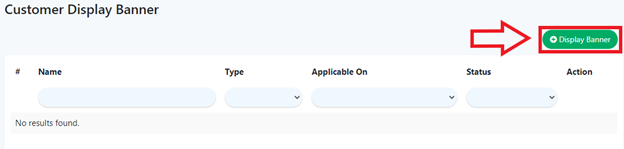
- After filling all the required inputs, the user shall continue by clicking on
 or cancel.
Customer Display Banner Details
- Name
Name to identify the display banner.
- Branch
Specifies which branch(es) will the display banner be effective to.
- Banner Type
Type of banner to be used for display.
- Applicable on
Select which menu or screen will the display banner be available.
- Status
Used for indicating whether the display banner is currently active or inactive.
- Browse Banner Image
Used to upload an image which is used to display the display banner.