How Can We Help?
Customer – Create Customer
Introduction
Creating a customer allows customers’ identity to be saved and uniquely identified in a transaction for membership promotion purposes and audit records.
How to ‘Create Customer’?
A. New Customer via Manual
To begin adding a customer manually, follow the following steps:
- First, navigate to the Customer main page as shown in Customer Main Page section.
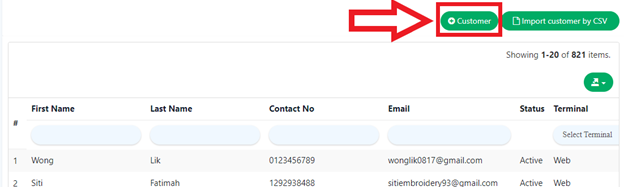
- Within the Customer main page, click on the green ‘Add Customer’ on the right which will redirect into the ‘Create Customer Page’.
- After filling all the required inputs, the user shall continue by clicking on
 or cancel.
B. New Customer via Importing CSV
To add customer by importing a CSV file, follow the following steps:
- First, navigate to the Customer main page as shown in Customer Main Page section.
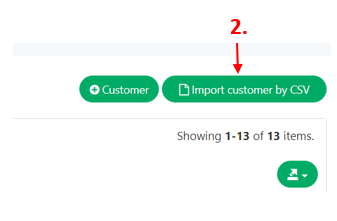
- After step 1, click on the import icon
 beside the add customer icon which will prompt the user to upload a file.
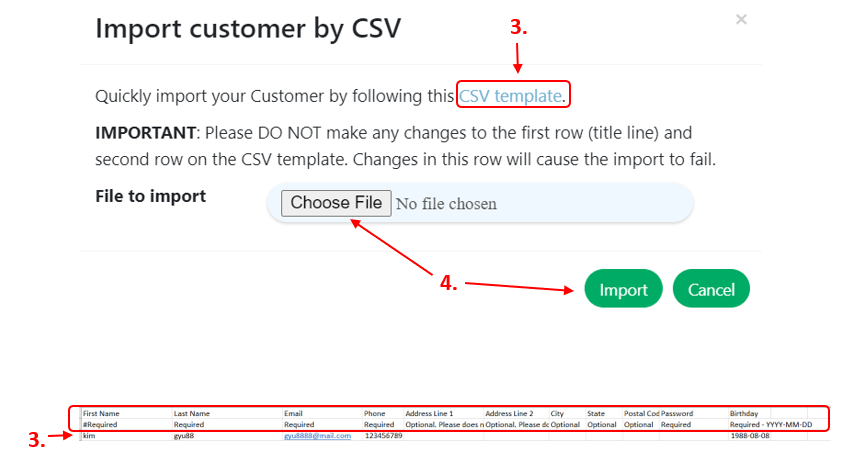
 - To get a CSV template, click the ‘CSV template’ button. Below the appropriate template column, enter the new customer’s details. Following the addition of a new customer, save this template with any filename.
- Click on the ‘Choose File’
 and navigate to the file to be uploaded, after that click on import
  . Overall process is shown below.
C. Editing Existing Customer
To begin editing an existing customer, follow the following steps:
- Similarly, First, navigate to the Customer main page as shown in Customer Main Page section.
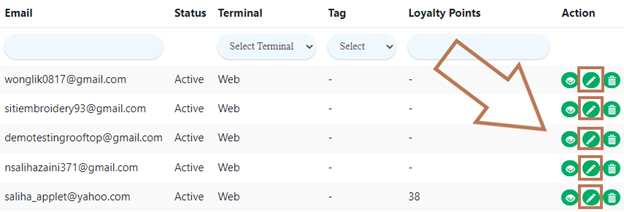
- After step 1,scroll to the right in the list of customers until the action column name, click on the pencil icon
 in the column where the customer will be modified which will redirect the user to the ‘Update Customer Page’.
- After filling all the required information, users can proceed to save or cancel the modified customer’s data.