Composite Inventory (Single Choice)
Introduction
Composite inventory is a way of grouping different items together to make a new item that combines each of them. Using composite inventory, customer able to trace inventory based on single or multiple selected variant. By using composite inventory, the user can track the quantities of items and restock them quickly.
Setting in web admin
a) Create composite items
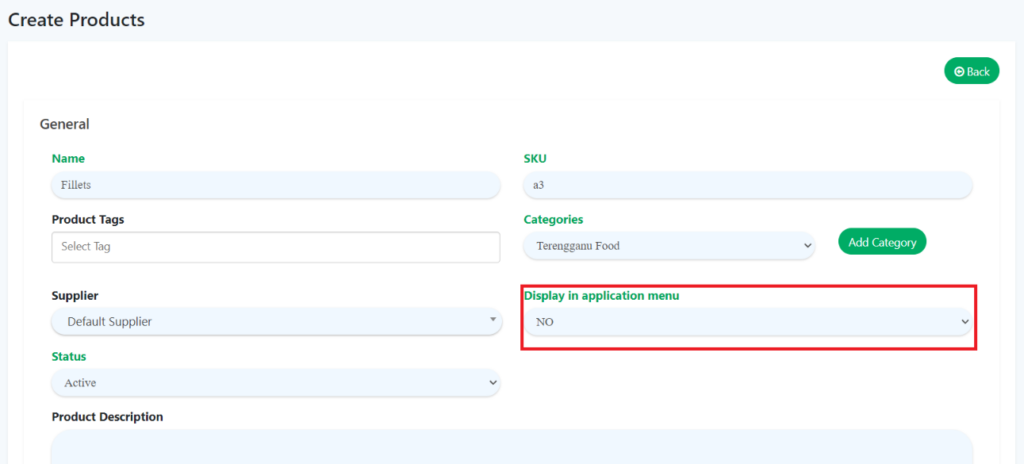
- To create composite products, go to “Manage Products” and click on “Products”. Select “No” for ‘Display in application menu’.
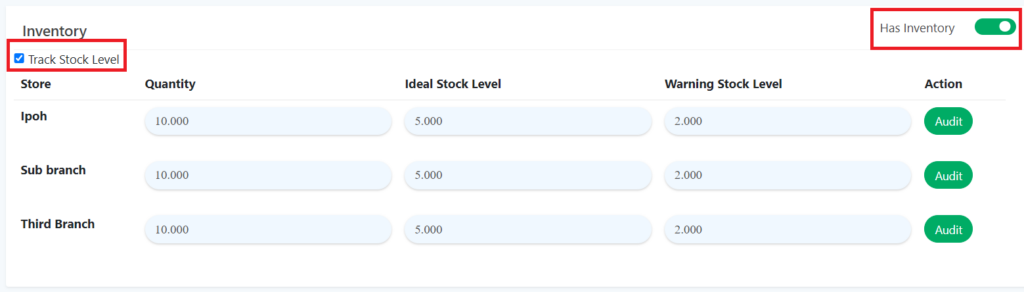
2. For inventory section, make sure to tick ‘Track Stock Level’ and toggle on ‘Has Inventory’. Ensure to input quantity of the product.
3. After ‘Save’, the composite items will be displayed on the products list.

b) Create product that combine with composite items
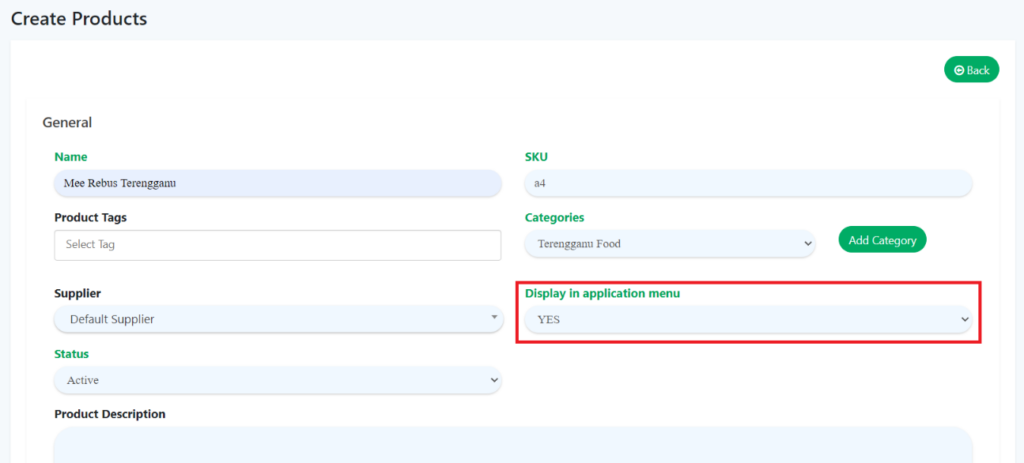
- To create products, go to “Manage Products” and click on “Products”. Select “Yes” for ‘Display in application menu’.
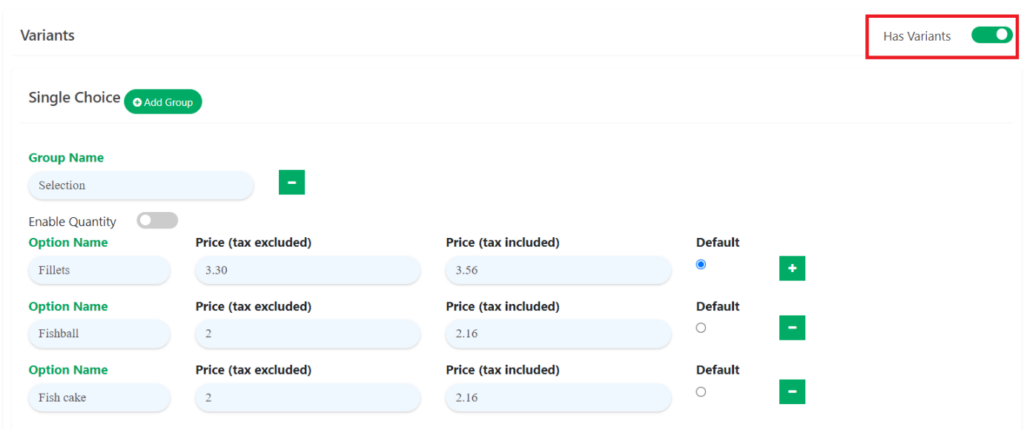
2. For the variants section, toggle on ‘Has Variants’ and add a group for ‘Single Choice’. Fill in option name with the name of the composite item that you previously created. After that, click the ‘Save’ button.
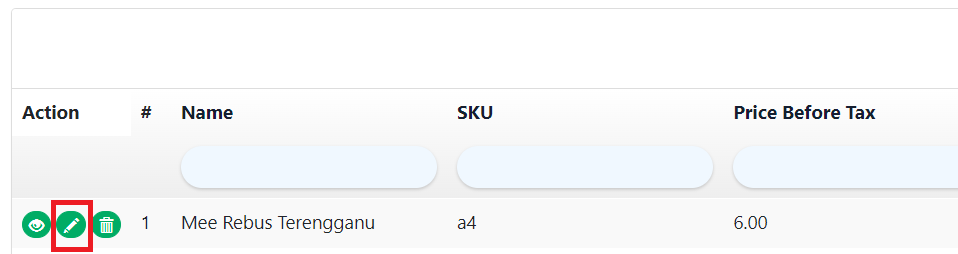
3. Then, click the update button on the product.
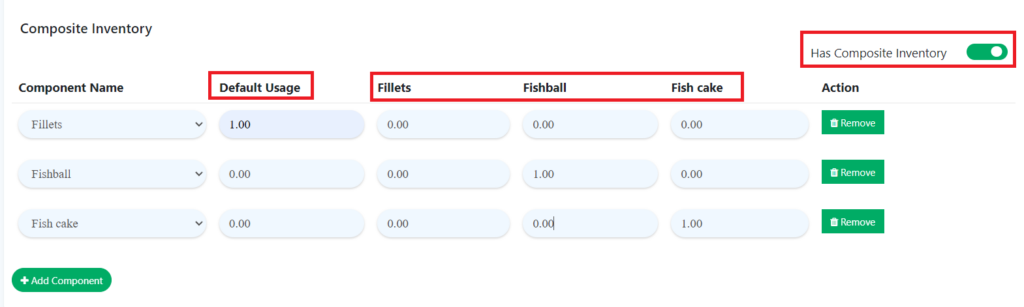
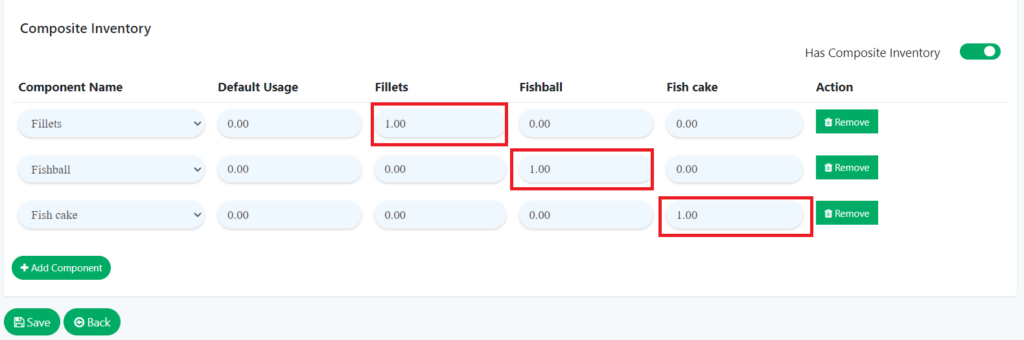
4. For composite inventory, toggle on ‘Has Composite Inventory’. Then, input the quantity of the component.
The situation below shows the example of the composite inventory for fillets, fishball, and fish cake.
Note:
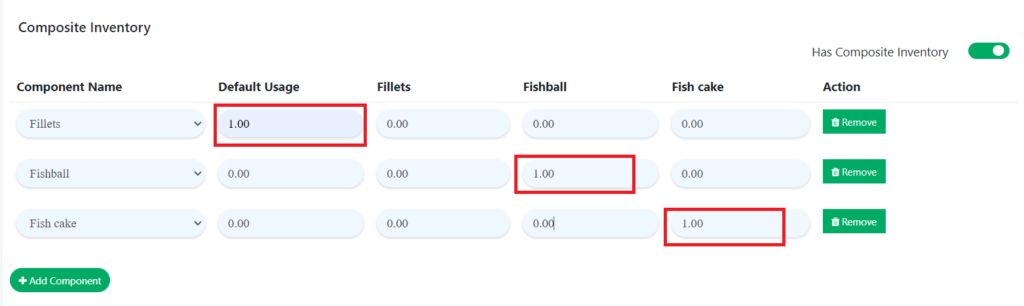
- For Default Usage, it will automatically deduct stock even though the customer picks another choice.
- For fillets, fishball and fish cake rows, it will deduct stock when the customer chooses them.
The flow of composite inventory in BIG POS
a) If input quantities in Default Usage for the composite inventory:
- On the web admin, fillets have been set as default usage, while fishball and fish cake are based on specific rows for them.
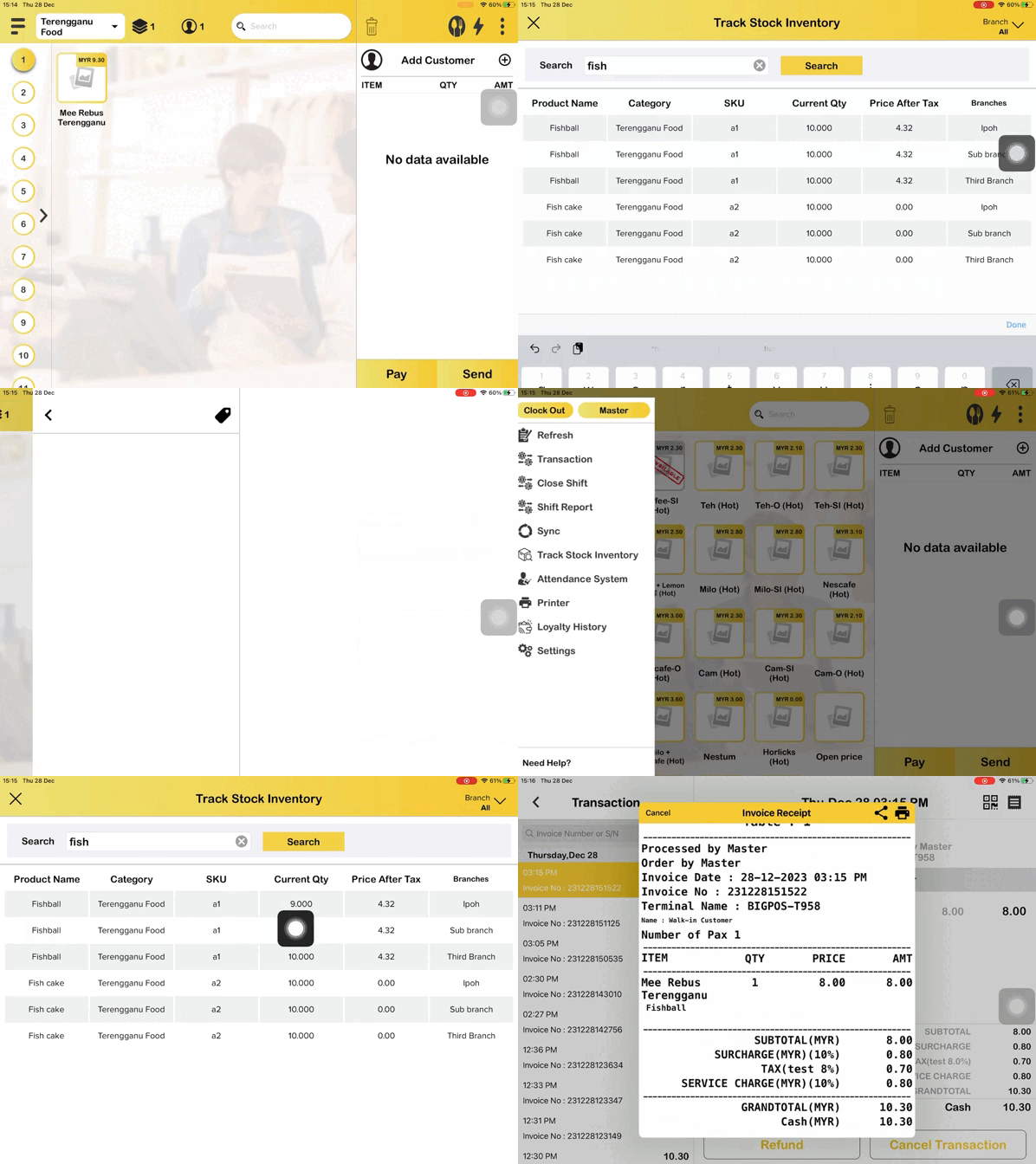
2. Example when the user places an order for Mee Rebus Terengganu, they pick Fishball in the single choice variants.
We set inventory for fillets, fishball and fishcake 10 quantity each.
Before selection:-
Fillets: 10 quantity
Fishballs: 10 quantity
Fishcake: 10 quantity
3. After successfully making a payment, sync the system.
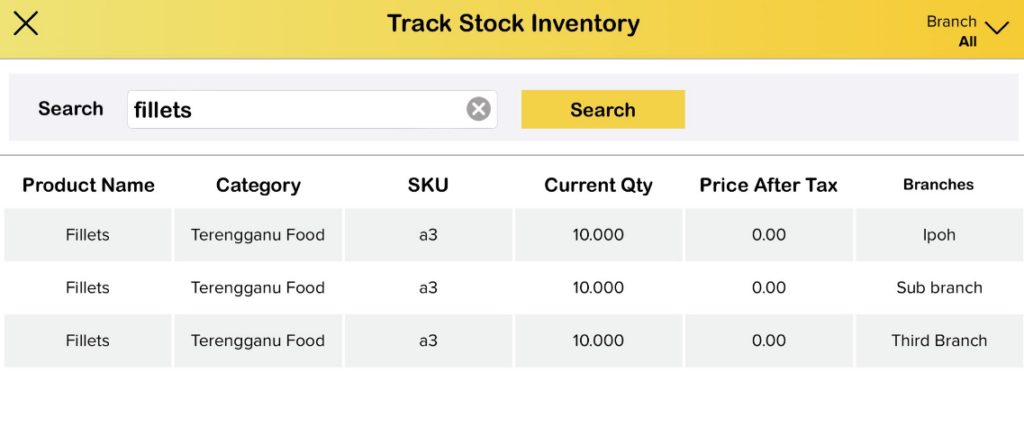
4. Check on “Track Stock Inventory”, and the quantity of fillets and fishball will automatically deduct.
After selection:
Fillets: 9 quantity
Fishballs: 9 quantity
Fishcake: 10 quantity
b) If input the quantity based on a specific item without inputting any Default usage for the composite inventory:
- On the web admin, fillets, fishball and fish cake are based on specific rows for them.
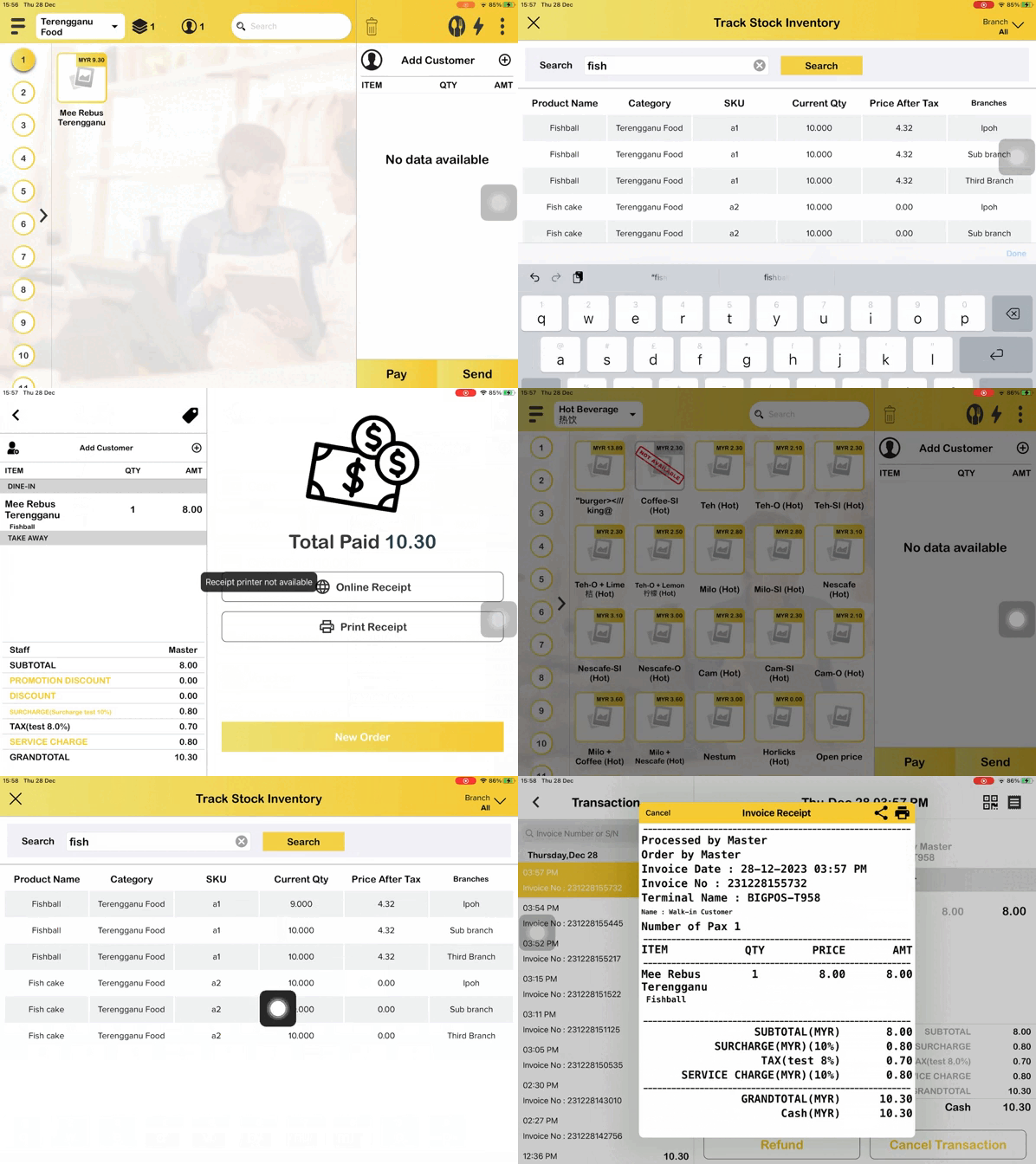
2. When the user places an order for Mee Rebus Terengganu, they pick Fishball in the single choice variants.
Before selection:-
Fillets: 10 quantity
Fishballs: 10 quantity
Fishcake: 10 quantity
3. After successfully making a payment, sync the system.
4. Check on “Track Stock Inventory”, and the quantity of fishball will automatically deduct.
Before selection:-
Fillets: 10 quantity
Fishballs: 9 quantity
Fishcake: 10 quantity
The location to check the quantities of the composite inventory
a) Web admin
i) On the products page
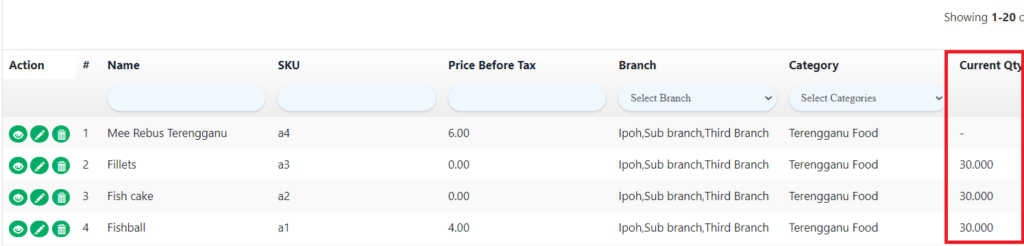
- Go to “Manage Products” and click on “Products“.
- Current Quantities will display the stock levels of the composite inventory.
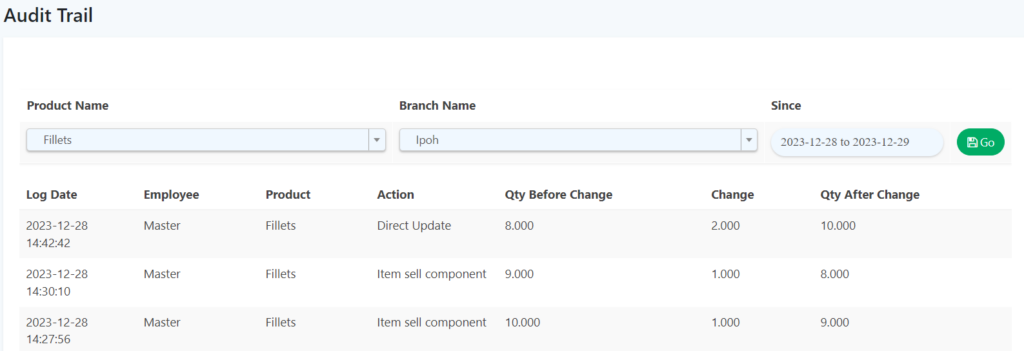
ii) On the Audit Trail page
- Go to “Manage Stock” and click on “Audit Trail”.
- Select the product name, branch name, and date. The current quantities of the composite inventory stocks will be displayed.
b) Big Pos Pro
- Go to “Track Stock Inventory” and search name of products. The current quantities of the composite inventory stocks will be displayed.