Company Profile – Queue Number/Table Number
Introduction
This section explains about the Queue Number and Table Number options which can be found within the Company Profile section.
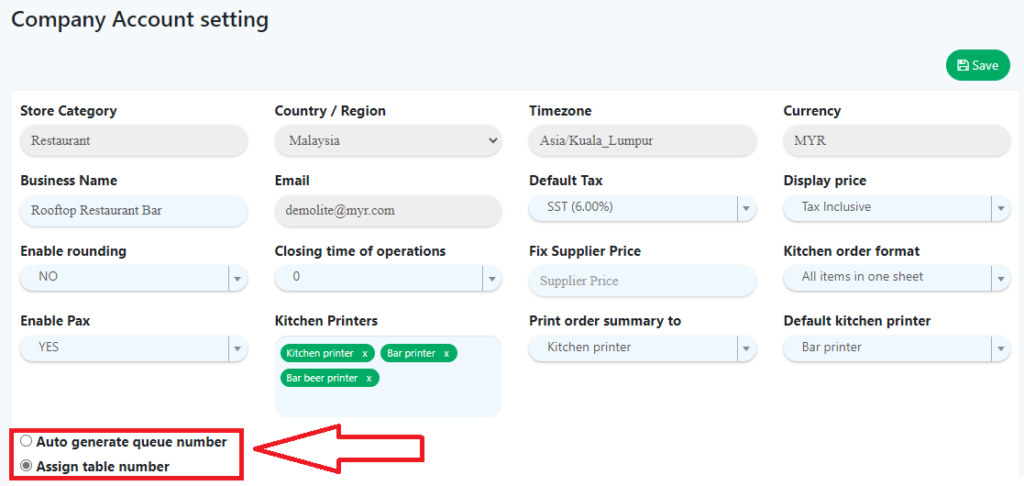
Queue Number/Table Number Details
- Queue Number
When the cashier makes a purchase for a customer, a queue number will be printed on the receipt. The kitchen will receive their orders with the queue printed on the order ticket as well. Number of Pax is not needed in the queue number system.
- Table Number
Every table will be assigned a number and number of Pax. Cashiers need to enter the number of Pax for dine in and take away orders and assign tables to different customers. Number of Pax can be enabled or disabled in back office settings.
Setting up Tables
For table features to be used correctly, the user must set up a list of valid tables to be used in his or her branch prior to enable the ‘Table Number‘ feature. This can be done by following the steps below:
- Head to Settings and Branch, identify the branch to modify the table list
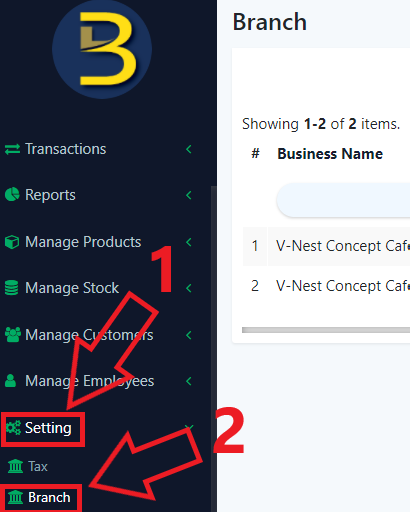
- Click on
 which will redirect the user to ‘Update Branch Page‘.
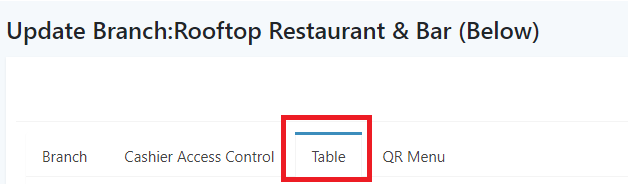
 - Select ‘Table‘ within the options.
Tables Details
- Add Table
Names a new table and specifies the number of seats available for that table.
- Edit
Modifies any existing table name or its seats.
- Table Layout
Allows rearrangement of the created tables.
Final step: After filling all the required information, users can proceed to save or cancel the created tables.