Combined Item in One Row Function
Introduction
Currently, the system creates unnecessary redundancy of an item as a separate row which lengthens the bill/receipt and is challenging to review. Therefore in this new update feature, once the same item is added, the quantity of the item also updates.
Setup Web Admin
- Go to Web Admin and click on “Settings”. Select “Company Profile”.
- In Company Profile setting there is “Auto Combine Quantity” setting. By default the setting is YES so the same item will combine together.
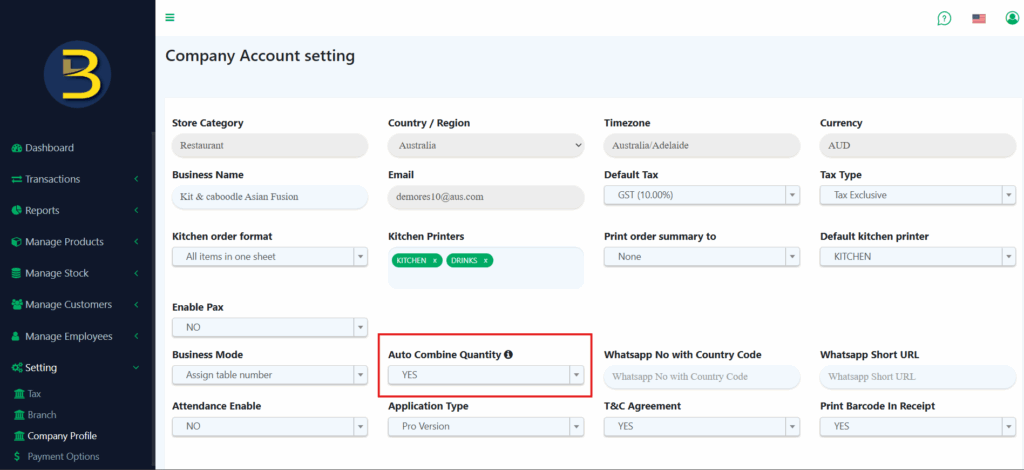
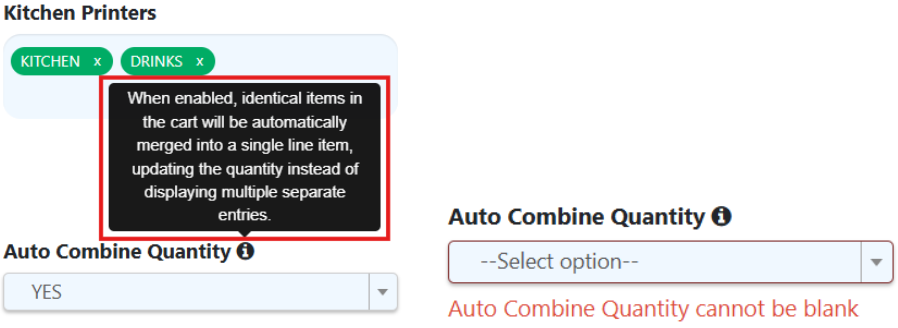
Notes: This “Auto Combine Quantity” setting cannot be blank and mouse over the info icon, the tooltip text will display.
BIGPOS Pro & Lite
Auto Combined Quantity = NO
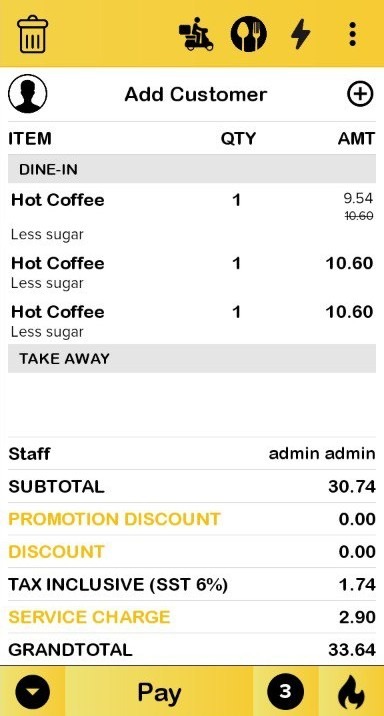
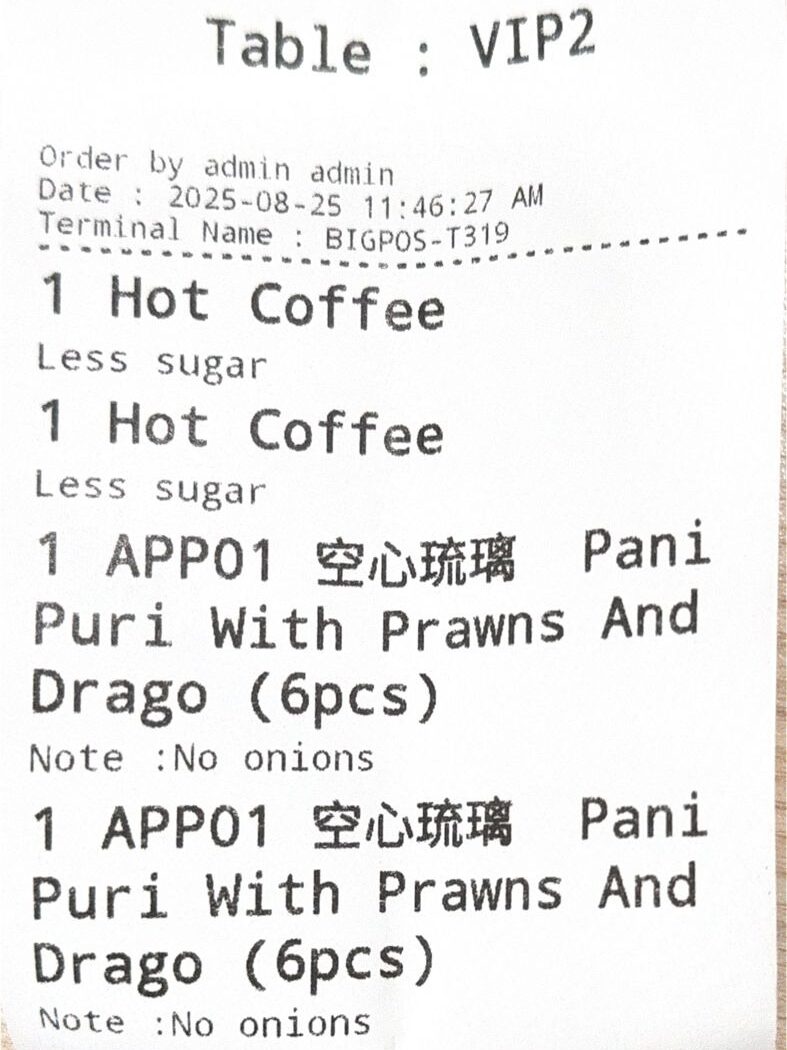
- In Web Admin setting, Auto Combined Quantity = NO then in BIGPOS apps the same item will not combine together and quantity count updates according to the number of products in cart.
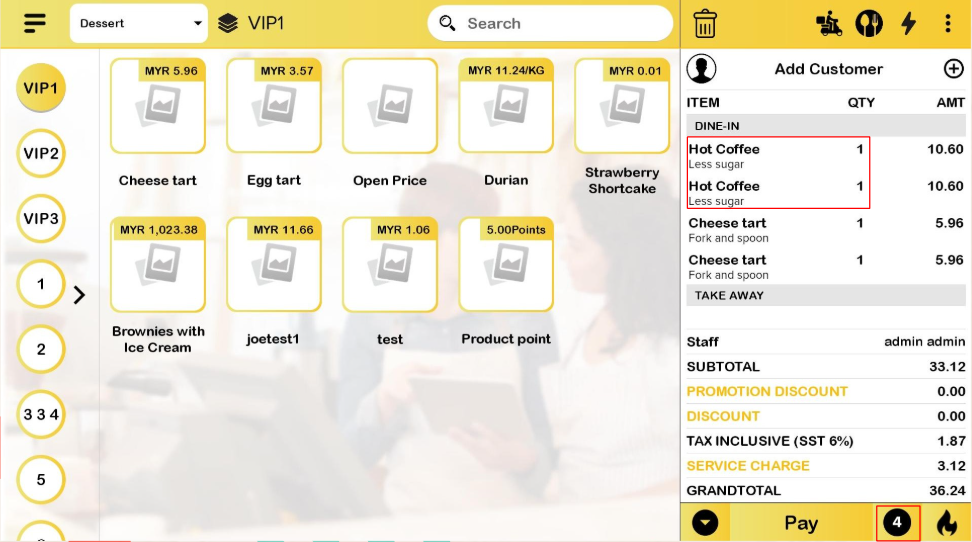
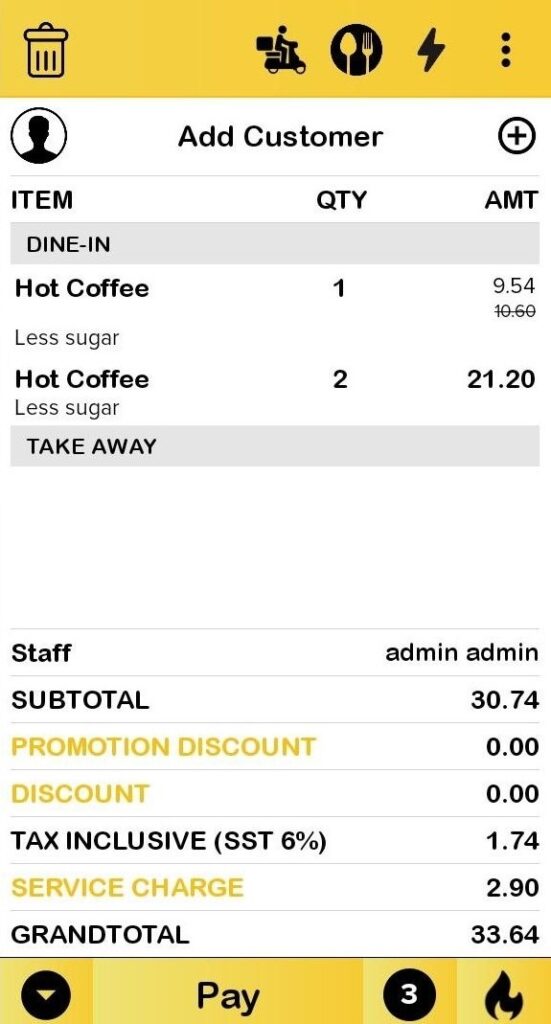
- Products with or without Item Promotion/Discount/Voucher will not be combined with the same item even with the same variant.
Customer Order History
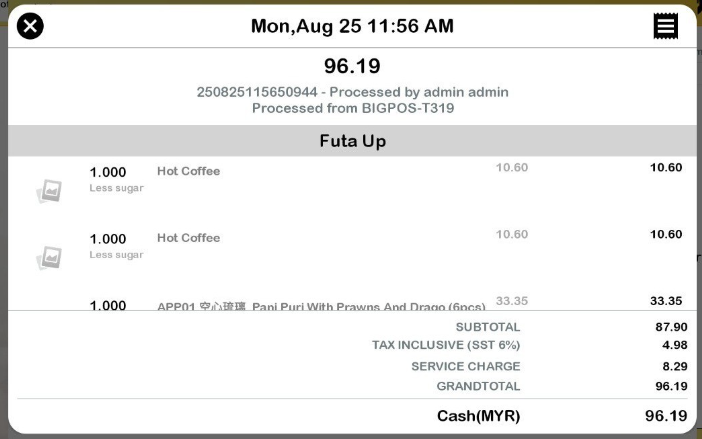
Transaction Details
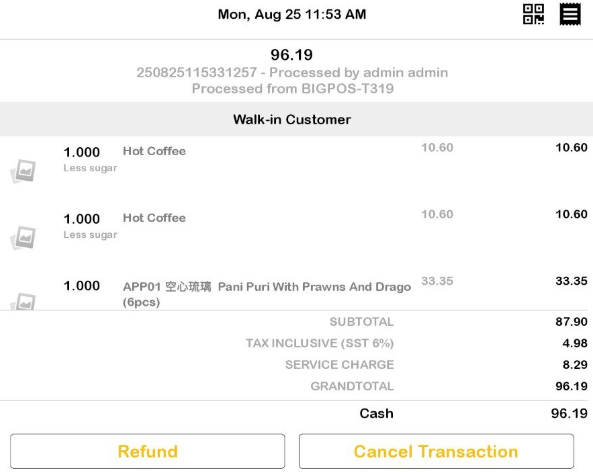
Receipt
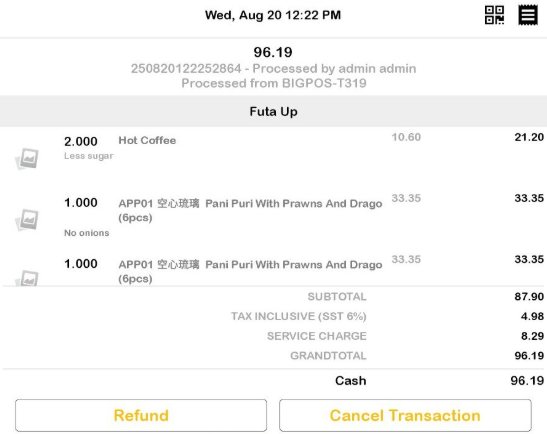
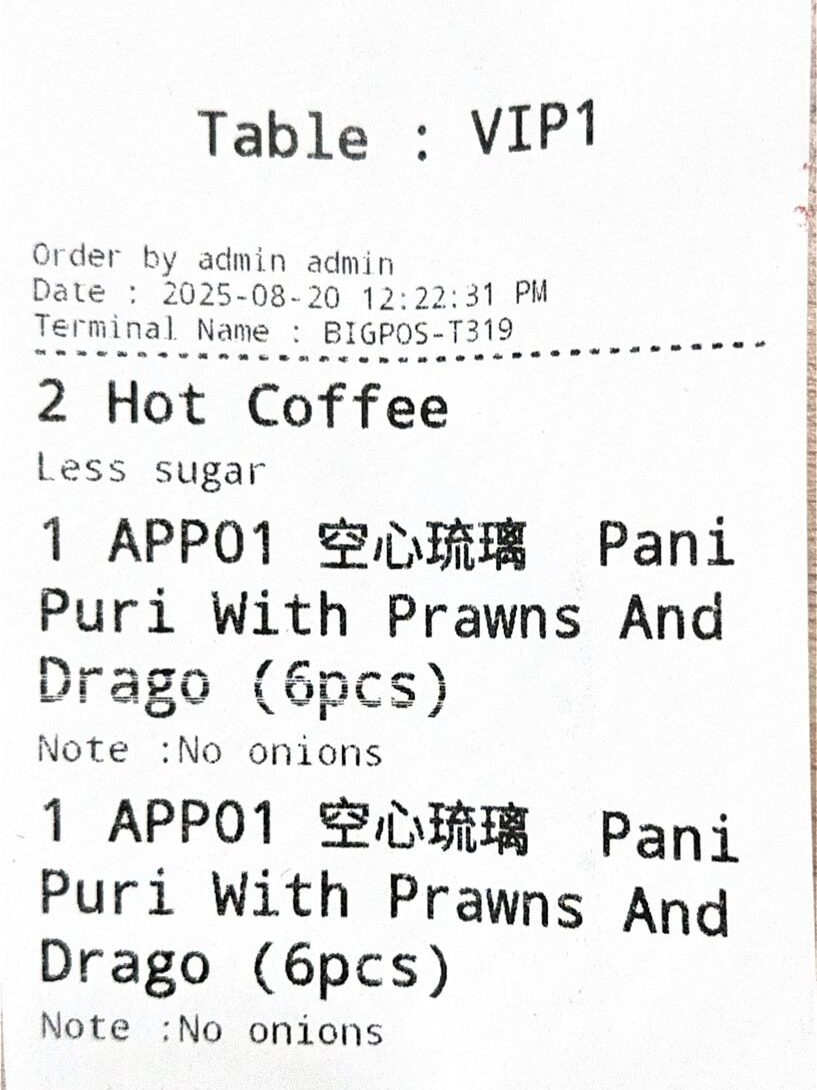
- In the Order sheet, Order summary, Guest Check, Printed Receipt and Online Receipt, the same product is not combined in one row.
Auto Combined Quantity = YES
- When customers enable “Auto Combined Quantity”, the same product will combine together and the quantity count updates according to the number of products in cart except:
- Product with Notes
- Product by Unit
- Express Checkout
- Product with Item Promotion/Discount/Voucher
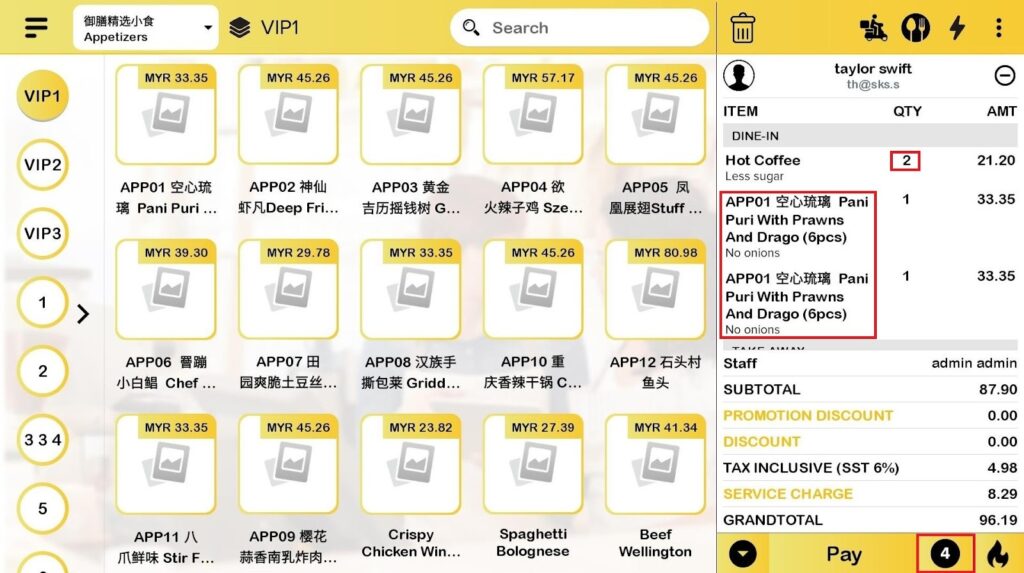
- Even though the same product is added with the same variant, if the item has Item Promotion/Discount/Voucher then the product will not be combined. While, Product without Item Promotion/Discount/Voucher then the item will be combined in a row.
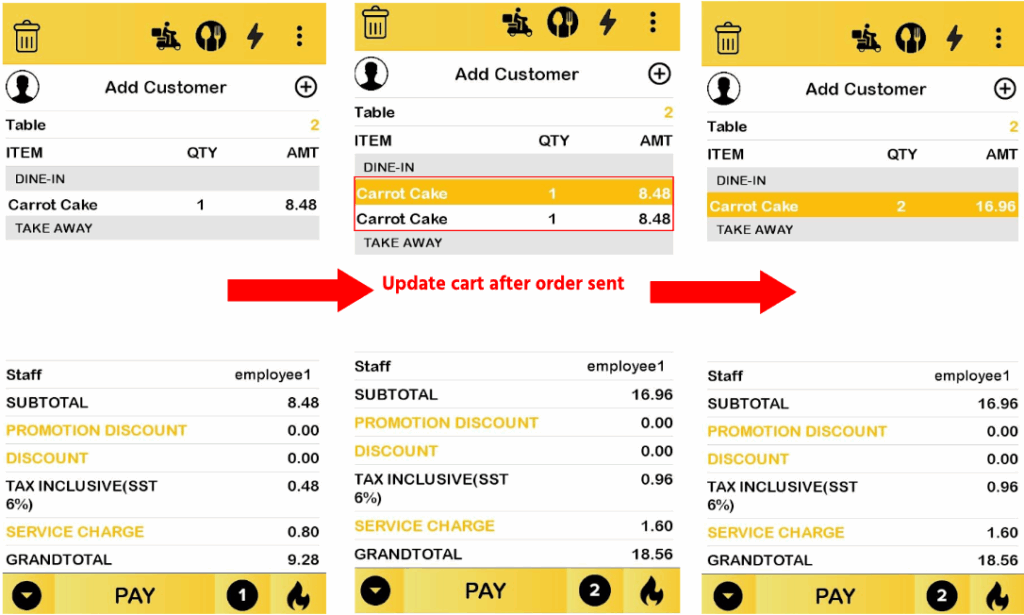
- When the order has been sent to the kitchen then update the cart by adding the same item again then send to the kitchen, the product will only combine in a row after the order is sent to the kitchen.
Customer Order History
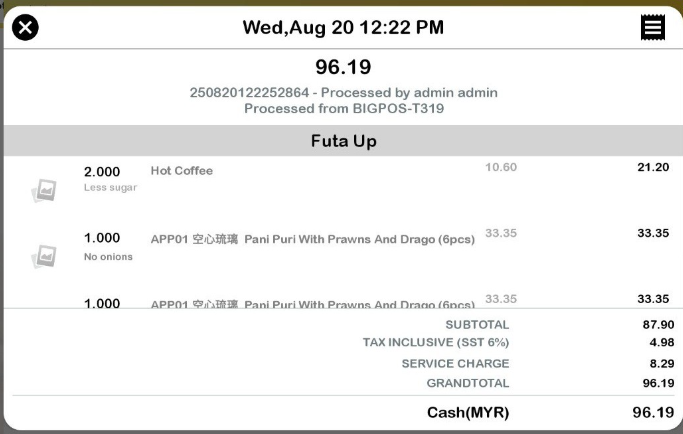
Transaction Details
Receipt
- In the Order sheet, Order summary, Guest Check, Printed Receipt and Online Receipt, the same item combines in one row.
Service line & Sport Account
Auto Combined Quantity = YES
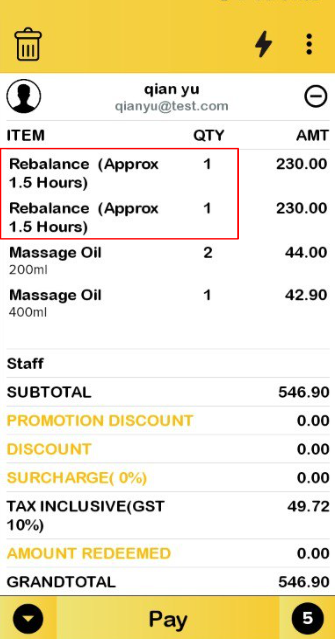
- For appointment in Service Line account and booking in Sport account will not combine the same appointment/booking even though the Auto Combined Quantity = YES. Only the merchant product will be combined in a row.
Switch Auto Combined Quantity = NO to Auto Combined Quantity = YES
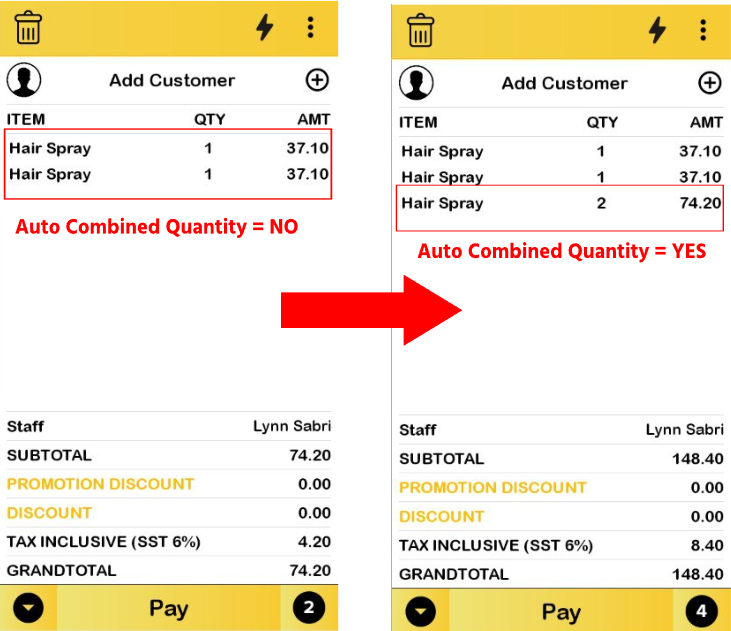
If the setting Auto Combined Quantity changes from No to Yes, the existing product in the cart will not follow the changes, and vice versa.
Eg: Two same products are added to the cart when “Auto Combined Quantity = NO” then change “Auto Combined Quantity = YES”, the previous products will not combine together, only the newly added products will combine.
BIG WAITER
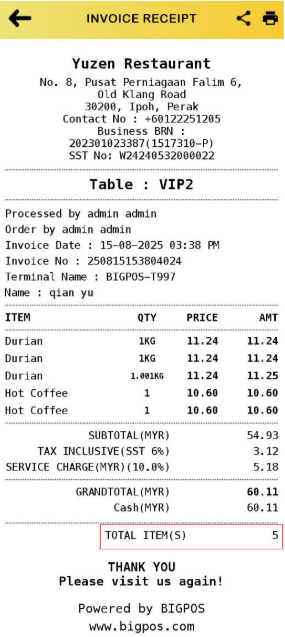
Auto Combined Quantity = NO
Cart
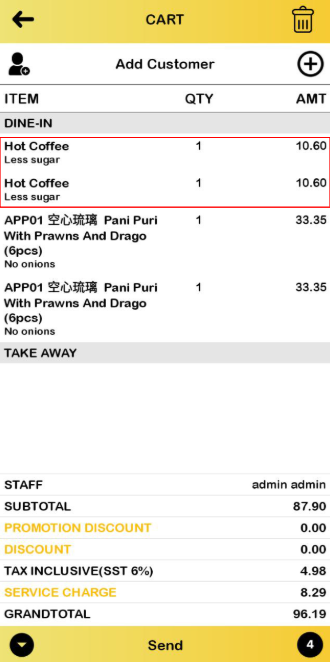
Order History
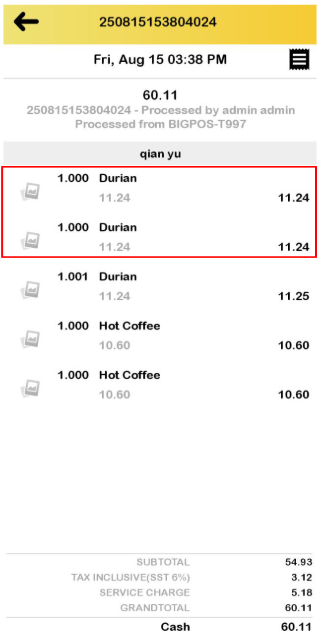
Invoice Receipt
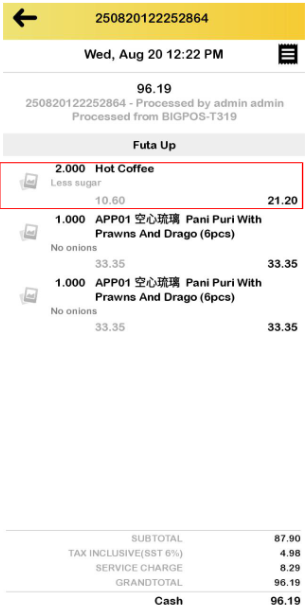
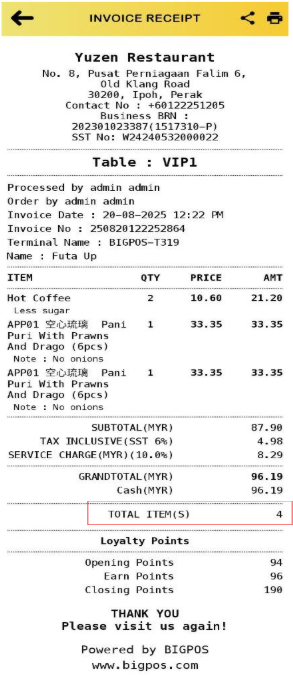
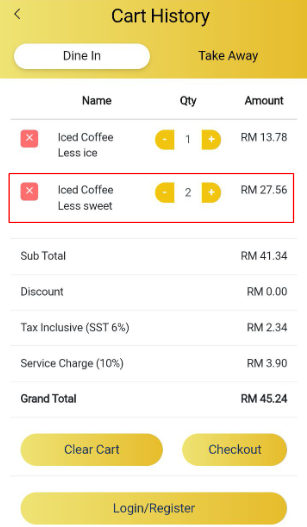
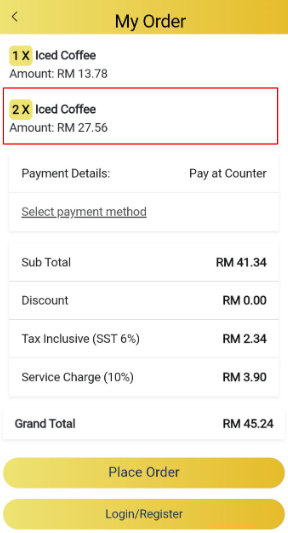
Auto Combined Quantity = YES
Cart
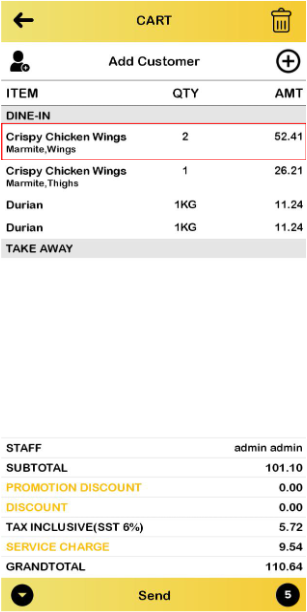
Order History
Invoice Receipt
QR MENU
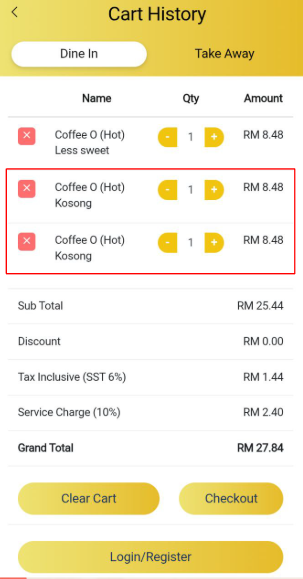
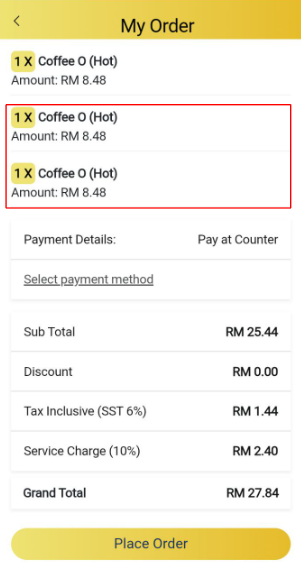
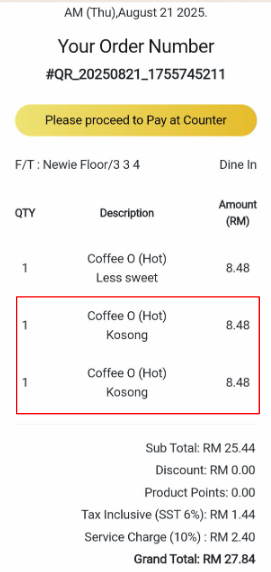
Auto Combined Quantity = NO
Cart History
My Order Page
Order Accepted Page
Auto Combined Quantity = YES
Cart History
My Order Page
Order Accepted Page
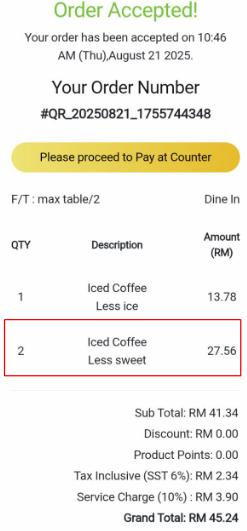
- If the first QR order is sent then add a new order with the same QR Menu link, the first order will gray out and not combine with the second order.
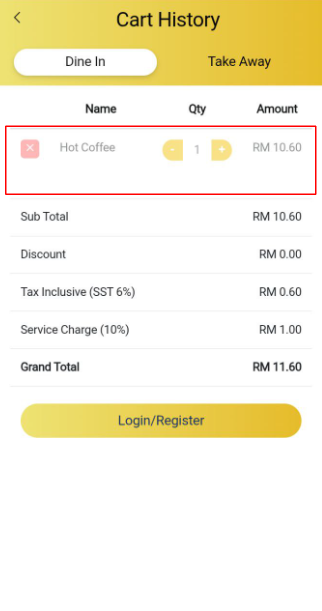
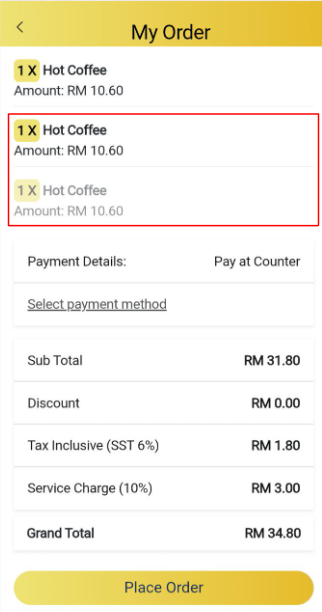
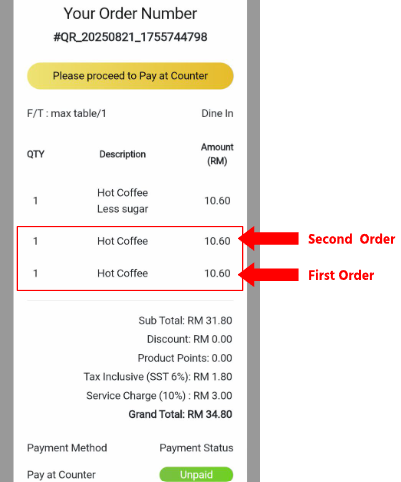
- The same item will not combine in the order accepted page after it is sent to the kitchen.
- When customers enable Auto Send To Kitchen, the first and second orders both automatically sent to the kitchen and in the BIGPOS app will combine the same item in both orders.
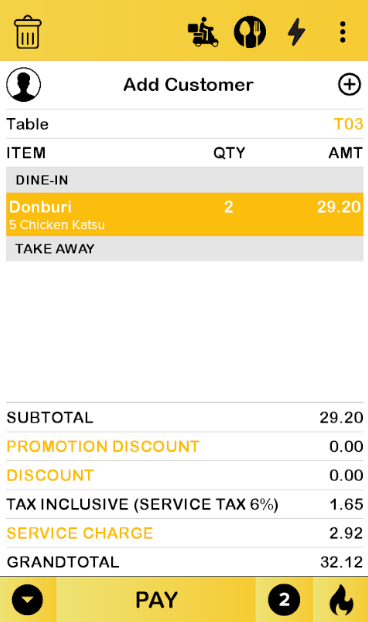
- When customer disables Auto Send To Kitchen, the first and second order both sent to the kitchen and in the BIGPOS app will not combine the same item in both orders unless both orders are manually sent order to the kitchen from the BIGPOS app.
BIG KDS
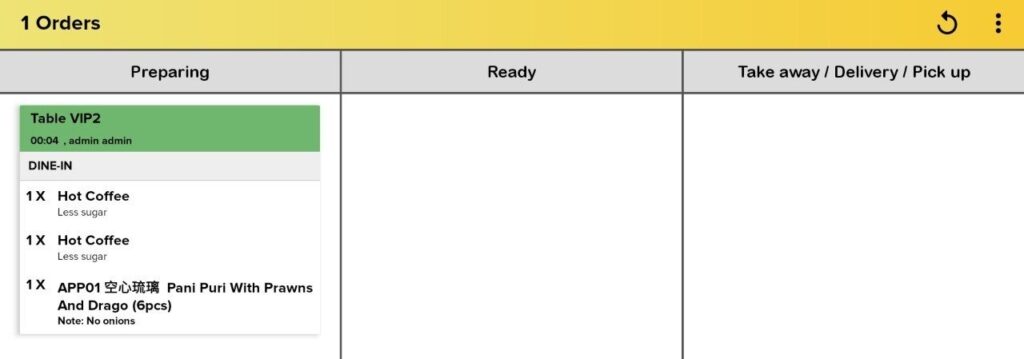
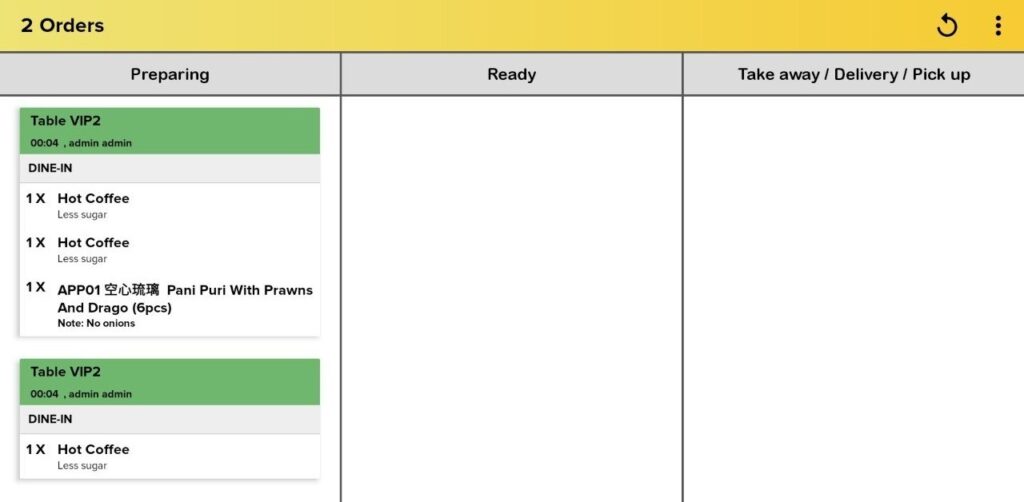
Auto Combined Quantity = NO
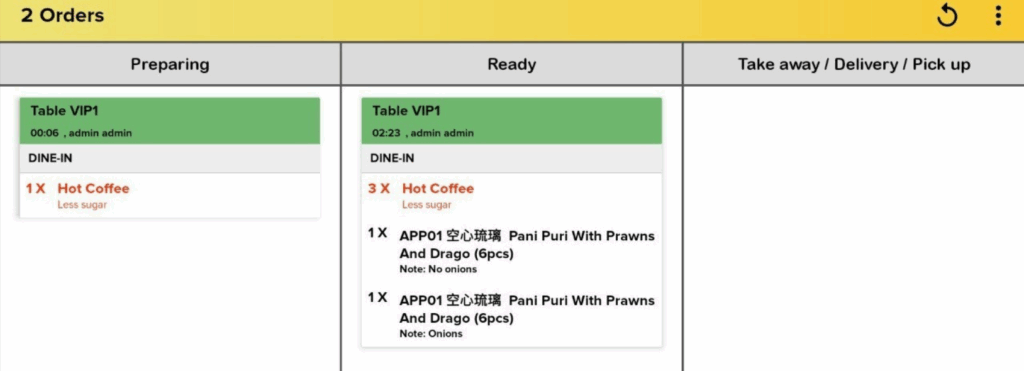
The same item will not combine in the KDS docket and when updating the order with the same item, will create another docket.
Auto Combined Quantity = YES
The same item will be combined in the KDS docket, when Auto Combined Quantity is YES.
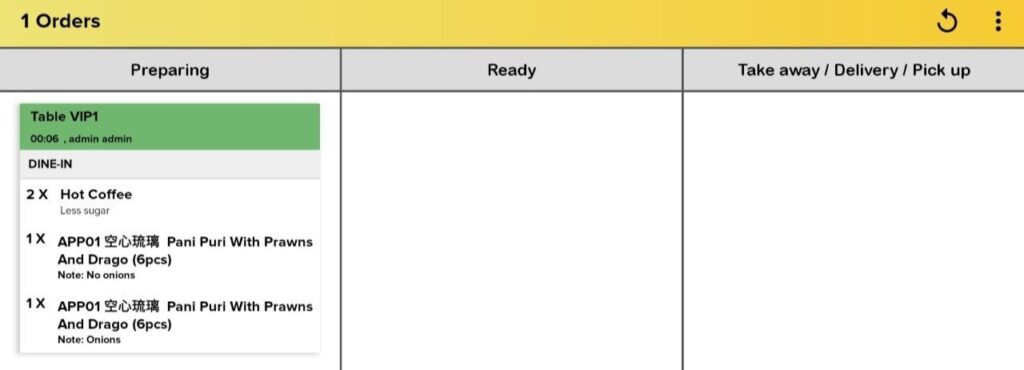
- If the first order is still under “Preparing” session, adding the order with the same item will update the quantity in the same KDS docket.
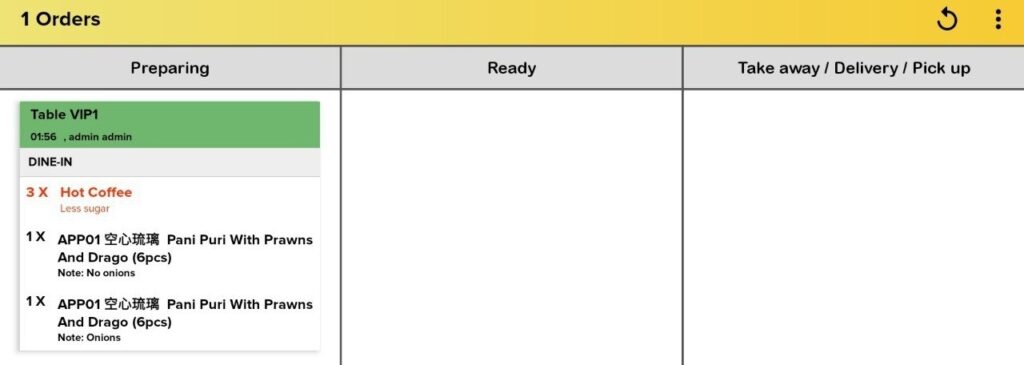
- However, if the first order has already moved to the “Ready” session, adding the order with the same item will add a new docket under the “Preparing” session.
BIG SOK
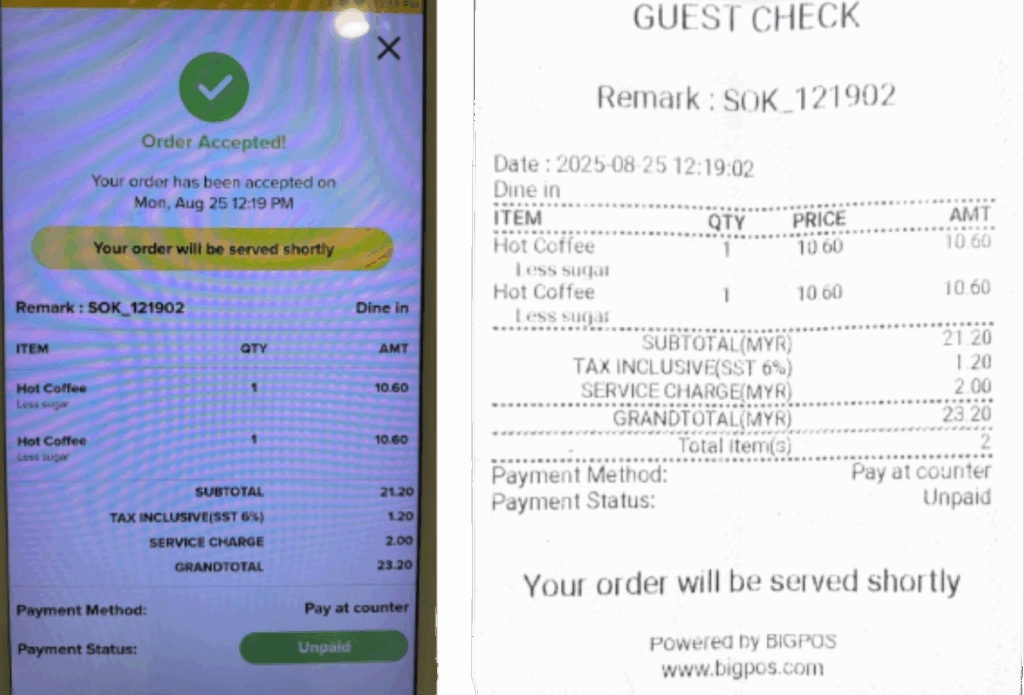
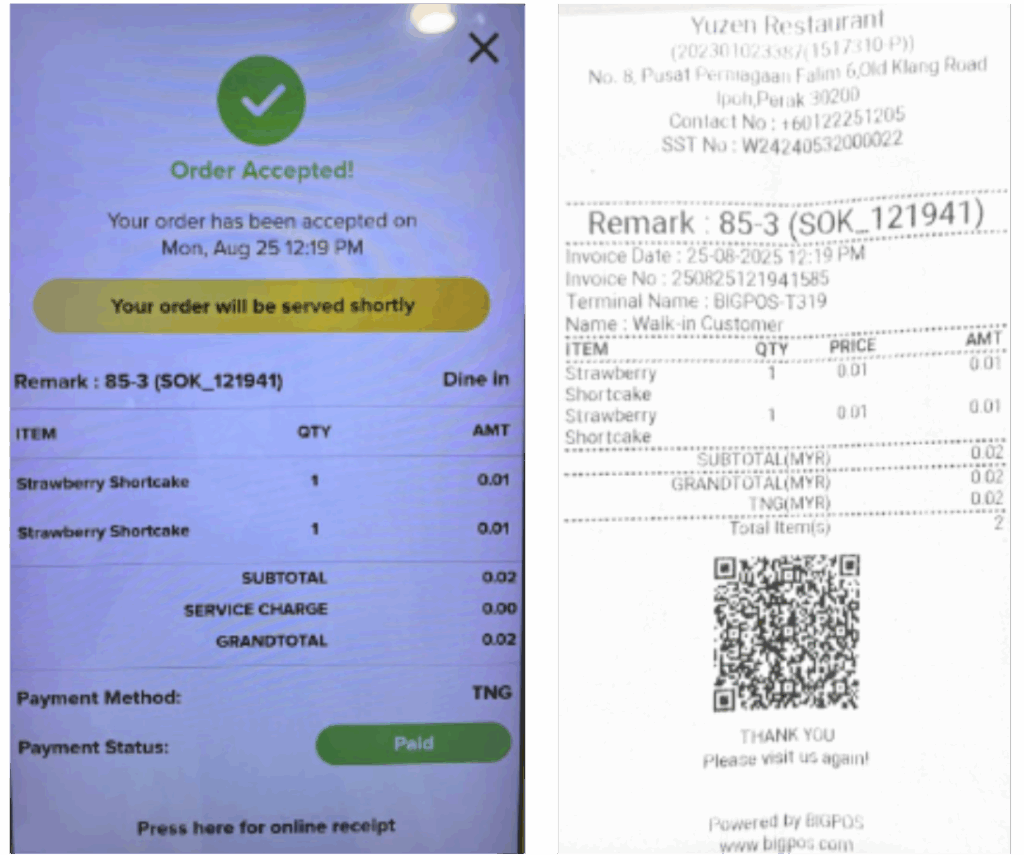
When Auto Combined Quantity = No, the same product with the same variant will not combine in one row and the total item(s) printed in the Guest Check and the Receipt from SOK.
Guest Check
Receipt
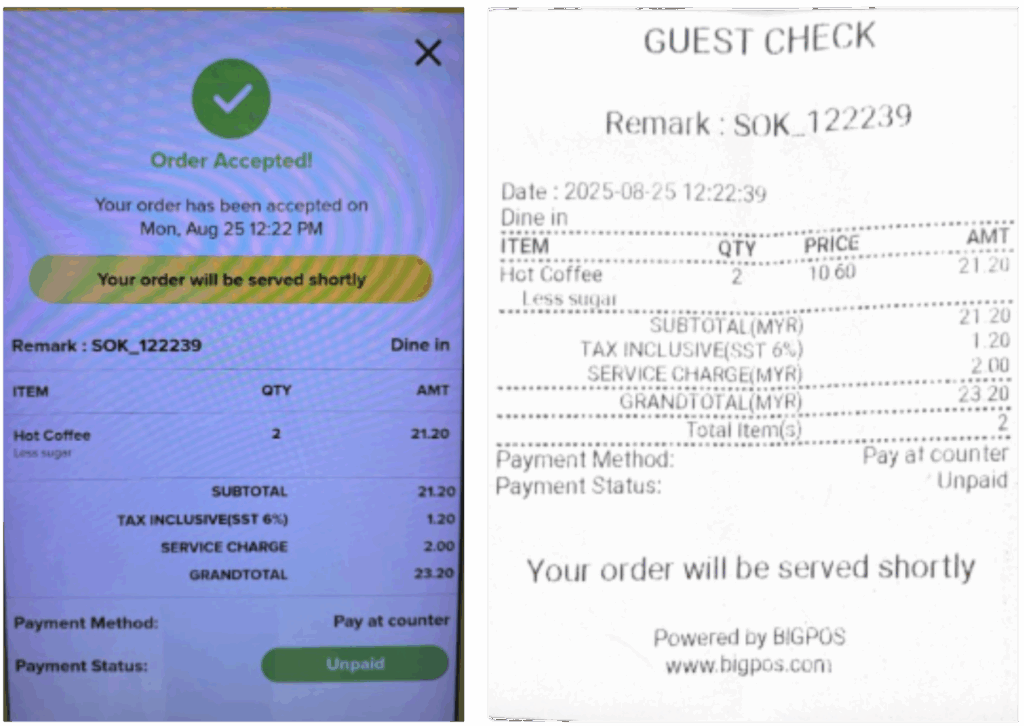
When Auto Combined Quantity = YES, the same product with the same variant will combine in one row and the total item(s) printed in the Guest Check and the Receipt from SOK.
Guest Check
Receipt
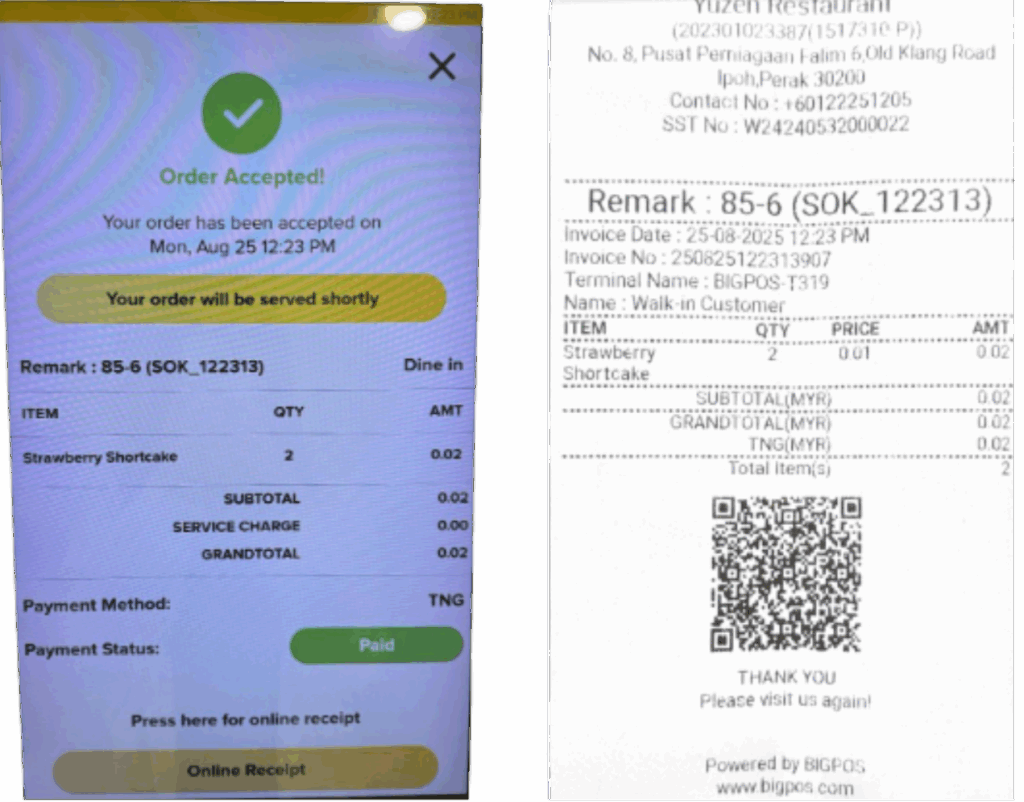
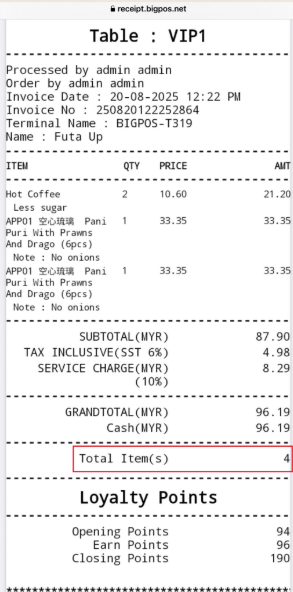
Total Item(s) in Receipt
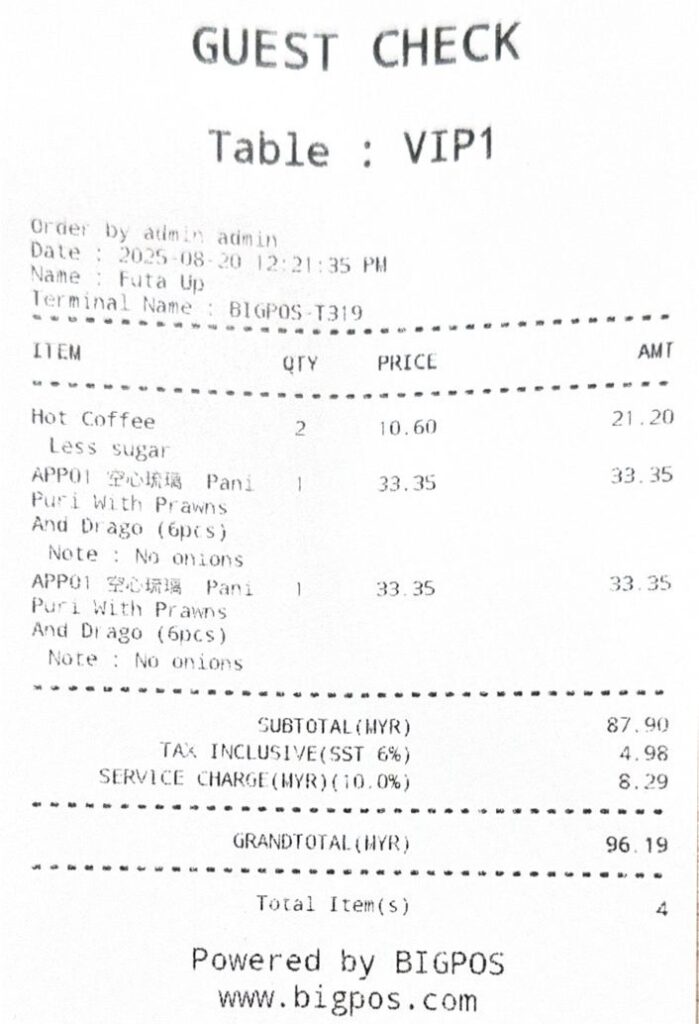
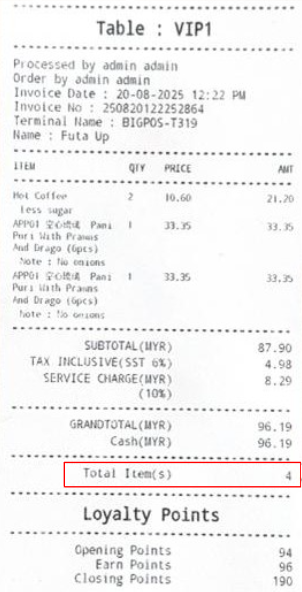
The number of items in the order is recorded at the end of all the receipts, Guest Check, Printed Receipt and Online Receipt.
Guest Check
Printed Receipt
Online Receipt