How Can We Help?
Cart Footer Section Enhancement
Introduction
This update brings several improvements to the Cart Footer Section across BIGPOS applications. The changes include a redesigned send button, enhanced billing details control, clearer item quantity display, and updated empty cart messaging.
Cart Footer Section Changes BIGPOS Pr
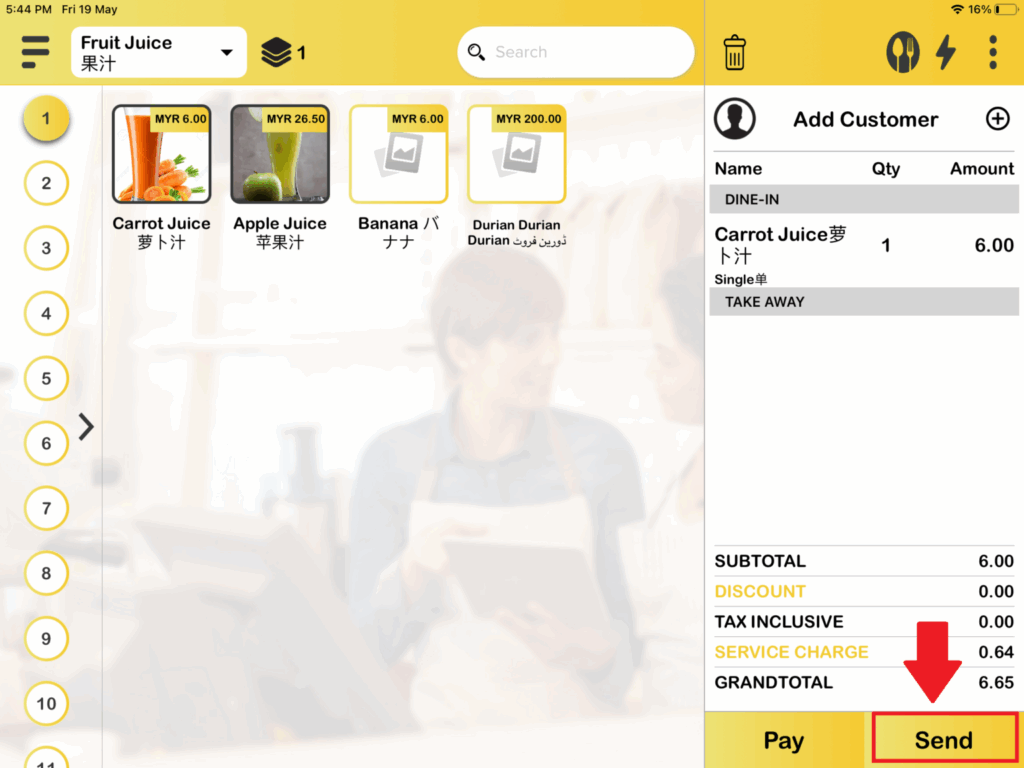
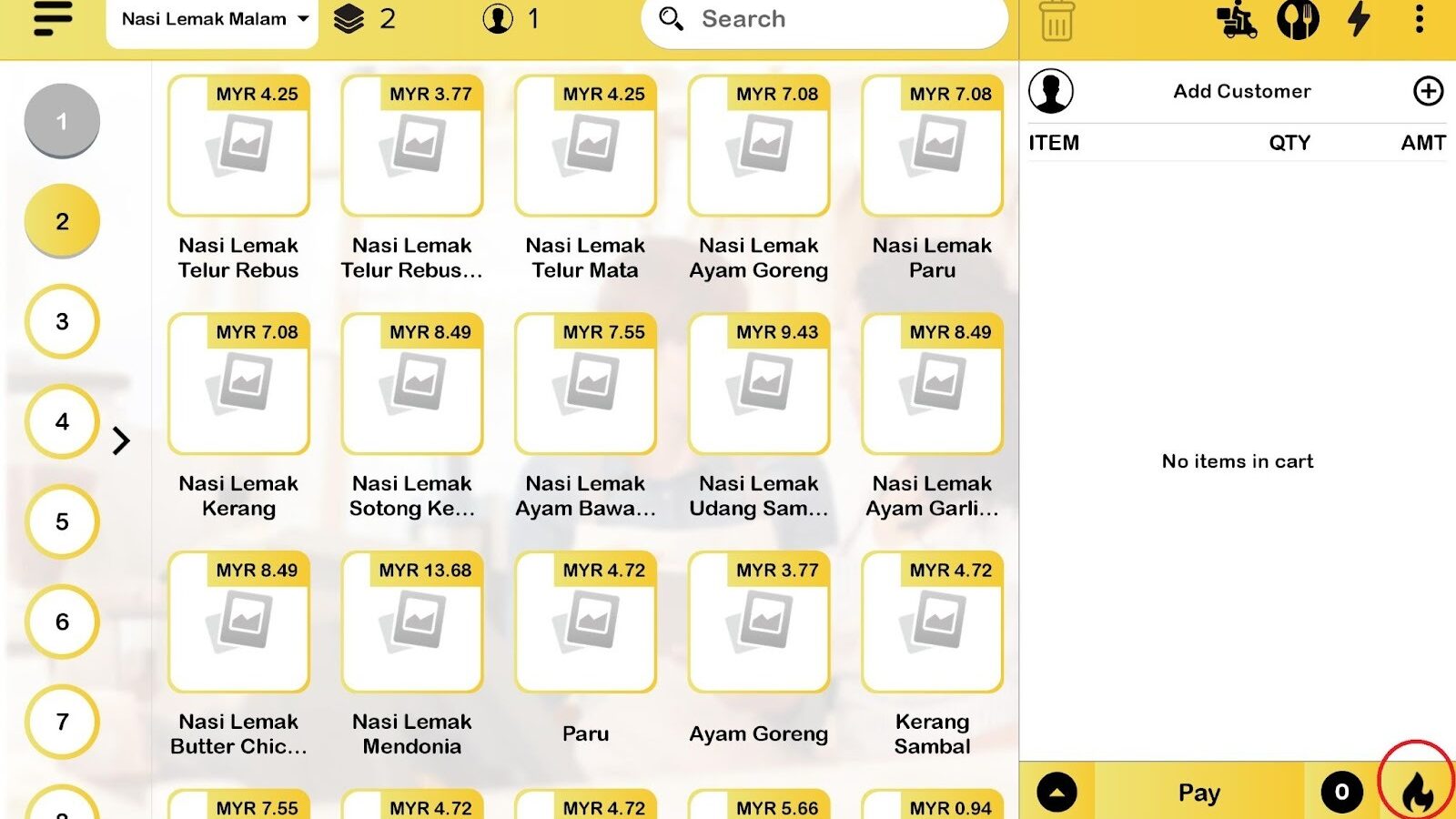
1. Send Button → Fire Icon
Fire Icon in cart footer changes are for FnB accounts only.
- Table Mode
2. Billing Details (Maximize / Minimize)
- This features available for all account type
- By default, the cart footer opens in an expanded state and users can collapse the billing details if preferred.
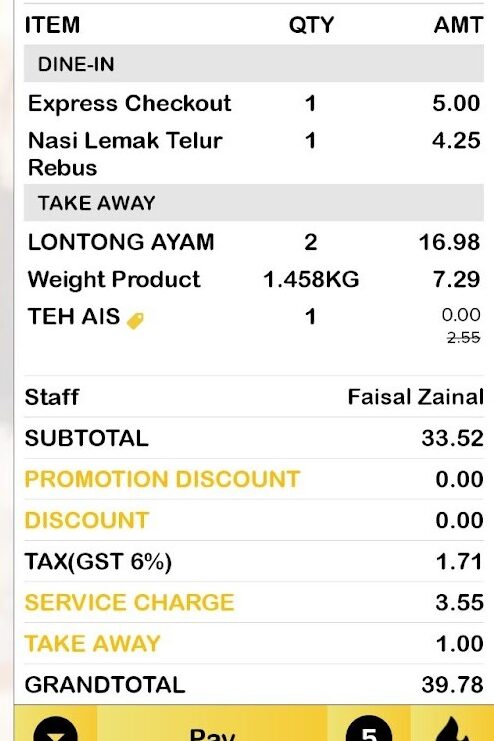
- Once collapsed, all upcoming new orders will follow this behaviour (follow the last saved changes)
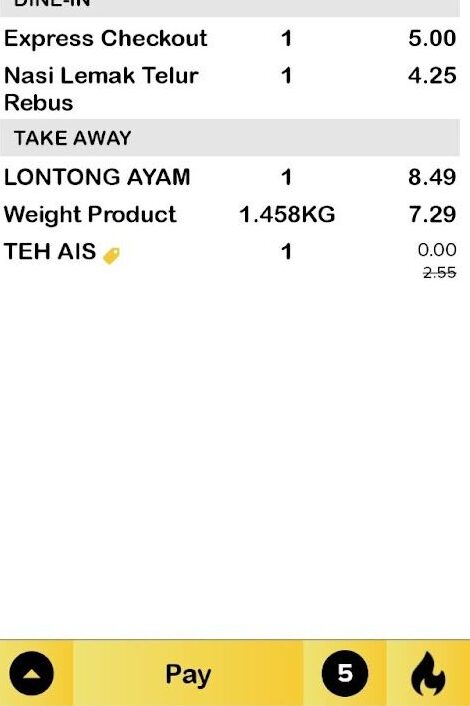
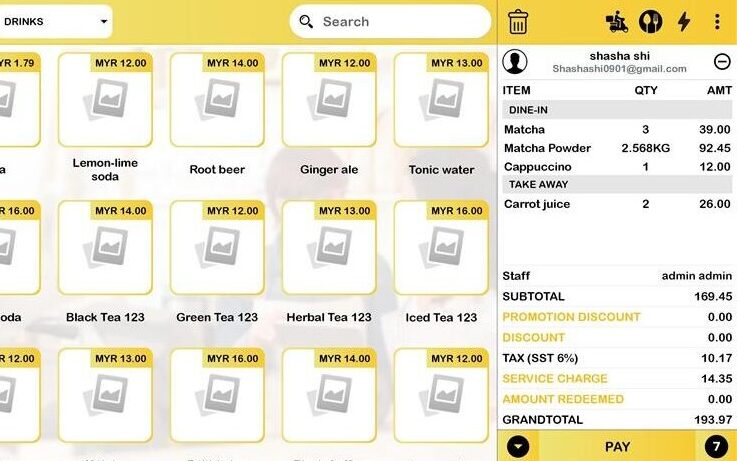
3. Quantity Count
- F&B, Retail & Service
- The cart footer now displays a quantity counter that sums product quantity entries. This applies to all types of pricing which Fixed Price, Express Check Out, Open Price, Product Point will count per quantity.
For example:
Purchasing Dried Chilli Chk Cube Rice with the quantity of 2 and signatu squid rice set with the quantity of 2. Total of quantity is 4.
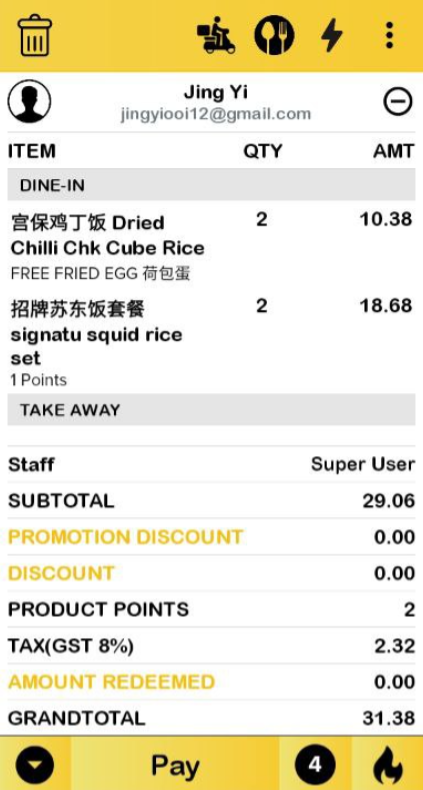
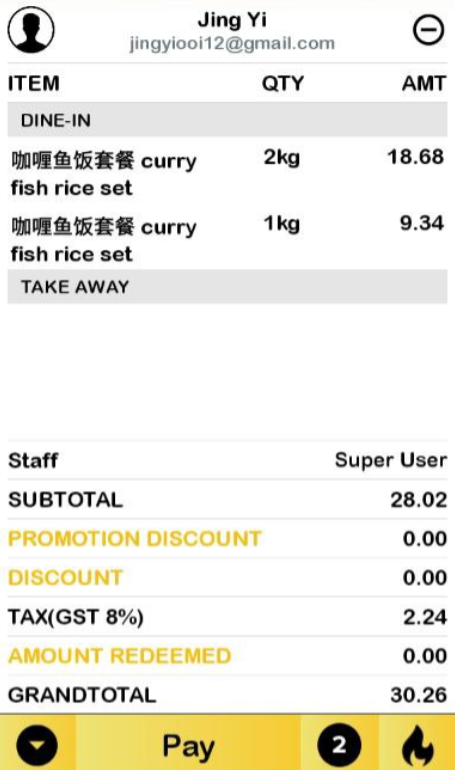
- Product by Unit – No matter the quantity entered for the product, it is considered 1 quantity.
For example:
Purchasing curry fish rice set by 2kg unit will be considered as 1 qty and curry fish rice set by 1kg unit also count as 1 qty which the total quantity is 2.
- Table business mode
- Queue and tag number business mode
- Sport
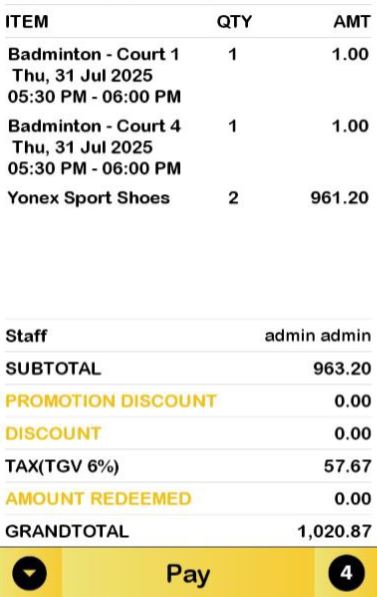
Court quantity always displays as 1 and other products in cart follow the same quantity count as F&B.
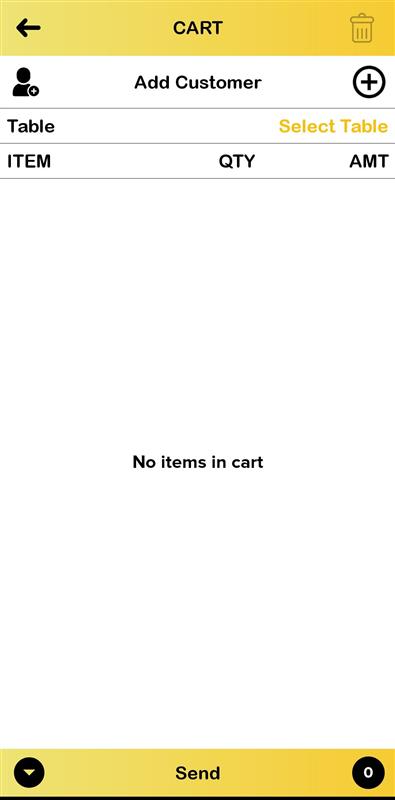
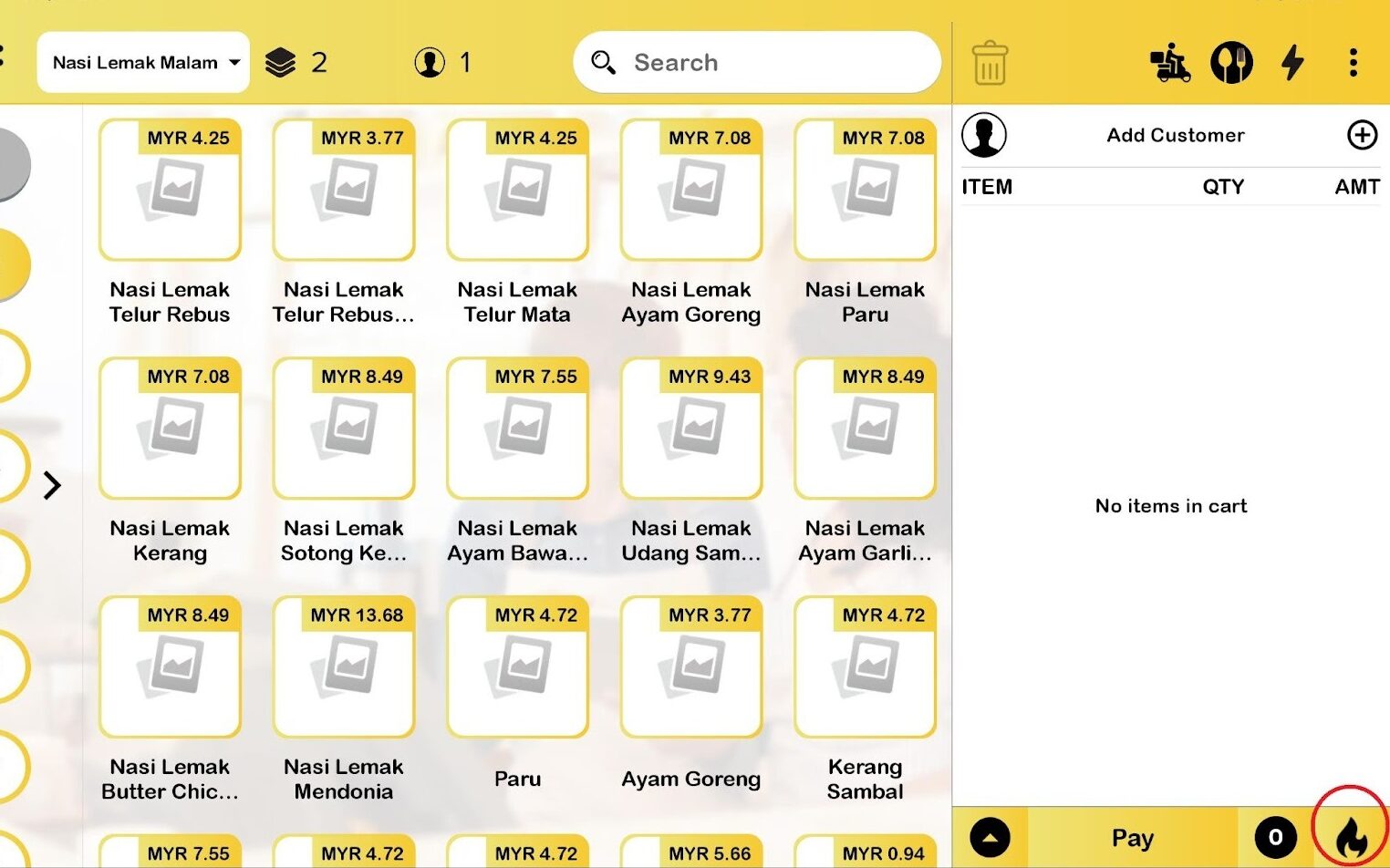
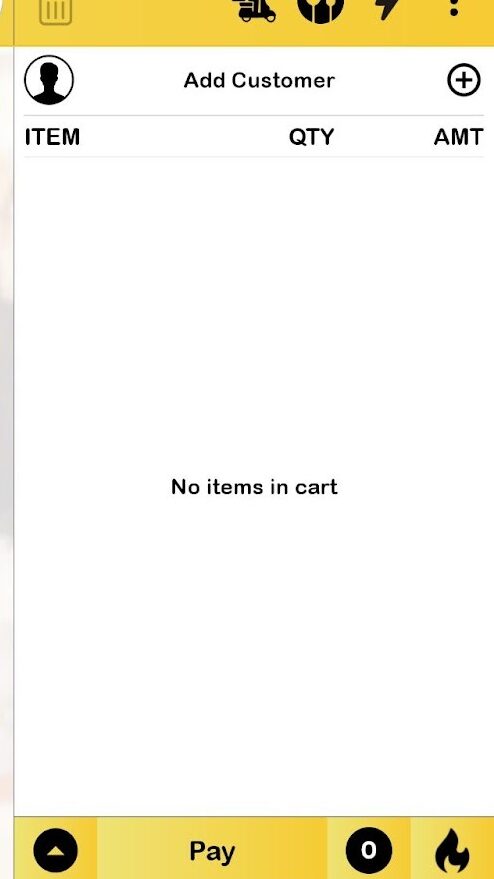
4. Empty Cart
- Message updated from “No data available” → “No items in cart”.
- When empty:
- The footer remains unpressable
- All billing details remain hidden.
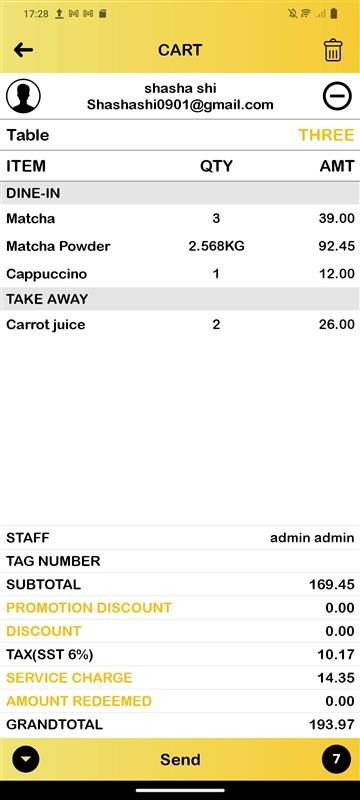
Cart Footer Changes in Big Waiter
1. Maximize/minimize billing details & item count display.
2. Empty Cart
- Message updated from “No data available” → “No items in cart”.
- When empty:
- The footer remains unpressable.
- All billing details remain hidden.