Branch – QR Menu
Introduction
This section explores other details of the Branch feature in terms of QR Menu in BIG POS Web Admin.
What QR Menu does?
QR menu is a digital version of a menu that customers can view by scanning a code on their smartphone. Hence reducing human resource and time to make order. It eliminates the need for a physical menu on tables. Orders can be made with or without an account. However, to enjoy various benefits offered to customers, one must register for an account.
Prerequisite for Using QR Menu
To use the ‘QR Menu‘ feature, the user must have access to the BIG POS Pro application and subscription activated. ‘QR Menu‘ is only available in BIG POS Pro.
QR Menu Details
- Enable QR Menu
Toggle whether to enable the QR Menu.
- Enable QR Menu Payment Setting
Toggle whether to enable Payment Setting.
- Applicable to
Select when QR Menu is applicable to.
- Dine-In Layout/Take Away Layout
Specifies which layout to be used in both options. (More Details in Layout Section)
QR ordering direct send to kitchen setting
QR ordering direct send to kitchen setting allow customer to send order to kitchen directly. By having this feature, order from customer will directly send to kitchen rather than sending to BIG POS Pro first, and then merchant click on ‘Send’ to kitchen. Kitchen will receive order more efficient in this way.
Prerequisite for enabling QR ordering direct send to kitchen setting
To use this feature, a few requirements need to be satisfied.
- User must set business mode to ‘Assign Table Number’.
- BIG POS Pro application must connect to Printer.
- BIG POS Pro application must have QR Menu enabled.
- ‘Auto Send Order to Kitchen‘ and ‘Pay by Cash’ is enabled in web admin, please refer to the following section.
For more information on how to set up the requirements mentioned above, refer to these sections, Company Profile – Queue Number/Table Number, Printer – How to set the printer? , Settings – How to enable QR Menu.
How to enable QR ordering direct send to kitchen setting?
To enable this feature, follow the following steps:
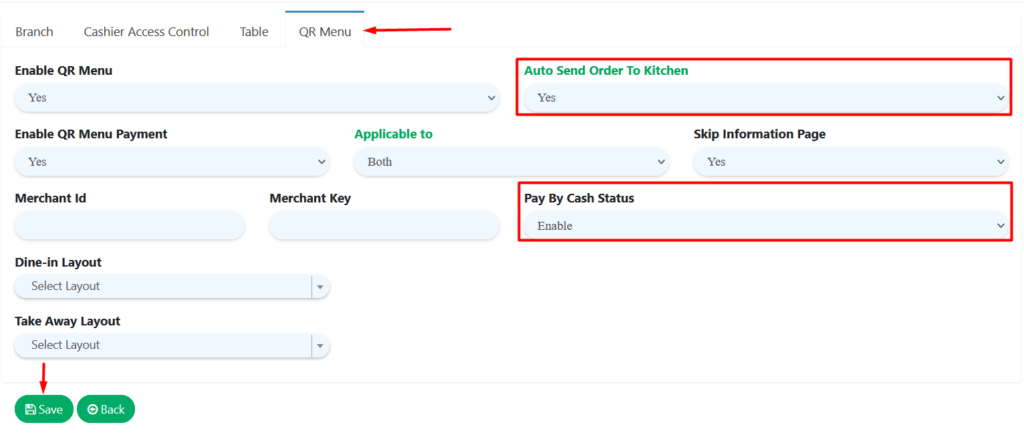
- In Setting > Branch.
- Click on ‘QR Menu’.
- Set ‘Auto Send Order to Kitchen’ to ‘Yes’.
- Set ‘Pay By Cash’ to ‘Enable’.
- Click ‘Save’ once it is done. Don’t forget to sync on BIG POS Pro application.
Note: Message ‘You have one new order from table X’ will not prompt out for merchant to confirm by clicking ‘OK’. Instead, it will show in device notification centre where order is already in cart and ready for next process such as payment.