How Can We Help?
BLE Printer Connection
Introduction
BIGPOS App also supports BLE Printer to print out receipts. This section will guide you through the simple steps needed to connect and configure your BLE printer with BIGPOS.
How to connect with BLE printer?
- Ensure the BLE printer is switched on. A green power light should be lit.
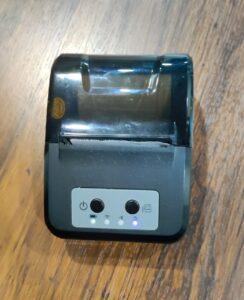
Info: BLE printer suitable for 58mm receipt
2. In the app, go to the left panel and click on “Printer“.
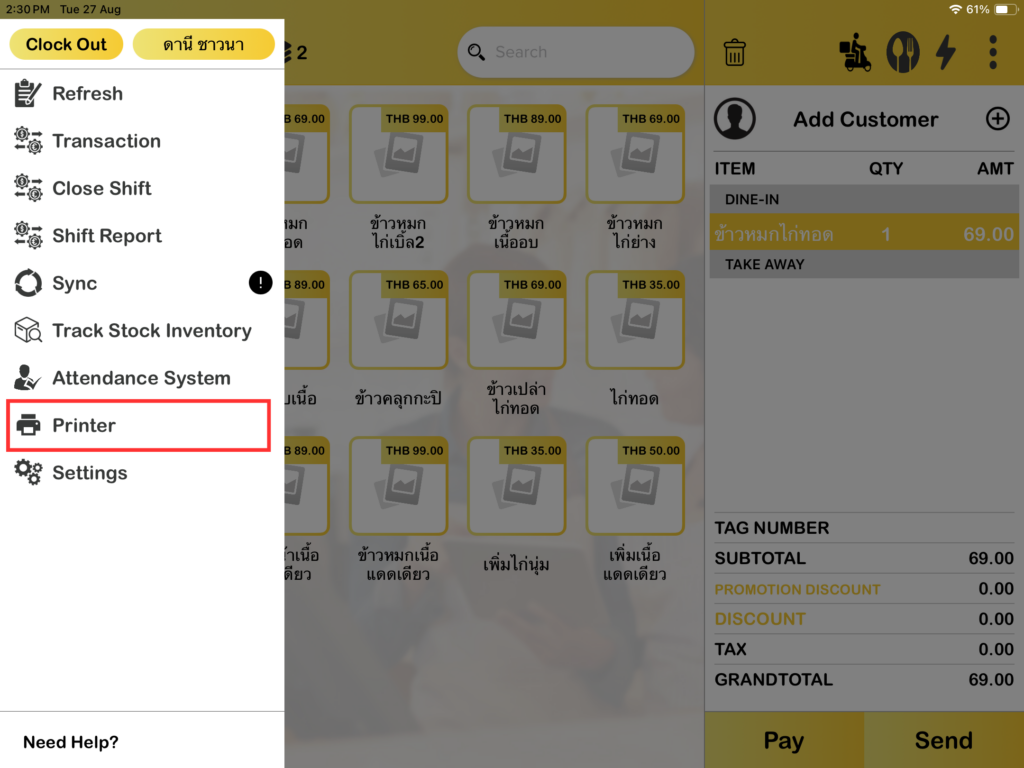
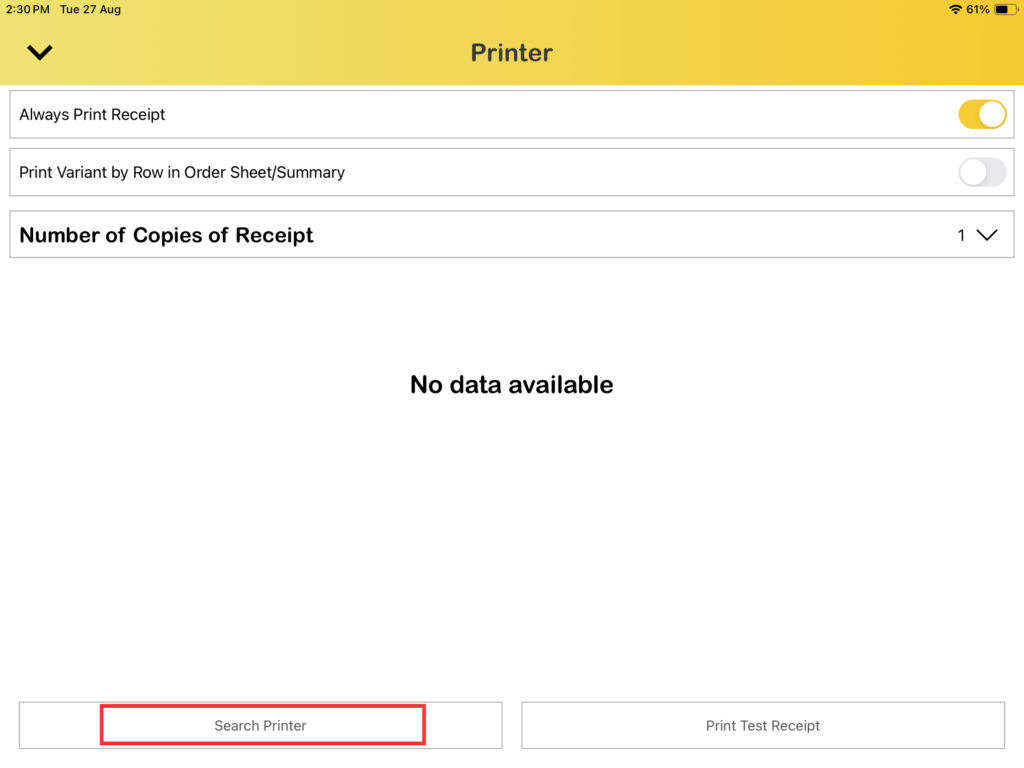
3. Click on the “Search Printer” button on the bottom left.
4. Select “Other Printer“.
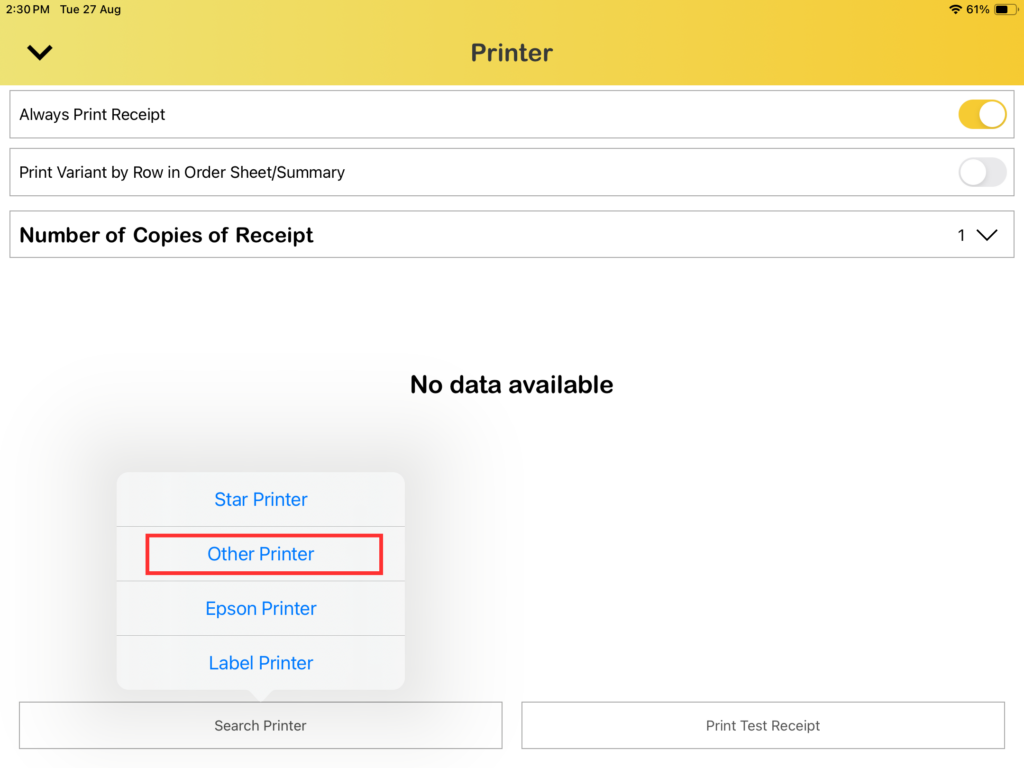
5. Then, click on “BLE Printer“.
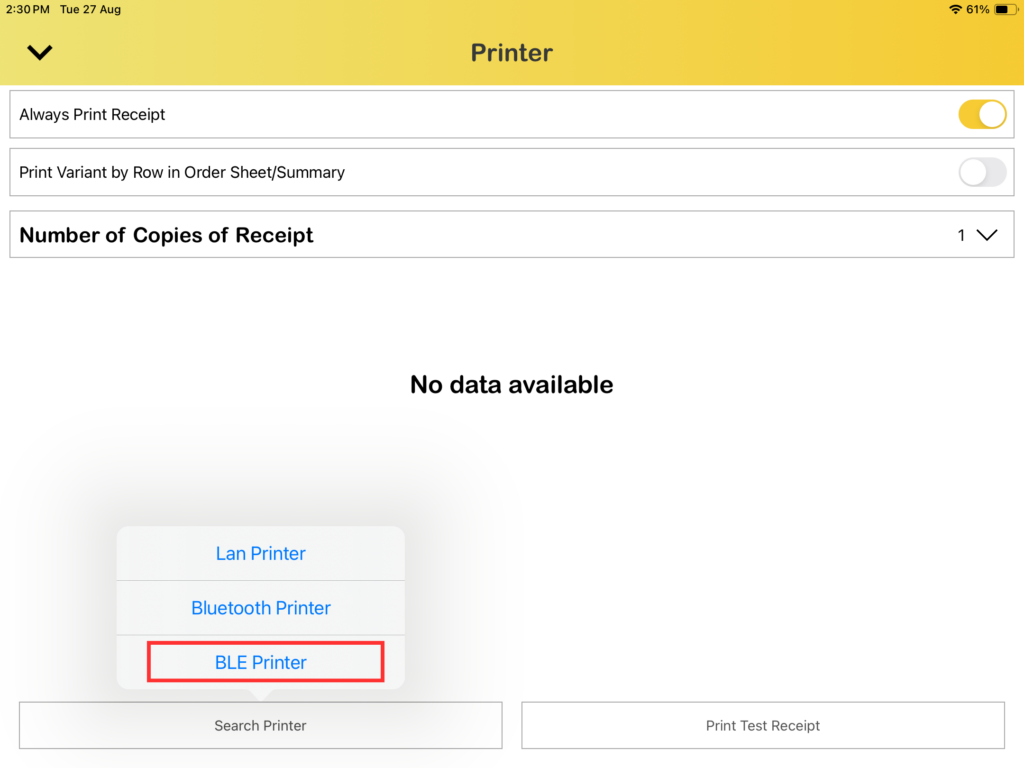
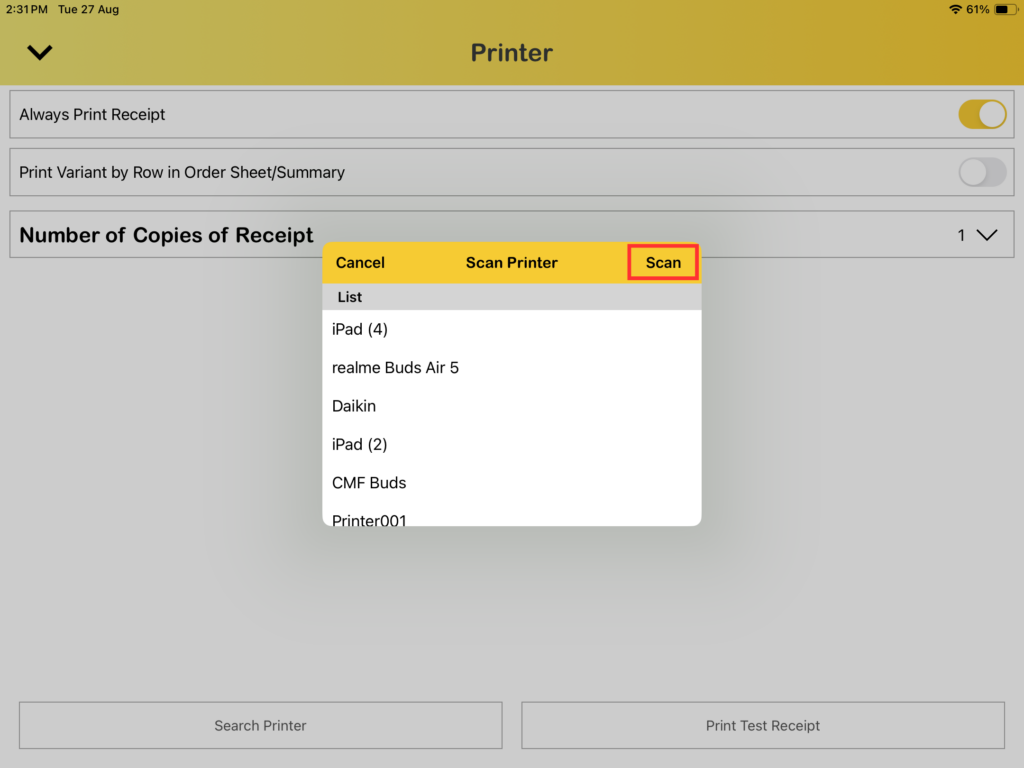
6. Click scan to find your printer device (make sure your Bluetooth is turned on). Select your printer device in the list.
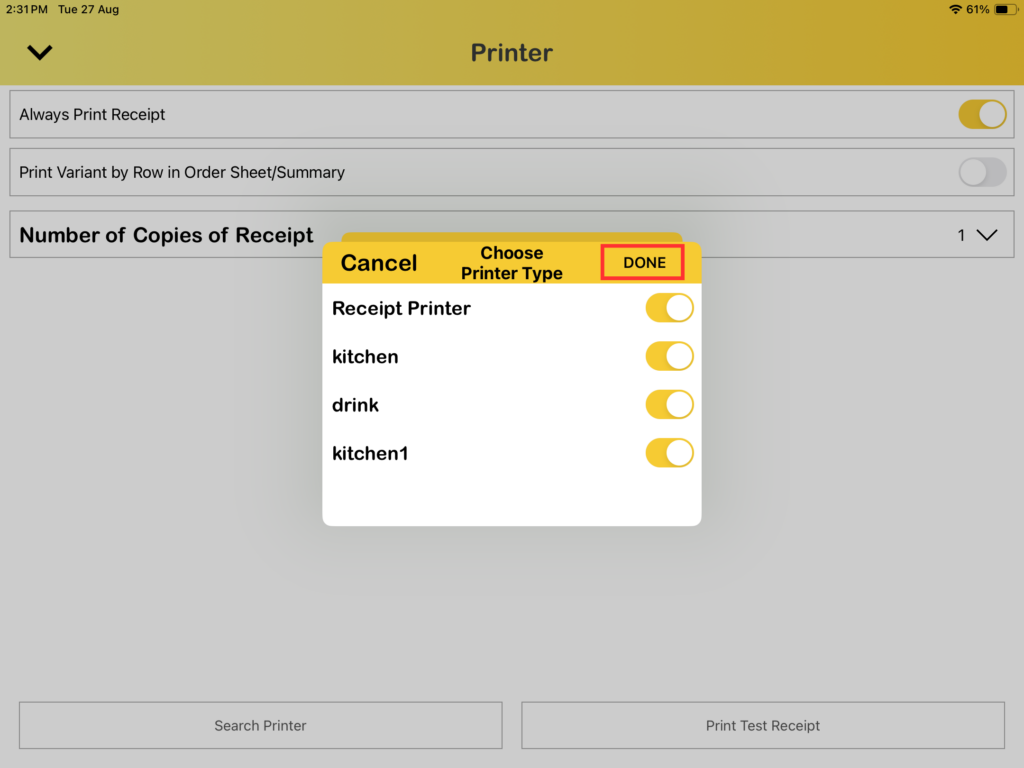
7. You may toggle on all the available printer types listed, and click on “Done“.
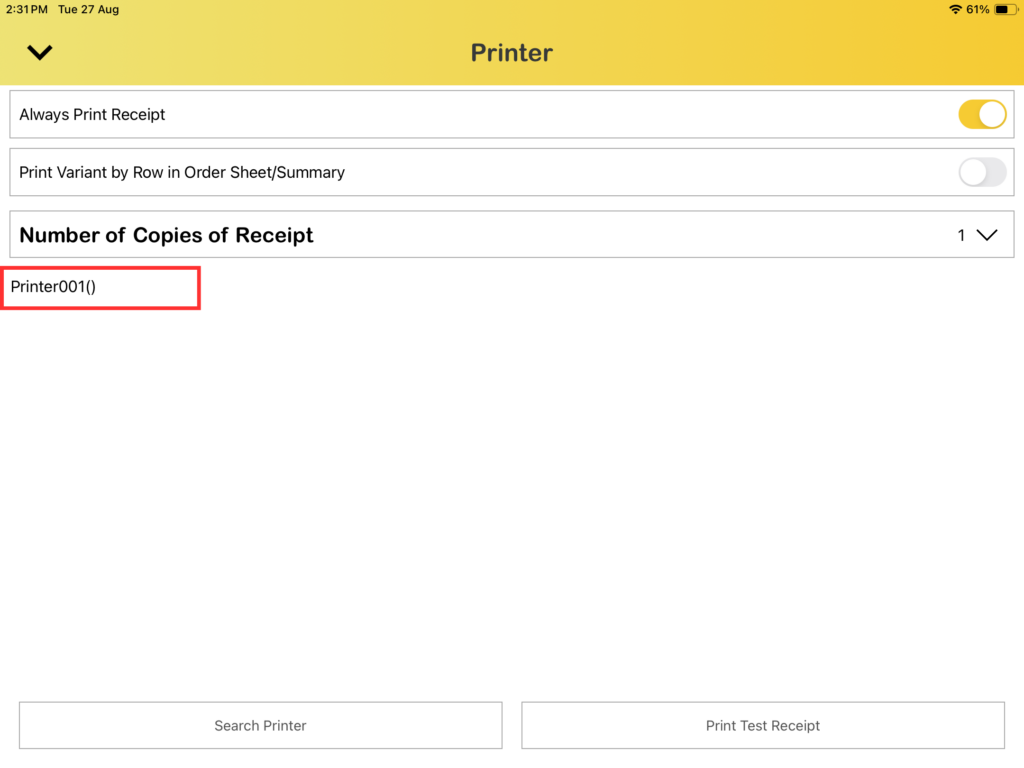
8. The connected printer should be displayed in the printer list.
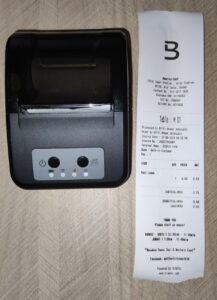
9. Successfully printed receipt.
Limitations of BLE Printer
| Supported Language | Not Supported Language |
|---|---|
| English | Vietnam |
| Traditional Chinese | Thailand |
| Simplified Chinese | Nepali |
| Indonesia | Arabic |
| Japanese | Urdu |
| Bahasa Melayu |